Blooket – Learn, Play, and Grow for Free!

Blooket (pronounced as blue-kit) is an interactive and exciting learning game designed for teachers, students, and parents. This game-based platform makes learning fun and engaging with a variety of educational games that promote critical thinking. Whether you’re a teacher looking for an innovative way to teach (resources for teachers), a student eager to learn through active gameplay (guides for students), or a parent seeking an educational tool for your child, it’s a great fit.

It offers a huge range of interactive quizzes, fast-paced challenges, and colorful activities across all kinds of subjects. With the simple join feature, students can quickly jump into games made by their teachers and start learning in a fun way. Teachers can easily create custom question sets or choose from pre-made games using the user-friendly Blooket dashboard. The following guide explores Blooket’s different functions, demonstrating its applicable classroom and homeschool use before detailing its new, exciting features for students and teachers.

What is Blooket?

This online educational platform allows students to play Blooket games while learning important concepts. See how a Blooket game works for a full breakdown of game modes and techniques. Blooket offers multiple quiz-based games that make learning interactive. Teachers can create custom quizzes or use pre-posted quizzes to help students reinforce their knowledge.

Moreover, the Blooket learning game keeps students engaged while helping them master various subjects like math, science, history, and languages. Students earn points for correct answers, which can be used to unlock digital rewards called ‘Blooks,’ making the learning process even more fun and inspiring.

When Was Blooket Made?

Blooket was launched in 2018 by two brothers, Tom and Ben Stewart, who wanted to make learning more exciting. The platform was created to make studying more entertaining for students while providing teachers with a dynamic tool to improve classroom education. Blooket has quickly gained popularity among educators and learners, making it one of today’s most effective and engaging digital learning platforms.

How Does Blooket Work?

It is easy to start using. Teachers can sign up for a free account with just their email and start creating games right away. Teachers provide students with a code and allow them to join the game from their devices. The quiz format is simple and colorful, with large blocks for answer choices that are easy to click on. This layout makes it clear for students to choose their answers and keep moving forward.

After answering each question, students earn points that they can use within the game. Different Blooket game modes make this platform more interesting. In Cafe Mode, students answer questions to earn food, which they use to serve customers. Students pick characters in Tower of Doom before they compete against each other to solve questions for victory. There is also the classic Tower Defense game, where players protect their base by answering questions correctly. All these game modes make learning enjoyable and encourage healthy competition in the classroom.

How to Join Blooket?

Joining Blooket is simple and free. The platform allows students and teachers to join a Blooket game following a few easy steps. Follow these steps to get started:

Step 1: Visit the Official Website

Open your web browser and navigate to Blooket.com. The website displays its colorful main page.

Step 2: Click “Sign Up”

Click the “Signup” button on the homepage. After pressing this link, the signup webpage will appear.

Step 3: Create an Account

You have two options:

  1. Sign Up with Google: Use your Google account to join quickly. It will take you directly to account activation.
  2. Sign Up with Email: Set up an account using your email address with a selected password.

Step 4: Access the Blooket Dashboard

After completing the signup, the Blooket dashboard for teachers and students becomes available. On this screen, users can browse available games and manage their accounts.

Step 5: Join a Game

If you already have a 7-digit code, click the “Join a Game” button on the homepage.

Step 6: Enter the Game Code
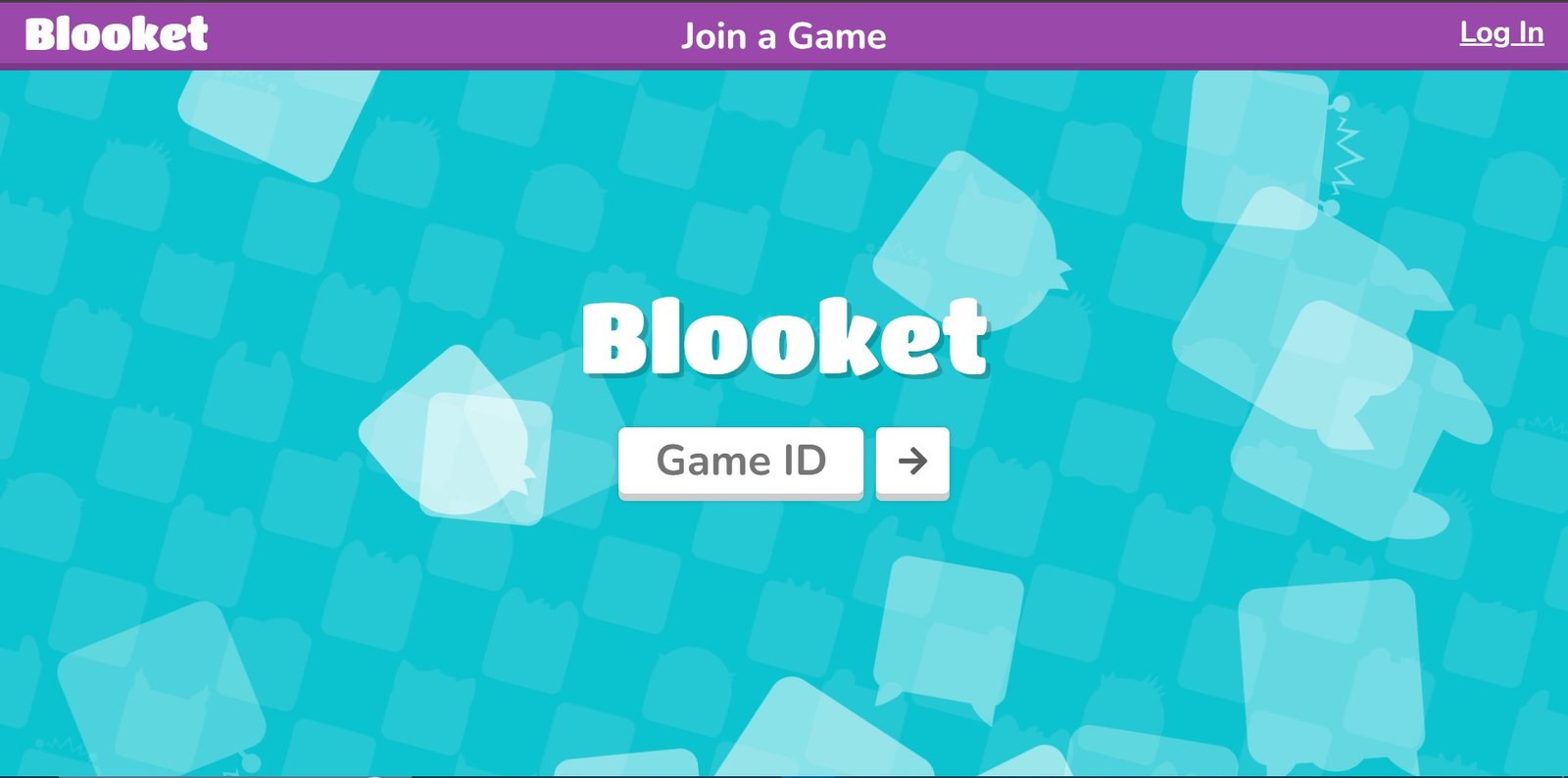
Type the code into the space provided and click “Enter.” Now, you are part of the live game session!

Step 7: Start Playing Blooket

Once inside, answer questions, earn points, and enjoy learning through play Blooket games like Tower Defense, Cafe Mode, or Tower of Doom.

Step-by-Step Guide to Register on Blooket

Creating an account on Blooket is not complicated, but there are some points to remember while registering:

  • You can register yourself only as a “Teacher” or “Student.”
  • You must be at least 13 years old (or 16 if you live outside the U.S.)

Sign Up / Login Option

While completing the signup page, you must select whether you’re a teacher or a student. You’ll then provide your email and date of birth, confirming you’re older than 16. You’ll also receive a confirmation email to verify your details.

Logging in through a Google account is another option to access the Blooket dashboard or to log in to Blooket, without needing to provide the above details manually. Once logged in, you’ll reach the dashboard known as My Sets, where you can access a “Getting Started Tutorial” or choose from:

  1. Create a set
  2. Discover Sets

How to Use Blooket?

Select whether you want to register as a teacher or a student. Students under 13 should register only with parental or school consent.

  1. Visit blooket.com.
  2. Click on the “Signup” button.
  3. Once signed up, you can switch your account to student or teacher if needed.
  4. Log in with your ID and password.
  5. At the top of the page, click the dashboard icon.
  6. On the left side of the dashboard, you’ll see:
  • Recent news
  • Question sets
  • Favorited question sets
  • Quests
  • Recently hosted games

Create a new study set or explore sets created by others using the search bar.

If you are a teacher:

  • Select the set you are interested in.
  • Click the host button to begin.
  • Assign homework for students to complete.
  • Host live games to engage your class.

If you are a student:

  • Click the play button on your dashboard to join a live game.
  • Follow the provided instructions to join a session using the game ID provided by the host.

How to Play Using Blooket Codes?

There are multiple ways to join a game on Blooket, ensuring it’s easy and accessible for everyone.

Using a Game ID

The most common way to join a Blooket game is by entering a Game ID provided by the host. This unique code ensures that only invited players can participate, creating a secure and controlled learning environment.

Using a QR Code

For a faster way to join, scan a QR code displayed by the host. This method allows instant access to the game without manually entering any code.

Using a Direct Link

If the game host shares a direct link, click on it to join the game instantly. This method is perfect for quick access and convenience.

Host Your Own Game

Want to start your own game? Select a quiz from the Discover tab or create a custom set. Then choose a game mode, start the session, and share the generated Game ID with others.

How to Host a Game on Blooket: Step-by-Step Guide

Hosting a game on Blooket creates an interactive learning environment that students enjoy. The steps are very easy.

Step 1: Create an Account

Visit the official website and sign up for a free account using your email address.

Step 2: Log in to Your Account

Log in using your email and password. This takes you straight to your Blooket dashboard.

Step 3: Create a New Game

Select the “Create” button on the dashboard. You can start from a blank page or use previously developed sets.

Step 4: Choose a Game Mode

Pick from multiple entertaining game formats, including Tower Defense, Match 4, and Quiz.

Step 5: Customize Your Game

Add your questions, set time limits, and adjust settings to match your topic.

Step 6: Save Your Game

Once your quiz is ready, click “Save.” You can host it anytime you want.

Step 7: Start the Game Session

Host your first game by clicking the button that starts the session.
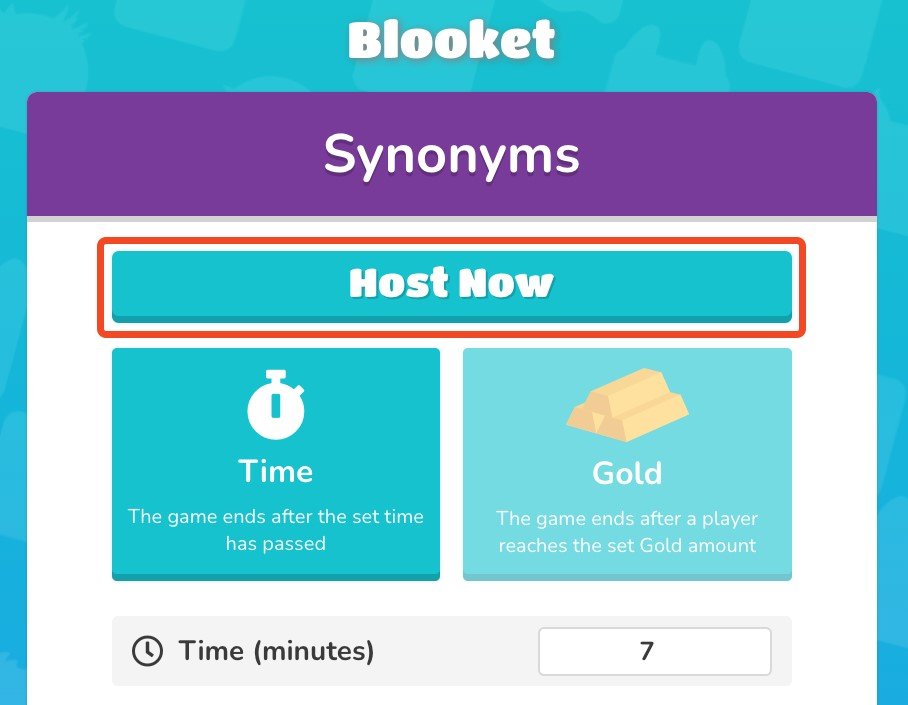
Step 8: Share the Game Code

This gives you a unique Game ID or Blooket game code. Share it with your students by email, chat, or your preferred method.

Step 9: Watch Players Join and Play

As players join, their names appear on your screen. Track their answers and progress live during the game.

Step 10: End the Game and Review

Review the game results after the session ends. See who answered well and where players struggled, and give feedback if needed.

How to Play Solo?

If you’re not part of a hosted game, you can still enjoy Blooket by playing solo. Choose a quiz, pick a game mode, and challenge yourself. Public games can’t be searched in real time, but you can find shared Game IDs on social media or invite friends to join your game.

Blooket Game Modes

Blooket offers multiple interesting game modes suited to study preparation and casual fun. Check the rules before starting each game since different modes have different directions.

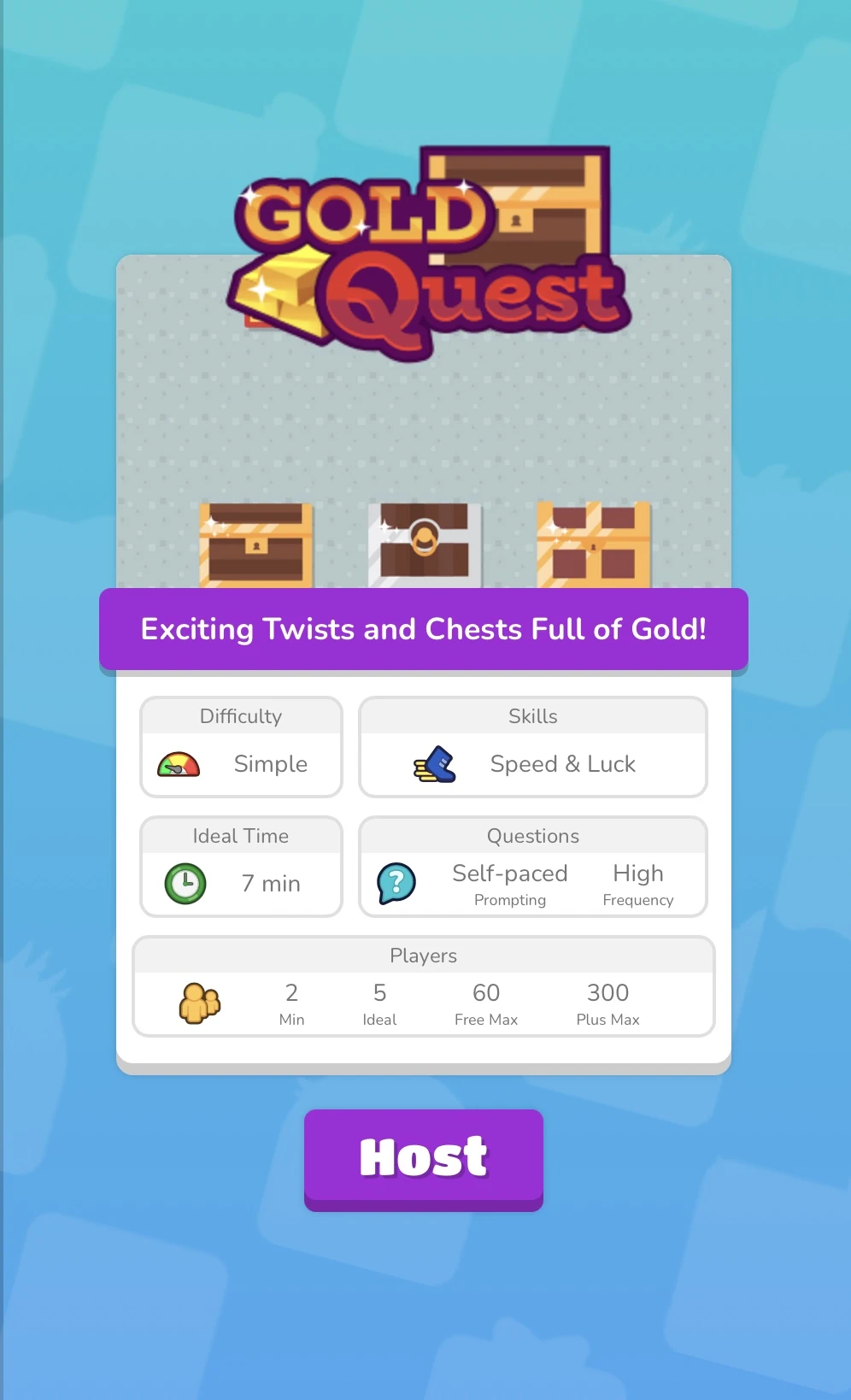
  1. Gold Quest: Adventure Awaits

Players navigate the game while answering sudden quiz questions to search for hidden gold. Your speed at answering questions determines how far you travel.

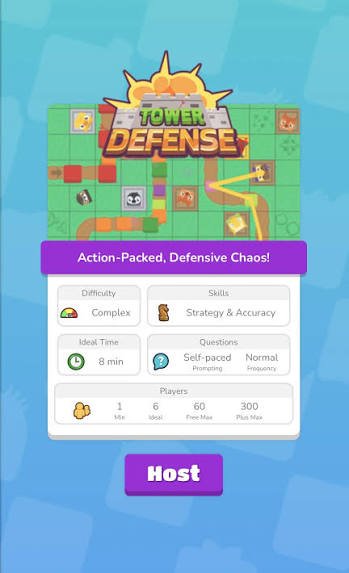
  1. Tower Defense: Build, Defend, Learn

Players protect their base against incoming Blook enemies by constructing defensive towers and answering questions correctly. Collaboration and critical thinking are the focus.

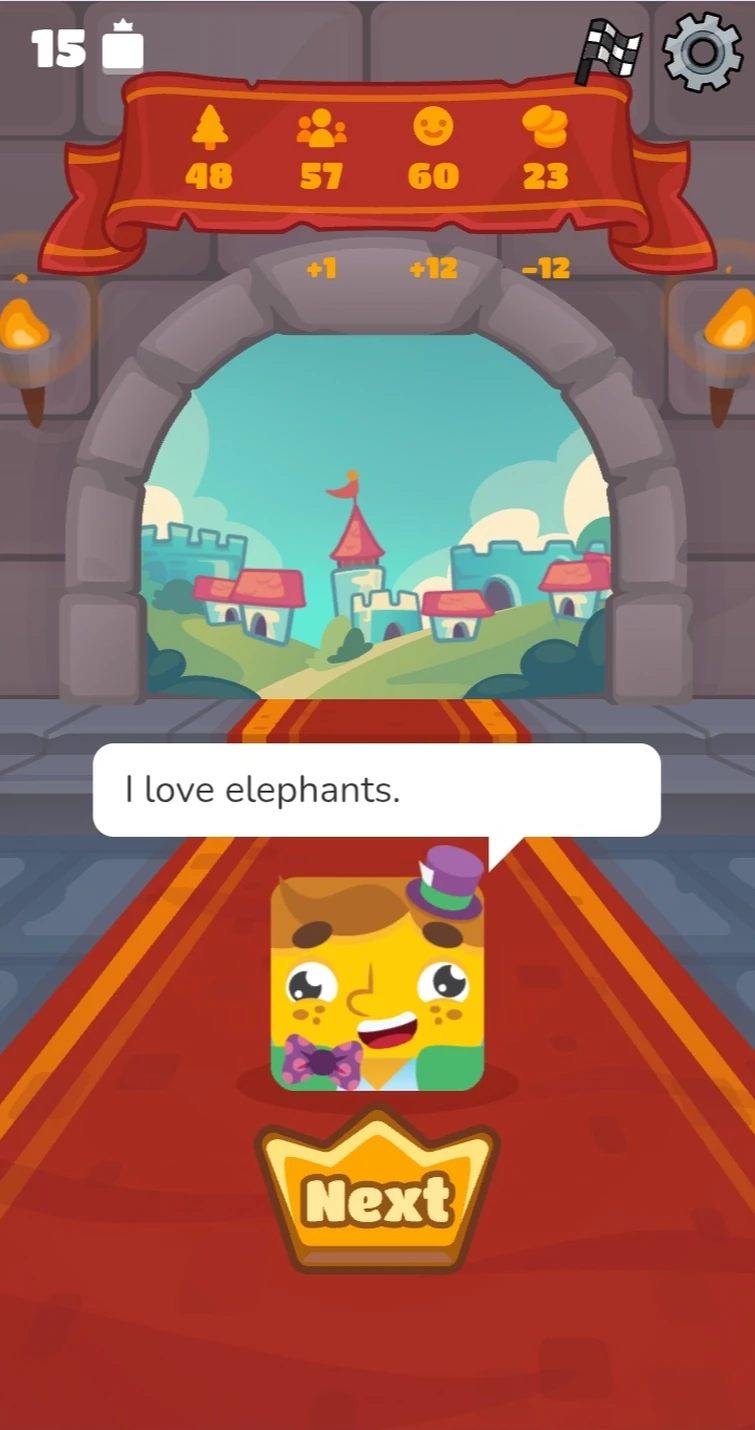
  1. Crazy Kingdom: Strategy at Home

This game is primarily designed for homework assignments rather than classroom play. Players build and guard their territory while completing tasks strategically.

  1. Battle Royale: A Contest of Knowledge
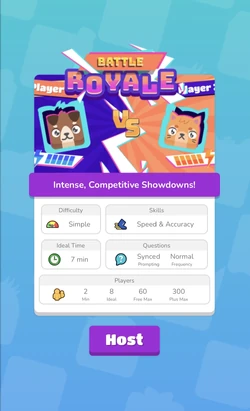
Students form teams and compete by answering questions. The winning team answers the most questions correctly, making it a strong fit for group learning activities.

Blooket Free vs. Blooket Plus

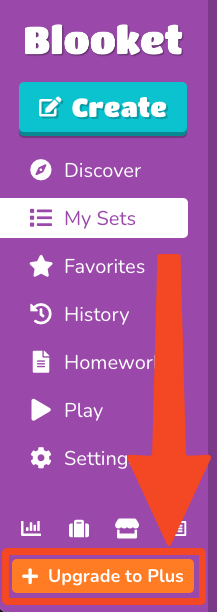
Blooket’s free tier, officially called Starter, gives every user full access to create, edit, and host question sets at no cost. Every new Blooket account starts on Starter automatically; nothing needs to be activated. The main constraint isn’t creation, it’s session size: live games are capped at 60 players. For classrooms that regularly run larger sessions or want deeper student-performance data, Blooket Plus removes that ceiling and adds a set of teacher-facing tools.

Blooket Free (Starter) Plan Features

  • Unlimited question sets — create, edit, and host as many custom sets as you want
  • Discover library access — browse and use the platform’s public library of pre-made sets
  • Solo/practice modes — unlimited single-player practice, no player limit
  • Live hosting up to 60 players — host live games and assign homework, capped at a 60-player session size
  • Homework deadlines up to 14 days
  • Standard game modes — the full free-tier mode rotation, not the Plus-exclusive modes

Blooket Plus (Paid) Plan Features

Plus is available as an individual subscription or a group/school license. Every Plus perk builds on top of Starter — you don’t lose anything by upgrading.

Feature

Free (Starter)

Blooket Plus

Price

$0

$4.99/mo (billed annually, $59.88/yr) or $9.99/mo on Plus Flex (monthly, no commitment)

Max players per live game

Up to 60

Up to 300

Question sets

Unlimited creation

Unlimited creation

Game modes

Standard modes only

Standard + Plus-exclusive modes

Folders

Not available

Organize sets and favorites into folders

Reports

Basic overall accuracy

Enhanced reports — question-by-question data and individual student breakdowns

Homework deadline length

Up to 14 days

Up to 365 days

Question Bank

Not available

Pull questions from any set into your own

Verified curriculum sets

Not available

Access to expert-created Plus question sets

Copy & duplicate sets

Not available

Duplicate any set to edit as your own

Audio questions

Not available

Record or upload audio into questions

Merging sets

Not available

Combine two sets into one

Bonus tokens

Standard

+10 bonus tokens for students after every game

Group/School plans: Plus is also sold in bundles (Friends, Department, Small School, School tiers), covering 10–80+ Plus seats under one license for schools rolling it out beyond a single classroom.

Learning Activities By Subjects

Math

  • Speedy Math lets students race against classmates or AI-driven pacing to practice basic math skills.
  • Pie chart questions help students visually grasp fractions and proportions.

Science

  • Students can identify parts of a cell on a visual diagram, learn periodic table elements, or match compounds to memorable references.
  • As an extension activity, students could design their own “Blooks” representing periodic table elements or create their own quiz questions to host for classmates or family.

English/Language Arts

Blooket work well as a formative assessment tool, giving students and teachers immediate feedback on comprehension.

Social Studies

Students can memorize states, capitals, and countries through interactive games, making geography review more engaging.

How to Get All Blooks in Blooket?

Blooks are collectible characters you can unlock by playing games and earning points, participating in events, and using unique codes or rewards:

  • Playing games and earning points
  • Participating in events
  • Using unique Blooket codes or rewards

Conclusion

Blooket combines educational content with game-based engagement, giving teachers and students an interactive way to review math, science, language arts, and social studies material. Recent updates continue to add new games, themed packs, and features for Blooket Plus subscribers, while the platform’s free tier remains fully usable for everyday classroom and homeschool needs. If you have any issues or want to know more, visit the Blooket Help Center for more details.

Frequently Asked Questions

What is Blooket?

Blooket is an interactive, gamified learning platform that allows teachers and students to engage with educational content through various fun and competitive game modes.

What is Blooket Join?

Blooket Join allows students to enter a game using a unique code provided by the teacher or host. This lets them participate in live games or solo play.

Is Blooket free to use?

Yes, Blooket’s free tier (Starter) gives full access to create, edit, and host question sets at no cost, with live games capped at 60 players. Blooket Plus is a paid upgrade starting at $4.99/mo that raises the player limit to 300 and adds extra teacher tools. See the full comparison table above for details.

How to Host a Blooket?

To host a Blooket game, log in to your teacher account, select a question set, and click the “Host” button. You can customize game modes and assign them to students.

Is Blooket safe for children?

Yes, Blooket is designed with children’s safety in mind. It provides a secure and positive learning environment, making sure that kids can enjoy their educational games safely.

How to Join Blooket Solo?

To play solo, select the “Study” game mode or any available solo option, then follow the on-screen instructions to start your independent learning session.

What is the Blooket Code?

A Blooket Code (also called a Game ID) is a unique code generated when a teacher or host starts a game session. Students enter this code on the join page to enter that specific live game.

What is a Question Set in Blooket?

A Question Set in Blooket is a collection of questions and answers on a specific topic or subject. Teachers can either create their own or use pre-existing sets available on the platform.

How to Play Blooket Live Games?

To join a live game, click the “Play” button on your dashboard, enter the game code given by the host, and participate in the game in real time with other students.

How do I create a Blooket game?

To create a Blooket game, sign in as a teacher, go to the dashboard, create a custom quiz, or use a pre-made one. Choose the game mode and host it for your students.

How do I join a Blooket game?

To join a Blooket game, enter the game code provided by the host into the platform. Once entered, you can join the live session and play.

Are there any limitations or restrictions on creating a Blooket game?

No major restrictions exist, but you must follow platform guidelines for content creation and ensure that the content aligns with educational purposes.

Can teachers create their own quizzes on Blooket?

Yes, teachers can create custom quizzes tailored to their lessons and subjects, making it a versatile tool for personalized learning.

What devices can I use to play Blooket?

Blooket is accessible on any device with an internet connection, including desktops, laptops, tablets, and smartphones.

Disclaimer

BlooketApp.com is an independent website and is not owned by, operated by, or affiliated with Blooket or its official creators. For the actual game, visit the official site at blooket.com.

About the Author

Lucas Harry is a content writer at BlooketApp.com specializing in gamified learning tools and classroom technology. He writes guides on game hosting, game modes, and classroom engagement strategies, drawing on hands-on testing of the Blooket platform.