
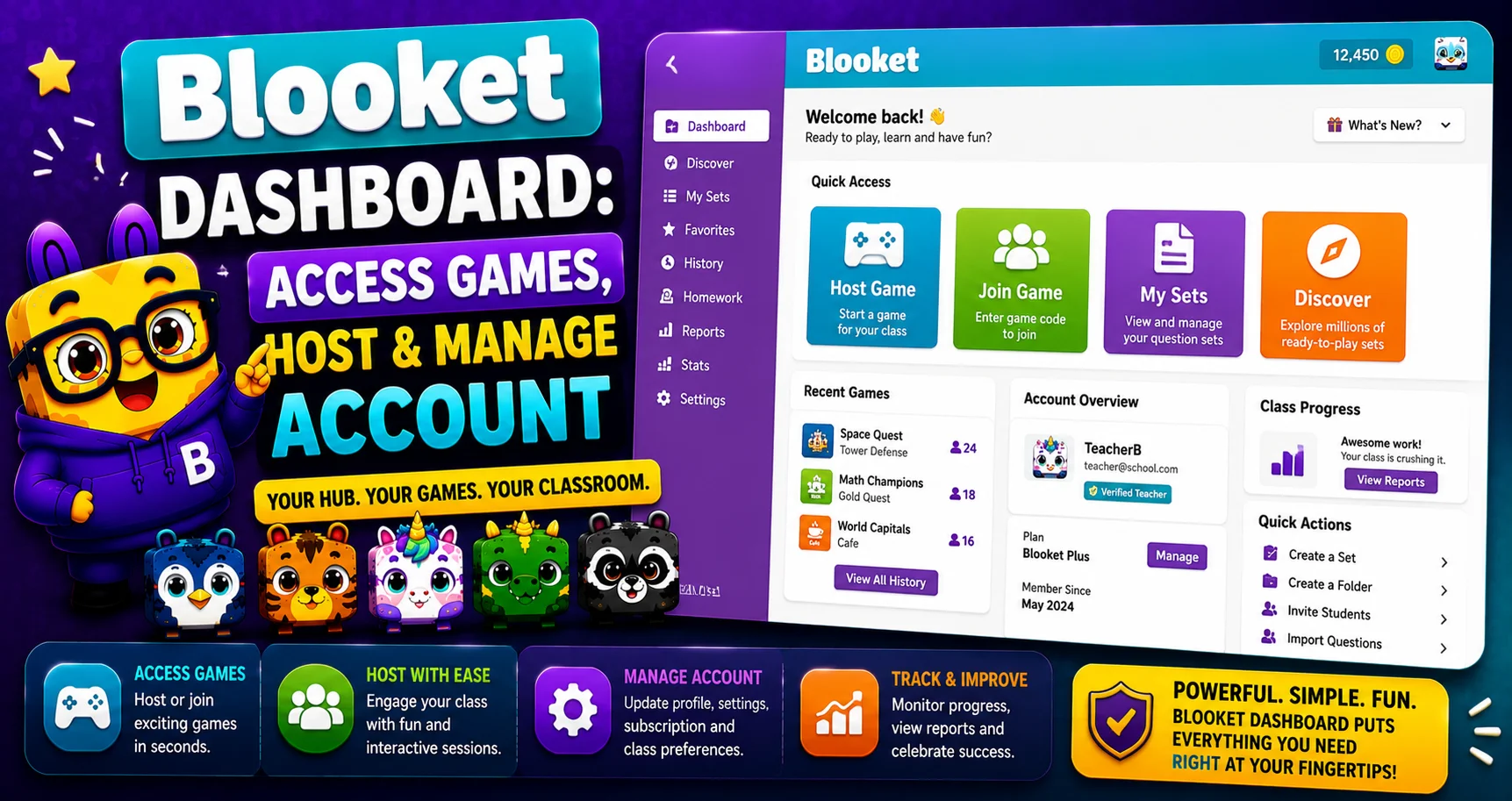
Blooket Dashboard — Access for Students and Teachers
Last verified: August 7, 2026
Quick Answer: The Blooket dashboard is your control panel after logging in at blooket.com (or directly at dashboard.blooket.com). Teachers use it to create sets, host games, assign homework, and view reports; students use it to join games, play solo, and manage their Blook collection.
The Blooket dashboard is the control panel you see after logging in to blooket.com. It’s where teachers create and host games, and where students join sessions, track tokens, and manage their collection. What you see depends on your account type. For a Blooket platform overview, start with our main guide. Teacher accounts get content-building and reporting tools, while student accounts are built around joining games, solo practice, and the Blooks market.
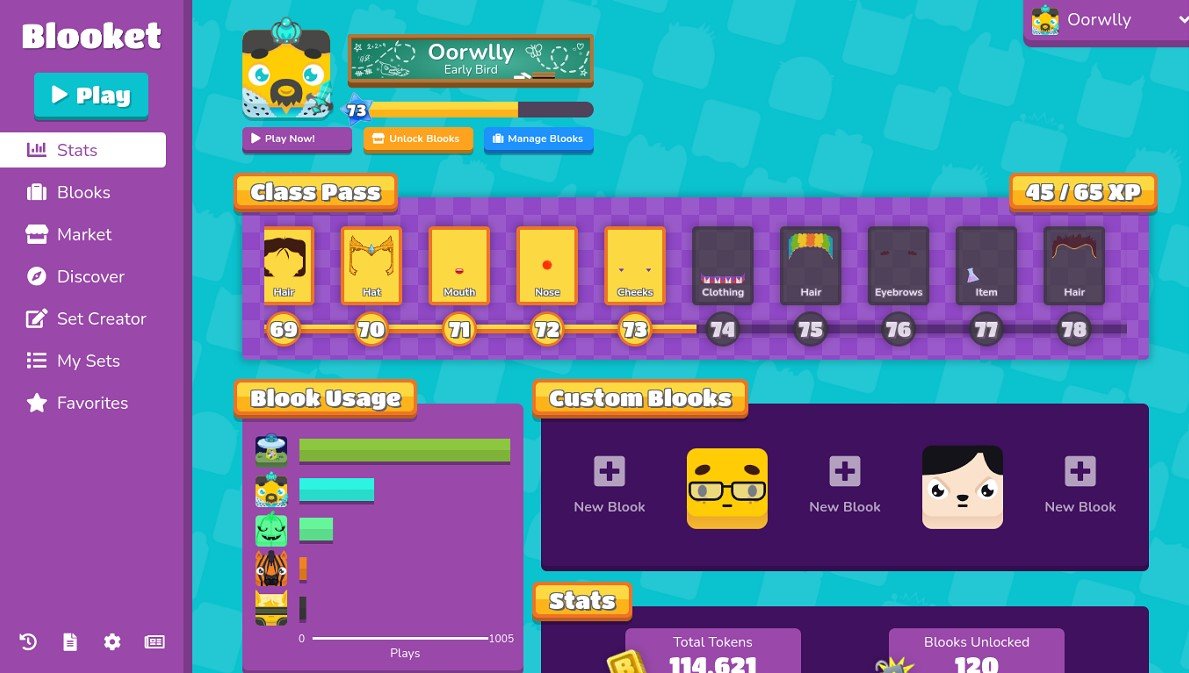
How to Access Blooket Dashboard?
- Go to blooket.com and click Login in the top-right corner.
- Enter your username and password (or sign up Blooket if you don’t have an account yet).
- You’ll be taken straight to your personal panel, also reachable directly at dashboard.blooket.com.
Source: verified from Blooket’s official Quick Start Guide for Teachers.
Key Features of Blooket Dashboard
The layout differs slightly between teacher and student accounts, but here’s what each core section actually does. See our guide for teachers to learn more in detail.
- Play — Joins a live game using a Game ID. Students use this to enter class sessions; teachers often use it too, to preview how a set feels from the student side before hosting it live.
- Discover — The public library of pre-made question sets (20+ million and counting), searchable by subject, keyword, or grade. This is where you browse content made by other teachers, not the Market.
- My Sets / Create — Where you build your own custom question sets, or edit and organize ones you’ve already made. You can also generate a set using AI through Blooket’s integration with Khanmigo (Khan Academy’s free AI tool): enter a grade level and topic on Khanmigo.ai, and it builds a question set you can import straight into your Blooket account.
- Host — Launches a live game from a chosen set: pick a mode, start the session, and share the generated Game ID with your class.
- Assign (Homework) — Sends a set out as a self-paced assignment with a deadline, rather than a live session.
- Reports — Question-by-question accuracy, time per question, and individual student scores from any past game — the most useful section for tracking real progress, not just running fun sessions.
- Market — Where you spend tokens earned from gameplay to open Blook boxes and unlock new characters. This is a cosmetic/rewards section, separate from Discover.
Blooket Dashboard For Teachers
Teachers get the full toolkit: building and editing question sets, hosting a game from your dashboard or assigning homework, and reviewing detailed reports after each session. Reports break down both class-wide comprehension and individual student performance, making it easy to spot which topics need a second pass.
Blooket Dashboard For Students
Students can manage account settings from the dashboard, join live games with a code shared by their teacher, or practice independently through Discover in solo mode. After each game, students can review their results, and any tokens earned carry over to the Market, where they can be spent on Blook boxes to unlock new characters.
Troubleshooting Common Issues
Can’t Log In
- Double-check your username and password for typos.
- Confirm you have a stable internet connection.
- Clear your browser’s cache and cookies, or try a different browser.
Dashboard Won’t Load
- Check for any known platform issues via Blooket’s official channels.
- Try a different device or browser to rule out a local issue.
Host Session Not Starting
- Refresh the page — this resolves most temporary glitches.
- Log out and back in to reset your session.
- If the issue persists, check for a platform-wide outage before assuming it’s a problem on your end.
Conclusion
The Blooket dashboard is the hub for everything on the platform — building content, hosting live games, assigning homework, and reviewing how students performed. Teachers get the deepest toolset, while students get a streamlined way to join games and track their own progress. For platform support, visit the Blooket Help Center. Most login or loading issues can be resolved with a refresh, a cache clear, or trying a different browser.
FAQs About Blooket Dashboard
What is the Blooket dashboard?
It’s the control panel teachers and students use after logging in — where games are built, hosted, joined, and tracked.
How do I access it?
Log in at blooket.com, or go directly to dashboard.blooket.com.
What’s the difference between Discover and Market?
Discover is where you browse pre-made question sets. Market is where you spend earned tokens on Blook boxes to unlock characters.
How do I host a game?
From the Host section, select a question set, choose a game mode, and share the generated code with your students.
What can I see in Reports?
Question-by-question accuracy, time per question, and individual student scores from any past session.
What should I do if I can’t log in?
Verify your credentials, check your connection, and try clearing your browser cache or switching browsers.
Can I use AI to create a question set?
Yes, through Blooket’s Khanmigo integration. Enter a topic and grade level at Khanmigo.ai, and it generates a set you can import directly into your Blooket dashboard.
Disclaimer
BlooketApp.com is an independent website and is not owned by, operated by, or affiliated with Blooket or its official creators. For the actual platform, visit the official site at blooket.com.
Author
Written by Lucas Harry, a content writer who tests Blooket’s features firsthand before publishing this guide.