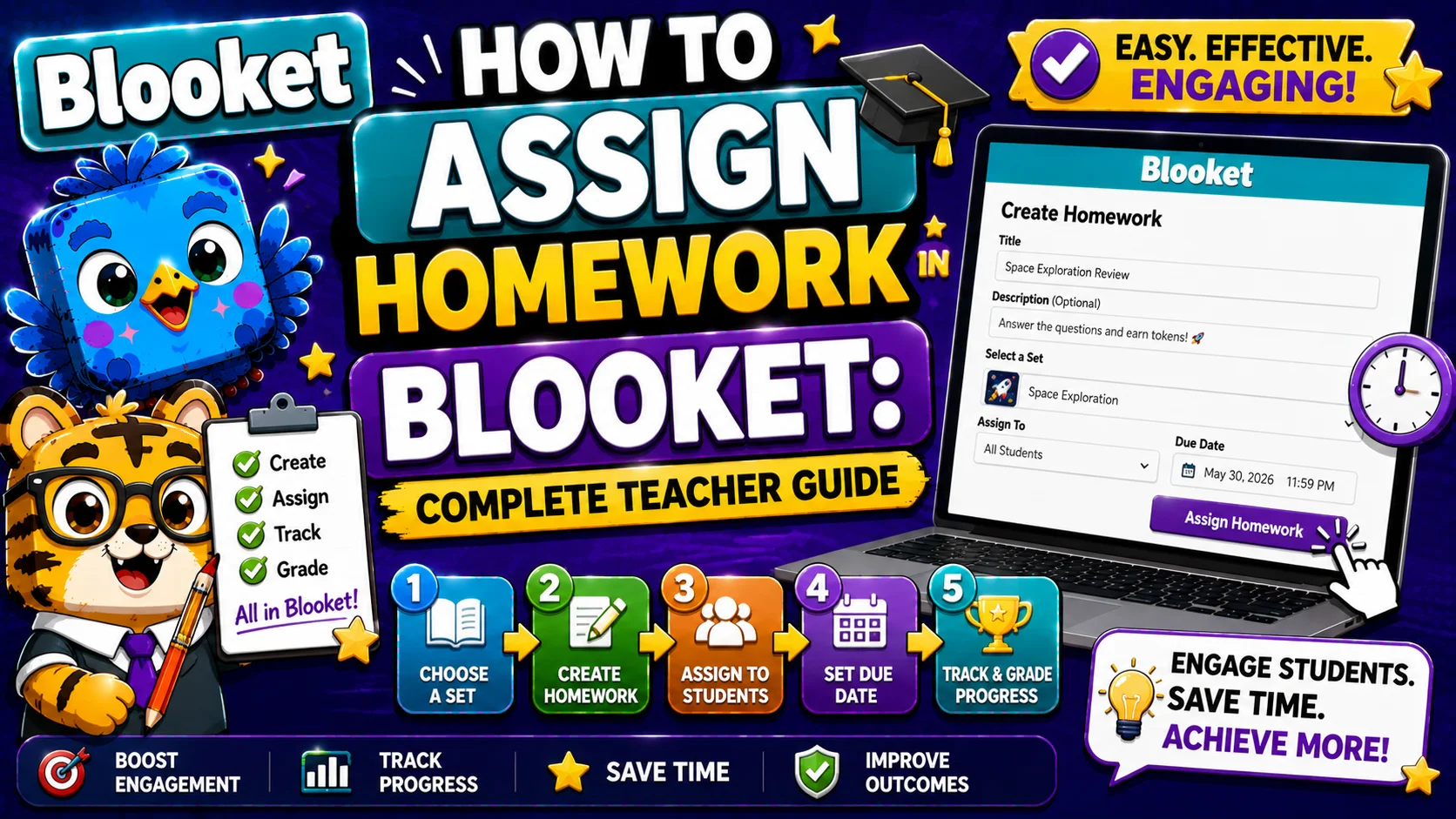
How to Assign Homework in Blooket: Complete Teacher Guide
Last verified: August 12, 2026
Quick Answer: Open a question set’s preview page, click “Assign HW,” set a title, due date, and Correct Goal, then click Assign Now. Blooket generates a link and QR code students use independently before the deadline; no account or live session required.
How to Assign Homework in Blooket
Blooket’s homework feature lets you assign game-based practice that students complete independently, on their own time, at their own pace, before a deadline you set.
Unlike a live-hosted game where everyone plays together at the same time, a homework assignment stays open for hours or days, and students choose which solo game mode they want to use to meet the requirement.
New to Blooket? Start with our Quick Start Guide for Teachers.
Homework Mode vs. Live Game: Key Differences
Feature | Live Game | Homework Mode |
Requires simultaneous login | Yes | No |
Students choose a game mode | No (host decides) | Yes (from allowed options) |
Deadline | None (real-time) | You set a due date |
Completion requirement | Time-based | Correct Goal (number of right answers) |
Reports | Immediately after the game | Viewable anytime before or after deadline |
Student account required | No (guest play) | No (guest completion tracked) |
What Makes Blooket Homework Different from a Live Game?
In a live-hosted game, students join at the same time using a game code, and you control when the game starts and ends. Everyone plays simultaneously.
In homework mode, you create an assignment that:
- Has a due date (a deadline you set)
- Has a Correct Goal (a target number of correct answers students must reach)
- Is accessed via a link or QR code that students can use at any time before the deadline
- Lets students choose their preferred solo game mode from available options
Students do not need a live connection to you. They complete the assignment independently, and Blooket saves their results automatically. You can check progress at any time from your dashboard.
What Do Students Need to Complete the Homework?
Students can complete a Blooket homework assignment without creating an account. They just need the homework link or QR code that you share, and any device with a browser.
If a student has a Blooket account and is logged in when they complete the homework, they earn tokens and XP from the session. If they’re not logged in, they still complete the assignment, and their results are reported to you; they just don’t get the rewards.
Step 1: Choose Your Question Set
From your dashboard, find the question set you want to use:
- Go to My Sets to use a set you’ve created or saved
- Go to Discover or Curriculum to find a public or verified set
Click the set to open its preview page, or hover over the set card in My Sets.
Complete Guide → How to Find Blooket Question Sets
Step 2: Click “Assign HW”
On the question set’s preview page, you’ll see three buttons:
- Host
- Solo
- Assign HW.
Click Assign HW. If you’re in My Sets, the Assign HW option also appears when you hover over the set card or open its options menu.
For Live-Hosted Sessions instead → How to Host a Blooket Game
Step 3: Configure Your Homework Settings
You’ll see a settings screen with the following fields:
1. Title
Give the assignment a clear name that students will see when they open it. Clear, descriptive titles prevent confusion. A good format is something like “Week 8 Review: Fractions HW” or “Chapter 4 Vocabulary Practice.” Avoid vague titles like “HW,” especially if you run multiple concurrent assignments. This name appears on the homework details screen and in your Homework tab.
2. Due Date
Set the deadline for the assignment.
Free (Starter) accounts can schedule homework up to 14 days in the future. Blooket Plus accounts can set deadlines up to 365 days in the future, useful for long-term review sets or recurring assignments.
Most day-to-day homework assignments are due within 14 days, so free accounts handle the majority of classroom homework scenarios. The Plus 365-day limit primarily benefits teachers who want to set up recurring or long-term review assignments, or exam prep sets planned months in advance.
Note: Once the due date passes, students can no longer access or submit the assignment.
3. Correct Goal
This is the number of correct answers a student must achieve to complete the homework. You set this number based on your expectations:
Assignment Type | Correct Goal |
Quick check-in | 5 to 10 |
Standard practice | 15 to 25 |
Pre-test intensive review | 30 to 50 |
Long-term exam prep | 50+ |
The goal is tracked in real time during gameplay. Students see how many more correct answers they need in the top corner of their screen, and a “Homework Complete!” pop-up appears when they reach it.
Why Correct Goal works better than a time limit:
A time-based requirement (“play for 20 minutes”) doesn’t measure learning. A Correct Goal measures actual correct responses. Students who answer carefully and accurately reach the goal faster. Students who rush and get many questions wrong need to answer more questions to hit the same target, which is the right incentive structure.
Tip: The Correct Goal is based on correct answers, not total questions attempted. If a student plays a fast game mode and misses questions, they simply need to keep playing until they’ve answered enough times correctly. This naturally encourages repeated practice.
4. Available Game Modes
You can choose which solo game modes students are allowed to use for the assignment. By default, several modes are available. Restricting to specific modes can be useful if you want students to practice a particular style of interaction, for example, only self-paced modes for focused individual work. Leave all modes open unless you have a specific reason to restrict them.
5. Student Accounts
This setting controls whether students are prompted to log in or create a Blooket account when joining the homework. You can deactivate or activate this based on your class context and school policy.
Once all settings are configured, click Assign Now.
Source: verified from Blooket’s official documentation on homework and reports.
Step 4: Share the Homework Link or QR Code
After assigning, Blooket generates a unique homework link (a direct URL that takes students straight to the assignment) and a QR code students can scan with a phone or tablet camera.
You can share the link through any of the following channels:
Channel | Method |
Google Classroom | Paste the link as an assignment or announcement |
LMS (Canvas, Schoology, SeeSaw) | Paste the link in the assignment description |
Send to students or parents | |
Class website or page | Embed as a hyperlink |
In-person | Display the QR code on the projector for students to scan |
Important: The link is connected to this specific assignment. If you assign the same question set again later, a new link will be generated for the new assignment.
Step 5: Monitor Progress in Real Time
Once the assignment is live, go to the Homework tab on your dashboard. You’ll see:
- Total number of students who have started the assignment
- How many have completed it (met the Correct Goal)
- A live leaderboard with each student’s current correct count
You can monitor this during a class period to see who is making progress, or check it at the end of the day to see who still needs to complete the work.
Step 6: Extend, Edit, or Close the Assignment
From the Homework tab, you have the following management options for any open assignment:
- Update the due date: Extend the deadline if students need more time
- Reopen: If the assignment has closed, you can reopen it temporarily
- End: Close the assignment before the due date (students can no longer submit)
- Delete: Remove the assignment entirely from your records
Step 7: Review Completed Results
After the due date passes (or after you close the assignment), go to History to access the full homework report. The report includes:
- Each student’s name, accuracy, total correct answers, and time played
- A question-by-question breakdown showing which questions students most commonly got wrong
- Individual student detail views; click any student’s name to see their full response history
Blooket Plus users can also download the full report as a spreadsheet (with separate tabs for question-level and per-student data) for use in a gradebook or for sharing with parents or administrators.
Full Report Reading Guide → How to View Blooket Homework Results
Free vs. Plus: What’s Different?
| Feature | Starter (Free) | Blooket Plus |
| Max deadline | 14 days in the future | 365 days in the future |
| Report download | Not available | Spreadsheet download (question-level + per-student tabs) |
| Question-level detail | Basic | Full per-student, per-question breakdown |
| Individual student reports | Basic leaderboard | Detailed downloadable reports |
To learn more in detail, see our full Free vs. Plus comparison for everything else Plus unlocks.
Where to Go Next
- Want to know more about the platform? See our Blooket overview page
- Want the full teacher toolkit overview? Visit the For Teachers hub
- Assigning this to students directly? See the For Students hub
Have a different question? Check our Frequently Asked Questions or the full Blooket Help Center
Frequently Asked Questions
Do students need an account to complete the homework?
No. Students can complete a Blooket homework assignment as a guest with just the link or QR code. If they have an account and are logged in, they earn tokens and XP in addition to completing the assignment.
What if a student closes the window before finishing?
They’ll need to start the session again using the original link or QR code. Progress from an interrupted session is generally not saved, unless they were playing a mode with a save state, like Tower Defense or Cafe. Completed homework results are saved if a student met the Correct Goal before closing.
Can I assign the same question set to multiple classes?
Yes. Each time you click Assign HW, a new assignment is created with a new link. You can set the same question set and goal for each class period and get separate reports for each group.
Can parents access the homework link?
Yes. The homework link can be shared with anyone; you can send it to parents for at-home practice or post it publicly in your class materials. Anyone who accesses the link can complete the assignment.
Is there a way to require students to use a specific game mode?
Yes. In the homework settings screen, you can restrict the available game modes to only the ones you want. Students will only see those options when they start the assignment.
Can Blooket Plus users download homework reports as a spreadsheet?
Yes. This is a verified Blooket Plus feature; the download includes an Overview tab (question-level accuracy and timing data) and a Participant Summary tab (per-student performance), plus individual downloadable reports for each student.
Why is Correct Goal used instead of a simple time limit?
Because it measures actual learning rather than time spent. A student who answers accurately reaches the goal faster, while a student who rushes and answers incorrectly needs more attempts to reach the same target, which naturally rewards careful, correct answering.