
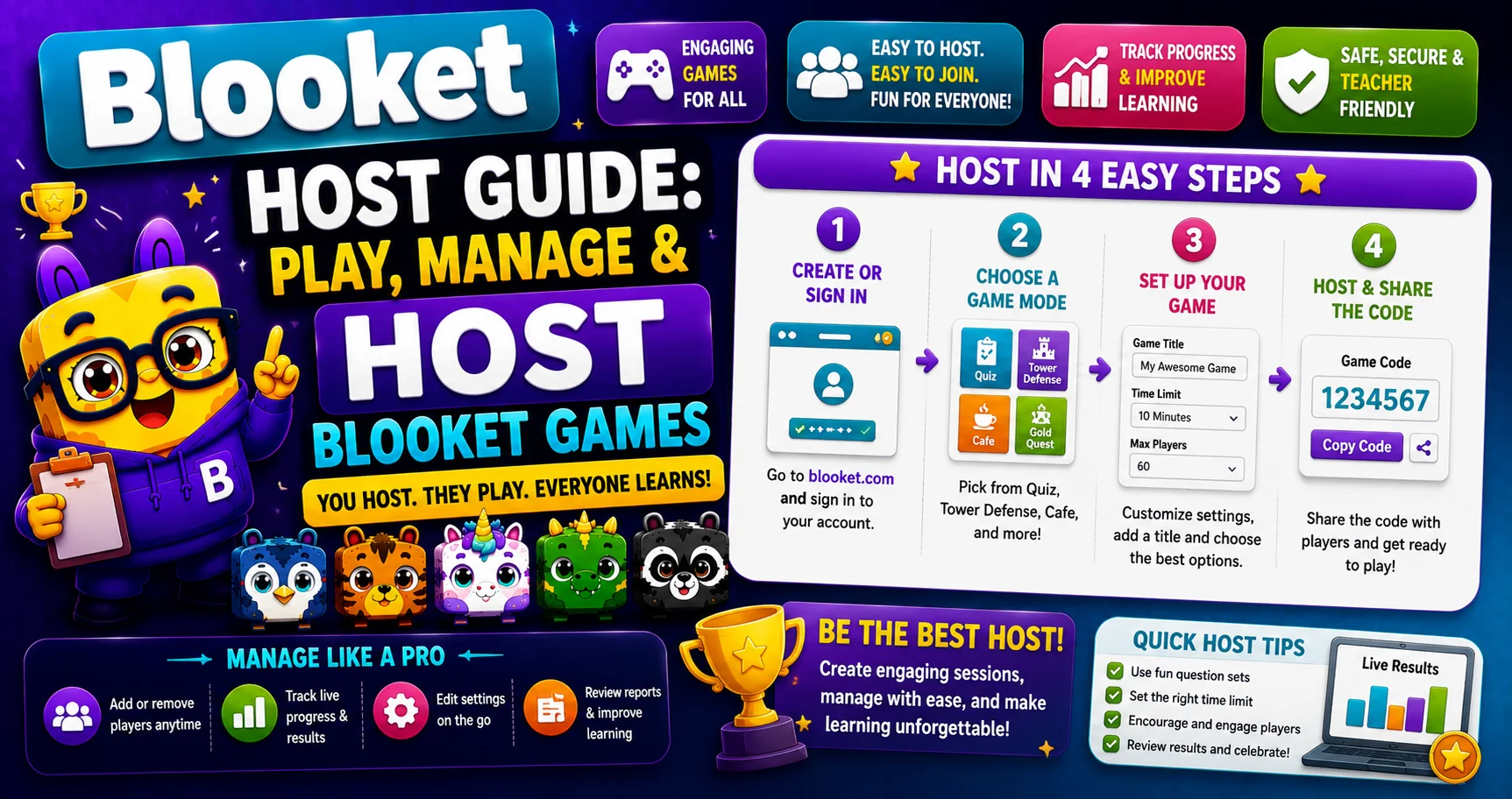
Blooket Host — Complete Game Hosting Guide
Last verified: August 5, 2026
Quick Answer: To host a Blooket game, log in at blooket.com (free account required), choose a question set, pick a game mode, click Host, and share the generated code with your players. The whole process takes about two minutes.
Blooket is a fun and interactive educational platform that allows teachers and students to engage in learning through games. If you want to become a Blooket host or host a game on Blooket, this complete guide will explain everything you need to know. We have explained how to host a Blooket game, manage your games, and answer the most common questions related to hosting on Blooket. For the full Blooket walkthrough, see our main guide.
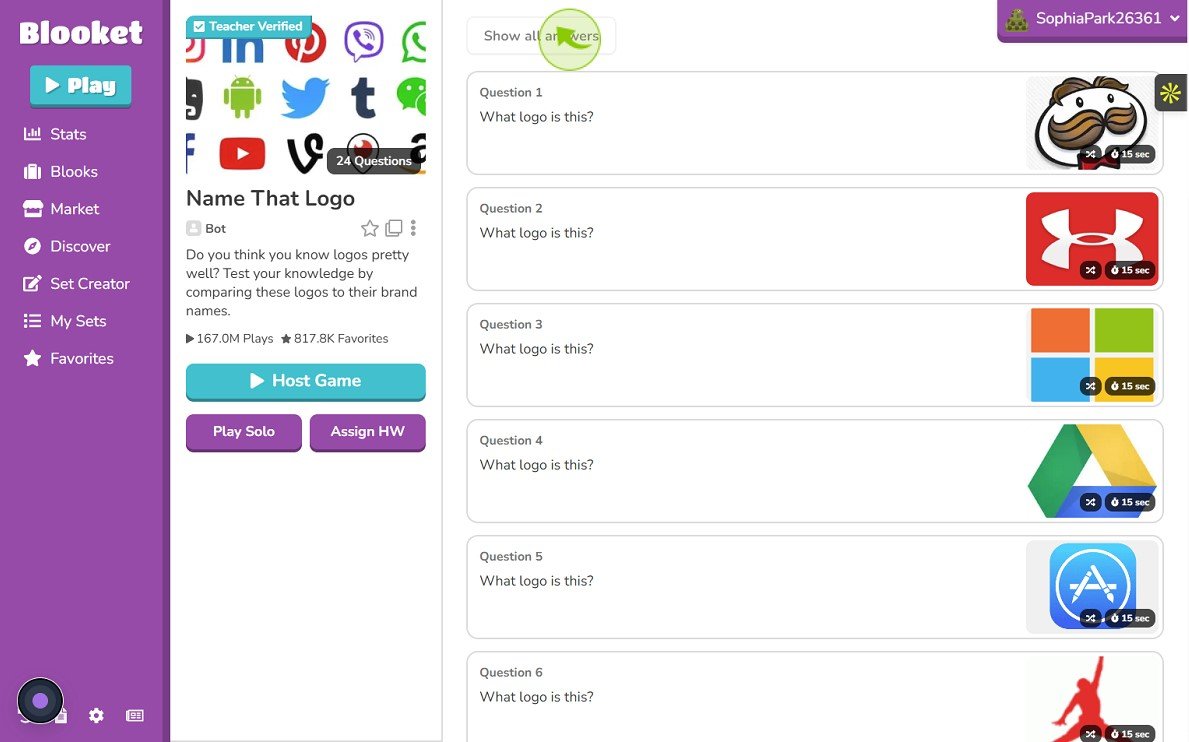
How to Host a Blooket Game?
Hosting a Blooket game means setting up a live session, picking a question set, choosing a game mode, and generating a code for players to join. As the host, you control the game’s settings, monitor progress in real time, and can pause, start, or end the session whenever needed. Hosting requires a free Blooket account. Only players joining as guests can skip signing in.
You can host, generate and share a game code by following the steps:
- Log in at blooket.com. A Blooket account is required to host — this applies whether you’re a teacher or a student.
- Choose your content — select a pre-made question set from Blooket’s library, or upload your own.
- Pick a game mode — Tower Defense, Gold Quest, and others each shape the gameplay differently. See our complete game modes breakdown for all 25+ options.
- Click Host — this automatically generates a unique game code.
- Share the code with your players — via a code, QR scan, or direct join link.
- Click Start once everyone’s in the lobby.
You can play along as host while still managing the session, which keeps you involved without losing control over settings.
Source: verified from Blooket’s official “How to Host a Blooket Game” documentation.
Hosting Settings That Actually Matter
The steps above get you live, but a few settings decide whether the session runs smoothly:
- Random Names — Enabling this assigns players a random display name instead of letting them type their own. Turn it on for younger classes or public games to avoid inappropriate or distracting nicknames. Leave it off if you want names to match your gradebook for easier reporting.
- Late Joining — Controls whether players can join after you’ve clicked Start. Keep it enabled for casual or homework-style sessions where students trickle in. Disable it for timed assessments where a fair start matters.
- Timer Length — Shorter timers increase pressure and pace (good for review games); longer timers suit younger students or more complex questions.
- Power-Ups — Some modes let you toggle power-ups on or off. Disabling them keeps the focus purely on question accuracy rather than in-game advantages.
Hosting as a Teacher vs. as a Student
The steps above are identical for any account. The difference is just how you’re using it. To learn more, see our guide for teachers.
- Teachers typically use hosting for full class sessions, homework assignments, and detailed post-game reports on student performance.
- Students can host their own games too. For solo practice, peer study groups, or informal review sessions with friends. No special permission is needed. Any Blooket account can host.
Hosting on Different Devices
Hosting works the same way on mobile as it does on desktop.
- Log in to your Blooket account through your mobile browser.
- Set up the game exactly as you would on a computer, and share the code.
There’s no separate mobile-only process.
Free vs. Plus Hosting
Hosting itself is completely free. No subscription is required to create games, host live sessions, or invite players. Blooket Plus adds extra tools on top of free hosting, including a higher player cap (up to 300 vs. 60), deeper per-question reports, and a +10 bonus token reward for players in every game hosted by a Plus account. See our full Free vs. Plus comparison for the complete breakdown.
Managing a Game From Your Dashboard
Once a game is live, you can manage game from the blooket dashboard:
- Game settings — question count, time limits, and game modes are adjustable before starting.
- Player tracking — real-time visibility into who’s answering correctly and who might need support.
- Session controls — pause, end, or restart the game as needed mid-session.
Troubleshooting Common Hosting Issues
- Students say they’re on the wrong page: Make sure they’re joining at play.blooket.com, not the main blooket.com dashboard. Write or share the exact URL clearly.
- Players can’t join after the game starts: Check whether Late Joining is disabled in your settings. If needed, end the session and restart with it enabled.
- Inappropriate or distracting nicknames appear: Turn on Random Names before hosting, or ask players to use a structured naming format (e.g., “First Name + Last Initial”).
- Lobby is slow to fill: Display the QR code for faster joining in person, or share the direct join link for virtual sessions.
- Game feels chaotic with a large group: Consider a slower-paced mode (Factory, Cafe) instead of a fast one (Battle Royale) for bigger or younger groups.
Conclusion
Hosting a Blooket game takes just a couple of minutes from login to live session, whether you’re a teacher running a class review or a student setting up a study session with friends. The core process is log in, pick content, choose a mode, host, and share the code, which stays the same across devices and account types. For the complete documentation, see the Blooket Help Center guides.
FAQs About Blooket Host
How do I host a Blooket game?
Log in to your account, choose a question set and game mode, click Host to generate a code, and share it with your players.
Can students host a Blooket game?
Yes. Any Blooket account, student or teacher, can host a game — no special permission is required.
Do I need an account to host?
Yes, hosting always requires a Blooket account. Only players joining as guests can skip signing in.
How do I host on mobile?
The same way as on desktop: log in through your mobile browser, set up the game, and share the code.
Is hosting free?
Yes, hosting is completely free. Blooket Plus adds extra features like a higher player limit and bonus tokens for players, but isn’t required to host.
What is the host Plus bonus?
When a Plus subscriber hosts a game, players receive an extra +10 bonus tokens for that session.
How do I stop late players from joining a timed game?
Disable the Late Joining setting before you start the session. This locks the lobby once the game begins.
Disclaimer
BlooketApp.com is an independent website and is not owned by, operated by, or affiliated with Blooket or its official creators. For the actual platform, visit the official site at blooket.com.
Author
Written by Lucas Harry, a content writer who tests Blooket’s features firsthand before publishing this guide.