How to Download Blooket Reports as a Spreadsheet? (Plus Feature)
Last verified: August 12, 2026
Quick Answer: Blooket Plus lets you download any game or homework report as a spreadsheet with two tabs: an Overview tab for class-wide, question-by-question data, and a Participant Summary tab for per-student performance. Free (Starter) accounts can view reports on-screen but cannot download them.
How to Download Blooket Reports?
Blooket Plus users can download any game or homework report as a spreadsheet, a file that opens in Google Sheets, Microsoft Excel, or any compatible program. The downloaded file contains more detailed data than the on-screen report view, including per-student, per-question performance across the entire session. This guide explains exactly how to download Blooket reports, what each tab contains, and how to use the data.
- Feature availability: Downloading game and homework reports as spreadsheets is an exclusive Blooket Plus feature.
- Free (Starter) accounts can view reports on-screen but cannot download them. Upgrade to Plus to unlock this feature.
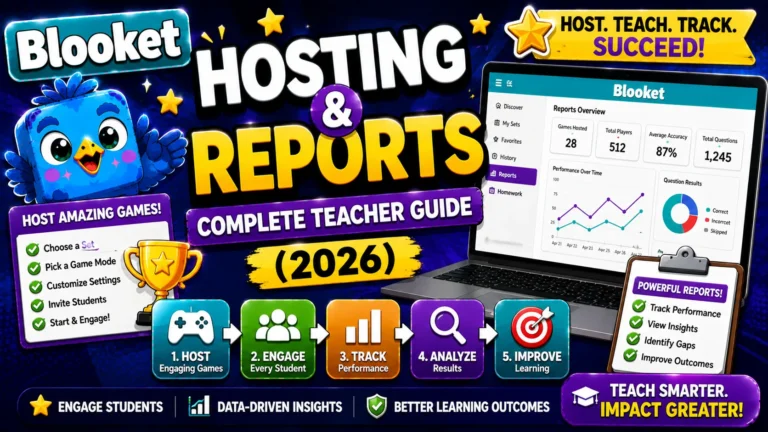
Detailed Guide About → Blooket Hosting & Reports
What does the download include?
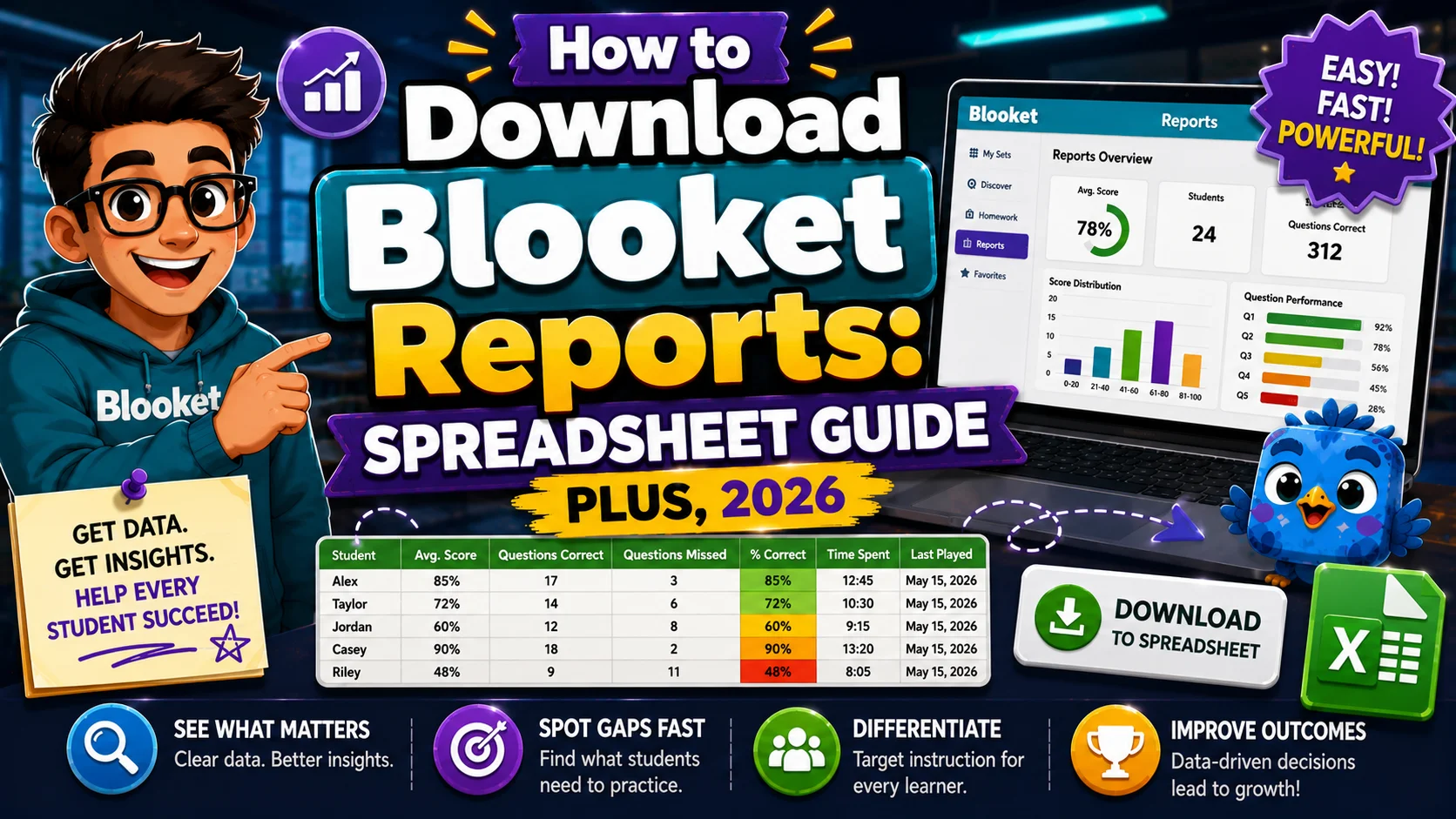
When you download a Blooket report, you receive a spreadsheet file with two tabs:
- Tab 1, Overview: Class-wide question performance data
- Tab 2, Participant Summary: Per-student performance data
Each tab provides a different lens on the same session data: one for class-wide analysis, one for individual student grading or conferencing.
Step 1: Navigate to the Report
To download a game report:
- Go to your Dashboard
- Click History in the left sidebar
- Find and click the game session you want to download
To download a homework report:
- Go to your Dashboard
- Click Homework in the left sidebar (for active assignments) or History (for closed assignments)
- Click the assignment you want to download
Step 2: Click the Green Download Button
On the report page, locate the green Download button. Click it.
Blooket immediately generates the spreadsheet file and downloads it to your device’s default download folder (usually your Downloads folder).
Note: The Download button only appears for Plus account holders. If you don’t see it, your account is on the free Starter plan.
Complete Guide For → Blooket Plus Features
Step 3: Open the Spreadsheet
Open the downloaded file in:
- Google Sheets: Upload or open with Google Drive (File → Open → Upload)
- Microsoft Excel: Double-click the file if Excel is installed
- Apple Numbers: Compatible with .xlsx format
What Each Tab Contains?
Tab 1: Overview
The Overview tab is the question-centric view. It shows class-wide performance on every question in the set.
Columns in the Overview tab (per official Blooket documentation):
| Column | Description |
| Question Number | The question’s position in the set |
| Question | Full question text |
| Media | Whether the question had an image or audio attached |
| Question Type | Multiple Choice or Typing Answer |
| Accuracy | Class-wide accuracy percentage for this question |
| Average Answering Time | The mean time (seconds) students took to answer |
| Correct | Number of students who answered correctly |
| Incorrect | Number of students who answered incorrectly |
| Unattempted | Number of students who didn’t attempt the question |
| Student columns | Individual student performance columns, one per student |
The rightmost columns show each student’s results for each question, creating a full cross-tabulation of student and question performance in a single view.
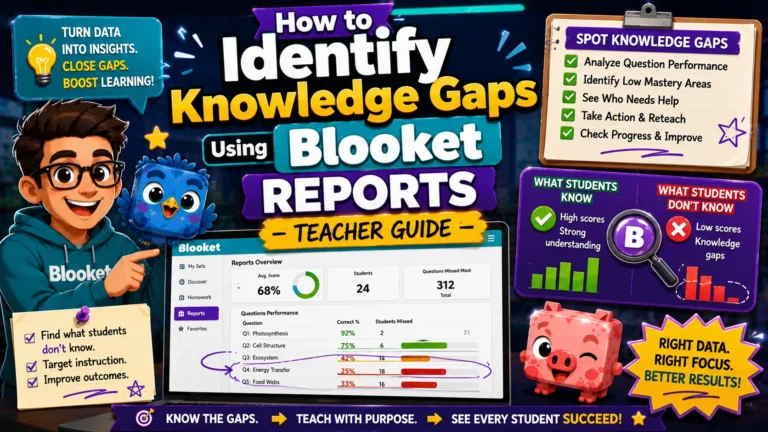
Complete Guide for → How to Identify Knowledge Gaps
Best uses for the Overview tab:
- Identify class-wide knowledge gaps (sort by Accuracy column, ascending)
- Calculate per-question difficulty across your class
- Build a visual map of which concepts need re-teaching
- Share with department heads or instructional coaches for curriculum review
Tab 2: Participant Summary
The Participant Summary tab is the student-centric view. It shows each student’s overall performance across the session.
Columns in the Participant Summary tab:
| Column | Description |
| Student Name | Name as entered when joining |
| Accuracy | Percentage of questions answered correctly |
| Correct | Total number of correct answers |
| Incorrect | Total number of incorrect answers |
| Total Questions Attempted | Questions the student attempted |
| Time Played | Total active session time |
| Completion | Whether the student met the Correct Goal (homework only) |
Best uses for the Participant Summary tab:
- Grade entry into a digital gradebook
- Parent communication (pull an individual student’s row)
- Identifying students who participated but performed poorly (high time played, low accuracy)
- Tracking improvement across multiple sessions by comparing Participant Summary tabs from different sessions
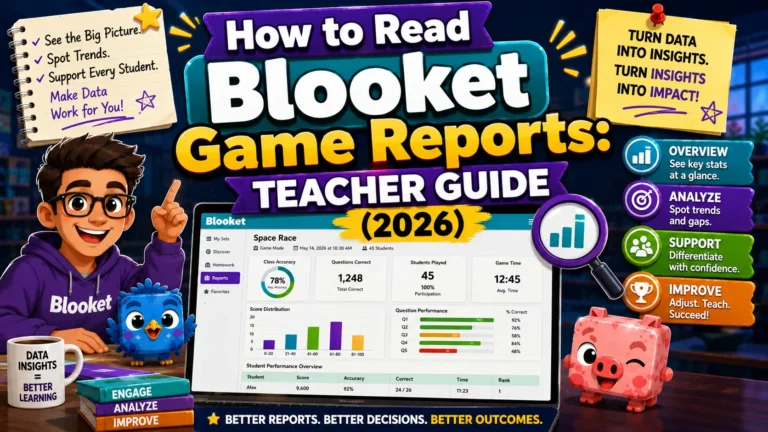
Complete Guide About → How to Read Blooket Game Reports
Downloading Individual Student Reports (Plus)
In addition to the full class report, Plus users can download a report for each student. This file focuses on one student’s performance with additional detail:
- Every question the student attempted
- Their specific answer for each attempt (not just right or wrong)
- How many attempts they made on each question across multiple game sessions
- Accuracy and response time per question
To download an individual student report:
- Open the game or homework report from History
- Click the student’s name in the leaderboard
- On the Student Report page, click Download (the option appears at the top of the student detail view)
Individual student reports are useful for:
- Parent-teacher conferences (show the parent exactly where their child struggled)
- IEP/504 documentation
- Student self-reflection (share the report with the student for self-assessment)
- Identifying whether a student’s errors are consistent (same wrong answers repeatedly) or variable (different errors each time)
Using Downloaded Reports in a Gradebook
Blooket reports are not designed as gradebook replacements; the platform is built for formative assessment and review, not summative scoring. That said, many teachers do record participation or effort grades based on Blooket data.
Practical Gradebook Use Cases:
→ Homework completion grade: Use the Completion column from the Participant Summary tab. Students who reached the Correct Goal receive full credit; students who started but did not complete receive partial credit; students who did not access the link receive no credit.
→ Accuracy-based participation grade: Use the Accuracy column as a participation record. Students who answer thoughtfully (high accuracy) demonstrate engagement; students who click randomly (low accuracy, high speed) show low engagement.
→ Google Sheets integration: Copy the Participant Summary tab data into your existing Google Sheets gradebook. Match student names to your roster and paste accuracy or completion data into the appropriate assignment column.
→ Note on name matching: If students joined with random names or informal nicknames, matching spreadsheet names to your class roster requires manual cross-referencing. Use the real-name policy (Random Names off, plus instructing students to use first name and last initial) to ensure clean name matching in downloaded reports.
Source: verified from Blooket’s official “How to Download Game and Homework Reports” documentation.
Where to Go Next
- Want to know more about Blooket? See our Blooket guide
- Want the full teacher toolkit overview? Visit the For Teachers hub
- Introducing this to students directly? See the For Students hub
Have a different question? Check our Frequently Asked Questions or Blooket Help Center
Frequently Asked Questions
Do I need Blooket Plus to download reports?
Yes. Downloading game or homework reports as a spreadsheet is exclusive to Blooket Plus. Free (Starter) accounts can view reports on-screen but cannot export them.
What is the difference between the Overview and Participant Summary tabs?
The Overview tab is question-centric, showing class-wide accuracy for every question. The Participant Summary tab is student-centric, showing each student’s overall performance across the session.
What file format does Blooket download reports in?
A spreadsheet file compatible with Google Sheets, Microsoft Excel, and Apple Numbers, opened by uploading to Google Drive or double-clicking if you have Excel installed.
Can I download a report for just one student?
Yes. Open the report, click the student’s name in the leaderboard, then click Download at the top of their individual detail view. Plus is required for this feature as well.
Should I use Blooket data for grading?
Blooket reports are built for formative assessment and review, not summative scoring. Many teachers use the Completion or Accuracy columns for participation grades, but the platform is not designed as a full gradebook replacement.
How do I match downloaded report names to my class roster?
Use a real-name policy: turn off Random Names and instruct students to enter their first name and last initial when joining. This keeps names in the downloaded spreadsheet consistent with your roster.
Which tab should I use to find class-wide knowledge gaps?
The Overview tab. Sort it by the Accuracy column in ascending order to see which questions the class struggled with most across the entire session.