How to Share a Blooket Game Code, QR Code, and Join Link?
Last verified: August 12, 2026
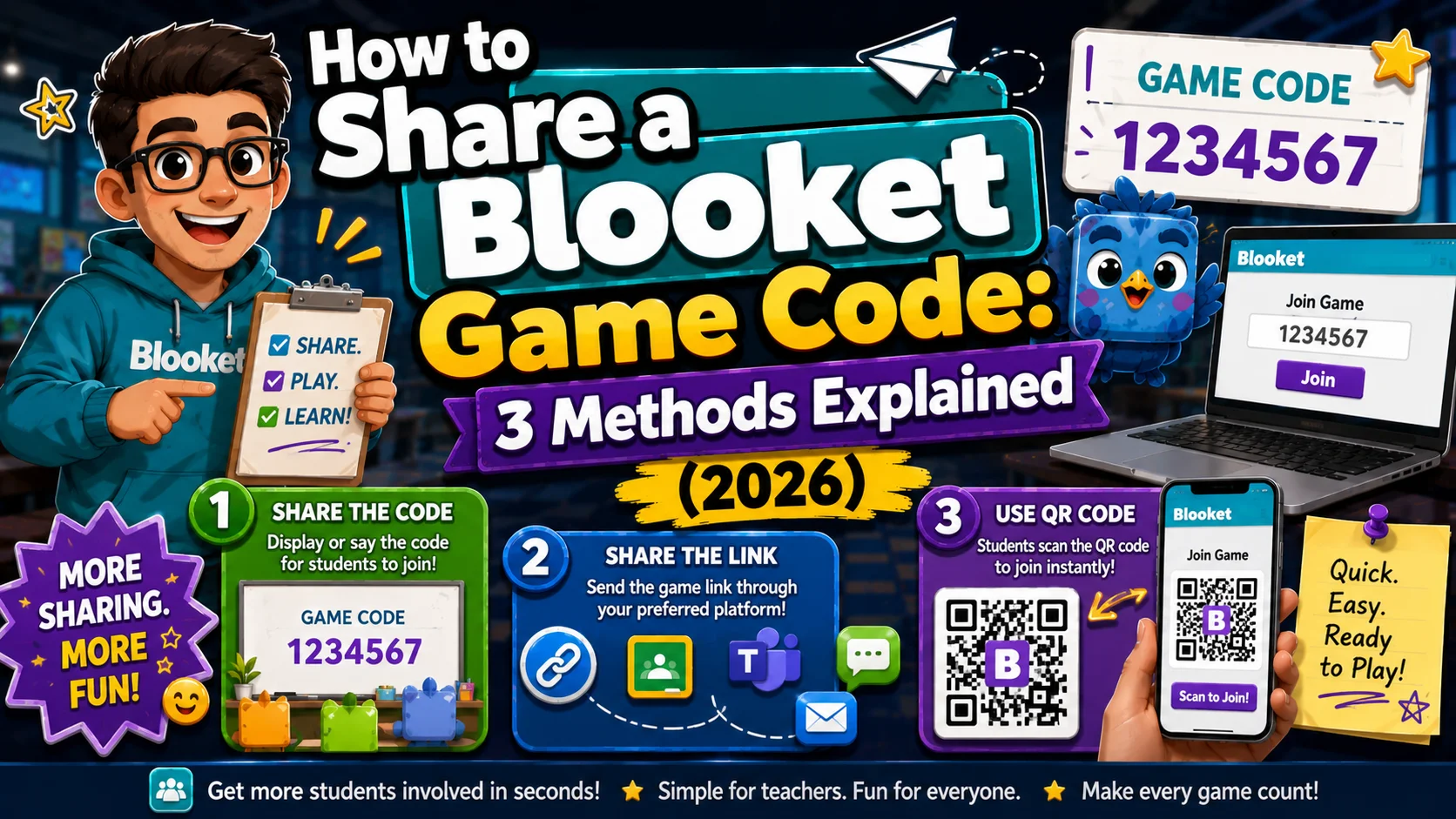
Quick Answer: Blooket gives you three ways to get students into a hosted game: the 7-digit Game ID (best for in-person classes with a projector), the QR code (fastest for students with phones), and the Join Link (essential for virtual, hybrid, or homework use). All three appear on the same lobby screen and lead to the same game.
How to Share a Blooket Game Code?
Once you’ve launched a Blooket game as the host, the next step is getting students in. Blooket provides three sharing methods, each suited to a different classroom context. This guide explains all three methods to share the Blooket game code with your class, when each method works best, and how to resolve the most common join errors students encounter.
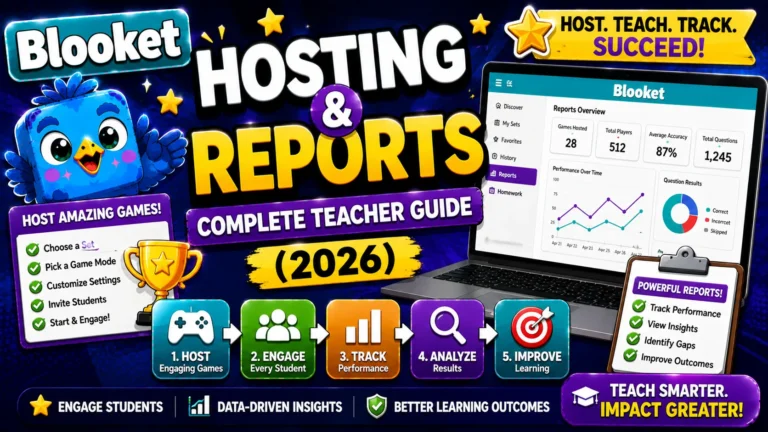
Complete Guide For → Blooket Hosting & Reports
The Three Joining Methods
When you click Host Now, Blooket’s lobby screen displays all three options simultaneously:
- Game ID: A 7-digit numeric code (for example, 4839201)
- QR Code: A scannable image displayed alongside the Game ID
- Join Link: A direct URL you copy with the Copy Link button
All three take students to the same lobby. Choose based on your classroom setup.
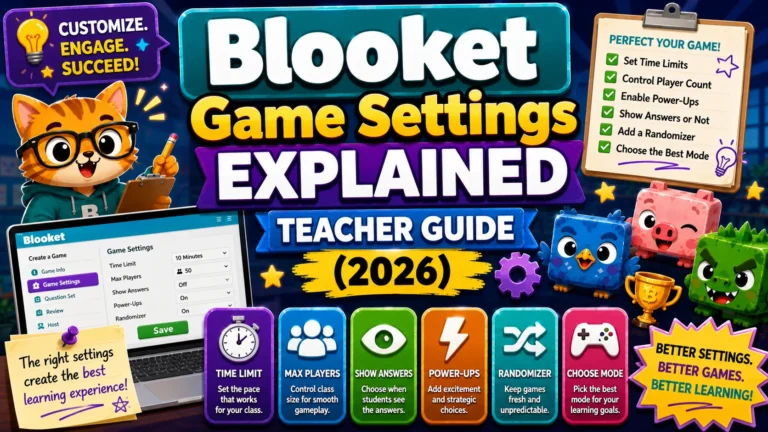
Complete Guide For → Blooket Game Settings
Method 1: Game ID (Most Common)
The Game ID is a 7-digit number unique to your current session. It expires when the session ends; it cannot be reused for a future game.
How students join with the Game ID:
- Students open a browser and go to play.blooket.com
- They type the 7-digit Game ID in the entry field
- They enter a nickname (or receive a random name if that setting is enabled)
- They select a Blook avatar
- Their name appears in your lobby
When to use the Game ID:
The Game ID is the default sharing method for in-person classrooms with a projector or classroom display. Display the lobby screen on your projector; the Game ID appears prominently in the center. Students type it on their own devices.
Teacher tip: Write the Game ID on the whiteboard as a backup. If your projector disconnects mid-session, students who lose the display can still see the code.
Common Game ID Errors
| Error | Likely Cause | Fix |
| “Game not found.” | Code entered incorrectly (transposed digits) | Read the code aloud digit by digit |
| “This game has already ended.” | The session ended before all students joined | Relaunch the game; a new ID is generated each time |
| Students land on the main dashboard, not the join screen | Went to blooket.com instead of play.blooket.com | Write play.blooket.com on the board explicitly |
Method 2: QR Code
The QR code is displayed on the same screen as the Game ID. Students scan it with their device’s camera app; no code typing required.
How students scan the QR Code:
- Open the device’s built-in camera app (no separate QR app needed on modern devices)
- Point the camera at the QR code displayed on the teacher’s screen
- A banner or pop-up appears; tap it to open the join page automatically
- Enter a nickname and select a Blook
When to use the QR Code:
QR code joining eliminates typing errors, making it the fastest method when:
- Students have smartphones or tablets with cameras
- Your class has younger students who struggle to type 7-digit codes accurately
- You want to minimize the join time and get to the game faster
Limitation: The QR code works best when students can physically see your projector screen clearly. For students far from the display, or in virtual/hybrid setups where students can’t scan a screen-projected QR code, Method 3 is better.
Method 3: Join Link
(Best for Virtual and Hybrid Classes)
The Join Link is a direct URL that takes students straight to your game’s join screen. Click Copy Link on the lobby screen, then paste it anywhere students can access it.
Where to share the Join Link:
- Google Classroom: Post as an announcement or assignment link
- Canvas, Schoology, or other LMS: Paste in assignment description or announcement
- Email: Send to students (or parents for homework assignments)
- Slack, Teams, or class messaging platforms: Paste in class chat
- Google Meet or Zoom chat: Paste during a live virtual session
How students join the Join Link:
- Students click the link from wherever you shared it
- The Blooket join page opens automatically with the Game ID pre-filled
- They enter a nickname and select a Blook
- They appear in your lobby
When to use the Join Link:
The Join Link is the essential method for virtual and hybrid classes where students aren’t in the same room and can’t see a projected code or scan a screen. It’s also the best method for homework assignments where students work on their own time.
Important note: Each hosted game generates a unique Join Link. The link for today’s game will not work for tomorrow’s game. For homework assignments (which are not live sessions), Blooket generates a separate, persistent homework link that stays active until the deadline.
For Students → Blooket Join Guide
Choosing the Right Method for Your Context
| Classroom Context | Best Method | Backup |
| In-person, students have phones | QR Code | Game ID |
| In-person, students have Chromebooks or laptops | Game ID (projected) | Join Link |
| Virtual class (video call) | Join Link (in chat) | Game ID |
| Hybrid (some in-person, some remote) | Join Link plus projected Game ID | Both simultaneously |
| Homework assignment | Homework Link (separate from Game ID) | QR Code |
Teacher Hosting Guide → How to Host a Blooket Game
Late Joining: Can Students Join After the Game Starts?
Yes. The Game ID and Join Link remain active for the entire session after you click Start. Students who join after the game has started will enter immediately and begin playing from the current game state. They won’t see questions that have already passed in Synced modes, but in Self-Paced modes, they start from the beginning of the question queue.
If you want to prevent late joining to ensure fairness in a timed assessment, end the game or remove the code display after all students have joined. There is no specific “lock lobby” button; the simplest approach is to clear the projector display once students are in.
Where to Go Next
- Want to know more about Blooket? See our Blooket overview guide
- Want the full teacher toolkit overview? Visit the For Teachers hub
- Introducing this to students directly? See the For Students hub
Have a different question? Check our Frequently Asked Questions or Blooket Help Center
Frequently Asked Questions
Which joining method is fastest for a class with phones?
The QR code. Students scan it with their device camera and skip typing the 7-digit Game ID entirely, which is the fastest way to get a phone-heavy class into the lobby.
Can I use more than one sharing method at the same time?
Yes. All three methods lead to the same lobby, so you can project the Game ID and QR code together while also pasting the Join Link in a virtual chat for hybrid classes.
Does the Game ID work for future games?
No. Each hosted session generates a new, unique Game ID that expires when that session ends. You cannot reuse a previous game’s code.
What is the most common reason students can’t join?
Going to blooket.com instead of play.blooket.com. Writing play.blooket.com explicitly on the board or screen prevents most join failures.
Can students join after I’ve already started the game?
Yes. The Game ID and Join Link stay active for the whole session. Late joiners enter immediately, though in Synced modes they won’t see questions that already passed.
Is the Join Link the same every time I host?
No. Each hosted game generates its own unique Join Link. The homework link is different; it stays active until the assignment’s deadline rather than expiring after one session.
How do I stop students from joining late?
There is no dedicated lock-lobby button. The simplest way is to end the game or clear the projected code and link once all expected students have joined.