How to Read Blooket Game Reports: Complete Teacher Guide
Last verified: August 12, 2026
Quick Answer: Blooket game reports are accessible from the game-end screen immediately after a session, or from your History tab anytime after. Each report has four parts: a session summary, a leaderboard, a question-by-question breakdown, and individual student detail views, with additional data available on Blooket Plus.
How to Read Blooket Game Reports?
Blooket’s reporting system was completely redesigned to provide teachers with deeper, more actionable data on student performance. Every live game and closed homework assignment generates a permanent report accessible from your History tab.
This guide explains exactly where to find Blooket game reports, what every field and section means, and how to move from raw data to instructional action.
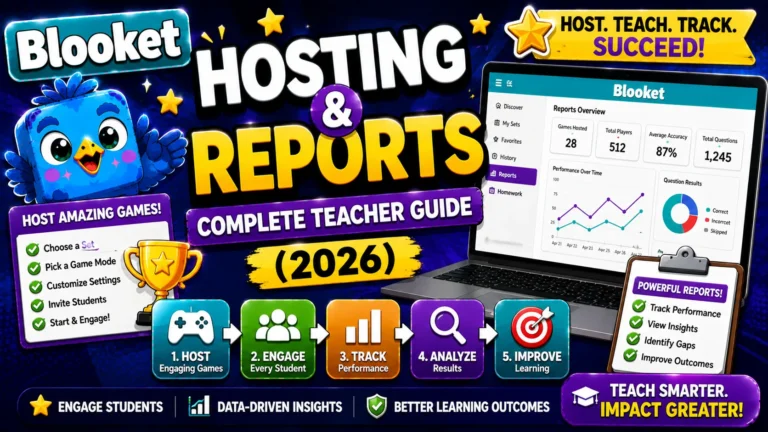
Complete Details About → Blooket Hosting & Reports
Where to Find Blooket Game Reports?
Immediately After a Game
When a live game ends, the game-end screen displays the final leaderboard. In the top-right corner of this screen, click View Report to access the full report for this session without navigating away.
This is the fastest way to reach report data and the best option when you want to debrief with the class while the game is still fresh.
From the History Tab (All Past Games)
To access any past game report:
- Go to your Dashboard
- Click History in the left navigation sidebar
The History page lists every game you’ve hosted with at-a-glance information:
| Column | Information Shown |
| Game Mode | Which mode was used (Classic, Gold Quest, and so on) |
| Question Set | Name of the question set used |
| Number of Players | How many students participated |
| Date Played | Date and time of the session |
→ Filtering and sorting: Filter by date range to find sessions from a specific week or unit. Sort ascending or descending by date.
→ Bulk deletion: Check the box next to one or more reports and click Delete to remove old sessions and keep your History organized. Confirm before deleting, since this action is permanent.
Detailed Guide About → How to Host a Blooket Game
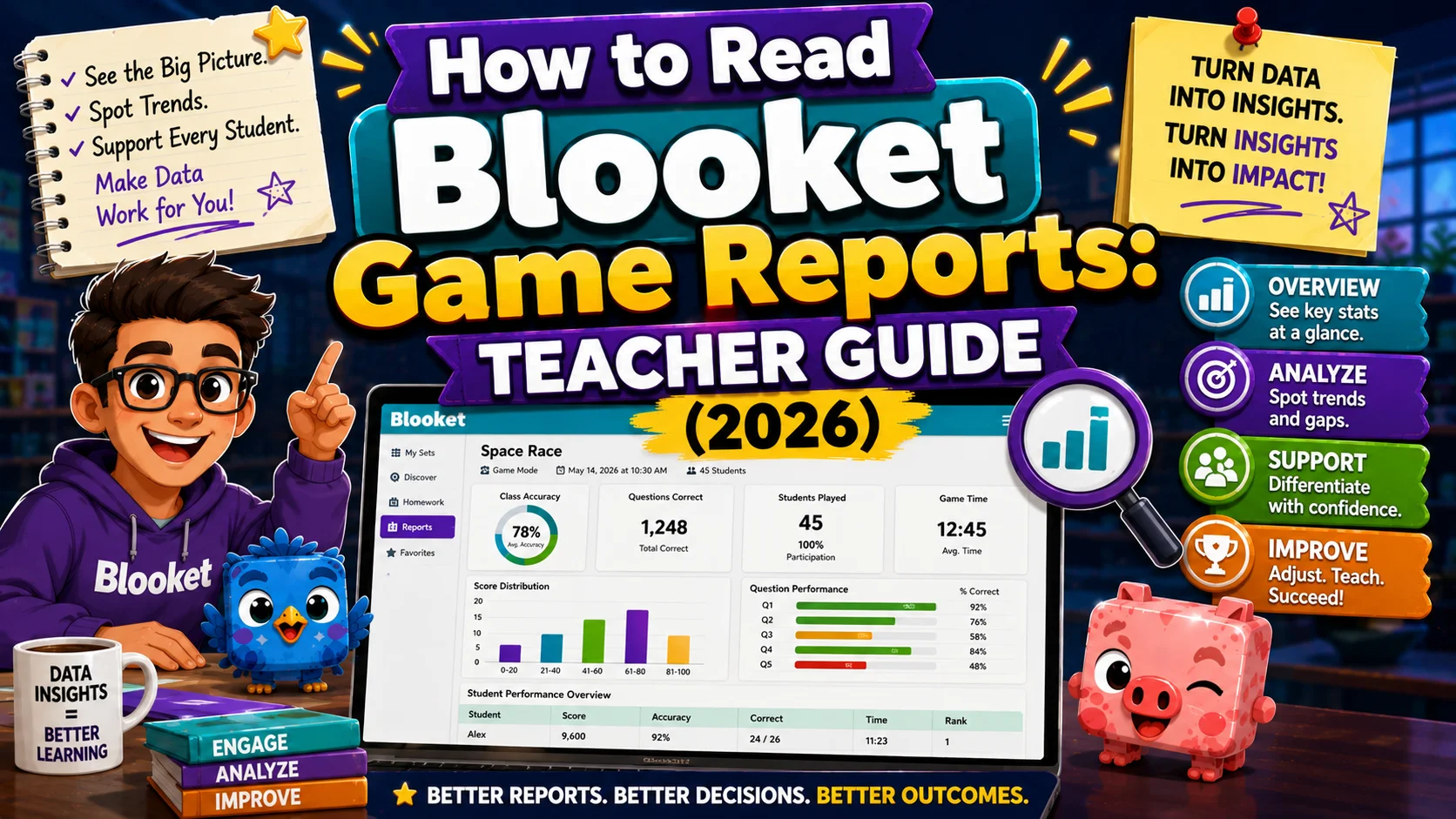
Structure of a Blooket Game Report
Section 1: Session Summary
The top of the report shows:
- Game Mode used
- Question Set title
- Total Players who participated
- Date and Time the game was played
- Average Class Accuracy, the overall percentage of questions answered correctly across all students
The average class accuracy is a single-number pulse check. Anything above 70% generally indicates the class has a working understanding of the assignment. A score below 60% suggests significant content gaps that need re-teaching before assessment.
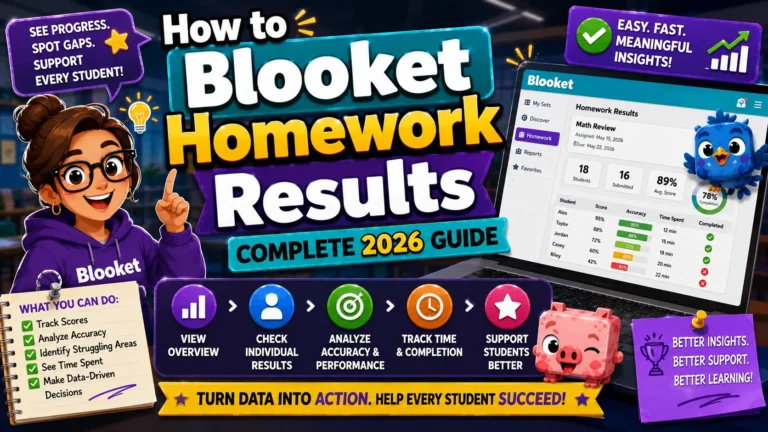
Step-By-Step Guide About → How to View Blooket Homework Results
Section 2: The Leaderboard
The leaderboard lists every student who participated, ranked by their in-game performance. Columns include:
- Name: The nickname the student entered when joining, or the random name assigned if Random Names was enabled. If you used Random Names, you can cross-reference with your seating chart or ask students to recall their random name.
- Accuracy: The percentage of questions the student answered correctly out of all questions they attempted. It is the most diagnostically useful column for individual student assessment.
- Question Breakdown: A visual indicator (bar or fraction) showing the ratio of correct to incorrect answers at a glance.
- Time Played: The total time the student spent actively in the game session.
Clicking a student’s name opens their individual performance report (see Section 4 below).
Section 3: Questions Section
Below the leaderboard is the most powerful part of the report: a complete list of every question in the set with class-wide performance data.
- Default sort (Question #): Questions appear in the order they appear in the question set.
- Sort by Incorrect % (Most Useful): Click the Incorrect % column header to re-sort questions from highest error rate to lowest. This view immediately surfaces the questions your class struggled with most, the clearest signal of where re-teaching is needed.
Standard columns (all accounts):
- Question number
- Question text
- Media (image or audio attached, if any)
- Question type (Multiple Choice or Typing Answer)
- Accuracy rate
- Average answering time
- Number of correct responses
- Number of incorrect responses
- Number of unattempted
Plus-only columns: Individual student columns showing each student’s response to each question, allowing you to see not just class-wide accuracy but which specific students got each question wrong.
Plus-only: Click into a question to see a full breakdown of which answer options students selected across all attempts, not just whether they were right or wrong.
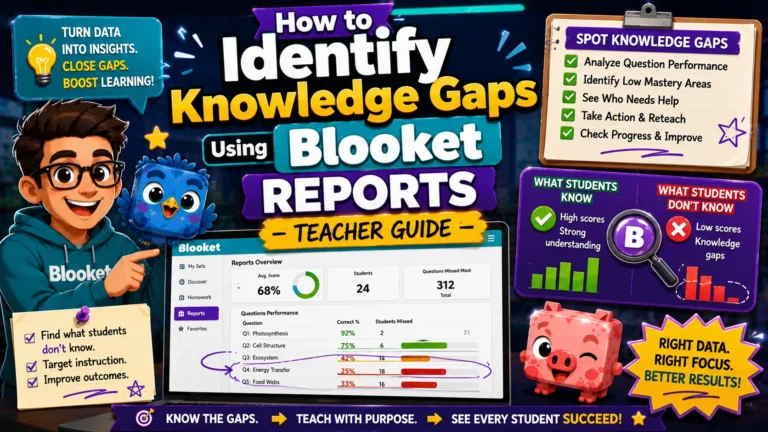
Complete Guide About → How to Identify Knowledge Gaps Using Blooket Reports
Section 4: Individual Student Reports (All Accounts, Enhanced with Plus)
Click any student’s name in the leaderboard to open their individual performance view.
→ Free accounts: See a list of questions with correct/incorrect results for that student.
→ Blooket Plus: See a fully detailed individual student report, including:
- Accuracy breakdown (correct, incorrect, total questions)
- Average response time per question
- Full question list with results for every question
- How the student performed on repeated attempts of the same question (if they played multiple sessions or revisited questions)
- The specific answers they selected for every attempt
- Option to download the individual student report as a spreadsheet
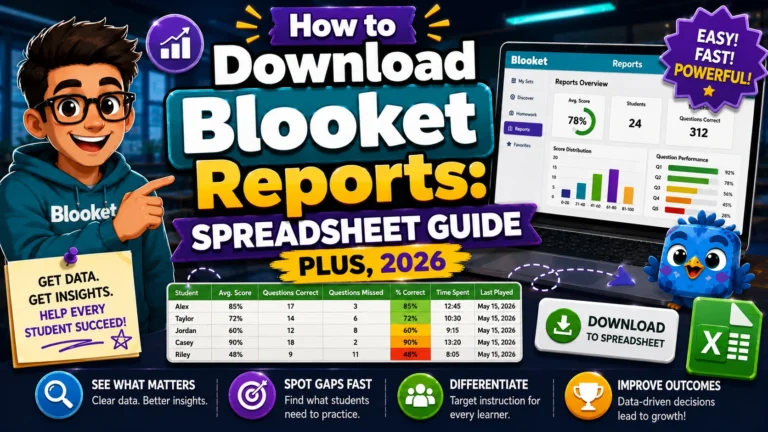
Complete Guide For → How to Download Blooket Reports as a Spreadsheet (Plus)
Interpreting Report Data: From Numbers to Instruction
What to Look at First
- Average Class Accuracy. Is it above or below 70%? This sets the overall picture.
- Top 3 questions by Incorrect %. These are your re-teaching priorities.
- Lowest individual accuracy scores. Which students need targeted follow-up?
Reading Accuracy Patterns
→ High accuracy (80%+) on most questions, but one outlier question with 20% accuracy: The class generally knows this content, but one specific concept is misunderstood. Plan a focused re-teach of that single concept.
→ Consistent 50 to 60% accuracy across most questions: The class has partial knowledge across the board. The work needs a more general review before assessment.
→ High accuracy for stronger students, low accuracy for 5 to 6 specific students: Most of the class is ready; a small group needs differentiated support. Use individual reports to identify which questions specifically are challenging for those students.
Average Response Time
The Average Answering Time column reveals fluency, not just accuracy. A student who answers correctly but consistently takes 25 or more seconds on questions, while the class averages 12 seconds, may have the right answer through effortful processing rather than automatic recall. Fluency-building practice may be as important as accuracy-building for these students.
Source: verified from Blooket’s official “How to Read Blooket Reports” documentation.
Report Data Compatibility Note
Important: Older games hosted before the reporting redesign may not include all of the newer report fields described in this guide. Sessions hosted more recently, and modes released after the redesign, display the full range of detailed reporting options.
If you’re reviewing reports from sessions hosted more than a year ago, some of the detailed columns described in this guide may not be available. Reports from sessions hosted in 2026 and forward include the full redesigned dataset.
Where to Go Next
- Want to know more about the platform? See our Blooket guide
- Want the full teacher toolkit overview? Visit the For Teachers hub
- Introducing this to students directly? See the For Students hub
Have a different question? Check our Frequently Asked Questions or Blooket Help Center
Frequently Asked Questions
Where do I find a game report right after hosting?
Click View Report in the top-right corner of the game-end screen before navigating away. This is the fastest way to see results while the session is still fresh for a class debrief.
What does Average Class Accuracy tell me?
It is a single-number pulse check for the whole session. Above 70% generally suggests a working understanding of the content, while below 60% suggests significant gaps that need re-teaching.
What is the most useful way to sort the Questions section?
Sort by Incorrect %. This surfaces the questions your class struggled with most at the top of the list, making it the clearest signal of where to focus re-teaching.
What extra data does Blooket Plus add to game reports?
Plus adds individual student columns in the Questions section, showing which specific students got each question wrong, plus a full breakdown of which answer options students selected across all attempts.
Does the Average Answering Time column matter if a student’s accuracy is already high?
Yes. High accuracy with a much slower answering time than the class average can indicate a student is reasoning through content effortfully rather than recalling it automatically, which points to a fluency gap worth addressing.
Will older game reports show all the same data as new ones?
Not always. Older games hosted before the reporting redesign may be missing some of the newer report fields described in this guide. Sessions from 2026 onward include the full dataset.
How do I keep my History tab organized if I host frequently?
Use the bulk delete option: check the box next to one or more old reports and click Delete. This action is permanent, so confirm before deleting.