How to View Blooket Homework Results: Teacher Reporting Guide
Last verified: August 12, 2026
Quick Answer: Blooket homework results come in two phases: a live progress view (accessible from the Homework tab while the assignment is open) and a full report (accessible from History after the assignment closes). The full report includes a leaderboard, a question-by-question breakdown, and individual student detail views.
How to View Blooket Homework Results?
Once a homework assignment is live or closed, Blooket gives you a complete view of student performance: who completed it, how accurate they were, how long they played, and which questions gave the class the most trouble. This guide explains Blooket homework results at every level of the homework report, from the live progress view to the closed-assignment analysis.
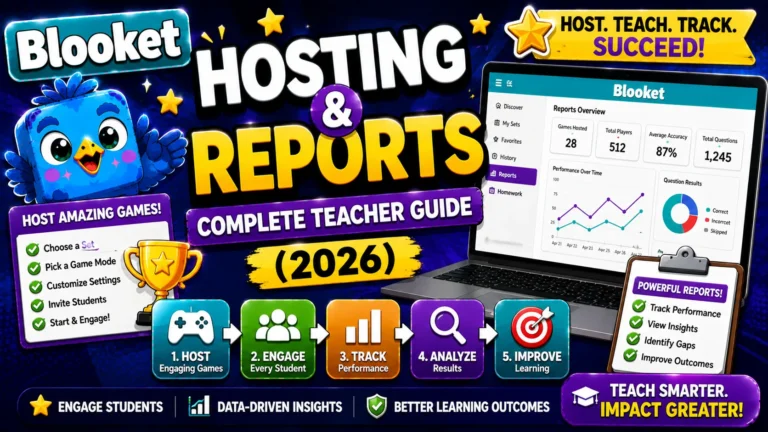
Complete Guide For → Blooket Hosting & Reports
Two Reporting Phases: Live and Closed
Blooket homework results are available in two phases:
- Phase 1, while the assignment is open (Live Progress View): Accessible from the Homework tab. Shows real-time completion status as students submit before the deadline.
- Phase 2, after the assignment closes (Full Report): Available from the History tab after the due date passes or you manually end the assignment. Contains the complete dataset, including question-level analysis.
Step-By-Step Guide → How to Assign Homework in Blooket
Accessing Live Homework Progress
While an assignment is open:
- Go to your Dashboard
- Click Homework in the left navigation sidebar
- Find the assignment by title
- Click the assignment to open the live progress view
You can view live data while you host. The live view shows:
- Total number of students who have started the assignment
- Total students who have completed it (reached the Correct Goal)
- A real-time list of individual students with their current correct answer count
This view updates continuously as students submit. Check it during class to identify students who may need reminders, or check it in the evening to see end-of-day progress.
Accessing the Full Report After Closing
Once the assignment has closed (deadline passed or manually ended):
- Go to your Dashboard
- Click History in the left navigation sidebar
- Locate the homework assignment in your history list (filter by date if needed)
- Click the assignment to open the full report
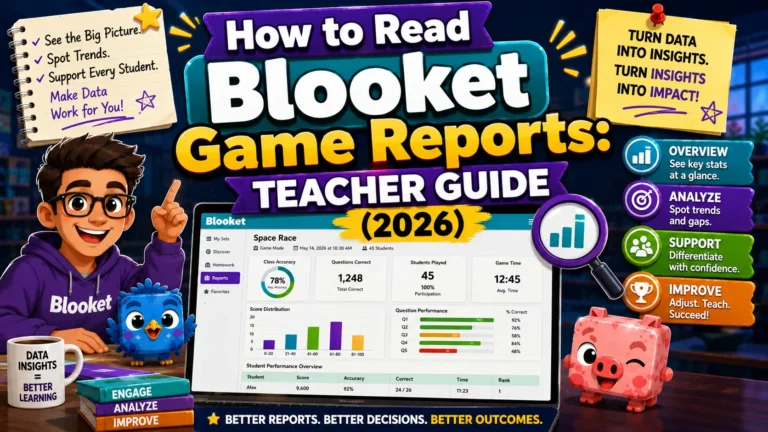
Complete Guide About → How to Read Blooket Game Reports
What Does the Full Homework Report Contain?
The Leaderboard
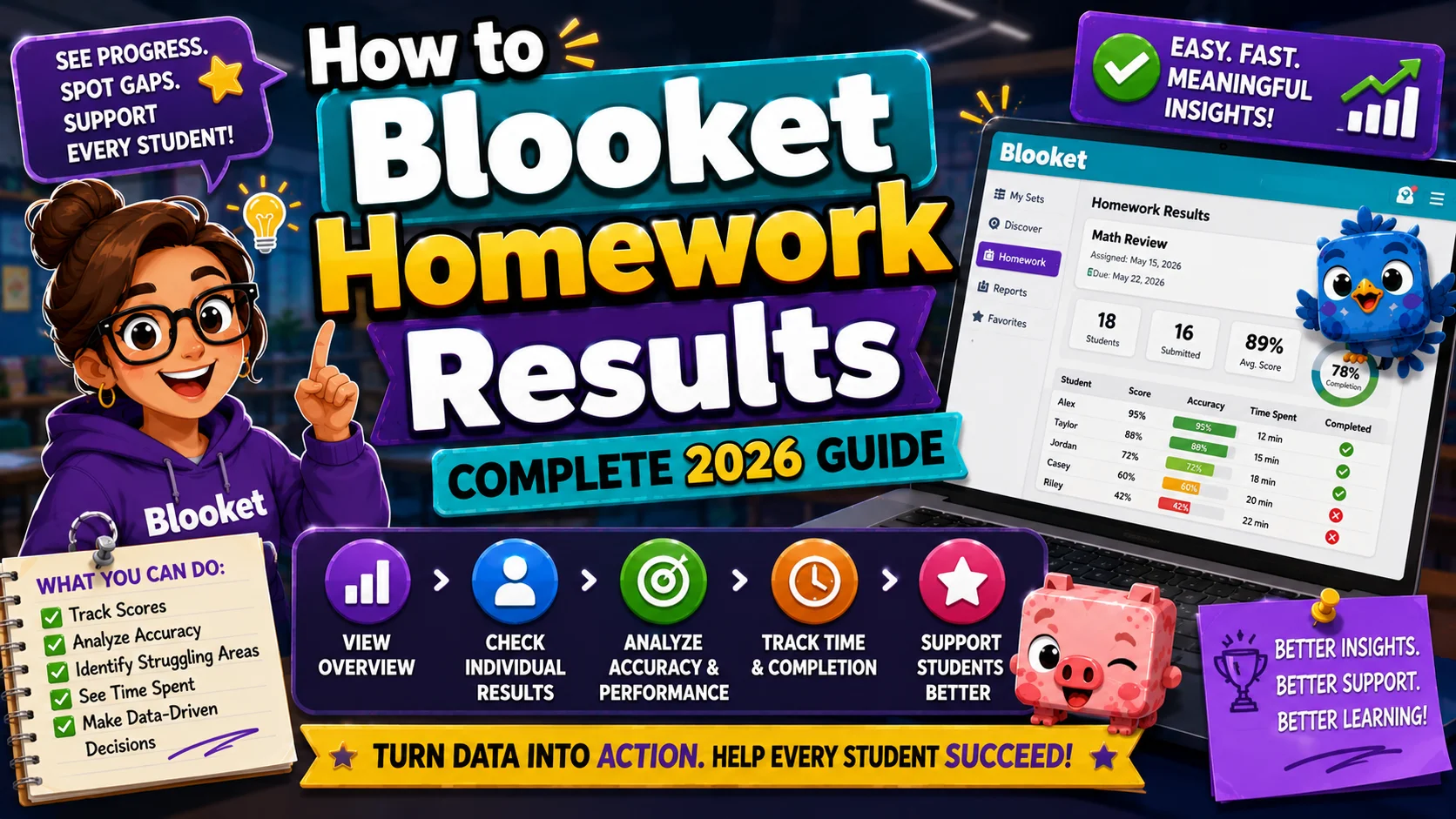
The leaderboard is the report’s primary view. It lists every student who accessed the assignment with these columns, per official Blooket documentation:
| Column | What It Shows |
| Name | Student nickname or account name |
| Accuracy | Percentage of questions answered correctly |
| Question Breakdown | Visual indicator of correct/incorrect distribution |
| Time Played | Total time spent in the game session |
| Completion | Whether the student reached the Correct Goal |
How to interpret Completion vs. Accuracy: A student can complete the assignment (reach the Correct Goal) with a relatively low accuracy rate if they play long enough.
Conversely, a student might not complete the assignment despite high accuracy if they didn’t play long enough to accumulate enough correct answers. Both metrics matter: Completion tells you who engaged, and Accuracy tells you how well they understood the assignment.
The Questions Section
Below the leaderboard is a complete list of all questions in the assignment, along with class-wide performance data.
- Default view: Questions listed in original order (Question 1, 2, 3, and so on)
- Sort by Incorrect %: Click the Incorrect % column header to sort questions from highest error rate to lowest. This is the most pedagogically useful view; the questions at the top of the sorted list are the ones your class struggles with most.
Free account: See the accuracy rate per question. Blooket Plus: Click any individual question to see a full breakdown of which specific answers students selected across all attempts.
Individual Student Reports
Click any student’s name in the leaderboard to open their individual performance report. This shows:
- Their accuracy on every individual question
- Whether they answered correctly, incorrectly, or skipped each question
- Their response pattern across all attempts (if they answered the same question multiple times in multiple game sessions)
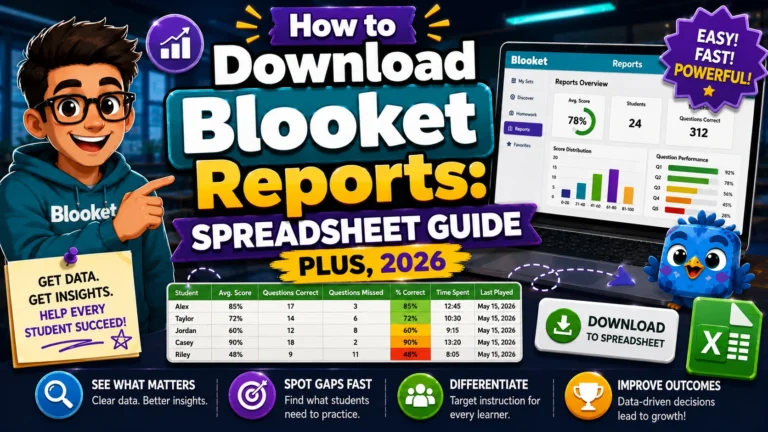
Step-by-Step Complete Guide → How to Download Blooket Reports as a Spreadsheet
Free account: Basic individual view; correct or incorrect per question. Blooket Plus: Full per-question detail, including the specific answer choices the student selected. Also includes a Download option for the individual student’s full data as a spreadsheet.
Free vs. Plus: Homework Report Features
| Feature | Free (Starter) | Blooket Plus |
| Leaderboard (name, accuracy, time) | Yes | Yes |
| Completion status | Yes | Yes |
| Questions sorted by Incorrect % | Yes | Yes |
| Click the question for the answer breakdown | No | Yes |
| Individual student detailed report | Basic | Full |
| Opportunities for growth feature | No | Yes |
| Download the report as a spreadsheet | No | Yes |
| Download the individual student report | No | Yes |
Practical Tips for Using Homework Reports
→ Check Completion, then Accuracy. Start by identifying who didn’t complete the assignment (Completion column shows incomplete). Then look at the accuracy for students who had low completion, which suggests they clicked through quickly without engaging. High accuracy without completion suggests a student who answered carefully but ran out of time.
→ Sort by Incorrect % before re-teaching. The questions at the top of the Incorrect % sort are your next teaching targets. If four questions have error rates above 60%, you have a clear agenda for tomorrow’s review.
→ Don’t penalize low scores directly. Blooket homework is designed as practice, not assessment. Students who struggle during practice need targeted instruction, not point deductions. Use the data to direct your instruction rather than your gradebook.
→ Compare homework reports to game reports. If students score significantly lower on a homework assignment than on a live review session for the same question set, the difference may reflect the absence of competitive peer pressure rather than content knowledge. Consider both datasets before drawing instructional conclusions.
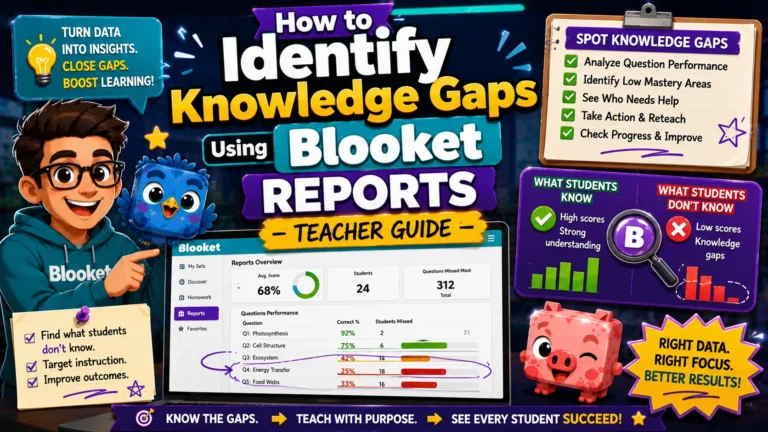
Full Explanation About → How to Identify Knowledge Gaps Using Blooket Reports
Where to Go Next
- Want to know more about the platform? See our full Blooket overview
- Want the full teacher toolkit overview? Visit the For Teachers hub
- Introducing this to students directly? See the For Students hub
Have a different question? Check our Frequently Asked Questions or Blooket Help Center
Frequently Asked Questions
Can I see homework results before the assignment closes?
Yes. The live progress view in the Homework tab updates in real time, showing who has started, who has completed, and each student’s current correct answer count while the assignment is still open.
What is the difference between Completion and Accuracy?
Completion shows whether a student reached the Correct Goal. Accuracy shows the percentage of questions they answered correctly. A student can complete the assignment with lower accuracy by playing longer, or fail to complete it despite high accuracy if they ran out of time.
What is the best way to sort the Questions section?
Sort by Incorrect %. This puts the questions your class struggled with most at the top, making it the fastest way to identify what needs re-teaching.
Do free accounts see which specific wrong answers students picked?
No. Free (Starter) accounts see the accuracy rate per question. Blooket Plus adds the ability to click into any question and see exactly which wrong answers students selected.
Can I download an individual student’s homework report?
Yes, but only on Blooket Plus. Free accounts get a basic correct/incorrect view per question; Plus adds a full per-question breakdown and a downloadable spreadsheet for that student.
Should I grade students based on their homework accuracy?
Blooket homework is designed as practice, not formal assessment. Using the data to direct re-teaching rather than assign grades tends to produce better instructional outcomes.
Why might homework accuracy be lower than live game accuracy for the same content?
The absence of competitive peer pressure in a solo homework session can affect performance independently of actual content knowledge. Comparing both datasets gives a fuller picture before concluding.