Blooket Play Guide to Join and Play Blooket Games

Last verified: August 5, 2026

Quick Answer: Blooket Play is the live-game portal at play.blooket.com. Enter your host’s game code to join instantly on any device with no account and no app download. Prefer to practice alone? Use Discover mode from your dashboard to play solo, self-paced, on your own schedule.

Blooket is a fun and engaging platform where players can participate in educational games. Whether you want to join a game or host one, Blooket Play makes learning enjoyable and interactive. It allows students, teachers, or anyone interested to dive into different game modes across desktop, tablet, and mobile.

This guide focuses on what makes Blooket Play distinct: playing across any device and playing solo at your own pace. For the full step-by-step join process, see our Blooket Join guide. For complete details, see our Blooket overview guide.

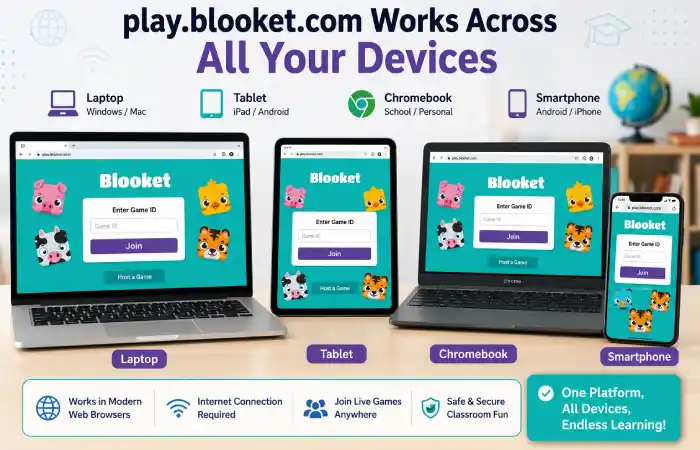
Blooket Play Device Dashboard

How to Use Blooket Play?

Blooket Play is the live-game portal at play.blooket.com. This is where players actually join and participate in games hosted by a teacher or another host. Joining doesn’t require an account, while hosting does.

How to Join a Game?

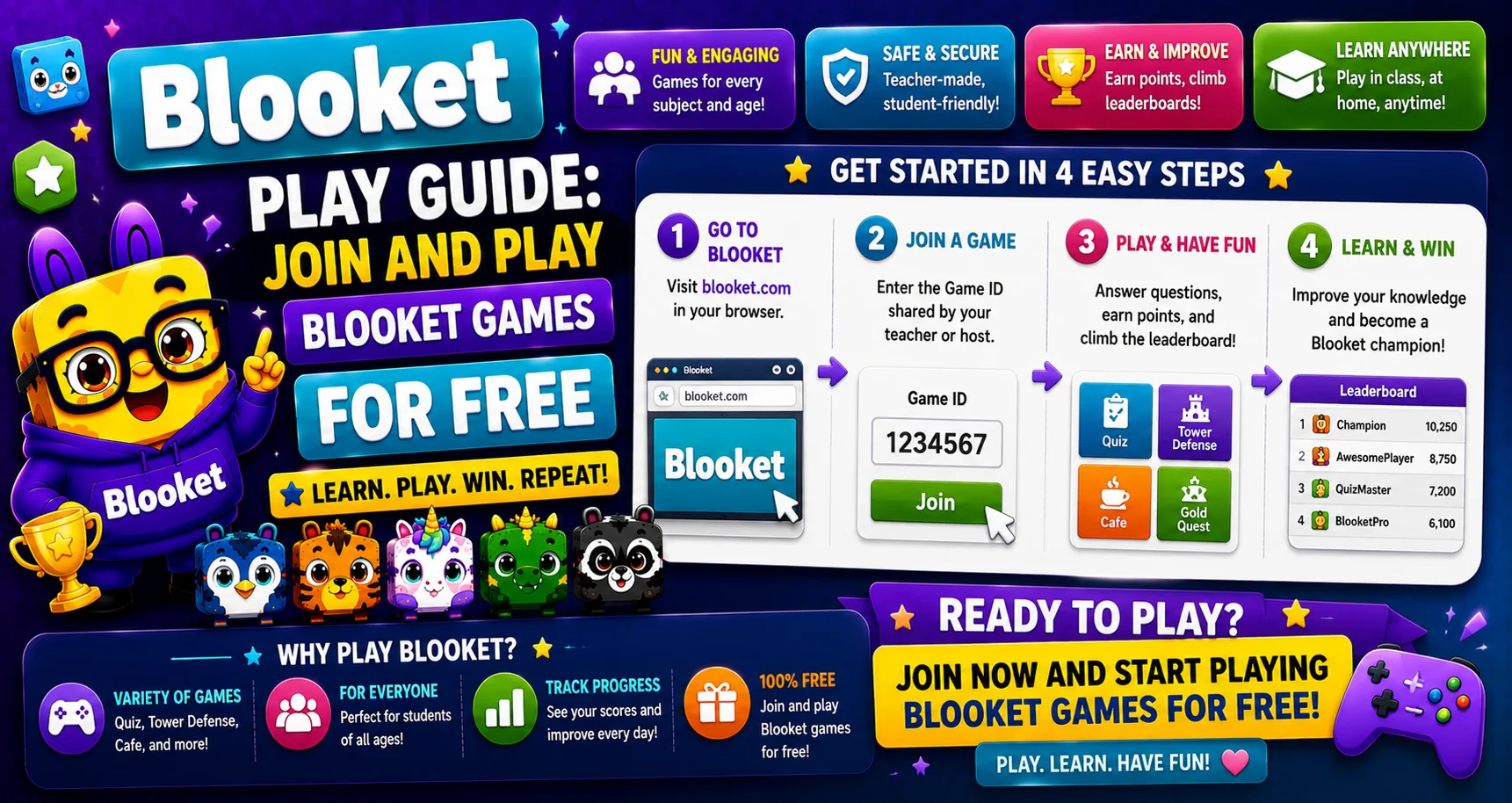
  1. Go to play.blooket.com.
  2. Enter the game code your host shared.
  3. Choose a display name and Blook character.
  4. Click Join to enter the live session.

No account is needed for this — guest play works instantly with just a code. For QR codes, direct links, and troubleshooting a code that isn’t working, see our complete Blooket Code guide.

Source: verified from Blooket’s official “How to Join a Blooket Game” documentation.

How to Play Blooket Game Without a Code?

Students can join with a game code. If you don’t have a code, other options are available:

  • Direct join link — if your host shares a link instead of a code, clicking it takes you straight in.
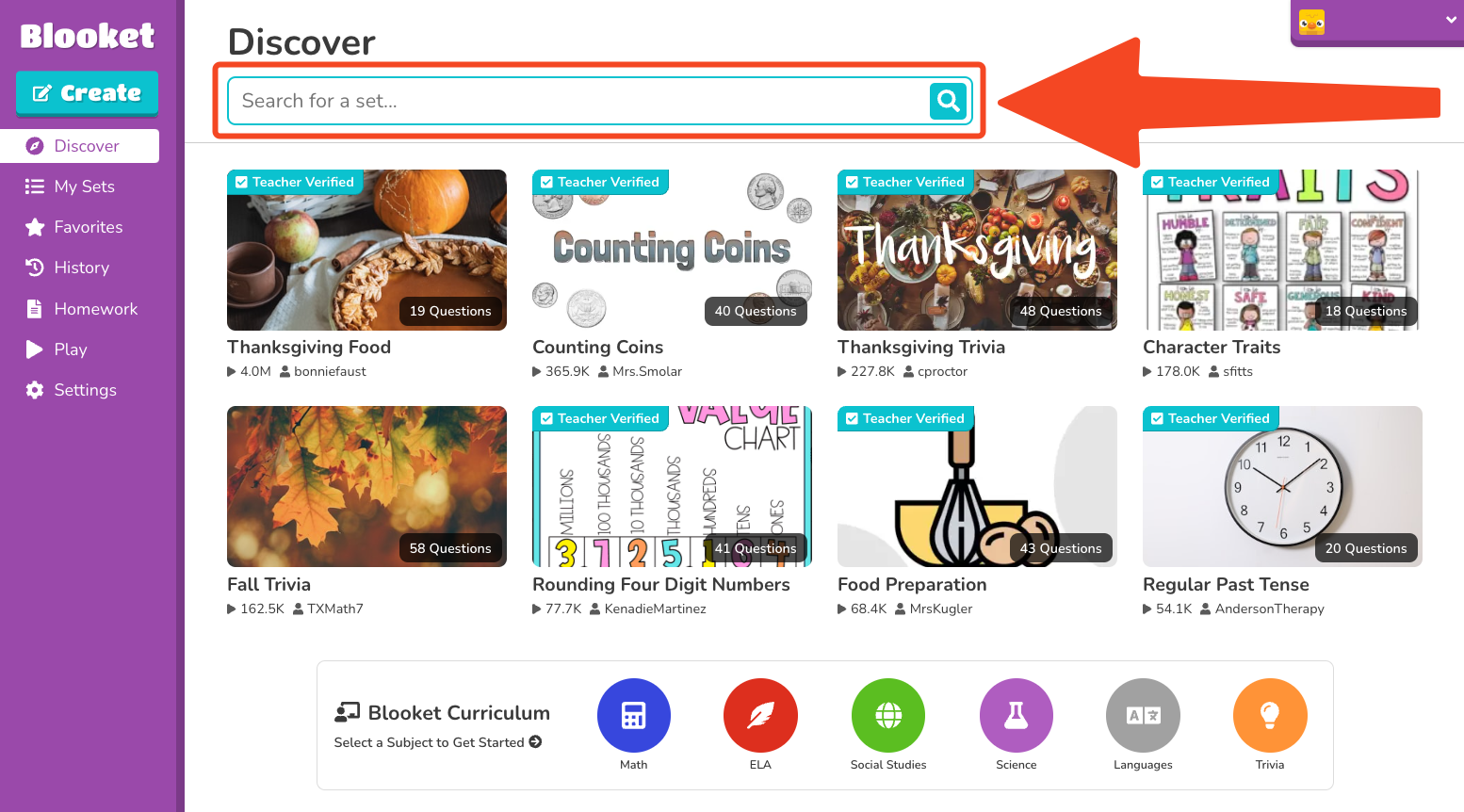
  • Solo modes — many game modes support solo, self-paced play through your dashboard’s Discover section, without needing a host or code at all.

How to Play Blooket Solo?

This is where Blooket Play differs most from a typical live session: no host, no code, no other players, just you and the questions on your own schedule. See our complete Blooket Solo Play guide to learn more in detail.

  1. Go to blooket.com and open the Discover section (log in if you want your progress saved, or continue as a guest for a one-off session).
  2. Choose a question set on a topic you want to review.
  3. Select a solo-compatible mode, such as Tower Defense or Factory.
  4. Start playing at your own pace, no waiting for other players.

This is useful for self-paced review, homework, or getting familiar with a mode before playing it live with a class.

Blooket Discover Dashboard

Hosting a Blooket Game

Hosting requires being logged in to a Blooket account. This applies to everyone, teacher or student. In short: log in, pick or create a set, select a mode, click Host, and share the code. For the full hosting walkthrough, including how to choose from 25+ game modes, see our complete Blooket Game guide.

Playing while hosting: You can join your own game from a second device or browser tab using the code, letting you participate while still managing the session from your main screen.

Popular Blooket Game Modes To Start With

Blooket Play works the same way structurally across every mode the host selects. Correct answers drive whatever techniques that mode uses. A few good starting points:

  • Tower Defense — Answer correctly to build and upgrade defenses against waves of enemies.
  • Factory — Manage a production line, using correct answers to keep it running and growing.
  • Fishing Frenzy — Answer questions to “catch” fish. The most correct answers win.
  • Monster Brawl — Correct answers power your attacks and defenses in a head-to-head battle format.

Blooket offers over 25 game modes in total. See our full Blooket game modes explained guide for the complete list, including solo-only and Blooket Plus-exclusive modes.

Playing on Different Devices

Blooket Play works fully in-browser on desktop, tablet, and mobile. This is one of its biggest practical advantages over apps that require installation. Just open play.blooket.com in any modern browser (Chrome, Safari, Firefox) and the interface adjusts automatically to your screen size. If you’re signed into an account, your progress carries over between devices, so you can start a solo session on a classroom desktop and pick it up on a phone later.

Earning Coins and Tokens

Coins and tokens are earned primarily by answering questions correctly during games. This is the most reliable and best-documented way to build up your balance. They’re used to unlock new Blook characters and cosmetic items in the Market. Claims about earning them through other means (daily bonuses, referrals, etc.) aren’t something we can confirm officially, so regular gameplay remains the dependable method.

Conclusion

Blooket Play is the simplest way to jump into a live game on any device: no account needed to join, no app to install, and hosting takes just a couple of minutes once logged in. Whether you’re practicing solo, joining a class session, or hosting your own game, the process stays consistent across desktop, tablet, and mobile. For more detailed documentation, see Blooket’s Help Center guides.

FAQs About Blooket Play

What is Blooket Play?

It’s the live-game portal at play.blooket.com where players join and participate in games hosted by a teacher or another host.

Can I play Blooket without an account?

Yes, as a player. Joining a live game as a guest needs only a game code. No account is required.

Can I host without an account?

No. Hosting a game always requires being logged in to a Blooket account.

How do I play solo?

Go to the Discover section on your dashboard, choose a set, and select a solo-compatible game mode.

Can I play on my phone?

Yes, Blooket Play works fully in a mobile browser with no app download needed.

How do I earn coins?

Primarily by answering questions correctly during games.

Does my progress carry over between devices?

Yes, as long as you’re logged into your account and you can start a session on one device and continue on another.

Disclaimer

BlooketApp.com is an independent website and is not owned by, operated by, or affiliated with Blooket or its official creators. For the actual platform, visit the official site at blooket.com.

Author

Written by Lucas Harry, a content writer who tests Blooket’s features firsthand before publishing this guide.