How to Complete Blooket Homework: Step-by-Step Student Guide
Last verified: August 18, 2026
Quick Answer: To complete Blooket homework, open the link or QR code your teacher shares, choose any allowed game mode, and play until you reach the correct-answer goal your teacher set. No account is required, though logging in earns you XP and tokens. Complete it in one sitting, since progress isn’t saved between sessions.
How to Complete Blooket Homework?
Blooket homework has been updated to give students more control and fun. Your teacher sets a goal (number of correct answers needed) and a deadline; you choose the game mode and play at your own pace before the due date. This guide explains how to complete Blooket homework.
How Blooket Homework Works
Blooket homework is powered by Solo gameplay. Your teacher creates an assignment, sets a completion goal (some correct answers), and shares it with you via a link or QR code. You choose a game mode you enjoy, play until you reach that goal, and once you do, your teacher’s report automatically shows the assignment as complete.
💡 No Blooket Account needed: Anyone with the homework link can join as a guest. However, logged-in students also earn XP and tokens while completing homework.
Complete Overview About → Blooket Game Modes for Students
Steps to Complete Blooket Homework
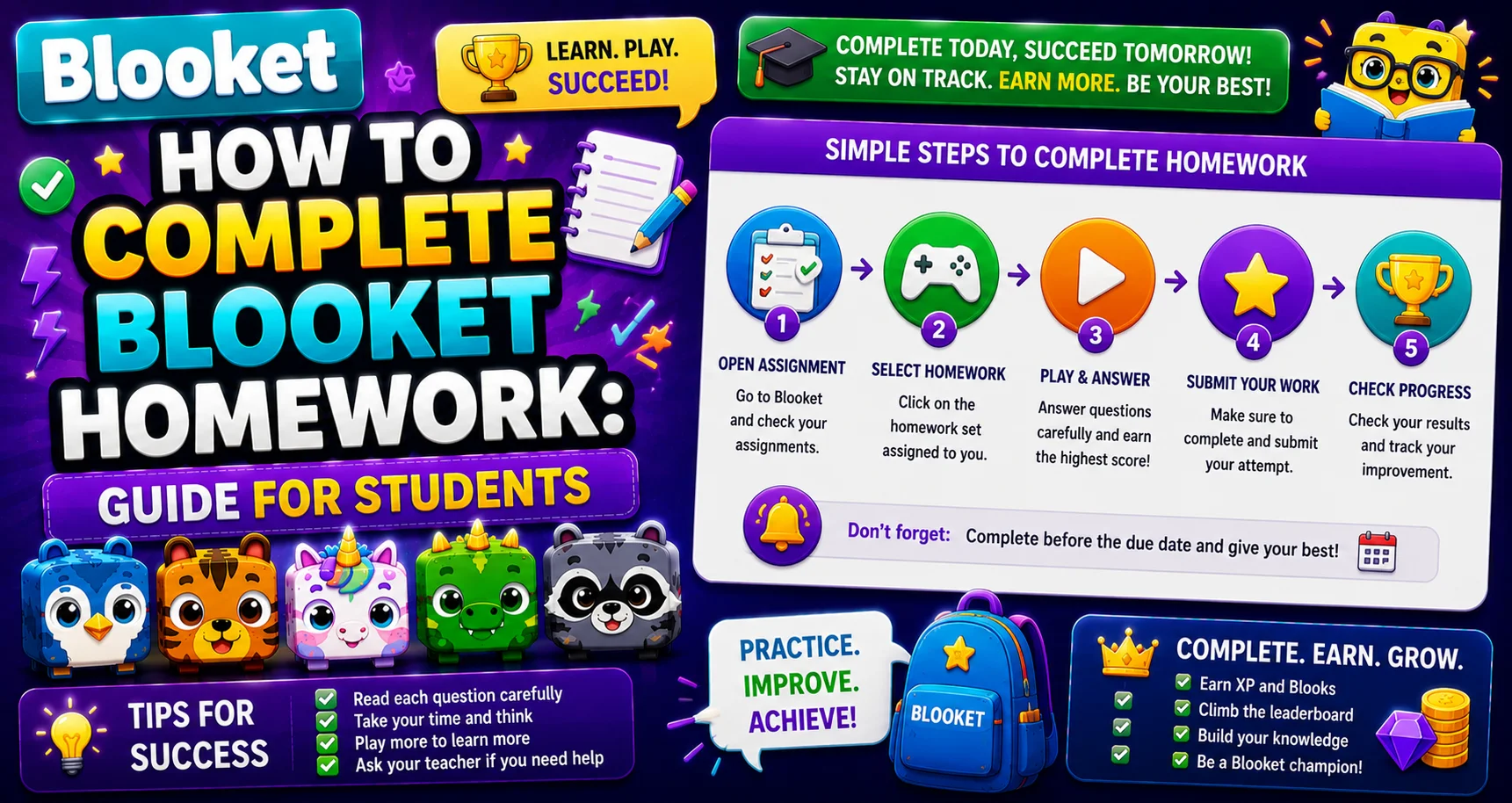
- Access your homework assignment. Your teacher can share the homework in two ways: via a Homework Link (shared through email, Google Classroom, Canvas, or another learning platform; just click to go straight to your assignment) or a QR Code (displayed in class or in a virtual meeting; scan it with your phone or tablet camera to open the assignment instantly).
- Review the homework details. You’ll see an overview screen showing the assignment name, your teacher’s name, the due date, and, most importantly, your goal (the number of correct answers needed). Take note of this number before you start, then click Get Started.
- Choose your game mode. One of the best parts of Blooket homework is that you choose your own game mode. Click each game logo to preview its difficulty, skills, ideal play time, and question frequency, then click Play to start. Not happy with your choice? You can switch modes mid-assignment without losing progress toward your goal.
- Enter your nickname. Before the game starts, enter a nickname. Use a name your teacher will recognize, like your first name and last initial. This is the name that appears in your teacher’s homework report. If they can’t identify you, you may not receive credit.
- Play toward your goal. After a quick reminder of your homework goal, the game begins. Watch the progress tracker in the top-right corner; it shows exactly how many more correct answers you need. Wrong answers don’t reset your progress, but they don’t count toward the goal either. Focus on accuracy, not just speed.
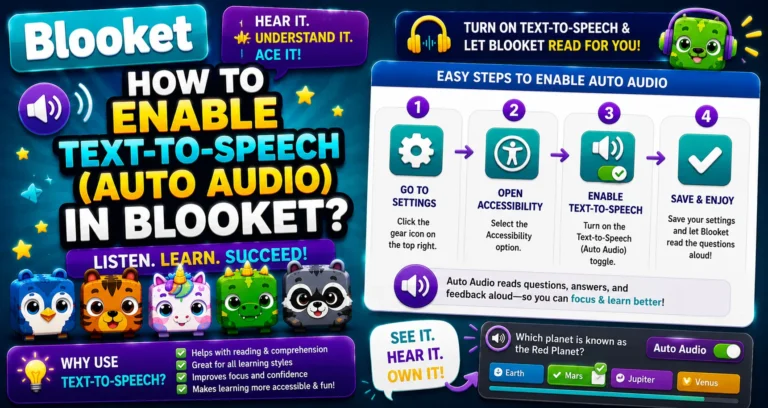
- Manage settings and your session. While playing, use two important controls: the Gear icon (top-right) to adjust volume and enable accessibility features like Automatic Audio, and the Flag icon (top-right) to exit or switch game modes. A confirmation screen will appear before anything changes.
- Complete the homework. When you’ve hit your goal, a “Homework Complete!” pop-up appears. You can choose to Keep Going (for extra practice; your teacher already sees you as complete) or End Now to view your results. After you end, you’ll see a results screen showing your accuracy percentage and any rewards earned.
Source: verified from Blooket’s official homework documentation.
Getting to the Homework
Your teacher shares the homework via:
- QR Code: Scan with your phone or tablet camera.
- Homework Link: Click from Google Classroom, email, or your LMS.
After using either method, you’ll see the Homework Details screen showing:
- The assignment name
- The Correct Goal (how many correct answers equal completion)
- The due date
Choosing Your Game Mode
After entering your nickname, you’ll see the available game modes your teacher has allowed. Preview each one by clicking its logo to understand the mechanics, then click Play on your choice.
Smart mode selection for homework:
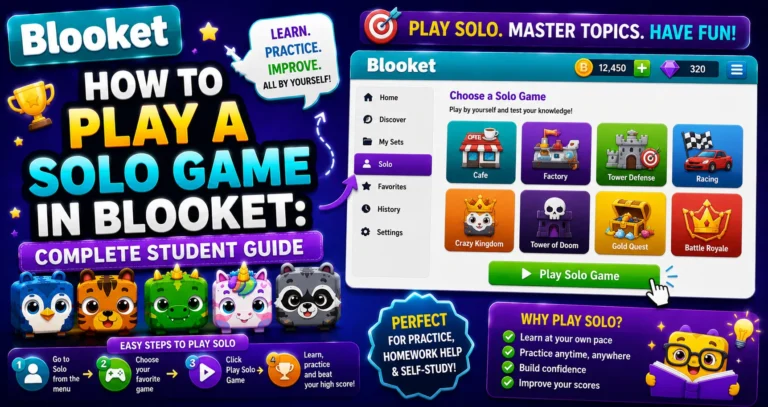
- If you want to play something fun that runs long: Cafe or Tower Defense (both have their own in-game save-slot feature if you pause mid-game before finishing).
- If you want to complete it fast: Zorblitz or Study Mode.
- If you enjoy strategy: Crazy Kingdom.
Step-by-Step Guide → How to Play a Solo Game in Blooket
Playing and Hitting the Goal
Play normally, answering questions correctly. Your progress toward the Correct Goal appears on screen. Wrong answers don’t subtract from your goal; they mean you need more correct answers total.
- Keep Going: Continue for fun, better accuracy, or more tokens. Your teacher already sees completion.
- End Now: Finish and see your summary.
Your Results
Once you end the homework, you’ll see an overview of your performance, including your accuracy and any rewards you’ve earned. Your teacher sees:
- Whether you completed the goal
- Your accuracy percentage
- Your total correct answers
- Time played
Want to join Homework? → How to Join a Homework Assignment
After Completing Your Homework
- View Details: Get a question-by-question breakdown of your answers, useful for identifying which topics need more review.
- Play Again (logged-in users only): Start a new Solo game with the same question set for extra practice. These additional plays won’t appear in your teacher’s homework report.
⚠Important: Complete homework in one session. Blooket homework assignment progress is not currently saved between sessions, separate from any individual game mode’s own mid-game save-slot feature. If you close the browser window or the tab goes inactive for too long, you’ll need to use the original link or QR code to start fresh. Try to complete the assignment in a single sitting whenever possible.
Troubleshooting Quick Reference
Running into a problem? Here are fast solutions for the most common issues.
- Link not working? Check you’re using the exact link your teacher shared. Links expire after the due date. Ask your teacher for an updated link.
- Accidentally closed your browser? Progress is not saved. Reopen the original homework link and start a new session from the beginning.
- Teacher says the homework isn’t complete? Confirm you used the homework link (not a regular Solo game link), entered a recognizable nickname, and saw the “Homework Complete!” screen.
Troubleshooting Guide → Blooket Game Performance Troubleshooting
Where to Go Next
- Want to know more about the platform? See our Blooket overview
- Curious about what your teacher sees? Visit the Blooket For Teachers
- Want the full student guides overview? See the Blooket For Students
Have another question? Please check the Frequently Asked Questions or Blooket Help Center.
Frequently Asked Questions
Do I need a Blooket account to complete homework?
No. You can complete Blooket homework as a guest using just the homework link or QR code. However, if you log in with your account, you’ll also earn XP and tokens while you play, a nice bonus for work you’re already doing.
Can I change game modes during homework?
Yes. Tap the Flag icon and select a new game mode. Your progress toward the correct-answer goal carries over; you won’t lose credit for questions you’ve already answered correctly.
What counts toward my homework goal?
Each correct answer in the game counts as one toward your homework goal. Your teacher set the total number of correct answers needed when they created the assignment.
Will my teacher see if I keep playing after hitting the goal?
Your teacher sees that you completed the goal. Any playing after the “Homework Complete” screen is for your own practice and does not appear separately in their report.
What happens if the due date passes?
The homework link may expire after the due date. Contact your teacher if you need an extension or if the link is no longer working.
Can I use Tower of Doom for a homework assignment?
No. Tower of Doom has been retired from Blooket and is no longer available in Solo mode (which powers homework) or anywhere else on the platform.
What happens if I close my browser mid-homework?
Your homework progress is lost, since assignment-level progress isn’t saved between sessions. You’ll need to reopen the original homework link and restart from the beginning, so try to complete the assignment in one sitting.