How to Create a Blooket Teacher Account: Step-by-Step Setup Guide
Last verified: August 8, 2026
Quick Answer: Go to blooket.com, click Sign Up, select Teacher, then sign up with Google (fastest) or an email and password. This setup takes under 2 minutes and no credit card or school approval is required.
How to Create a Blooket Teacher Account:
(Step-By-Step)
 Creating a Blooket account takes less than 2 minutes. This guide walks you through every step of Blooket sign-up for teachers, from the sign-up page to your first look at the teacher dashboard. So you can start hosting games with your class as quickly as possible.
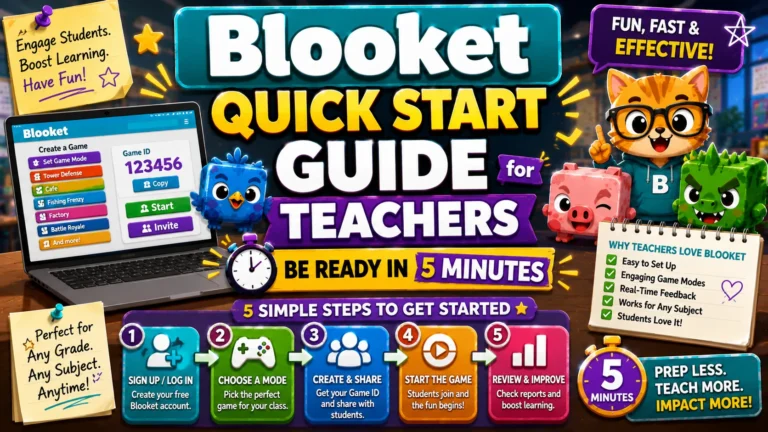
New to Blooket? Start with our Quick Start Guide for Teachers for the full first-game walkthrough.
What You Need to Create an Account?
You just need one of the following:
- A Google account (the fastest method)
- An email address and a password you choose
Blooket is free to use. You do not need a credit card or school approval to create a standard teacher account.
Step 1: Go to Blooket.com
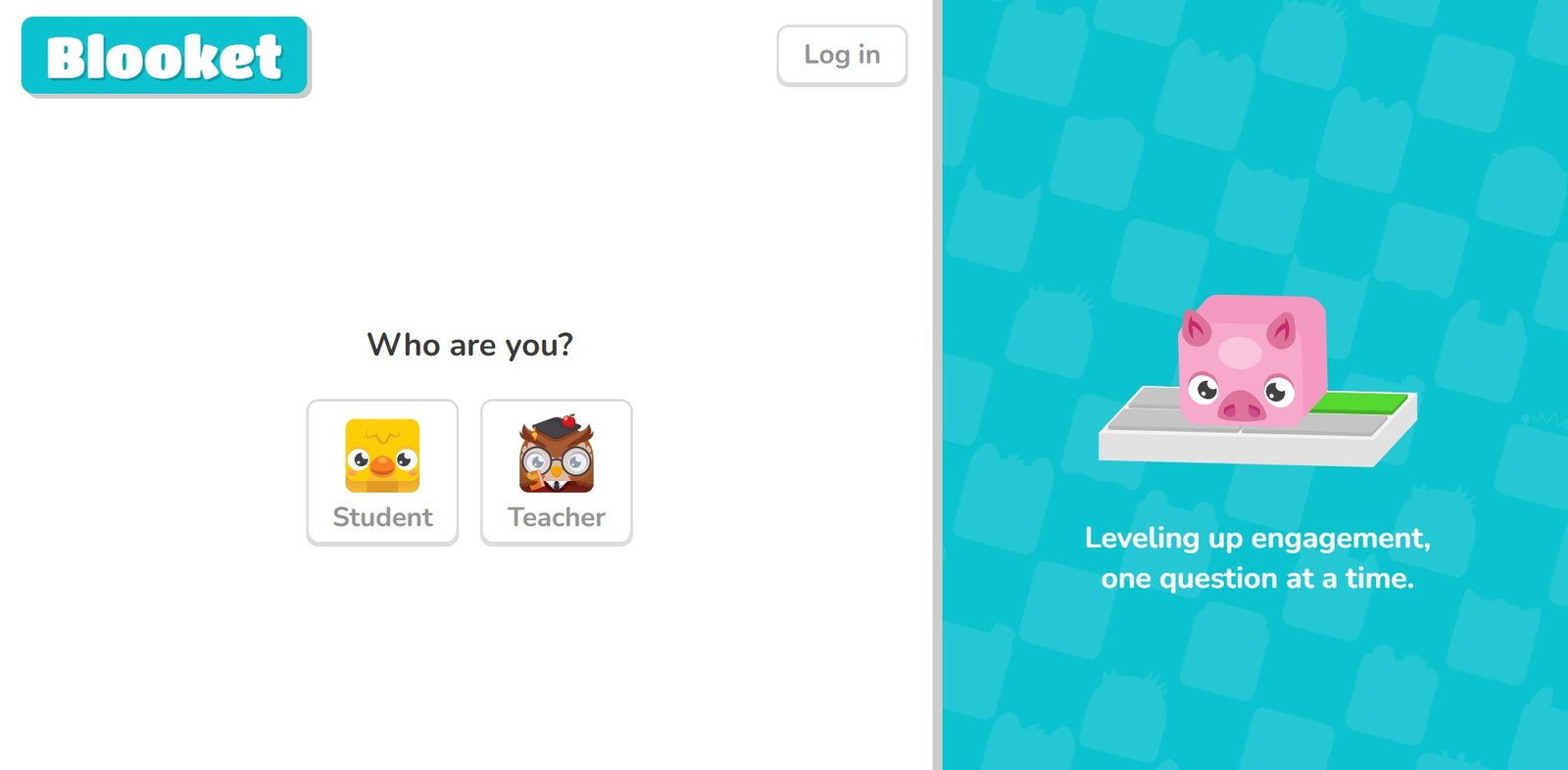
Open any web browser on your computer, tablet, or phone and go to blooket.com. You’ll see the Blooket home page, with a Sign Up button in the upper-right corner. Click it.
Step 2: Choose Your Account Type
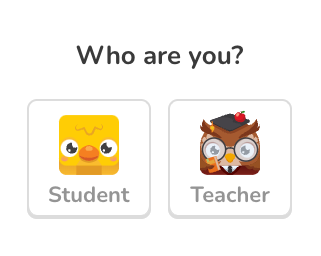 Blooket will ask whether you are a teacher or a student. Select Teacher. This choice is important because it determines what features appear on your dashboard.
Teacher accounts have access to:
- Creating and managing question sets
- Hosting live games and generating game codes
- Assigning homework with deadlines
- Viewing full student performance reports
- All game modes and platform settings
Student accounts have a different experience focused on gameplay, Blooks, and tokens. Starting as a teacher is the right choice for classroom use.
Step 3: Sign Up with Google or Email
You have two options:
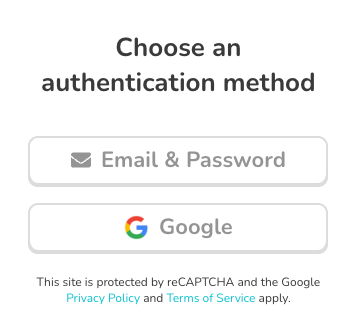
Option A: Sign Up with Google (Recommended)
- Click Continue with Google. A Google sign-in window will appear.
- Select the Google account you want to use — ideally, your school Google account if your district uses Google Workspace for Education.
- After selecting your account, Blooket will automatically create your teacher account, and no additional steps are needed.
Why is Google sign-in recommended? It eliminates the need to remember a separate password and works seamlessly if your students use Google accounts to log in.
Option B: Sign Up with Email
- Enter your email address, choose a username, and create a password. Click Create Account.
- Blooket sends a verification email to confirm your address.
- Check your inbox (and your spam folder if you don’t see it within a minute) and click the confirmation link.
Important: Your username is public-facing and it appears on your profile. Choose your username something professional.
Source: verified from Blooket’s official “How to Sign Up for Blooket” documentation.
Step 4: Complete Your Profile (Optional)
After signing in for the first time, Blooket prompts you to provide some optional details about your teaching context — subject area, grade level, and school name. This information helps Blooket surface relevant content in the Discover section, but it’s not required.
Step 5: Explore Your Teacher Dashboard
Once logged in, you’ll land on your teacher dashboard. At a glance, this is where you’ll browse or build question sets (Discover, My Sets, Create), launch and track games (Host, Homework, History), and manage your Blook collection (Blooks, Market).
For a full breakdown of every dashboard section, see our complete guide: Blooket Dashboard for Students and Teachers.
Related Guides
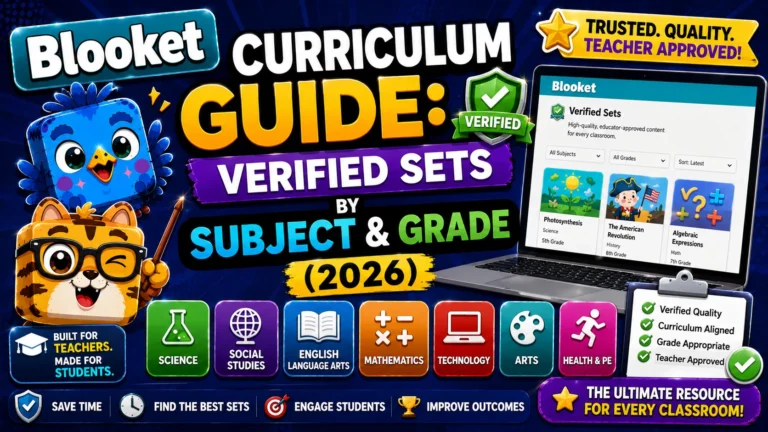
- Blooket Curriculum Guide — find verified, grade-aligned question sets
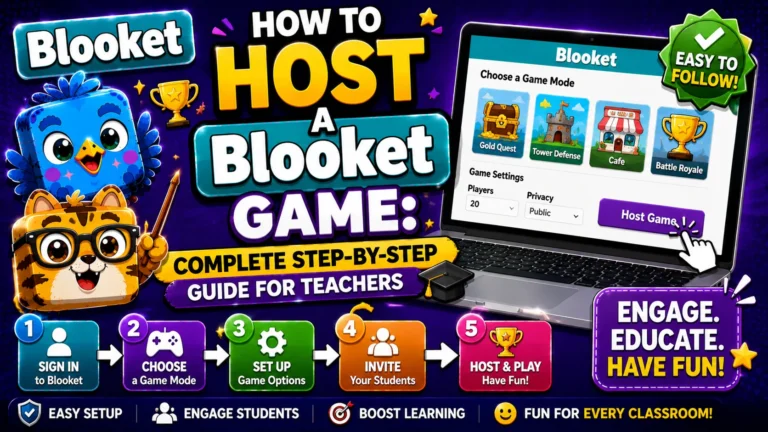
- How to Host a Blooket Game — the complete hosting walkthrough
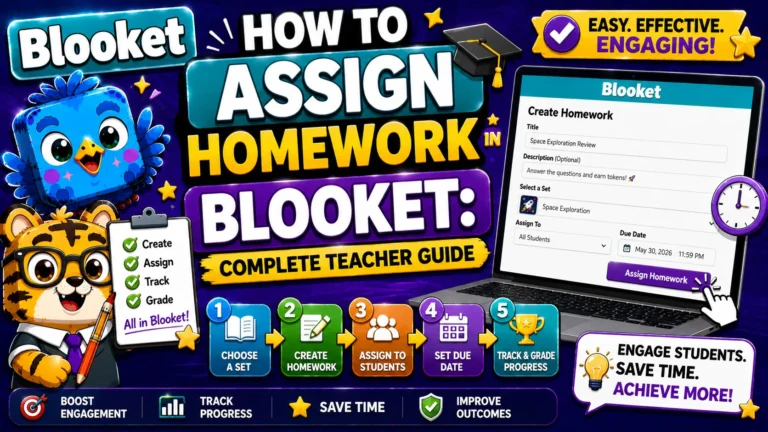
- How to Assign Homework in Blooket — set up self-paced practice for students
Where to Go Next?
- Do you want to know more about the platform? See the Blooket overview
- Want the full teacher toolkit overview? Visit the For Teachers hub
- Setting this up for a student instead? See the For Students hub
- Have a different question? Check our Frequently Asked Questions
or the complete Blooket Help Center
Frequently Asked Questions
Can I use a personal Gmail account instead of my school account?
Yes. Blooket works with any Google account. However, if your school uses Google Workspace for Education, using your school account makes it easier to integrate with Google Classroom and keeps your teacher data separate from personal use.
What if I accidentally signed up as a student?
Check your profile settings first for an option to switch account type — some Blooket accounts allow this directly. If you don’t see that option, contact Blooket’s own support through the official Help Center, since account-type changes may require their assistance depending on your account. We recommend selecting the correct type carefully during signup to avoid this altogether.
Can I have both a teacher account and a student account?
Blooket links accounts to email addresses, so you need a different email for each account type. Most teachers don’t need a student account — the teacher dashboard lets you preview game modes through hosting.
Is my account information visible to students?
Students joining your games see your game settings and the game itself. Your email address and personal profile details are not visible to students during gameplay.
What should I do if I don’t receive the verification email?
Check your spam or junk folder first. If it’s not there, try signing in with your email — the Blooket prompt will ask you to resend the verification. You can also use the Google sign-in option as an alternative if you have a Google account linked to the same email address.