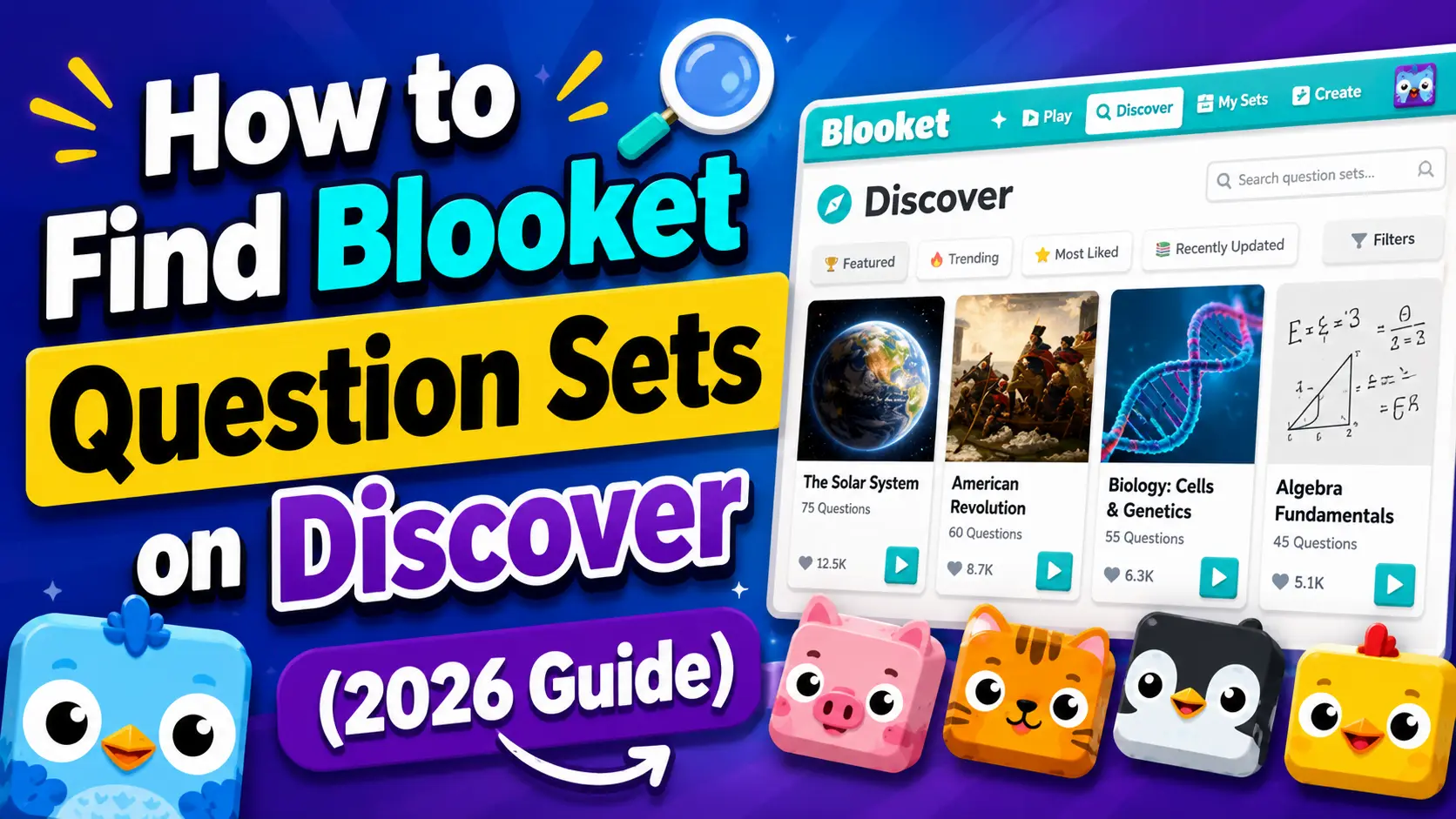
How to Find Blooket Question Sets on the Discover Page?
Last verified: August 8, 2026
Quick Answer: From your dashboard, click Discover, then use the search bar with a targeted query (topic + grade level works best), or apply filters for subject, grade, language, and question count. Use the Curriculum section instead when you want Blooket-verified, standards-aligned content organized by subject and grade rather than open search.
How to Find Blooket Question Sets?
With over 20 million question sets available in Blooket’s public library, the Discover page is one of the platform’s most powerful features. Rather than building every set from scratch, you can search for high-quality content already created by other teachers. This guide covers how to search effectively, use filters, evaluate a set before using it, and decide when the Curriculum section is a better fit than the general library.
How to Access the Blooket Discover Page?
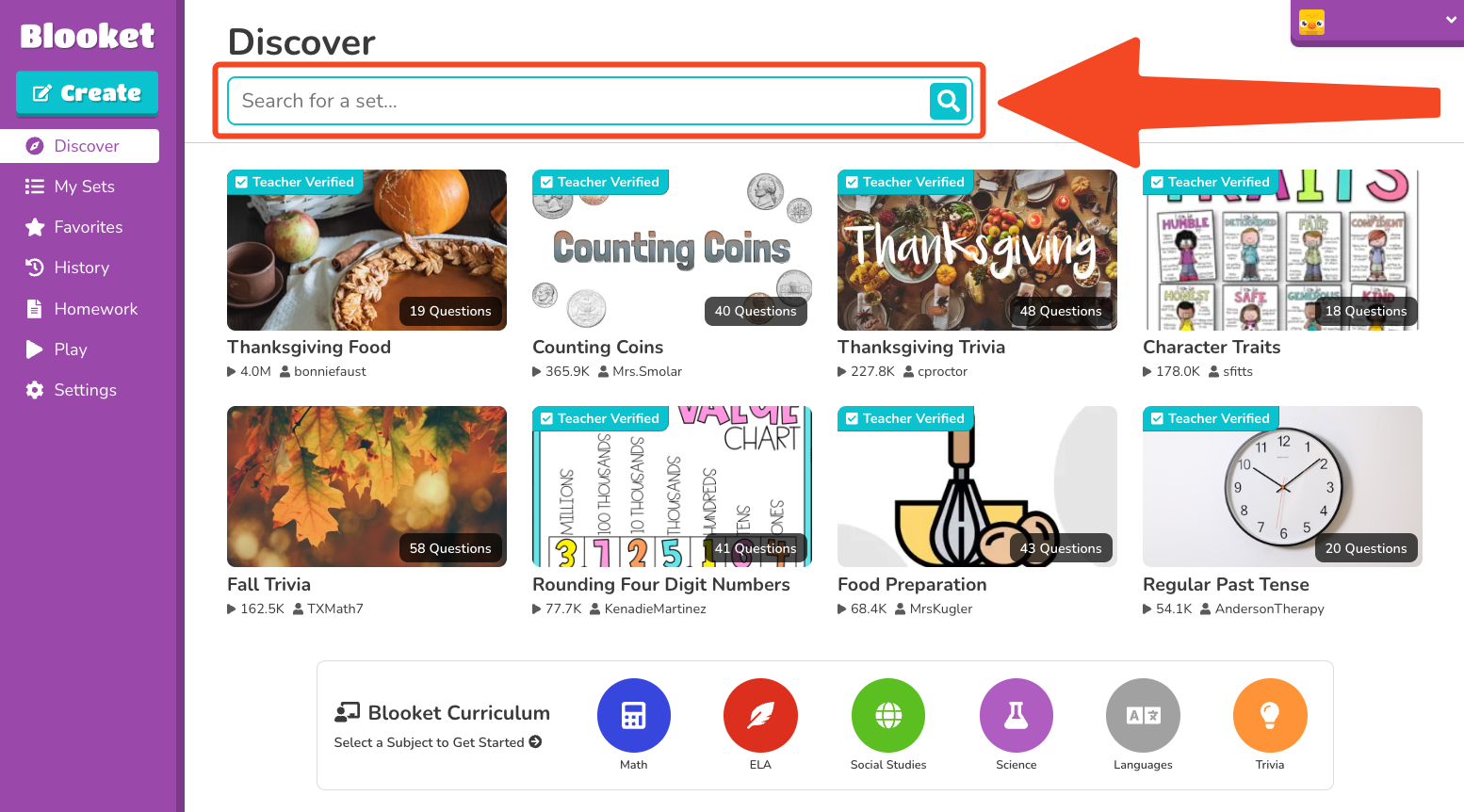
From your teacher dashboard, click the Discover tab in the left sidebar. This opens the public question set library where you can search, browse, and preview sets created by the Blooket community.
Full Guide About → Blooket Question Sets Guide for Teachers
How to Search for Question Sets?
The search bar at the top of the Discover page is the primary tool for finding sets. Type your search term and press Enter. Results will display sets whose titles or descriptions match your query.
Writing Effective Search Queries
The quality of your search determines the quality of your results. Unclear searches return too many results; overly specific searches may return too few. Here are strategies that work:
- Use topic + grade level: “3rd grade fractions” returns more targeted results than just “fractions.”
- Include skill or standard codes: Searching “CCSS.MATH.3.NF” surfaces sets tagged with that specific Common Core standard. Subject-specific standard codes are effective for finding content that is precisely aligned.
- Name the specific concept: “photosynthesis light reaction” is more useful than “biology review.”
- Use vocabulary terms directly: If you’re teaching a unit on the American Revolution, searching “Boston Tea Party Stamp Act Sons of Liberty” returns sets that include those specific terms.
- Try multiple searches: If your first search doesn’t return what you need, try different phrasing. Educators title their sets differently so the same content may appear under multiple search terms.
Want to Create Your Own Set? → How to Create a Blooket Question Set From Scratch
How to Use the Search Filter?
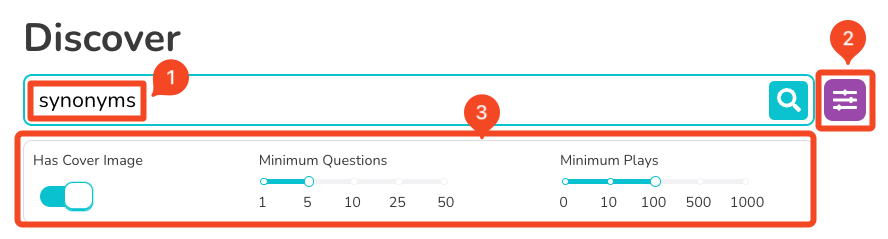
After searching, click the Filter option to narrow your results by additional criteria. Filters help you sort and scope results by:
- Subject area (Math, Science, ELA, Social Studies, World Languages, etc.)
- Grade level (K–12 range)
- Language
- Question count (narrow to sets with a specific number of questions)
Filtering by grade level is especially useful when searching for a common topic; “multiplication” returns results across all grade levels, but filtering to Grade 3 surfaces content calibrated for that age group.
How to Use the Blooket Curriculum Section?
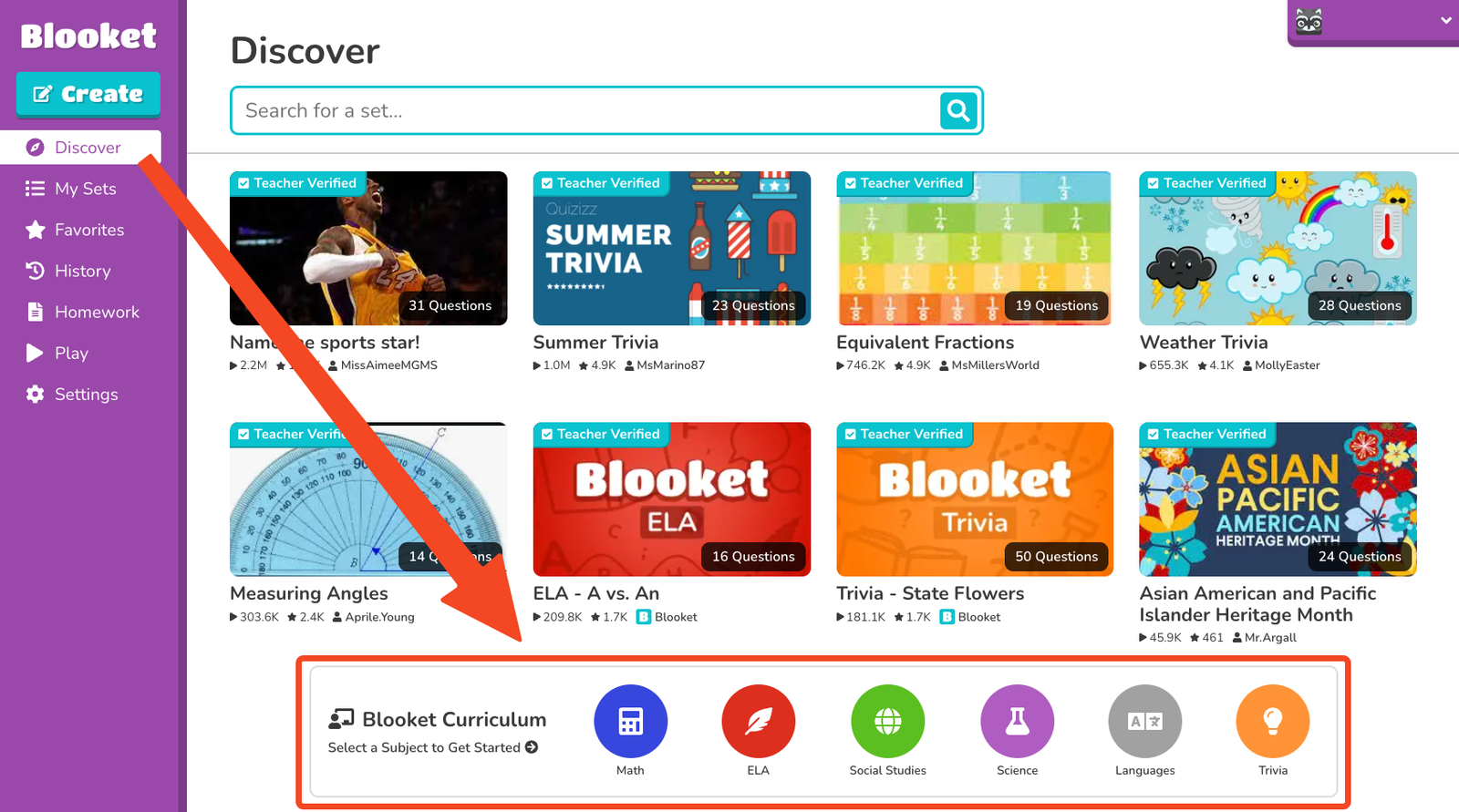
Inside the Discover page, the Curriculum section is a separate, curated area of Blooket-verified sets. Unlike the general library, where quality varies, Curriculum sets have been reviewed by Blooket for accuracy and grade appropriateness.
Use the Curriculum section when:
- You need content you can trust without reviewing every question
- You want sets organized by unit within a subject and grade
- You’re looking for standards-aligned content at a specific grade level
The Curriculum section is organized by subject tab and grade dropdown, rather than a search bar; you navigate by subject and grade rather than keyword.
Source: verified from Blooket’s official “How to Find Blooket Question Sets” documentation.
Evaluating Question Set Before Using it
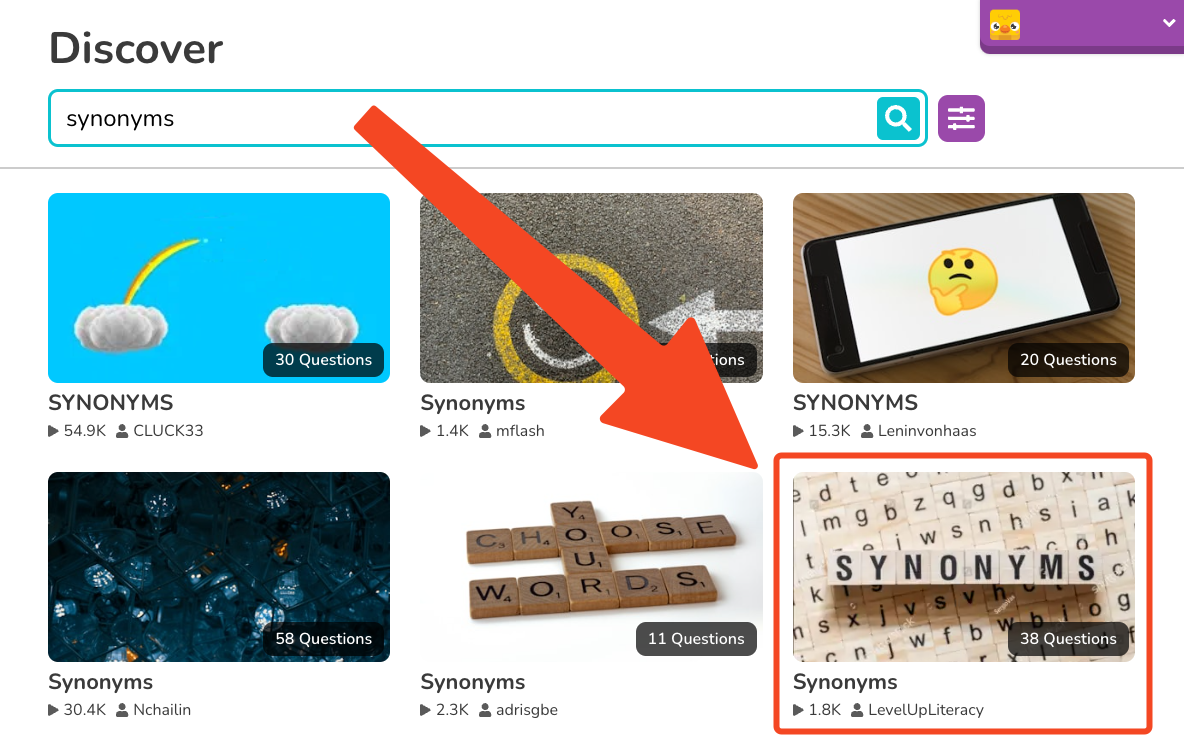
Before using any public set with your class, click the set title to open its preview page. The preview page shows all questions and answer options in full, the set creator’s username, total question count, and privacy settings.
Always preview a public set before hosting. Community-created sets vary significantly in quality. A five-minute preview prevents surprises; a mislabeled correct answer or an inappropriate question during a live class session is easily avoided.
What to check in preview:
- Are the correct answers actually correct?
- Is the difficulty level appropriate for your students?
- Are the question phrasing and vocabulary appropriate for your grade?
- Does the question count fit your session time?
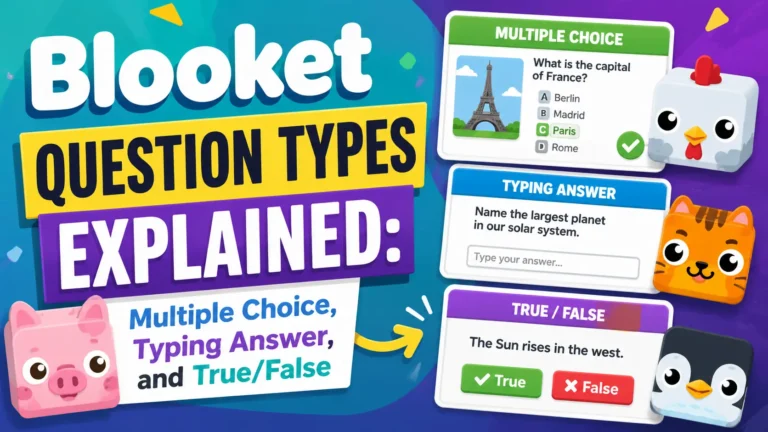
Understanding the question types → Blooket Question Types Explained
Saving Sets You Want to Reuse
When you find a set you’ll want to use again, Favorite it. This is available on the free (Starter) plan, no Plus subscription required. Favoriting adds the set to your Favorites tab in the left sidebar, making it immediately accessible during lesson planning without having to search again.
You can unfavorite a set at any time. Favoriting does not copy the set to your library. It creates a bookmark to the original. If the creator deletes their set, your favorite link will no longer work.
How to Favorite → How to Favorite a Blooket Question Set
For sets you want to own and edit, use the Copy function (Blooket Plus) to create your own editable version in My Sets.
How to copy → How to Copy a Public Question Set in Blooket
Where to Go Next
- Want to learn more in detail? See this Blooket overview guide
- Want the full teacher toolkit overview? Visit the For Teachers hub
- Building sets for students to use directly? See the For Students hub
Have a different question? Check our Frequently Asked Questions or Blooket Help Center
Frequently Asked Questions
Is the Discover page free to use?
Yes. Browsing, searching, and previewing sets on the Discover page, including the Curriculum section, is available to all users on the free (Starter) plan.
What’s the best way to search for a specific topic?
Combine a topic with a grade level (“3rd grade fractions” rather than just “fractions”), or use a specific standard code, concept name, or vocabulary term. If your first search doesn’t return good results, try different phrasing, since teachers title sets inconsistently.
What’s the difference between the general Discover library and the Curriculum section?
The general library includes any user-uploaded set, with quality that varies. The Curriculum section only contains Blooket-verified sets reviewed for accuracy and grade appropriateness, organized by subject and grade rather than keyword search.
Do I need Blooket Plus to Favorite a set?
No. Favoriting is free on any plan. Only Copying a set to create your own editable version requires Blooket Plus.
What happens if I favorite a set and the creator deletes it later?
Your favorite link will stop working, since Favoriting only bookmarks the original set rather than copying it into your own library.
Should I always preview a set before using it with my class?
Yes. Community-created sets vary in quality, and a quick preview catches mislabeled answers or inappropriate content before it becomes a problem during a live session.
Can I filter search results by grade level or subject?
Yes. The Filter option on the Discover page lets you narrow results by subject, grade level, language, and question count.