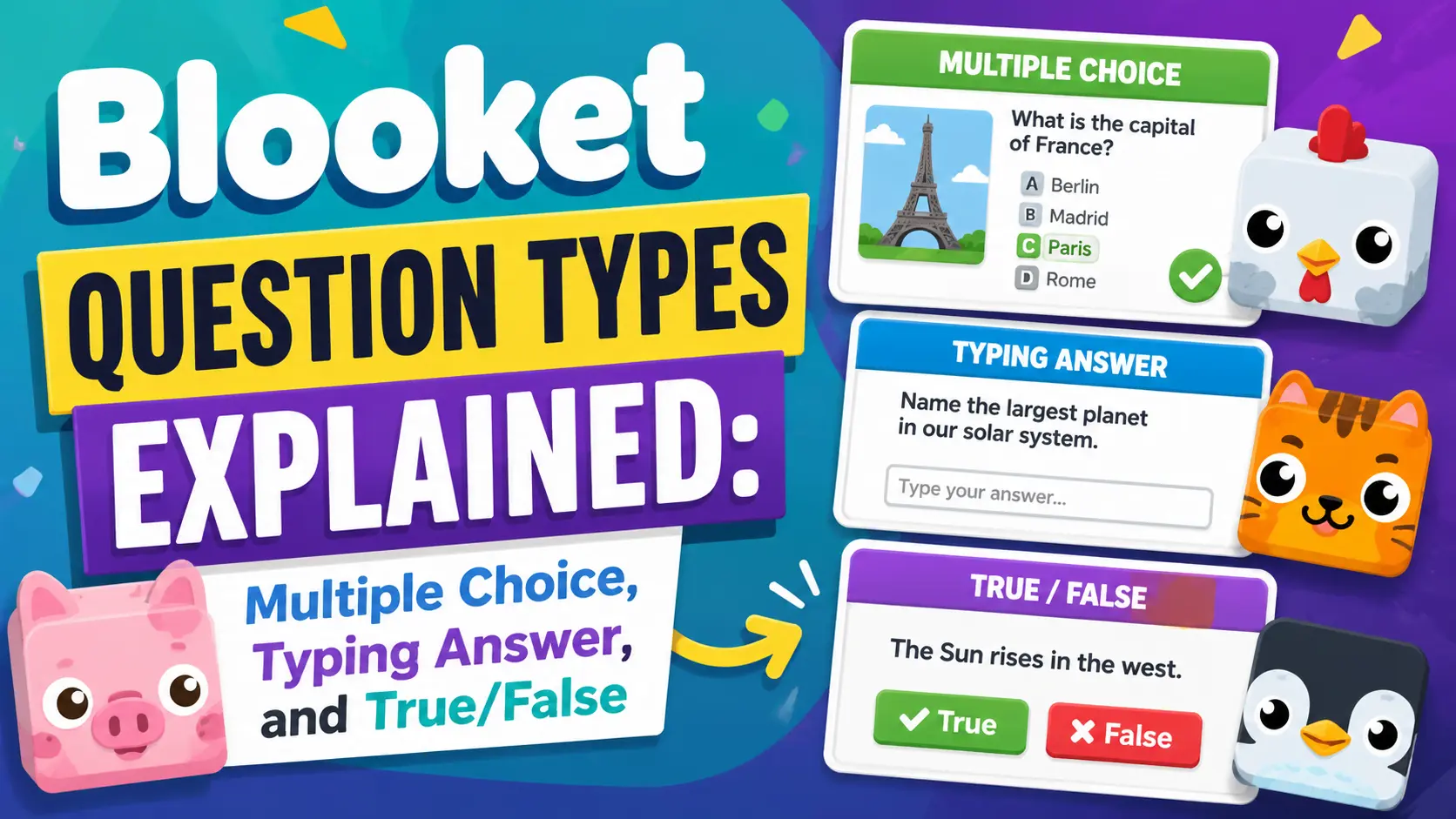
Blooket Question Types Explained: Multiple Choice, Typing Answer, and True/False
Last verified: August 8, 2026
Quick Answer: Blooket has two core question types; Multiple Choice (students select from 2–4 options) and Typing Answer (students type their response, matched as “Contains” or “Is Exactly”). True/False is a variation of Multiple Choice, not a separate type: set Answer 1 to “True,” Answer 2 to “False,” and turn off Random Order.
What Are the Blooket Question Types
When building a Blooket question set, your first decision for every question is which type to use. Each question type suits different learning goals, and understanding when to use each makes your sets more effective for review, assessment, and practice. This guide breaks down all three formats: Multiple Choice, Typing Answer, and True/False with practical guidance on when each one works best.
Complete Explanation → Blooket Question Sets Full Guide
1. Multiple Choice

Multiple choice is the default question type and the most widely used in Blooket. You write a question and provide between 2 and 4 answer options. Students select the correct answer by tapping or clicking during gameplay.
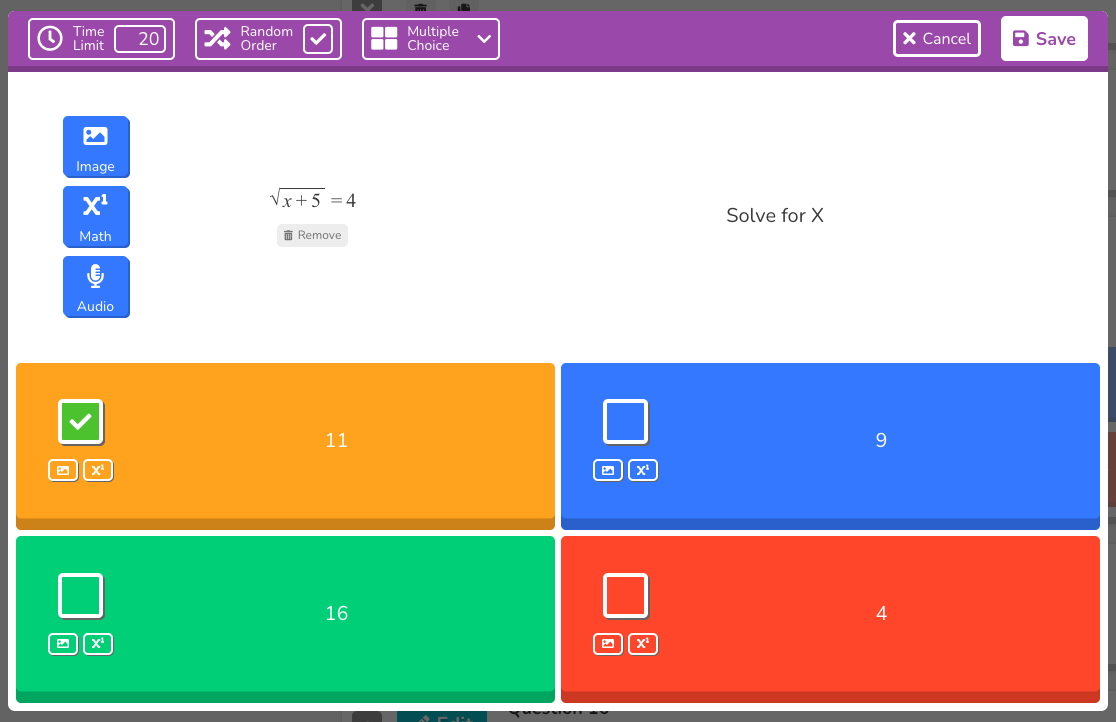
Key features:
- 2–4 answer options per question
- One or more answers can be marked correct
- Optional Random Order toggle to shuffle answer positions each time
- Supports images, equations, and audio in both the question and any individual answer option
When to use Multiple Choice:
- Vocabulary matching (“Which definition matches the word ‘photosynthesis’?”)
- Concept identification (“Which of the following is an example of a metaphor?”)
- Factual recall with plausible distractors (“Which planet is closest to the Sun?”)
- Any situation where recognition is the appropriate learning target
Setting up answer options well: The quality of a multiple-choice question depends heavily on its distractors (the wrong answers). Weak distractors are obviously wrong. Strong distractors reflect real student misconceptions. The answers students actually choose when they don’t know the material.
Multiple Correct Answers:
Blooket allows you to mark more than one answer as correct on a multiple-choice question. Students only need to select one correct option to receive credit. Use this feature when multiple phrasings of the same correct concept are acceptable, or a question has legitimately more than one right answer.
Random Order:
The Random Order toggle shuffles the order of answer options each time a student sees the question. This is enabled by default and is recommended for most questions. It prevents memorizing answer positions, which can allow students to guess correctly without understanding the assignment.
Exception: Always turn off Random Order for True/False questions. If True and False swap positions randomly, students lose the spatial reference they rely on, which creates unnecessary confusion.
2. Typing Answer

Typing Answer requires students to type their own response rather than select from options. This question type appears in the question type dropdown and must be selected manually. It is not the default.
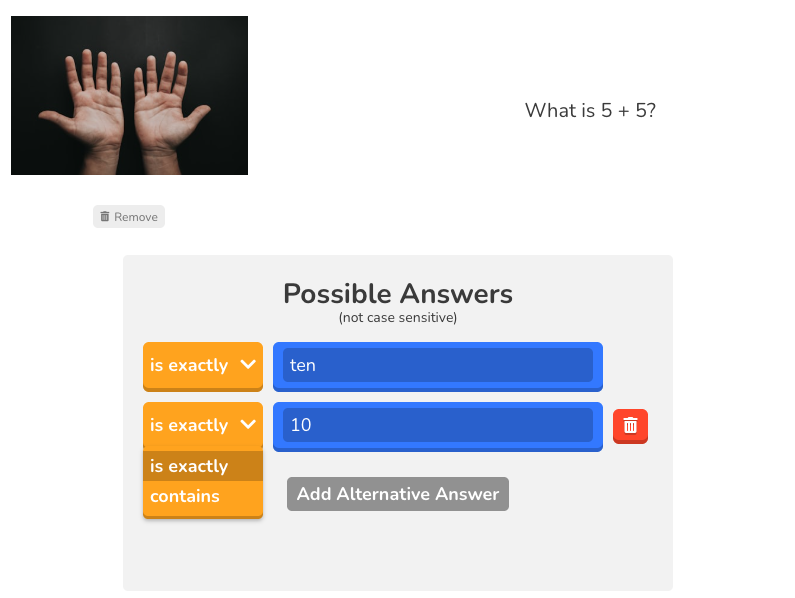
Key features:
- Students type a short text response
- Two matching modes: Contains and Is Exactly
- Supports images and equations in the question prompt
- Audio supported in the question (Blooket Plus only)
When to use Typing Answer:
- Spelling and vocabulary where recognition is too easy (“Type the correct spelling of ___“)
- Exact terminology where precision matters (“What is the scientific term for ___?“)
- Short-answer math where students should calculate rather than guess (“What is 7 × 8?”)
- Foreign language translation where the target form must be exact
Contains vs. Is Exactly
The most important decision in a Typing Answer question is how strictly you want to match student responses:
Contains — The student’s typed response simply needs to include the answer text somewhere within it. Case does not matter. If the answer is “mitosis,” a student who types “The answer is mitosis” would be marked correct.
Contains is the right choice when:
- You’re asking for definitions, and any reasonable phrasing is acceptable
- You want to be lenient about extra words or context that students might include
- The answer is a word or phrase that appears within longer possible correct responses
Is Exactly — The student’s response must match the expected answer exactly, character for character (though capitalization is still ignored). If the answer is “mitosis,” a student who types “the mitosis” would be marked incorrect.
Exactly is the right choice when:
- Precision in terminology is a learning objective
- You’re testing spelling
- The answer is a specific number, date, or code
- You want to discourage fuzzy answers
Practical tip: When importing from Quizlet, Typing Answer questions default to “Is Exactly” matching for all answers. Review these after import and switch to “Contains” where applicable.
Source: verified from Blooket’s official “Question Types Explained” documentation.
3. True/False
True/False is not a separate question type in Blooket’s dropdown. It’s built as a two-option Multiple Choice question.
Here’s how to set one up correctly:
- Leave the question type as Multiple Choice
- Enter “True” as Answer 1
- Enter “False” as Answer 2
- Leave Answer 3 and Answer 4 empty
- Mark the correct answer
- Uncheck the Random Order toggle
The crucial step is unchecking Random Order. Without this, True and False will randomly swap positions, undermining the spatial familiarity students rely on in True/False questions and unnecessarily increasing cognitive load.
When to use True/False:
- Quick checks on a stated fact (“Mammals are warm-blooded. True or False?”)
- Common misconception testing (“Water freezes at 32°C. True or False?”)
- Introductory assessment before a deeper multiple-choice review
Limitation: True/False offers a 50% guessing rate, which reduces its reliability as a sole assessment tool. Use it strategically alongside Multiple Choice and Typing Answer questions to gain better insight into students’ actual understanding.
Step-by-Step Guide → How to Create a Blooket Question Set
Media Enhancements Across All Question Types
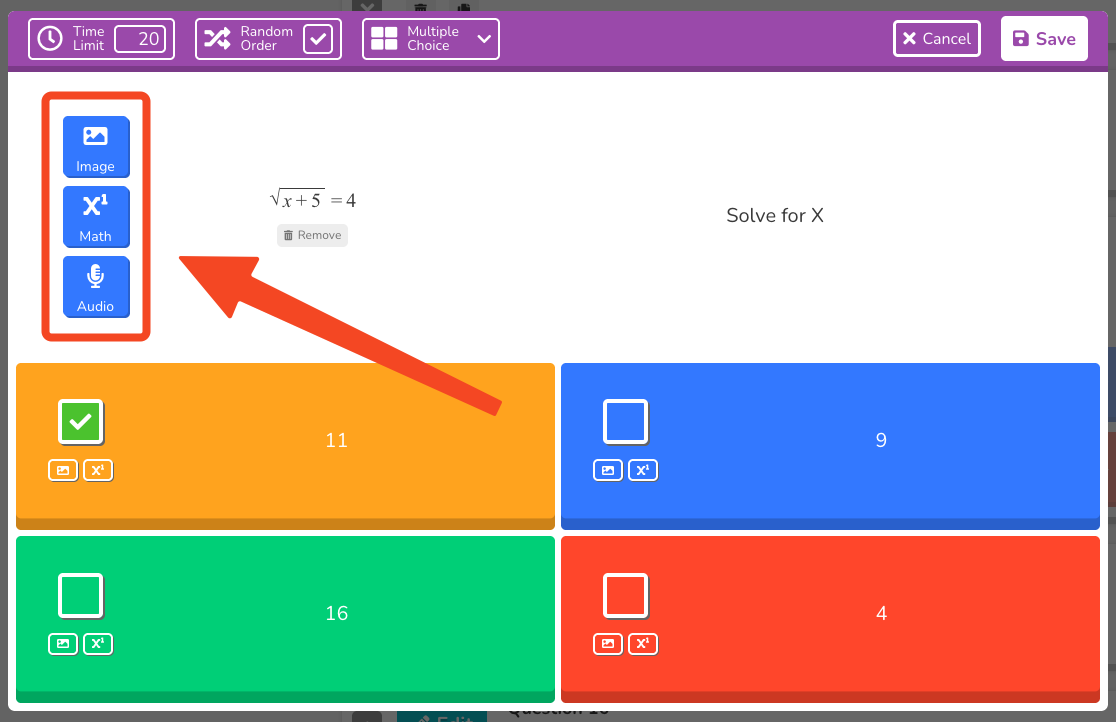
All three question types support rich media attached to the question prompt:
- Images — Add from the Blooket gallery, upload your own file, or paste a URL. Images attached to answer options are only supported on Multiple Choice.
- Equations — The built-in LaTeX editor handles everything from basic fractions to complex algebraic expressions.
- Audio — Record directly from your microphone or upload an audio file. Available with Blooket Plus only. Especially useful for language classes, pronunciation practice, and accessibility.
Full Media Guide → How to Add Images, Audio, and Equations to Blooket Questions
Quick Comparison
| Feature | Multiple Choice | Typing Answer | True/False |
| Selection method | Click/tap | Type response | Click/tap |
| Guessing barrier | Medium | High | Low (50%) |
| Best for | Concept recall | Precision/spelling | Quick checks |
| Media support | Full | Question only | Full |
| Random Order | Recommended on | N/A | Must be OFF |
| Matching mode | N/A | Contains or Is Exactly | N/A |
| Plus required | No | No | No |
Where to Go Next
- Want the full teacher toolkit overview? Visit the For Teachers hub
- Building sets for students to use directly? See the For Students hub
- Have a different question? Check our Frequently Asked Questions
or see our complete Blooket Help Center
Frequently Asked Questions
What question types does Blooket support?
Two core types: Multiple Choice and Typing Answer. True/False is a variation of Multiple Choice rather than a separate type in the dropdown.
Is Multiple Choice or Typing Answer the default?
Multiple Choice is the default. Typing Answer must be selected manually from the question type dropdown.
How do I set up a True/False question?
Keep the question type as Multiple Choice, type “True” in Answer 1 and “False” in Answer 2, leave Answers 3 and 4 blank, mark the correct answer, and uncheck Random Order so the positions stay fixed.
What’s the difference between “Contains” and “Is Exactly”?
“Contains” marks a response correct if it includes the answer text anywhere, regardless of extra words. “Is Exactly” requires a precise character-for-character match (capitalization still ignored).
Can I add audio to any question type?
Yes, to both Multiple Choice and Typing Answer questions, but audio is a Blooket Plus feature. Images and equations are available to all users on both types; answer-option images are Multiple Choice only.
Why is Random Order recommended for Multiple Choice but not True/False?
For standard Multiple Choice, shuffling prevents students from memorizing answer positions instead of the content. For True/False, shuffling removes the fixed left/right layout students rely on, which adds confusion rather than rigor.
Does using Typing Answer or True/False require Blooket Plus?
No. All three question types, Multiple Choice, Typing Answer, and True/False, are available on the free (Starter) plan.