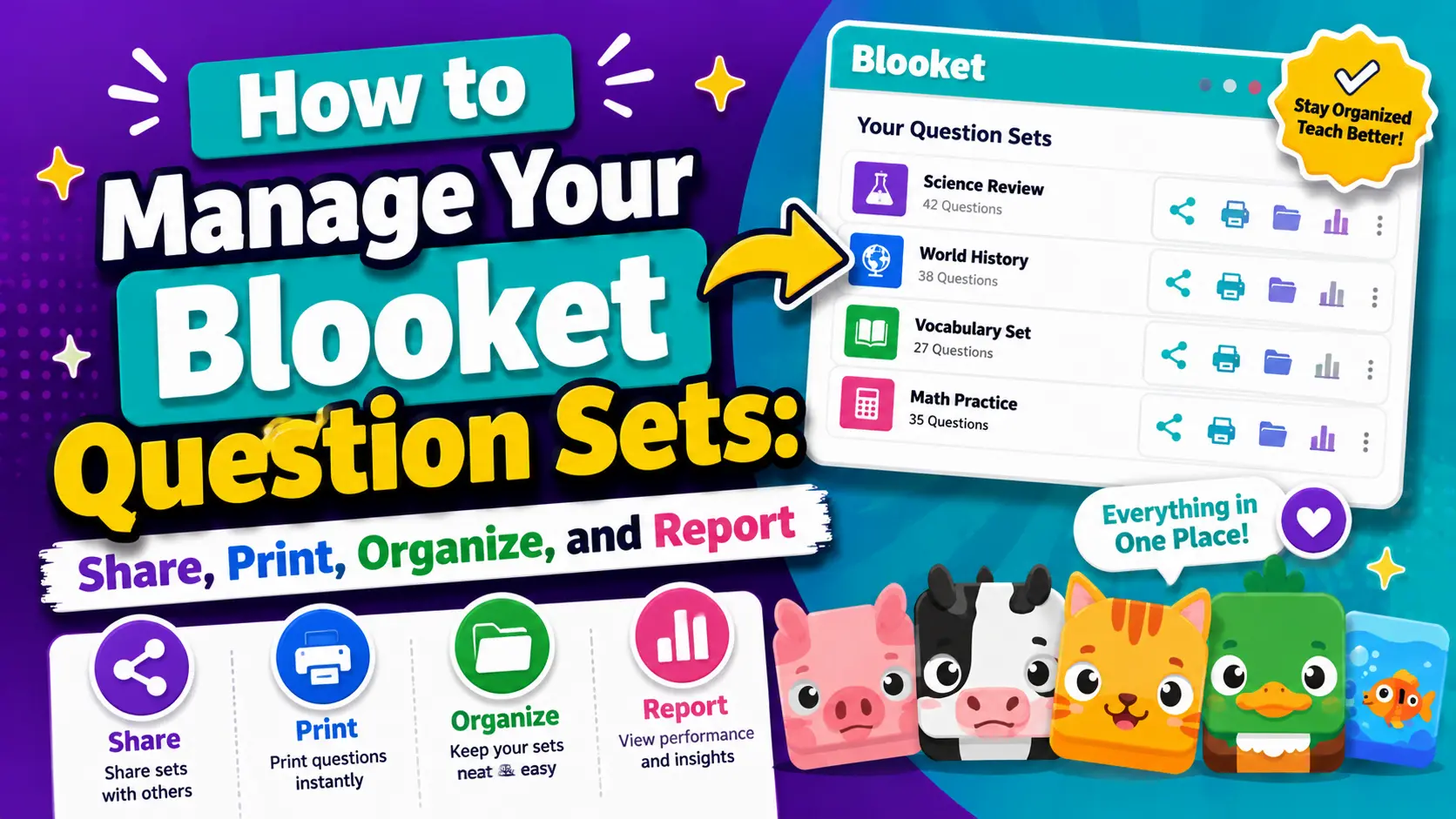
How to Manage Your Blooket Question Sets: Share, Print, Organize, and Report
Last verified: August 9, 2026
Quick Answer: Manage your question set library from My Sets: share a Public set via a direct link, print any set as a worksheet with a toggleable answer key, organize sets into Folders (Blooket Plus), pull individual questions across sets with the Question Bank (Blooket Plus), or report inappropriate content from a set’s preview page.
How to Manage Blooket Question Sets
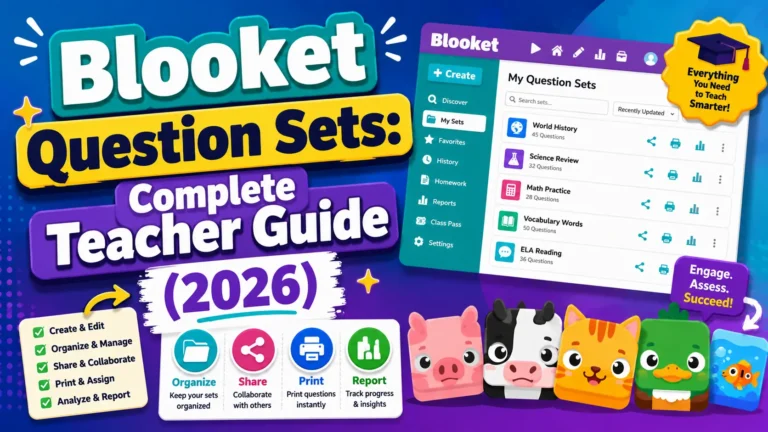
Once you’ve created a library of question sets, it’s important to keep them organized and learn how to share or use them in different ways. This guide covers five key management tasks: sharing a set with other teachers, printing a set as a worksheet, organizing with folders, using the Question Bank, and reporting inappropriate content.
Complete guide about → Blooket Question Sets Guide for Teachers
How to Share a Blooket Question Set with Other Teachers?
Sharing a set with a colleague creates a direct link to your set’s preview page, where they can see all the questions and copy the set to their own account.
Important: Only Public sets can be shared via link. Private sets cannot generate a shareable URL. If your set is private, you’ll need to make it public before sharing.
To share a set:
- Go to My Sets.
- Click the settings icon (gear/cog) on the set you want to share.
- Select Link from the options menu.
- The link is automatically copied to your clipboard.
- Paste it into an email, Google Classroom, Slack, or any other channel.
Complete Guide → How to Copy a Blooket Question Set
Anyone who opens the link can preview the full set. They’ll need to click Copy (Blooket Plus required) to make their own editable version.
Note: When a teacher copies your shared set, they get their own independent copy. If you later change your original set, their copy is not affected. Conversely, if you delete your original, their copy remains.
How to Change a Set from Private to Public (or Back)
You can change a set’s privacy setting at any time without affecting any questions or content.
To change privacy settings:
- Go to My Sets.
- Click the edit icon (pencil) on the set you want to update.
- Select Edit Info.
- Click the Privacy Setting dropdown and select Public or Private.
- Click Save.
Public sets:
- Discoverable by other users searching Discover
- Can be shared via a direct link
- Can be favorited and copied by other educators (copy requires Plus)
Private sets:
- Visible only to you
- Cannot appear in Discover
- Cannot be shared via link
- Can still be used in your own live games and homework assignments
Step-by-Step → How to Favorite a Blooket Question Set
How to Print a Blooket Question Set as a Worksheet?
Every Blooket question set can be exported as a printable worksheet, useful for offline review, sub days, parent communication, or students who need paper-based practice.
To print from the Discover page or a public set:
- Find the set on Discover or via a shared link.
- Click the three-dot menu below the set title.
- Select Print Worksheet.
To print from My Sets:
- Go to My Sets.
- Hover over the set you want to print.
- Click the gear icon and look for the Print Worksheet option.
A new tab opens with a print preview. Before printing, you can toggle:
- Show Description — Include or hide the set description
- Show Images — Include or hide question images
- Show Correct Answers — Show checkmarks next to correct answers
Pro tip: Print student copies first with Show Correct Answers turned off, then toggle it on and print one copy as your answer key. This gives you a complete student handout and teacher reference from the same set.
You can also edit the set name and add instructions directly in the print preview before printing.
How to Organize Sets with Folders (Blooket Plus)
As your My Sets library grows, folders keep it organized. You can create folders by subject, class period, unit, semester, or any organizational structure that suits your workflow. Organizing with folders is a Blooket Plus feature.
To create a folder:
- Go to My Sets.
- Click the Add Folder icon in the top right corner of the My Sets page.
- Give the folder a name and choose an image/icon for it.
- Click Create.
To add a set to a folder:
- In My Sets, locate the set you want to organize.
- Drag and drop it into the folder, or click the settings icon and select the folder assignment option.
Folder ideas that work well:
- By class period (“Period 2 Biology,” “Period 4 Biology”)
- By unit (“Unit 3, Civil War,” “Unit 4, Reconstruction”)
- By assessment type (“Warm-Up Sets,” “Unit Reviews,” “Final Exam Prep”)
- By source (“Khanmigo Generated,” “From Quizlet,” “Custom Built”)
Note: Sets can appear in only one folder. Moving a set to a different folder removes it from the previous one.
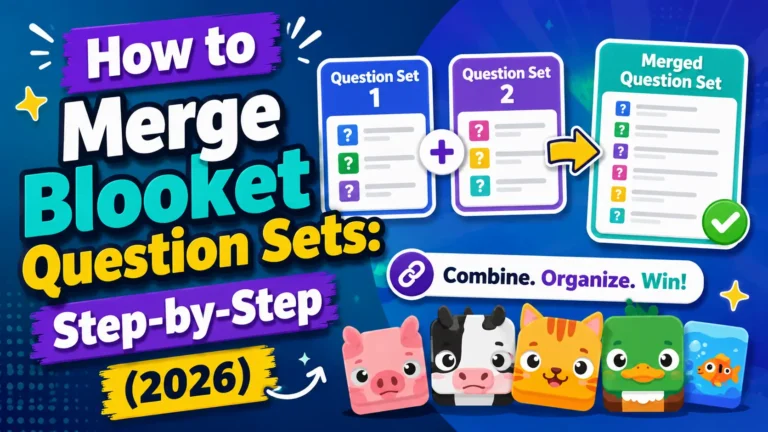
Complete Guide About → How to Merge Blooket Question Sets
How to Use the Question Bank (Blooket Plus)
The Question Bank is a Blooket Plus feature that lets you add individual questions from your existing sets (or public sets) into a current set you’re editing, without merging entire sets.
To use the Question Bank:
- Open any set in edit mode (from My Sets, click the edit/pencil icon).
- On the Set Edit page, click the Question Bank option.
- A sidebar opens on the left showing your sets.
- Click any set to browse its questions.
- Use the search bar to find questions across public sets by topic.
- Click Add Question to add a single question, or Add All Questions to add everything from that set.
The Question Bank is ideal when you want to cherry-pick specific questions from multiple sources rather than merge a full set of questions. It’s also useful for building a “greatest hits” review set from questions that performed well in previous games.
Source: verified in Blooket’s official Plus Features documentation, which confirms that Folders, Question Bank, and Merging are Blooket Plus features.
How to Report Inappropriate Question Sets?
Blooket’s Discover library is user-generated, and while most sets are created in good faith, some may contain inaccurate information, inappropriate content, or tasks that violate community standards. Reporting helps Blooket maintain library quality.
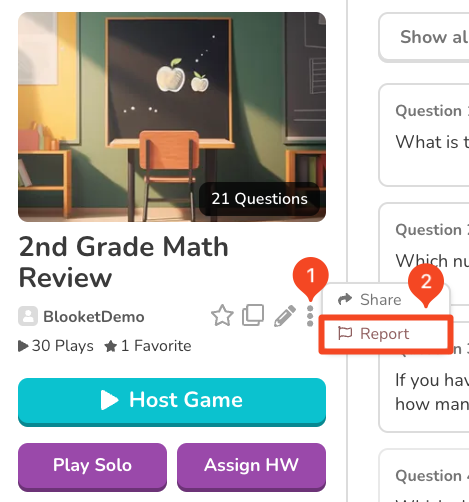
To report a question set:
- Open the set’s preview page (found via Discover or a shared link).
- Click the three-dot menu on the set.
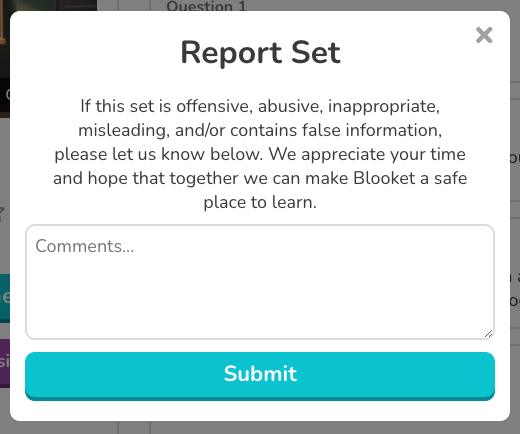
- Select Report.
- Enter a clear reason for the report; be specific about what is inappropriate or incorrect.
- Click Report to submit.
Reports go to Blooket’s moderation team. Provide as much detail as possible so they can act accurately and quickly.
Appropriate reasons to report:
- Factually incorrect answers presented as correct
- Inappropriate language, images, or subject matter
- Content that violates school-appropriate standards
- Spam or misleading set descriptions
After reporting, you can still use or favorite the set; reporting does not block access; it only flags the set for review.
Where to Go Next
- Want to know more about the platform? See this Blooket guide
- Want the full teacher toolkit overview? Visit the For Teachers hub
- Building sets for students to use directly? See the For Students hub
Have a different question? Check our Frequently Asked Questions or Blooket Help Center
Frequently Asked Questions
Can I share a private question set?
No. Only Public sets can be shared via a direct link. You’ll need to change the set to Public first if you want to share it.
Does changing a set’s privacy affect its content or questions?
No. Switching between Public and Private only changes visibility and shareability; the questions and content stay the same.
Is printing a worksheet a free feature?
Yes. Any question set, public or your own, can be exported as a printable worksheet on the free (Starter) plan.
Do I need Blooket Plus to organize sets into folders?
Yes. Folders are a Blooket Plus feature. Free accounts can still use Favorites for quick access, but not folder organization.
What’s the difference between Folders, Merging, and the Question Bank?
Folders organize whole sets into categories. Merging combines two or more complete sets into one new set. The Question Bank lets you pull individual questions from any set into another without merging the whole thing. All three are Blooket Plus features.
Does reporting a question set remove my access to it?
No. You can still use or favorite a set after reporting it. Reporting only flags it for Blooket’s moderation team to review.
Can a question set appear in more than one folder?
No. A set can only be in one folder at a time. Moving it to a new folder removes it from the previous one.