How to Copy a Public Blooket Question Set: (Plus Feature)
Last verified: August 9, 2026
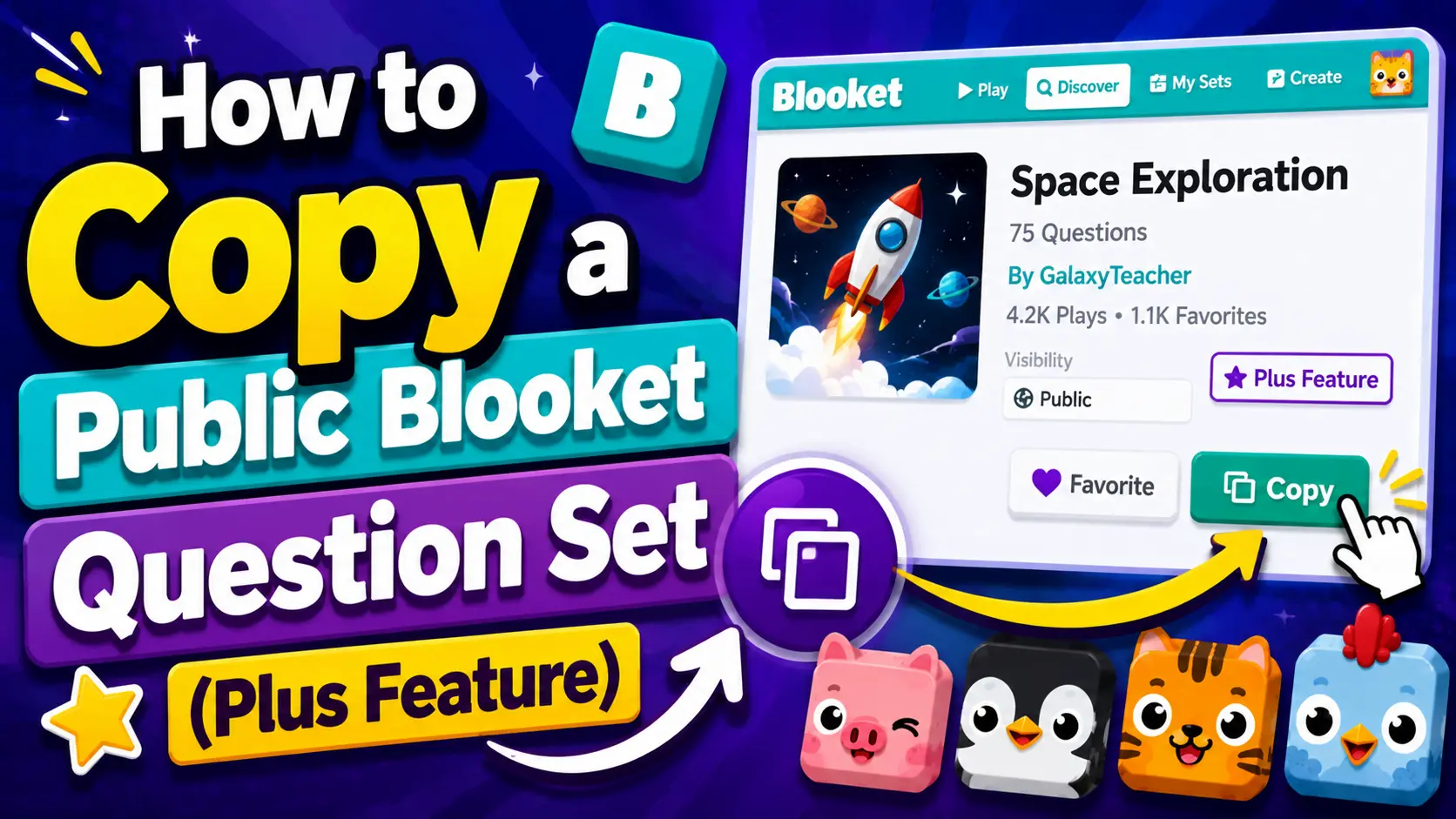
Quick Answer: Open a public set’s preview page, click Make a Copy, and confirm. Blooket Plus creates an editable duplicate in your My Sets library, with “Copy” added to the title, ready to rename, edit, and use as your own.
How to Copy a Blooket Question Set
Copying a public Blooket question set creates an editable duplicate in your My Sets library. You can then modify the questions, add media, change settings, and use it exactly as if you had built it from scratch. This guide explains how to copy a public set, how to copy one of your own sets, and what to do with the copy afterward.
Step-By-Step Full → Blooket Question Sets Guide for Teachers
Who Can Copy Sets?
- Copying a public question set created by another user is a Blooket Plus feature. Free (Starter) account users cannot copy other educators’ public sets. They can only favorite them or use them as they are.
- Copying your own sets is also a Plus feature, useful when you want to create a variant of an existing set. For example, the same questions with different difficulty levels for different classes.
If you do not have Blooket Plus, you can still find and use public sets through Favorites and the Discover page. Upgrading to Plus unlocks copying, along with enhanced reports, folders, merging, and the Question Bank.
Complete Guide About → How to find Blooket Question Sets on Discover Page
Also, see our complete Free vs. Plus comparison for the complete feature breakdown.
How to Copy a Public Set?
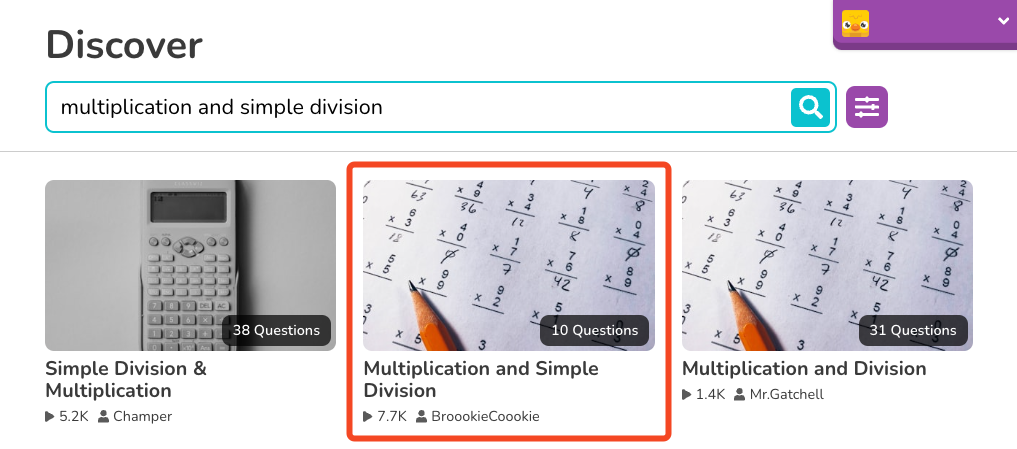
- Find the set you wish to copy. Locate it on the Discover page or via a shared link, then open its preview page.
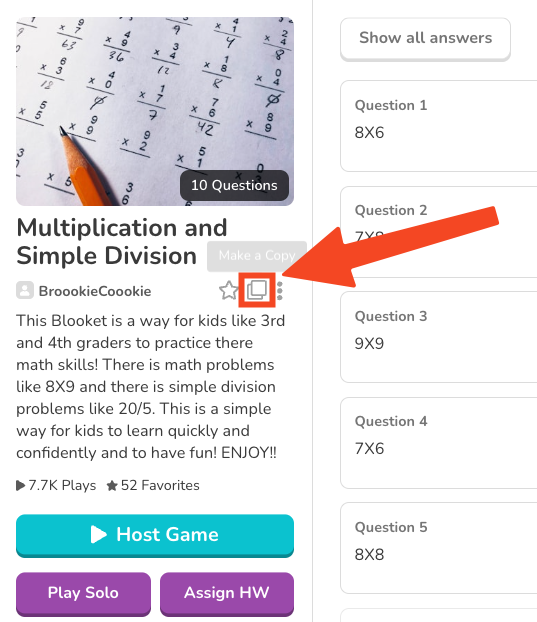
- Click Make a Copy. Look for the three-dot menu or the Make a Copy option directly on the preview page. This option appears for all public sets when you are logged in as a Plus user.
- Select Yes to confirm the copy.
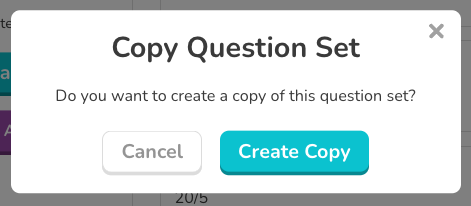
The duplicate opens automatically in edit mode in your My Sets library. It has the same title as the original, with “Copy” appended. From this point, you can rename it, edit any questions, add or remove content, and adjust privacy settings.
Source: verified from Blooket’s official documentation on copying question sets, which confirms copying as a Blooket Plus feature.
How to Copy One of Your Own Sets?
- Go to My Sets on your Blooket dashboard.
- Locate the set you want to copy.
- Click the settings icon (gear or cog) on the set card.
- Select Copy from the menu that appears.
- Confirm by selecting Yes.
A duplicate appears in your My Sets library, ready to edit.
What You Can Do with a Copied Set?
Once copied, the set is entirely yours. Common reasons to copy and then edit include:
- Removing irrelevant questions from a comprehensive public set to create a tighter version focused on your current topic
- Adding your own questions alongside the copied content to supplement with class-specific material
- Adjusting time limits to match your class’s pace
- Converting question types, such as changing some Multiple Choice questions to Typing Answer for more rigorous practice
- Adding images or audio that the original creator did not include
- Customizing phrasing to match your grade level’s vocabulary
Question Types Guide → Blooket Question Types Explained
Copying vs. Favoriting vs. Merging
| Action | What It Does | Plus Required |
| Favorite | Bookmarks the original; cannot edit | No |
| Copy | Creates an editable duplicate in My Sets | Yes |
| Merge | Combines two of your sets into one | Yes |
If you want to use a public set and add your own questions to it, copying first and then editing (or using the Question Bank) is the recommended workflow.
Favorite a Set → How to Favorite a Blooket Question Set
Merge Question Sets → How to Merge Blooket Question Sets
Where to Go Next
- Want to know about the platform? See our Blooket overview
- Want the full teacher toolkit overview? Visit the For Teachers hub
- Building sets for students to use directly? See the For Students hub
Have a different question? Check our Frequently Asked Questions or Blooket Help Center.
Frequently Asked Questions
Do I need Blooket Plus to copy a public set?
Yes. Copying a public set created by another user requires a Blooket Plus subscription. Free accounts can favorite or use public sets as they are, but cannot create an editable copy.
Can free account users copy their own sets?
No. Copying your own sets to create a variant also requires Blooket Plus, the same as copying a public set.
What happens to the original set when I copy it?
Nothing changes. The original set stays exactly as it was. Your copy is an independent duplicate, so edits to one do not affect the other.
What is the title of a copied set?
It keeps the same title as the original with “Copy” appended, though you can rename it immediately after copying.
What is the difference between copying and favoriting a set?
Favoriting bookmarks the original set for quick access but does not let you edit it or create a copy. Copying creates a fully editable duplicate in your own library. Favoriting is free; copying requires Blooket Plus.
Should I copy a set or use the Question Bank instead?
Copy a set when you want the whole thing as your starting point. Use the Question Bank when you only want specific questions from one or more sets rather than an entire set.
Can I copy a private set?
No. Only public sets can be copied by other users. If a set is private, only its owner can access and duplicate it.