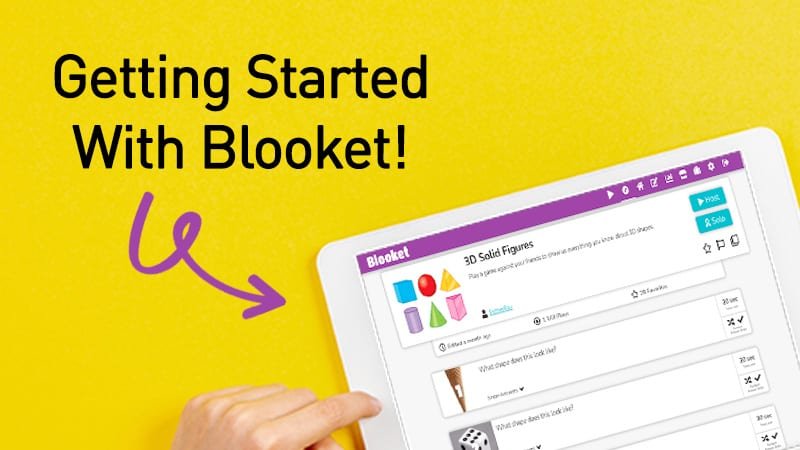
How to Play Blooket Smoothly on PC: A Simple Guide for Students & Teachers
Blooket has turned learning into something fun again. When you open it on a PC, everything feels a little more alive — the animations move better, the questions load faster, and switching between classroom tools becomes easier. Many people start playing on their phones, but once they try a computer, they instantly notice the difference.
Still, a smooth Blooket experience depends on how well your PC is set up. Even a powerful laptop can lag if the browser is messy or too many apps are open in the background. That’s why a little preparation goes a long way.
The Browser Makes the First Difference

When you launch Blooket, the browser you choose quietly shapes your whole experience. Some browsers handle animations and fast switching better than others. Chrome, Edge, and Firefox usually give the best performance, mainly because they stay updated and handle web-based games more efficiently. If your browser hasn’t been updated in a while, doing so often makes Blooket feel instantly faster.
A clean browser also helps. Over time, cached files pile up and small bugs slow everything down. Refreshing the browser data occasionally keeps pages loading quickly without those random delays that sometimes happen while joining a game.
Your PC Environment Matters More Than People Realize
One of the most common problems players face is not slow hardware, but too many things running at the same time. A PC with ten tabs open, a video paused in the background, and a few heavy apps running can turn even a simple browser game into a slow experience.
Before starting a Blooket session, it helps to clear the space a bit. Closing extra tabs or unnecessary apps gives your browser more breathing room, which directly affects how smoothly the game responds. Students usually see the improvement right away, especially during fast-paced modes where small delays can be distracting.
The Role of Your Internet Connection
Blooket doesn’t demand a high-speed connection, but it does demand a stable one. You may notice that even with good internet, the game sometimes hesitates or loads slowly. This often happens when the Wi-Fi signal is weak or when too many devices are sharing the same network.
Moving closer to the router, restarting the device occasionally, or using a wired connection if possible, can completely stabilize the experience. Many teachers who host large sessions find that a small internet adjustment fixes most loading issues.
Windows Settings That Quietly Improve Blooket
A Windows PC has a few built-in features that enhance browsing and gameplay without the user noticing. For example, hardware acceleration in the browser can make animations smoother. Windows’ Game Mode also helps by reducing background interruptions and giving more focus to the application you’re actively using. Keeping your Windows updates installed and your graphics drivers fresh also makes everything feel more responsive.
These small details add up—especially when you’re hosting a live classroom game and switching between screens.
A Tiny Tip for ASUS Users
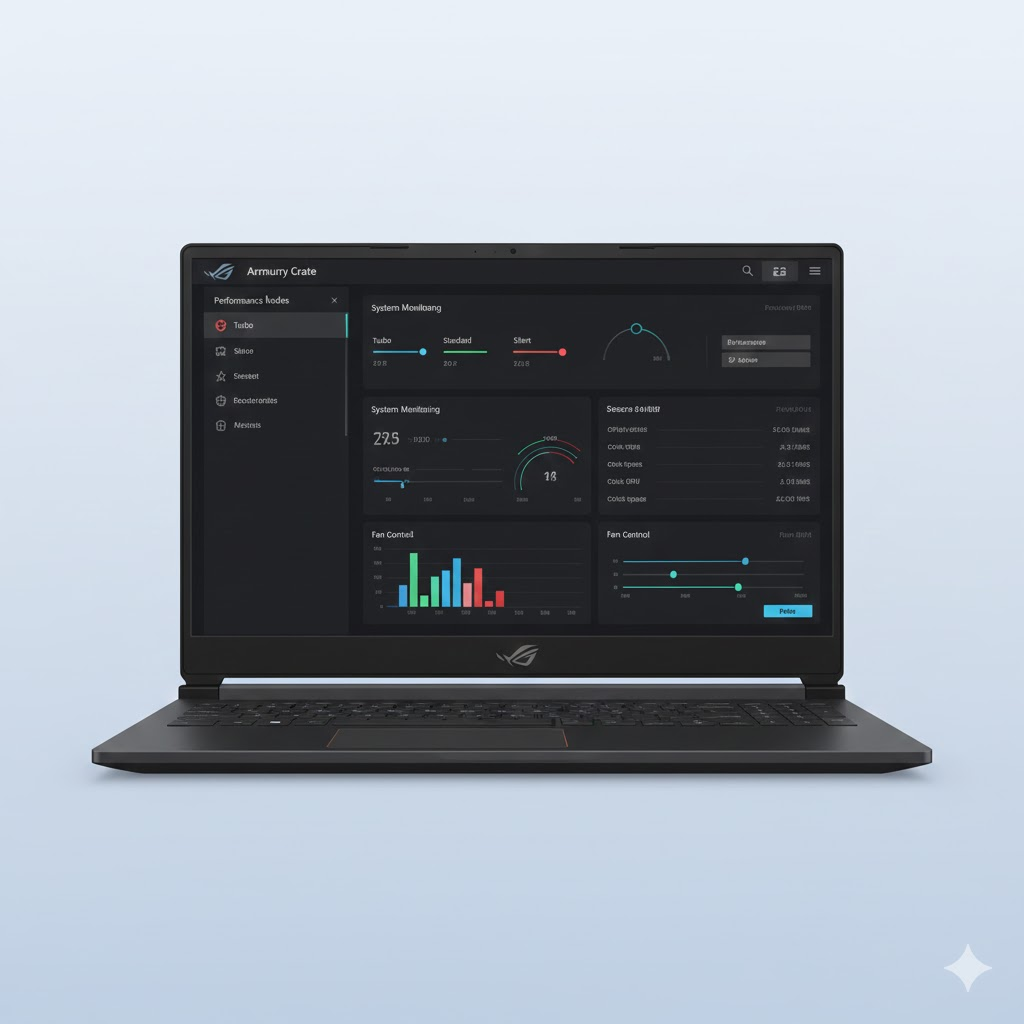
If you play Blooket on an ASUS laptop or PC, you usually get a built-in performance management tool. Switching your device to a balanced or performance mode before starting a session can make your system feel more stable, especially during long hosting hours. It’s not required, but it’s a neat advantage many ASUS users enjoy without thinking about it. ASUS offers its powerful Armoury Crate tool to optimize system performance and deliver a smoother, more enjoyable gaming experience.
What to Do When Blooket Feels Slow?
Occasionally, the game may still feel slow or may freeze for a moment. Most of the time, refreshing the page, switching the browser, or restarting the PC brings everything back to normal. VPNs are another hidden cause of slow loading, so turning them off can help if nothing else works.
These simple resets solve most issues without requiring technical knowledge.
A Better Setup for Teachers and Students
Teachers often host sessions while managing multiple tools at once—notes, meeting apps, presentations, and more. A lighter workspace helps avoid distractions and reduces the chance of lag when switching tabs. Sharing only the browser window (instead of the entire screen) also keeps things clean and protects privacy.
Students benefit from a similar approach. Keeping their PCs plugged in, using a clean browser, and staying focused on one tab helps them avoid slowdowns halfway through the game. Headphones are also useful when voice explanations and game sounds overlap.
Final Thoughts
Playing Blooket on a PC opens the door to a smoother, more comfortable learning experience. The setup doesn’t have to be complicated—just a clean browser, a stable internet connection, and a PC that isn’t overloaded with tasks. Once these small things are in place, Blooket feels faster, cleaner, and much easier to enjoy.
Whether you’re a teacher running a whole classroom or a student competing with friends, a well-prepared PC makes everything flow naturally. And if you’re using an ASUS device, you get a little extra control over performance, which is always a nice bonus before starting a long game session.