How to Upgrade to Blooket Plus (Individual Plan): Step-by-Step
Last verified: August 14, 2026
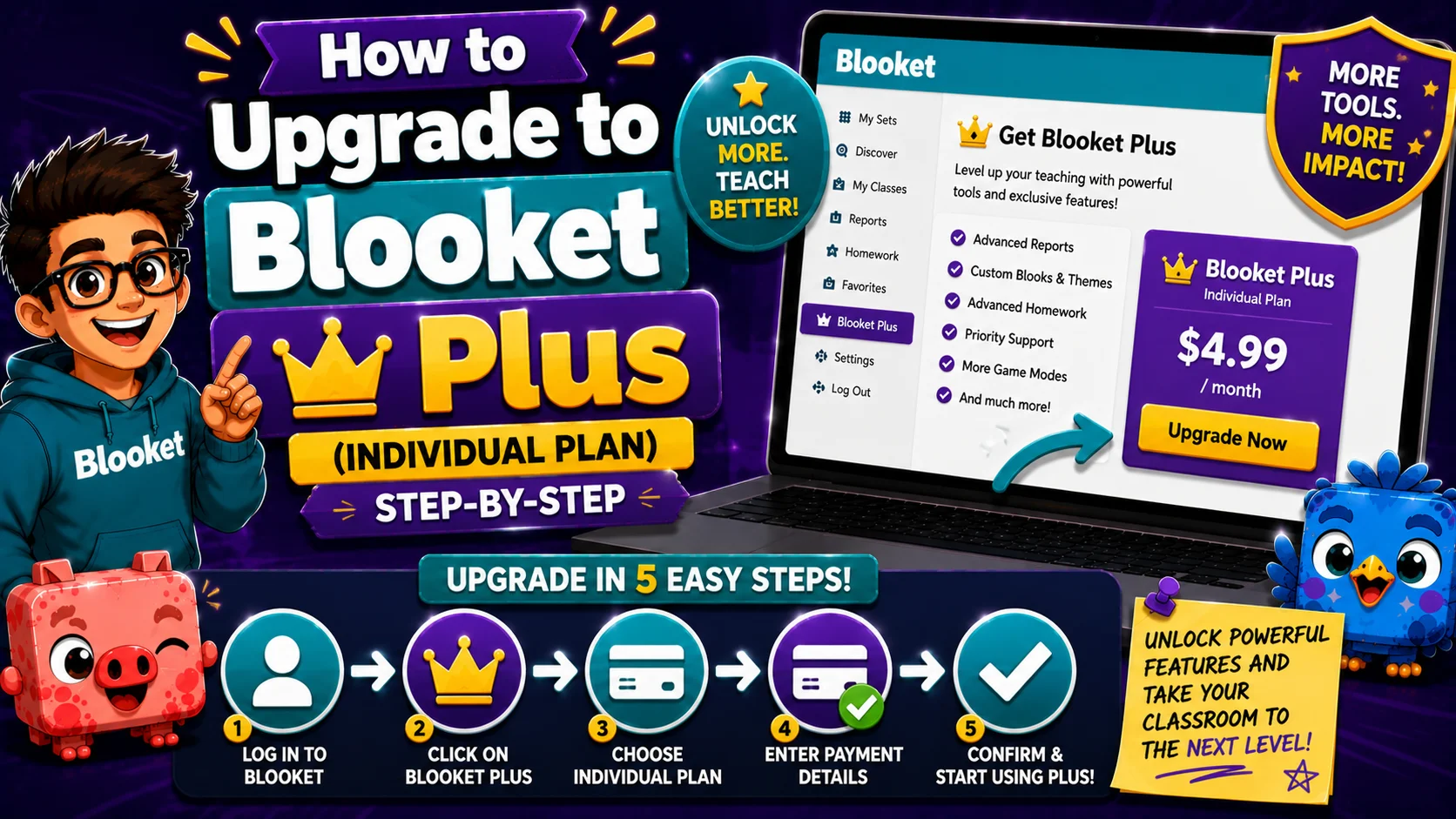
Quick Answer: To upgrade to Blooket Plus individually, log in, go to Settings, click Upgrade Now under Plan, choose Annual ($4.99/month) or Plus Flex ($9.99/month), complete payment through Stripe or PayPal, and your Plus features activate immediately.
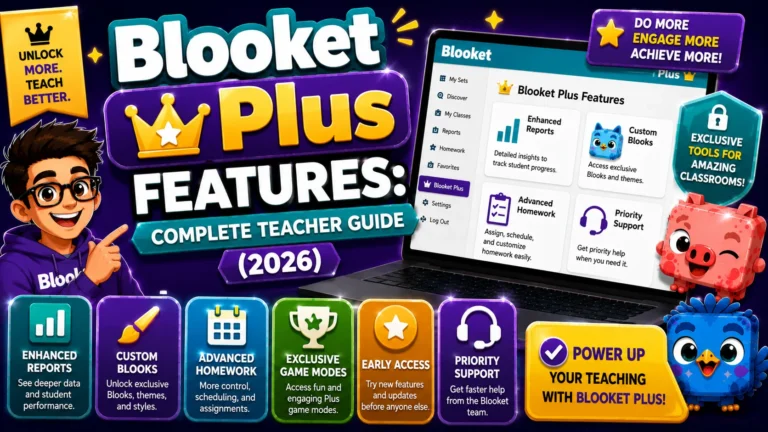
All Details About → Blooket Plus Features Guide
How to Upgrade to Blooket Plus: Step-by-Step
Upgrading to Blooket Plus as an individual teacher takes about 3 minutes. This guide explains the exact steps for how to upgrade to Blooket Plus, the decision between annual and monthly billing, and how to confirm your upgrade is active.
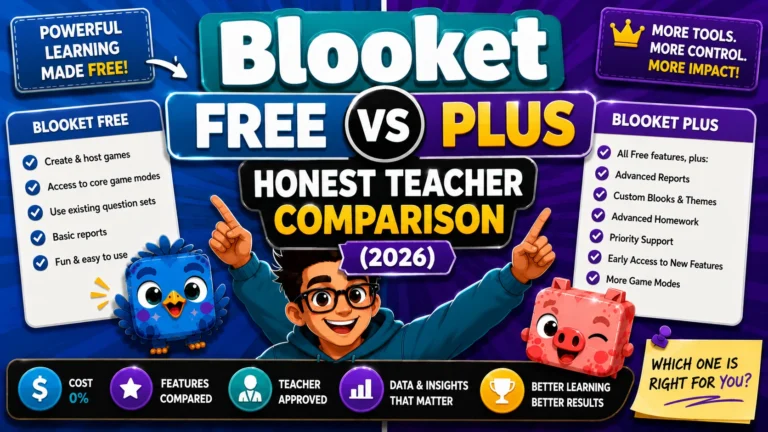
Before you upgrade: Review the Blooket Free vs Plus Comparison and Pricing Guide to confirm Plus features align with your classroom needs. Individual subscriptions are generally non-refundable, so it’s worth taking 2 minutes to confirm before purchasing.
Individual vs Group Plan: Which Do You Need?
Choose Individual if:
- You’re upgrading your account only
- Your school is not purchasing for multiple teachers
- You want to pay by credit card and don’t need a Purchase Order
Choose Group Plan if:
- Two or more teachers at your school want Plus
- Your district budget requires a Purchase Order
- A department head or administrator is managing the purchase
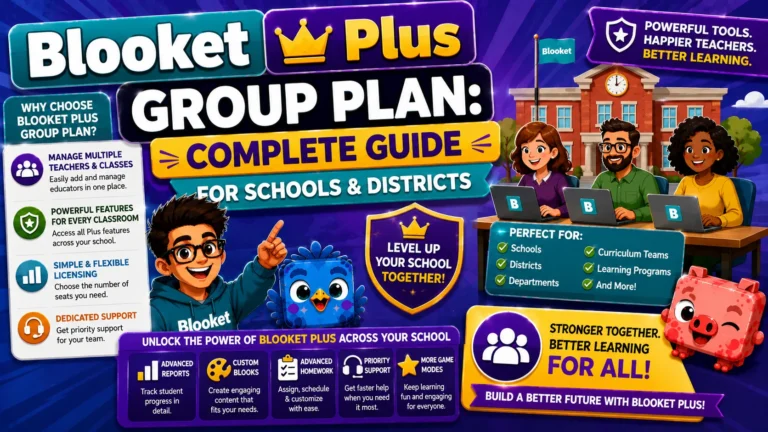
Group Plan Guide → Blooket Plus Group Plan for Schools & Districts
Upgrading to Individual Plus: Step-by-Step
→ Step 1: Log in to your teacher account at blooket.com
Make sure you’re logged into the account you want to upgrade. Plus is tied to the specific account; upgrading Account A does not affect Account B.
→ Step 2: Click your profile icon and select Settings
In your dashboard, click your profile icon in the top-right corner, then select Settings from the dropdown.
→ Step 3: Under “Plan,” select “Upgrade Now!”
On the Settings page, locate the Plan section. Click “Upgrade Now!” to go to the plan selection page.
You can also navigate directly by clicking the Plus/Upgrade prompts visible in various parts of the Blooket dashboard, such as when you try to access a Plus-only feature.
→ Step 4: Select your billing preference
On the plan options page, you’ll see two individual options:
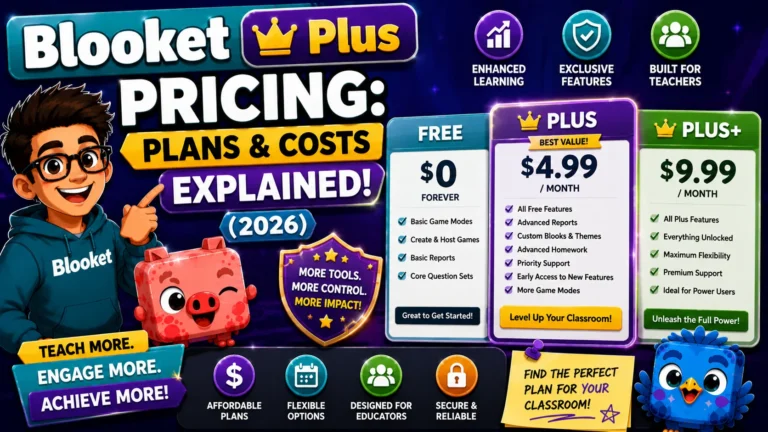
- Plus (Annual): $4.99/month billed as $59.88/year. Best value if you plan to use Plus for the full school year.
- Plus Flex (Monthly): $9.99/month billed monthly. Best if you want to try Plus first or only need it for specific high-use periods.
Cost comparison: Annual Plus saves $60/year compared to Plus Flex ($59.88 vs $119.88). If you’re confident you’ll use Plus for more than 6 months, the annual plan is the better financial choice.
Full Pricing Breakdown → Blooket Plus Pricing
→ Step 5: Complete payment
After selecting your plan, you’ll be directed to Blooket’s payment processor (Stripe). Enter your payment details:
- Credit card number, expiration date, CVC
- Or log in to PayPal if using PayPal
Click Subscribe (or the equivalent button) to complete the purchase.
→ Step 6: Confirm your upgrade
After successful payment, you’re redirected back to your Blooket account. Your Plus features activate immediately, with no waiting period.
To confirm Plus is active:
- Check your Settings page. Your Plan section should now show “Blooket Plus” with your billing period.
- Try accessing a Plus-exclusive feature: open a question set in edit mode and look for the audio question option, or try creating a Folder in My Sets.
- A receipt email is sent to your registered Blooket email address. Check your inbox and spam folder.
Source: verified from Blooket’s official “How to Upgrade to Blooket Plus (Individual)” documentation
After Upgrading: First Things to Do
- Create your first Folder. Go to My Sets and organize your existing sets into labeled folders.
- Check your Enhanced Reports. Open any recent game report from History and explore the Plus-exclusive columns and question details.
- Try Copy & Duplicate. Find a public set on Discover that you’ve used before and want to edit, then use Make a Copy.
- Add audio to a question (if applicable to your subject). Open any set in edit mode and test the audio recording feature.
- Set a homework assignment with a longer deadline. Create a test homework assignment with a deadline several months out to confirm the 365-day window is active.
Cancel or Switch Plans → How to Cancel or Switch Your Blooket Plus Subscription
Managing Your Subscription
- Cancel: Go to Settings, then Plan, then Cancel Subscription. Annual Plus continues until your billing period ends.
- Switch from Flex to Annual: Available in Settings; see the dedicated guide for steps.
- Update billing details: Managed through the Stripe customer portal, accessible from your Settings page.
Where to Go Next
- Want to know more about the platform? See our Blooket guide
- Want the full teacher toolkit overview? Visit the For Teachers hub
- Introducing this to students directly? See the For Students hub
Have a different question? Please check Frequently Asked Questions or our Blooket Help Center.
Frequently Asked Questions
How long does it take to upgrade to Blooket Plus?
About 3 minutes from clicking Upgrade Now to your Plus features activating, assuming you already know which plan (Annual or Flex) you want.
Does upgrading affect other Blooket accounts I have?
No. Plus is tied to the specific account you’re logged into when you upgrade. If you have a separate account, it stays on the free plan unless you upgrade it separately.
Do Plus features activate immediately after payment?
Yes. There is no waiting period. As soon as payment through Stripe or PayPal is confirmed, Plus features are available on your account.
How do I know for certain that my upgrade worked?
Check your Settings page; the Plan section should show “Blooket Plus” with your billing period. You can also try a Plus-exclusive feature directly, like creating a Folder or adding an audio question, or check your inbox for the receipt email.
Is Annual or Plus Flex the better choice?
Annual saves about $60/year compared to Plus Flex if you use Blooket for more than 6 months. Plus Flex is better if you want to try Plus first or only need it for a short, specific period, like exam season.
What should I check first after upgrading?
Create a Folder to organize My Sets, open a recent game report to see the new Enhanced Reports columns, and try Copy & Duplicate on a public set you’ve wanted to edit before.
Can I switch from Plus Flex to Annual later?
Yes. This is available directly from Settings without needing to cancel and resubscribe separately.