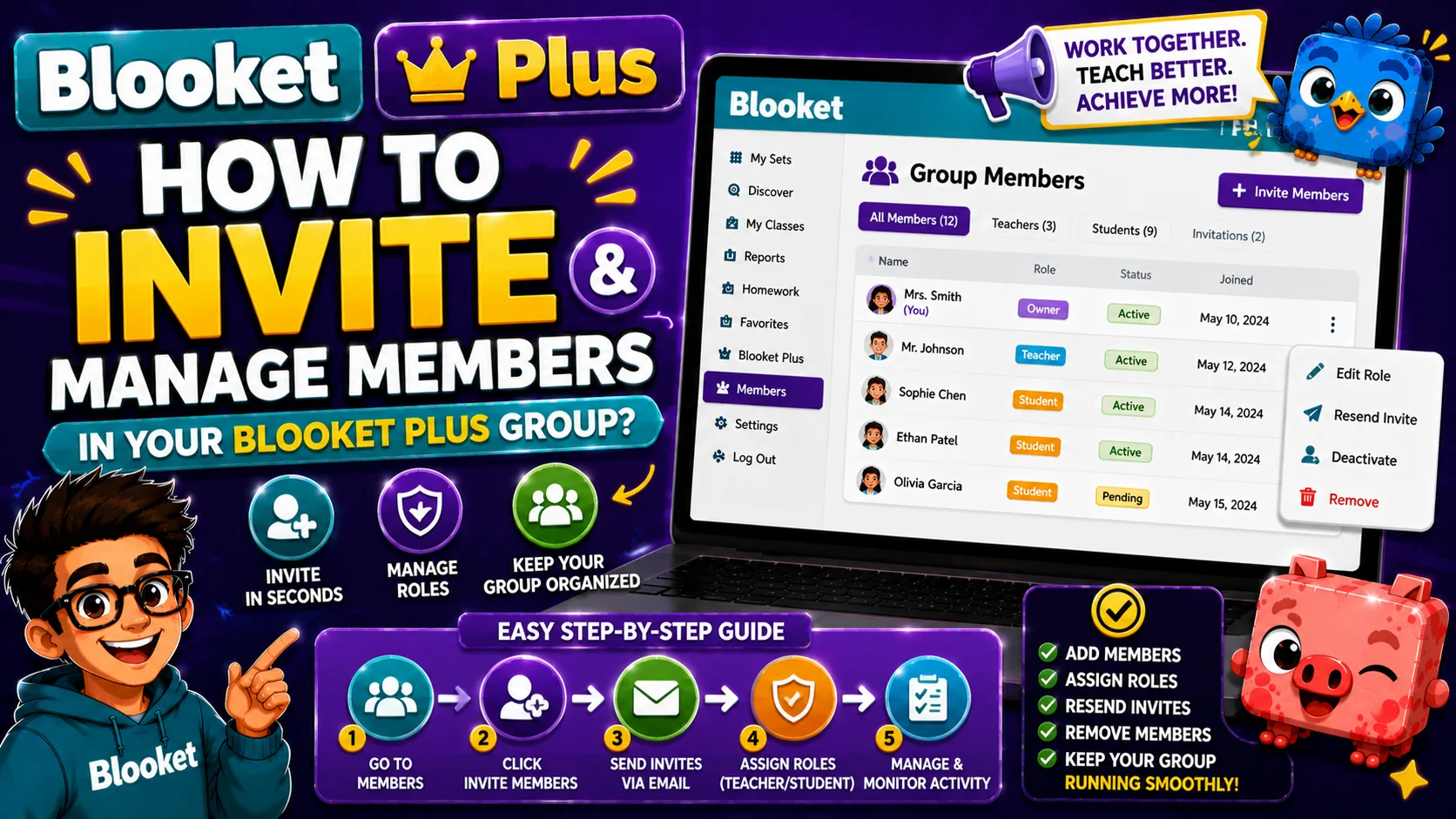
How to Invite and Manage Members in Your Blooket Plus Group?
Last verified: August 14, 2026
Quick Answer: As Group Admin, copy your persistent invite link from the Group Plan tab and share it with teachers. When they click it and join, Plus activates on their account immediately. The Admin must also click “Join the Group” themselves, since purchasing the plan does not automatically activate Plus on the Admin’s own account.
Blooket Plus Group Invite and Manage Members
Once your Blooket Plus Group Plan is purchased, the Group Admin’s next job is to distribute Plus access to the teachers in the plan.
This guide explains the complete member management process for a Blooket Plus Group: inviting teachers, joining the group yourself, verifying Plus is active, removing members when needed, and resolving the most common invite problems.
Complete Guide for → Blooket Plus Features
→ Step 1: Access the Group Plan Tab
Sign in at blooket.com using your Group Admin account, the account that purchased the Group Plan. On the left navigation bar (the purple sidebar), click Group Plan.
This opens the Group Plan management hub, which shows your current member list and the invite link at the top.
→ Step 2: Copy the Invite Link
At the top of the Group Plan tab, you’ll see your unique invite link, a URL specific to your group. Click Copy to copy the invite link to your clipboard.
This link is persistent; it doesn’t expire after a single use. All teachers invited to your group use the same link. Share it with as many teachers as you have seats for.
→ Step 3: Distribute the Invite Link
Share the invite link through your preferred channel:
- Email: Send directly to each teacher’s school email
- Google Classroom announcement: If your admin account has access to a staff communication stream
- Slack, Teams, or staff messaging platform: Paste into your department or school channel
- Staff meeting: Share the link via a shared document or screen share
What happens when a teacher clicks the link:
- They’re taken to the Blooket join page for your group
- If they’re not logged in, they log in to their existing Blooket account (or create one if they don’t have one yet)
- They click Join Group
- Plus features activate on their account immediately
- Their name appears in your Group Members list on the Group Plan tab
Complete Guide About → Blooket Plus Group Plan Reports
→ Step 4: Join the Group Yourself (Admin Must Do This)
⚠️ Warning, this step is the most commonly missed by new Group Admins.
Purchasing the Group Plan does not automatically give the Admin account Plus features. The Admin must join their own group as a member to activate Plus on their own account.
How to join your own group:
- From the Group Plan tab, click the “Join the Group” button (visible when the Admin has not yet joined).
- Alternatively, copy the invite link and paste it into a new browser tab, then click Join Group on that page.
- If you’ve already filled all your seats with other members and the Join button is no longer visible, use the second method (paste the link in a new tab).
After joining, your own account is listed in the Group Members section, and you have full Plus access.
Source: verified from Blooket’s official “How to Invite Members to Your Blooket Plus Group” documentation
Verifying Plus is Active for a Member
After a teacher joins the group, you can confirm Blooket Plus is active by:
- Checking the Group Members list. Anyone listed under “Group Members” has Plus access.
- Asking the teacher to check for Plus-specific features in their account: the audio recording option in the question editor, the ability to create Folders, or the option to play a Plus-only game mode.
Removing a Group Member
When a teacher leaves your school, no longer needs Plus, or joined the wrong group account, you can remove them to free up their seat:
- Step 1: Go to the Group Plan tab
- Step 2: Under the Manage Members tab, locate the member you want to remove
- Step 3: Click the Remove or Action option next to their name
- Step 4: Confirm the removal
After removal, their Plus features are deactivated. The freed seat can be reassigned to a different teacher using the same invite link.
Complete Guide Regarding→ How to Cancel Blooket Subscription
Troubleshooting Common Invite Issues
Problem | Likely Cause | Solution |
| The teacher joined with the wrong account | They were logged into a personal account, not a school account | Remove the incorrect account from Group Members, have them log out, log into the correct account, and rejoin via the invite link |
| The teacher didn’t receive the invite | You tried to email through Blooket rather than sharing the link | Share the link directly via email or messaging; there’s no in-platform email system for invite distribution |
| Plus features are not visible after joining | Browser cache or display issue | Have the teacher clear the browser cache and reload, or try a different browser. |
| No “Join the Group” button visible (for Admin) | All seats are filled, including the Admin’s | Paste the invite link in a new browser tab to access the join flow |
| The invite link stopped working | Seats are full | Check your Group Plan tab for seat count; you may need to expand your plan before more teachers can join. |
What Happens at Renewal?
When your Group Plan renews (annually), all current Group Members retain Plus access continuously. You do not need to re-send the invite link at renewal; existing memberships carry over automatically.
If you want to change the seat count at renewal (add or remove seats), do so from the Settings tab of your Group Plan.
Manage Your Plan → Blooket Plus Group Plan for Schools
Where to Go Next
- Want to know more about the platform? See our Blooket guide
- Want the full teacher toolkit overview? Visit the For Teachers hub
- Introducing this to students directly? See the For Students hub
Have a different question? Please check our Frequently Asked Questions or Blooket Help Center.
Frequently Asked Questions
Does the invite link expire after one use?
No. The invite link is persistent and does not expire after a single use. All teachers in your group use the same link, so you can share it once and reuse it for every new member.
What is the most common mistake new Group Admins make?
Forgetting to join their own group. Purchasing the Group Plan does not automatically activate Plus on the Admin’s account; the Admin must click “Join the Group” or use the invite link themselves.
How do I know if Plus is active for a specific teacher?
Check the Group Members list on the Group Plan tab; anyone listed there has Plus access. You can also ask the teacher to check for Plus-specific features like audio questions or Folders in their own account.
What happens if I remove a member from the group?
Their Plus features deactivate immediately, and their seat becomes available. You can reassign that freed seat to a different teacher using the same invite link.
Do I need to resend the invite link every year at renewal?
No. When your Group Plan renews annually, all current Group Members keep their Plus access automatically. The invite link stays the same unless you choose to generate a new one.
Why isn’t the invite link working for a new teacher?
The most common cause is that all seats in the plan are already filled. Check your Group Plan tab for the current seat count; you may need to expand the plan before more teachers can join.
Can I email invites directly through Blooket?
No. There is no in-platform email system for invite distribution. Share the invite link manually through email, a messaging platform, or a staff communication channel.