How to Mod Minecraft: A Beginner’s Guide
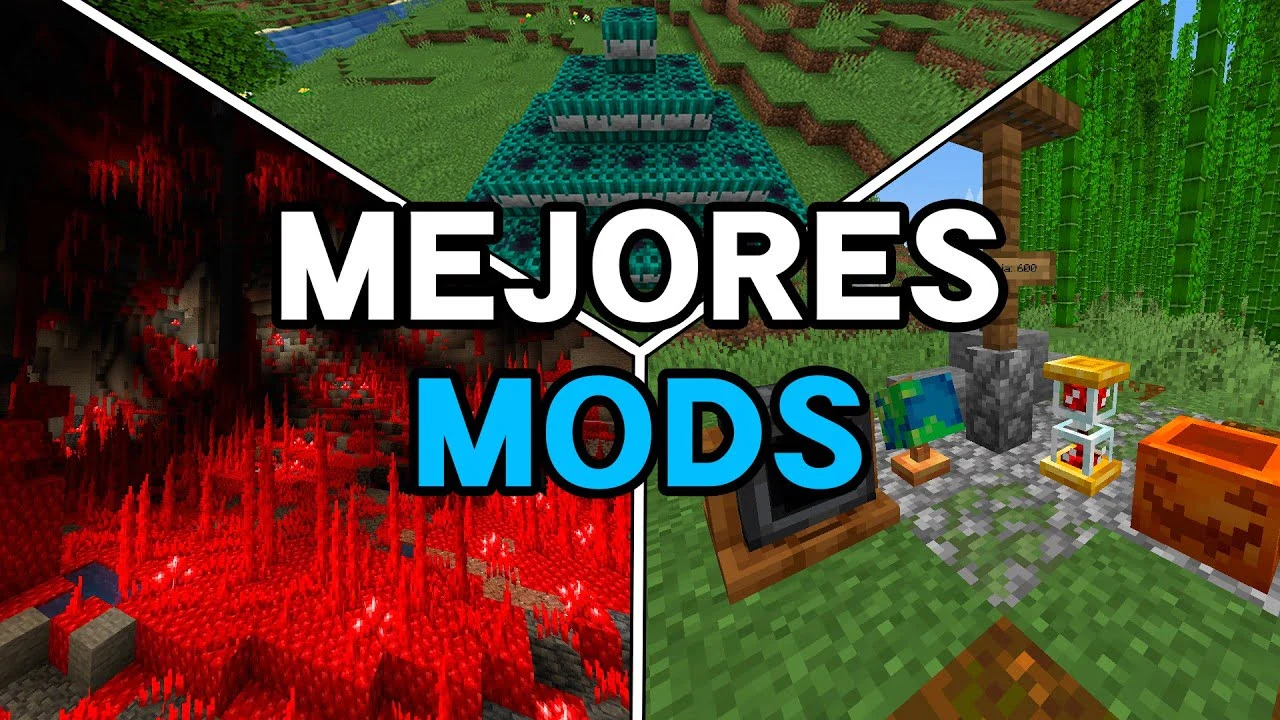
You’ve built incredible structures, explored deep caves, and even defeated the Ender Dragon. So, what’s next? If you want to breathe new life into your blocky world, the answer is simple: Mod Minecraft allows you to transform your game, adding everything from new creatures and dimensions to advanced machinery and magical spells.
But for many, the world of modding can seem intimidating. With terms like mod loaders, dependencies, and JAR files, it’s easy to feel lost. This guide is here to change that. We’ll walk you through everything you need to know, from the essential tools to installing your very first Mod Minecraft.
This beginner’s guide to Mod Minecraft will show you just how simple it can be to unlock a universe of new content.
What is Mod Minecraft?
Mod is short for modification. In Mod Minecraft, mods are user-created additions or changes to the game’s original code. They can be as simple as a minimap that helps you navigate or as complex as a complete overhaul that introduces space travel. Modding is a huge part of what has kept Mod Minecraft fresh and exciting for over a decade, with a massive community creating and sharing content.
The benefits of Mod Minecraft are nearly endless:
- New Content: Add thousands of new items, blocks, mobs, and even entire dimensions.
- Improved Gameplay: Install Quality of Life mods that streamline tasks, improve performance, or enhance the user interface.
- Personalized Experience: Tailor the game to your exact playstyle, whether you prefer technology, magic, exploration, or farming.
Tools and Requirements for Mod Minecraft
Before you start downloading, there are a few things you need. This guide focuses on Minecraft: Java Edition, as it offers the most robust modding capabilities. The Bedrock Edition (for consoles, mobile, and Windows 10/11) uses Add-Ons from the Marketplace, which is a different system.
Here’s what you’ll need for Java Edition modding:
- Minecraft: Java Edition: You must own and have this version of the game installed.
- Java: Minecraft runs on Java, and so do its mods. It’s a good practice to ensure your Java is up to date by visiting the official Java website.
- A Mod Loader: This is the most crucial tool. A mod loader is a program that allows mods to run without conflicting with the base game or each other. The two most popular mod loaders are Forge and Fabric.
- The Mods Themselves: These are the .jar files you’ll download from trusted sources. The best and safest places to find mods are websites like CurseForge and Modrinth.
Forge vs. Fabric: Which Mod Loader Should You Choose?
You can only use one mod loader at a time for a specific game instance. The one you choose depends on the mods you want to play, as mods are built for either Forge or Fabric.
- Minecraft Forge: This is the older, more established mod loader. It supports a massive library of large, complex mods and modpacks. If you’re interested in extensive tech or magic mods, Forge is often the way to go.
- Fabric: Fabric is a newer, lightweight mod loader known for its speed and quick updates. It’s popular for performance-enhancing mods (like Sodium and Iris Shaders) and many newer, simpler mods.
- The Bottom Line: Check the mod’s download page to see if it requires Forge or Fabric. Many popular mods are available for both, but some are exclusive.
How to Install Mod Minecraft: A Step-by-Step Guide
This process is much easier than it sounds. We’ll cover installing both Forge and Fabric.
Step 1: Install a Mod Loader (Forge or Fabric)
First, choose the mod loader you want to use based on the mods you plan to install.
Installing Minecraft Forge:
- Navigate to the official Minecraft Forge website.
- On the left-hand side, select the Minecraft version you want to mod (e.g., 1.20.1). This must match the version of the mods you want to install.
- Click the Installer button to download the file. You may be taken to an ad page; wait a few seconds and click Skip in the top-right corner.
- Once downloaded, run the installer file. A new window will pop up.
- Ensure the Install client is selected and click OK. Forge will install itself into your Minecraft launcher.
Pro Tip: If you want a complete, step-by-step walkthrough to install Forge without any confusion, check out this guide on how to install Minecraft Forge. It covers every step, including version selection, installer tips, and troubleshooting.
Installing Fabric:
- Go to the official Fabric website.
- Click the Download installer button (it usually offers a universal .jar file).
- Run the installer file.
- In the pop-up window, select the correct Mod Minecraft version and click Install.
- Crucial Step for Fabric: Fabric requires an additional file called the Fabric API. Go to CurseForge or Modrinth, search for Fabric API, and download the file for your chosen Minecraft version. You’ll place this file in your mods folder in the next step.
Step 2: Locate Your Mod Minecraft Folder
After installing a mod loader, you need to find where to put your mods.
- Open the Mod Minecraft Launcher.
- Go to the Installations tab at the top.
- You should now see an installation for Forge or Fabric. Hover over it and click the folder icon that appears.
- This will open your main Minecraft directory (usually called .minecraft).
- Look for a folder named mods. If it doesn’t exist, simply create a new folder and name it mods (all lowercase).
Step 3: Download and Add Your Mods
- Go to a safe modding site like CurseForge or Modrinth.
- Find a mod you want to install.
- Carefully check the mod’s requirements:
- Minecraft Version: Must match your game version.
- Mod Loader: Must match the loader you installed (Forge or Fabric).
- Dependencies: Some mods require other mods to work. Read the description or check the Relations tab for any required files and download them too.
- Download the mod’s .jar file. Drag and drop the downloaded .jar file (and any dependencies) directly into the mods folder you located in Step 2. For Fabric users, this is where you’ll also place the Fabric API file.
Step 4: Launch Your Modded Game
- Open the Minecraft Launcher.
- Next to the Play button, you’ll see a dropdown menu. Click it and select your Forge or Fabric installation.
- Click Play.
If everything is done correctly, the game will launch. You can confirm your mods are active by looking for a Mods button on the main menu.
Common Troubleshooting Tips
Running into issues? Here are solutions to common problems.
- Game Crashes on Launch: This is the most frequent issue. It’s usually caused by a mismatch. Double-check that your mod loader, Minecraft version, and all your mods are for the exact same version (e.g., all for 1.20.1). Also, ensure you installed all required dependencies.
- Missing Dependencies Error: The crash report will often tell you which mod is missing. Go back to the mod’s page and download the required files.
- Mods Don’t Appear In-Game: Make sure you’ve selected the correct Forge or Fabric profile in the launcher. If you’re on the vanilla profile, mods won’t load. Also, confirm the mod files are in the correct mods folder.
- Low Performance or Out of Memory Error: Modded Minecraft can be demanding. You may need to allocate more RAM to the game. In the launcher, go to Installations, edit your Forge/Fabric profile, click More Options, and in the JVM Arguments field, change -Xmx2G to -Xmx4G (or higher) to allocate 4GB of RAM.
Pro Tips for Advanced Players
Your adventure is just beginning. Start with a few simple mods like a minimap or backpack mod. As you explore and upgrade your gameplay, it’s also important to keep your tools, weapons, and gear in top condition. For guidance, check out this Minecraft repair guide to learn how to maintain and fix your items efficiently.
Before you know it, you’ll be building nuclear reactors, taming dragons, and exploring planets—all within the familiar world of Minecraft.
FAQs About Minecraft Modding
Q: Is Mod Minecraft safe?
A: Yes, as long as you download mods from reputable websites like CurseForge and Modrinth. These sites scan for malware. Avoid random websites or download links.
Q: Can I use Forge and Fabric mods together?
A: No, not directly. They are separate systems. You must choose one loader for each game instance.
Q: How do I update a Mod Minecraft?
A: Simply delete the old .jar file from your mods folder and replace it with the new version you download.
Q: What is a modpack?
A: A modpack is a large collection of mods pre-configured to work together, often centered around a theme. You can easily install them using launchers like the CurseForge App, which handles all the setup for you.
Conclusion
Mod Minecraft can seem complex at first, but once you complete the process once, it becomes second nature. By following these steps, you’ve unlocked the door to a nearly infinite amount of new Minecraft content created by a passionate community.
Your adventure is just beginning. Start with a few simple Mod Minecraft to get comfortable, like a minimap or a backpack mod. Before you know it, you’ll be building nuclear reactors, taming dragons, and exploring planets—all within the familiar world of Minecraft.