Blooket Troubleshooting & Support: Complete Guide For Teachers
Last verified: August 15, 2026
Quick Answer: Most Blooket technical problems are fixable within 2 minutes. Start with the official debug.blooket.com diagnostic tool, check status.blooket.com for server-side outages, then use the triage table below to identify your specific issue category and jump straight to the right fix.
Technical problems during a Blooket session are almost always fixable, usually within 2 minutes. The challenge is knowing which fix to try first.
Blooket Troubleshooting & Support
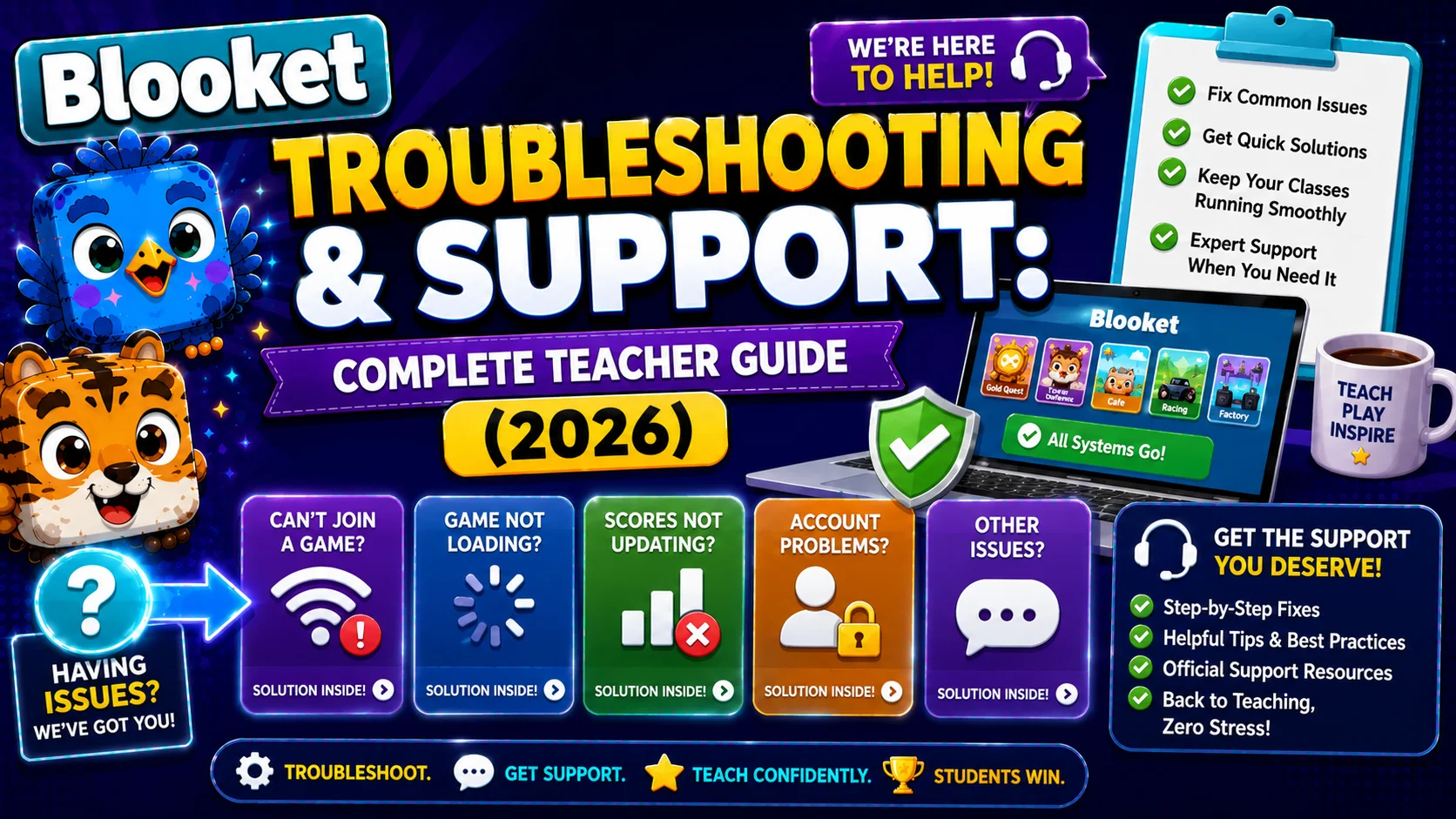
This guide explains every category of Blooket issues teachers encounter, with triage logic that gets you to the right solution as quickly as possible, and provides step-by-step instructions for any Blooket troubleshooting and support issue. For more details, follow the links to the dedicated articles in this section.
Before Anything Else: Two Diagnostic Tools
Two official Blooket tools diagnose most issues in seconds. Use them before attempting any fix.
- blooket.com: Blooket’s official connection debugger. Before trying anything else, run the debugger at debug.blooket.com. It tests all critical services simultaneously, ensures images load, confirms no essential live-game services are blocked, and flags exactly which ones are failing. Share the results page with your IT department; it shows precisely what needs to be unblocked.
- blooket.com: Blooket’s official server status page. Shows real-time uptime across all core platform services: gameplay, authentication, and homework. If status.blooket.com shows an active incident, the problem is on Blooket’s end; wait it out rather than troubleshooting your own setup.
Triage: Which Category Is Your Problem
Identify your issue type before attempting any fix. The same symptom can have very different causes.
| Sign | Most Likely Category | Start With |
| Blooket won’t load at all | Network or browser | Check status.blooket.com, then Performance Guide |
| “Access blocked” message | School network policy | Access Blocked Guide |
| Students can’t sign in with Google | Google Workspace configuration | Google Workspace Setup Guide |
| Can’t log in / join / host | Authentication or firewall | Login/Join/Host Guide |
| Game works, but images are missing | Blocked image domains | Images Not Showing Guide |
| Blooks not showing up | Blocked image domains | Images Not Showing Guide |
| Account signup prompt appearing | Host settings | Hide Notifications Guide |
| General slowness or lag | Browser or network performance | Performance Guide |
| Need to contact Blooket | Support | Contact Support (below) |
Category 1: Game Performance & Technical Issues
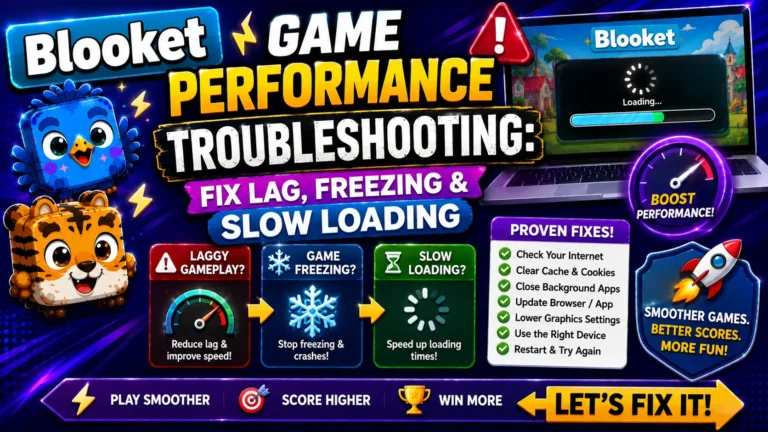
Performance problems, lag, slow question loading, and games freezing mid-session are almost always caused by browser-side or network-side issues, not Blooket’s servers.
Common causes and fixes:
- Browser extensions: The most frequent cause. Ad blockers, grammar checkers, and other extensions run scripts on every page, slowing down the browsing experience. Open Blooket in Incognito or Private mode to disable all extensions temporarily and test whether performance improves. If it does, the issue is a specific extension.
- Cached files: Can interfere with loading and smooth gameplay. Clear your browser cache and cookies (in Chrome: Settings, Privacy and security, Clear browsing data).
- Hardware acceleration: Lets your browser use your device’s GPU instead of relying solely on the CPU, improving performance in resource-intensive games. In Chrome, go to chrome://settings/system, find “Use hardware acceleration when available,” and ensure it is on.
- School network blocking: If school networks block services like Firebase or SSL traffic inspection, game data can slow down or drop. Ask IT to whitelist .blooket.com so game data isn’t slowed or blocked.
Complete Performance Guide → Blooket Game Performance Troubleshooting
Category 2: Blooket Blocked on School Networks
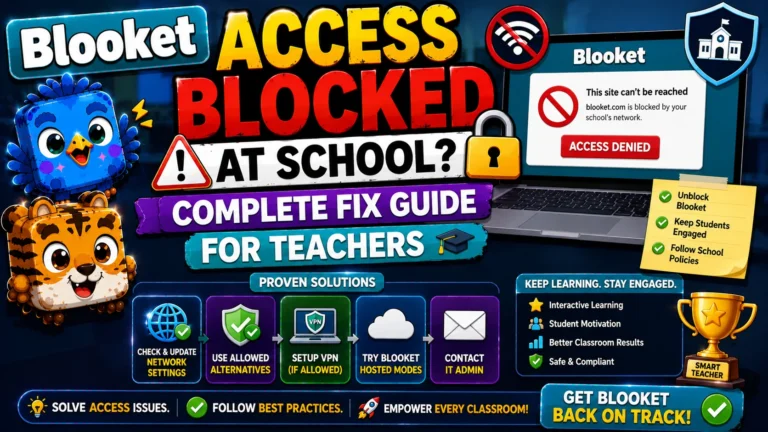
The “Access Blocked” screen appears when a school network’s content filter or Google Workspace policy has restricted access to Blooket.
Two separate blocking scenarios:
- Scenario A, general network block: The school firewall or content filter has blocked blooket.com. Contact your IT administrator to request whitelisting of blooket.com and play.blooket.com. The domain request can be accompanied by the debug.blooket.com results page, which shows IT exactly what needs to be unblocked.
- Scenario B, Google Workspace block: The school’s Google Workspace for Education settings require administrator approval for third-party apps. If this message displays when trying to access Blooket on a school network, select “request access” and notify your Google Workspace Administrator.
Student/Teacher Guide → Blooket Access Blocked at School
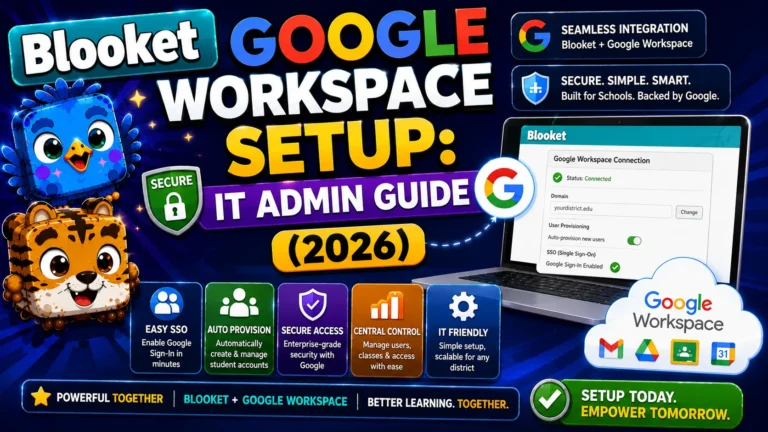
IT Administrator Guide → How to Set Up Blooket in Google Workspace for Education
Category 3: Login, Join, and Hosting Issues
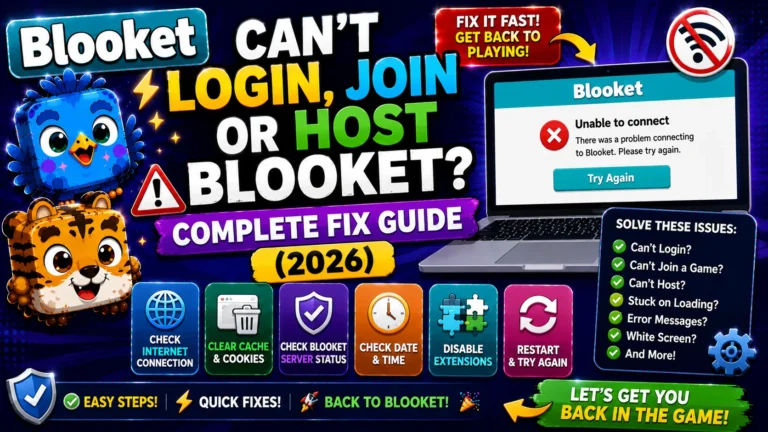
Can’t log in? Can’t students join? Won’t the game start? These issues almost always trace to one of three causes: Chrome extensions blocking site functionality, the firebaseio.com backend being blocked by a school firewall, or a case-sensitive username error.
The main cause is a Chrome extension, such as an ad blocker or other service, blocking part of the site’s functionality. While Blooket doesn’t run ads, these extensions can still interfere with some parts of the site. Second, if you still can’t join or host a game, make sure firebaseio.com is unblocked on your device.
Blooket uses this site for part of its backend, so if a firewall blocks it, you may not be able to use parts of the site. Note that usernames are case-sensitive; ensure you sign in with the exact name you registered with.
How to Fix Guide: → Can’t Log In, Join, or Host Blooket
Category 4: Images and Blooks Not Showing
When Blook avatars, question images, or pack images fail to display, appearing as blank boxes or broken image icons, the cause is almost always a school network blocking the image hosting services Blooket uses.
To get images to show up, have someone on the school network unblock res.cloudinary.com and images.unsplash.com. These are the two services that deliver Blooket’s images, so if they are blocked, the images will not appear.
Complete Guide → Blooket Images and Blooks Not Showing
Category 5: Settings-Level Issues
Some problems aren’t technical failures at all. They’re settings choices that can be adjusted in the host configuration screen before the game starts.
Student account signup notification: After finishing a game, students who don’t already have an account are prompted to create one. Some teachers don’t want this prompt shown to their class. This is a host setting controlled in the game setup flow, not a bug or a network issue, and it can be turned off before hosting.
Why this category matters: Unlike Categories 1 through 4, settings-level issues don’t require any troubleshooting steps at all, only knowing where the relevant toggle lives. If a “problem” you’re experiencing is actually a settings choice, no amount of clearing cache or whitelisting domains will resolve it; you need the correct settings screen instead.
Complete Guide → How to Hide the Student Account Notification
Contact Blooket Support
(When Nothing Works)
If you’ve worked through the relevant guide and the issue persists, contact Blooket directly:
- Email: contact-us@blooket.com
- Critical: Get in touch from the email associated with your Blooket account for the best chance of resolving your issue.
- Also: Visit the Blooket Help Center at help.blooket.com to search existing articles.
What to include in your support email:
- Your Blooket username and registered email
- A clear description of the problem and when it started
- The browser and device you’re using
- A screenshot of any error message
- The results from debug.blooket.com, if the issue involves connection or images
Response times vary, but including these details in your first email significantly speeds up resolution.
When the Problem is on Blooket’s Side:
Server-side outages do happen, particularly during peak hours. Weekday mornings and back-to-school season (late August/September) produce the highest platform traffic and are the most likely times for slowdowns.
Signs it’s server-side, not your setup:
- The problem appears on different devices simultaneously
- blooket.com shows an active incident
- Other teachers in your building or district report the same issue at the same time
- The problem started suddenly with no changes on your end
When server-side issues are confirmed, the only option is to wait. Blooket’s team monitors the status page and pushes fixes. Most outages resolve within 15 to 30 minutes. Plan backup activities for sessions during known high-traffic periods.
Where to Go Next
- Want to know more about the platform? See our Blooket guide
- Want the full teacher toolkit overview? Visit the For Teachers hub
- Introducing this to students directly? See the For Students hub
Have a different question? Please check Frequently Asked Questions or our Blooket Help Center.
Frequently Asked Questions
What should I try first if Blooket isn’t working?
Run the official debugger at debug.blooket.com. It tests all critical services at once and tells you exactly what’s failing, which is faster than guessing at individual fixes.
How do I know if the problem is on my end or Blooket’s servers?
Check status.blooket.com for an active incident. If the problem appears on multiple devices simultaneously, started suddenly with no local changes, and other teachers in your building report the same issue, it’s almost certainly server-side.
What is the single most common cause of Blooket performance problems?
Browser extensions, especially ad blockers and grammar checkers. Testing in Incognito or Private mode, which disables extensions temporarily, is the fastest way to confirm or rule this out.
Why are my Blook images showing as blank boxes?
Almost always a school network blocking res.cloudinary.com or images.unsplash.com, the two services that deliver Blooket’s images. Ask your IT department to unblock both domains.
What is firebaseio.com and why does it matter?
It’s a backend service Blooket relies on for parts of the site to function. If a school firewall blocks it, you may be unable to join or host games, even though logging in itself still works.
How long do Blooket server-side outages typically last?
Most resolve within 15 to 30 minutes. Weekday mornings and back-to-school season (late August/September) see the highest traffic and the highest likelihood of slowdowns.
What should I include when emailing Blooket support?
Your username and registered email, a clear description of the problem and when it started, your browser and device, a screenshot of any error, and the debug.blooket.com results if the issue involves connection or images.