Blooket Images & Blooks Not Showing: Fix Guide + Debug Tool
Last verified: August 15, 2026
Quick Answer: Blooket images not showing is almost always caused by a school network blocking res.cloudinary.com and images.unsplash.com, the two services that host all Blook avatars and question images. Run debug.blooket.com to confirm, ask IT to whitelist both domains, then clear your browser cache once they’re unblocked.
Blooket Images Not Showing:
(Complete Fixing Guide)
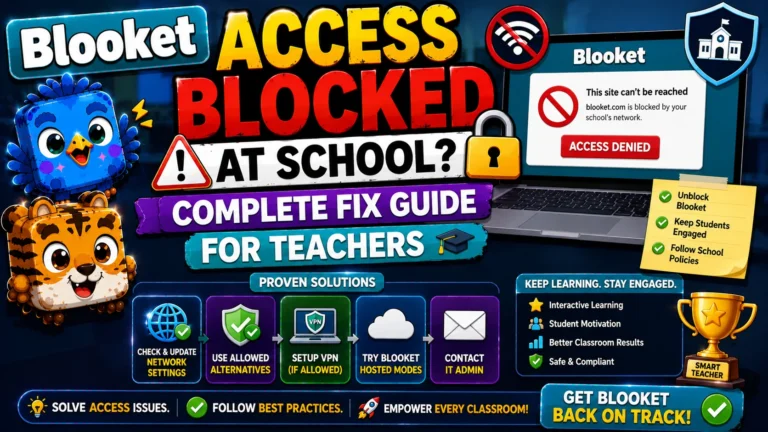
When Blook avatars appear as blank squares, question images display as broken icons, or pack contents fail to render in the Market, the cause is almost always a school network blocking the image hosting services Blooket uses. This guide explains why Blooket images aren’t showing, what’s being blocked, what to tell IT, and how to verify the fix worked.
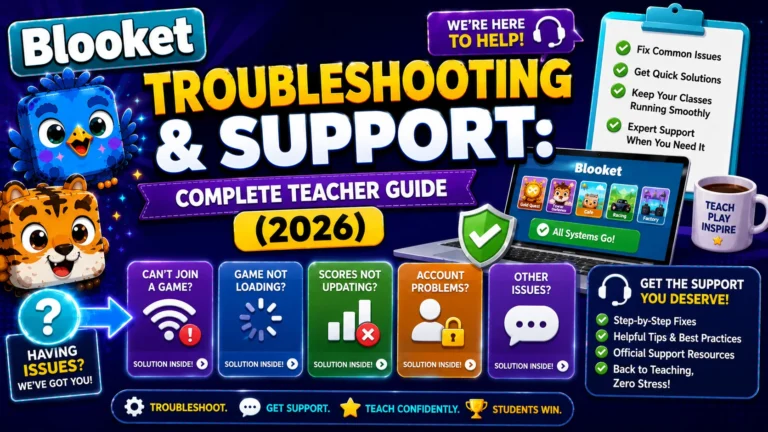
Complete Guide For → Blooket Troubleshooting & Support
What Causes Images to Not Show Up?
It tends to happen on school networks and school-issued devices. The way to get the images to show up is to have someone on the school network unblock res.cloudinary.com and images.unsplash.com. These are the two services that deliver Blooket’s images, so if they are blocked, the images will not appear.
The technical reason: Blooket stores all its images (Blook avatars, question images, pack artwork, and Market visuals) on two third-party image hosting services rather than on Blooket’s own servers. When a school network blocks these domains, often as part of a broad content filtering policy rather than a specific choice to block Blooket images, the images fail to load even though the rest of Blooket functions normally.
It means that:
- The game itself works (questions appear, scores update, leaderboard functions).
- The player avatars and any image-based questions appear as broken or blank.
- The Market pack images and Blook collection visuals don’t render.
Step 1: Confirm with the Debug Tool
If you are having issues connecting to Blooket or if images are not appearing, log in and visit debug.blooket.com. The debugger runs tests on all critical Blooket services, including image hosting, and flags which ones are failing.
If the res.cloudinary.com and/or images.unsplash.com tests fail on debug.blooket.com, your IT department needs to whitelist those domains. Take a screenshot of the debug results page; this is the most useful thing you can provide to IT.
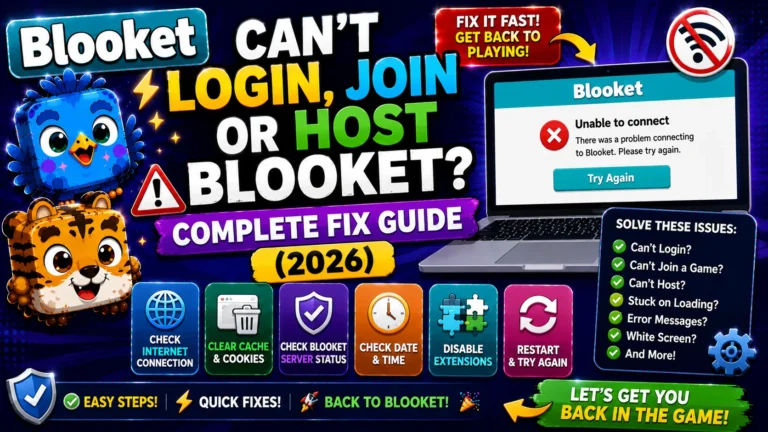
Step-by-Step Guide for → Blooket Game Performance Troubleshooting
Step 2: What to Tell Your IT Administrator
When you contact IT, be specific about what needs to be unblocked. Here is a ready-to-send request:
Subject: Whitelist Request, Image Domains for Blooket
Students and teachers in our school are seeing missing images and Blook avatars when using Blooket (blooket.com). The problem is caused by our network blocking the image hosting services Blooket uses.
Please whitelist the following two domains to restore image display:
- res.cloudinary.com, Blooket’s primary image hosting service
- images.unsplash.com, Blooket’s secondary image hosting service
I have attached the results from debug.blooket.com, which confirm these services are being blocked on our network. These are widely used, reputable image hosting platforms used by thousands of educational websites.
Attaching the debug.blooket.com screenshot makes the request immediately actionable for IT without requiring additional diagnosis on their end.
Step 3: After IT Whitelists the Domains
After IT confirms the domains have been whitelisted:
- Close all browser tabs with Blooket open.
- Clear your browser cache (in Chrome: Settings, Privacy and security, Clear browsing data, Cached images and files).
- Reopen Blooket and reload the page.
- Run debug.blooket.com again to confirm the image tests now pass.
Blook avatars and images should render immediately after the cache is cleared.
Source: verified from Blooket’s official documentation on missing images.
What Teachers Can Do Before IT Responds?
While waiting for IT to whitelist the domains, there are limited immediate workarounds:
→ Use text-only question sets for today’s session. If your current session has image-based questions, swap to a question set that uses text-only questions. The game functions correctly; only image rendering is affected.
→ Use student phones as a workaround. Students joining on personal mobile phones using their own data connection (not the school Wi-Fi) will see images correctly, since the block is at the school network level. This is not practical for all classrooms, but it works in a pinch.
→ Use student names instead of Random Name mode. The Blook avatar issue makes it impossible to identify which random name corresponds to which student. Use student names to maintain report accuracy during the outage.
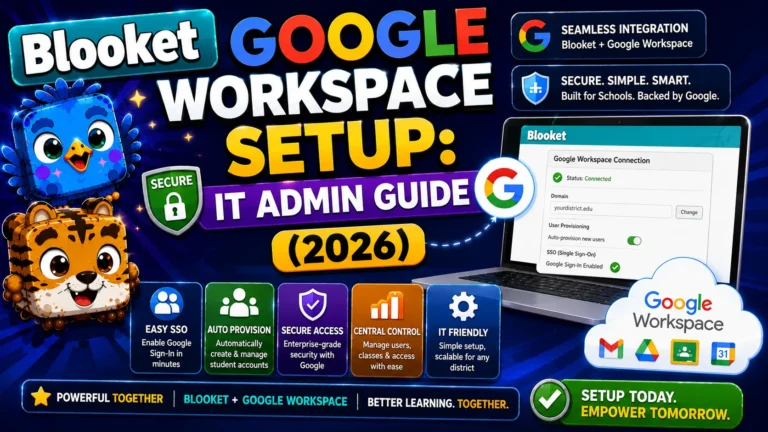
Step-by-Step Setup → Google Workspace Guide
Where to Go Next
- Want to know more about the platform? See our Blooket guide
- Want the full teacher toolkit overview? Visit the For Teachers hub
- Introducing this to students directly? See the For Students hub
Have a different question? Please check Frequently Asked Questions or our Blooket Help Center.
Frequently Asked Questions
Are res.cloudinary.com and images.unsplash.com safe to whitelist?
Yes. Cloudinary is one of the world’s largest image and video hosting platforms, used by thousands of enterprise and educational websites. Unsplash is a widely used platform for professional photography. Neither poses a content or security concern when whitelisted.
Will whitelisting these domains expose students to inappropriate content?
No. The whitelist applies to domain-level access. Blooket’s use of these domains is limited to hosting its own Blook images and question graphics. The whitelist does not open a general browsing pathway to these platforms.
If I can see images at home but students can’t at school, what does that mean?
It confirms the block is at the school network level, not a device or account issue. Your home network isn’t applying the same content filter. The IT whitelist request is the correct path.
Does the game still work if images aren’t loading?
Yes. Questions appear, scores update, and the leaderboard functions normally. Only the visual rendering of Blook avatars, question images, and pack artwork is affected.
What should I do during a live session while waiting for IT to fix this?
Switch to a text-only question set if your current one relies on images, and use student names instead of Random Name mode, since the missing avatars make random names impossible to match to students.
Can students on personal phones see images even when school Wi-Fi blocks them?
Yes, if they use their own mobile data connection rather than the school Wi-Fi, since the block exists at the network level, not on Blooket’s platform itself.
How do I confirm the fix worked after IT whitelists the domains?
Clear your browser cache, reload Blooket, and run debug.blooket.com again. If the res.cloudinary.com and images.unsplash.com tests now pass, images should render immediately.