How to Join a Blooket Game? Step-By-Step Guide
Blooket, a popular educational game that seamlessly blends learning and fun, is a favorite among teachers and students. Joining a Blooket game is an easy process, and this guide will walk you through it, whether you’re a student eager to play or a teacher looking to facilitate a classroom activity. In this article, we’ll cover everything from what Blooket is to how to join a Blooket game and create an account, making the process easy and accessible.
What is Blooket?
Blooket is more than just an online game-based learning platform-it’s an interactive experience that engages students through quizzes and activities. Teachers can create custom quizzes or use pre-made ones, allowing students to compete in various game modes. Blooket’s interactive nature, combined with its educational content, makes it a powerful tool for classroom learning, keeping students engaged and involved in their learning process.
With Blooket, teachers can assess students’ knowledge, track their progress, and most importantly, make learning fun and interactive. On the other hand, students get to enjoy a competitive and engaging learning experience that not only encourages collaboration and critical thinking but also brings a sense of excitement and entertainment to the classroom.
How to Create Blooket Account?
You’ll need to create an account before how to join a Blooket game. Here’s how to do it:
Step 1: Visit the Blooket Website
To create a Blooket account, visit the Blooket website at www.blooket.com. This is where you’ll find all the tools and resources needed to get started with Blooket.
Step 2: Click on “Sign Up”
On the Blooket homepage, look for the “Sign Up” button, usually located at the top right corner of the page. Click on it to start the registration process.
Step 3: Choose Your Account Type
Blooket offers two types of accounts: Teacher and Student. If you’re a teacher looking to create and manage games, select the “Teacher” account option. This will give you access to additional features such as game creation tools and student progress tracking. If you’re a student, choose the “Student” account option to participate in games and quizzes created by your teacher.
Step 4: Fill Out the Registration Form
Fill out the registration form with the required information. For teachers, this includes your name, email address, and password. Students will need to enter their username and password. Be sure to choose a strong password to protect your account.
Step 5: Verify Your Email (for Teachers)
Blooket will send a verification email to the address you provided if you signed up as a teacher. Click on the link in the email to verify your account. Students do not need to verify their email addresses.
Step 6: Log In to Your Account
Once your account is set up, log in using your email address, username, and password. You’re now ready to join a Blooket game!
How to Join a Blooket Game?
Now that you have a Blooket account, it’s time to join a game. Whether you’re a student joining a game created by your teacher or a player looking to participate in a public game, the process is simple. Here’s how:
Step 1: Get the Game Code
To join a Blooket game, you’ll need a game code. This is a unique code the game host provides, typically a teacher or game creator. The game code is a string of numbers and letters that identifies the specific game you want to join.
Step 2: Go to the Blooket Homepage
Open your web browser and navigate to the Blooket homepage at www.blooket.com.
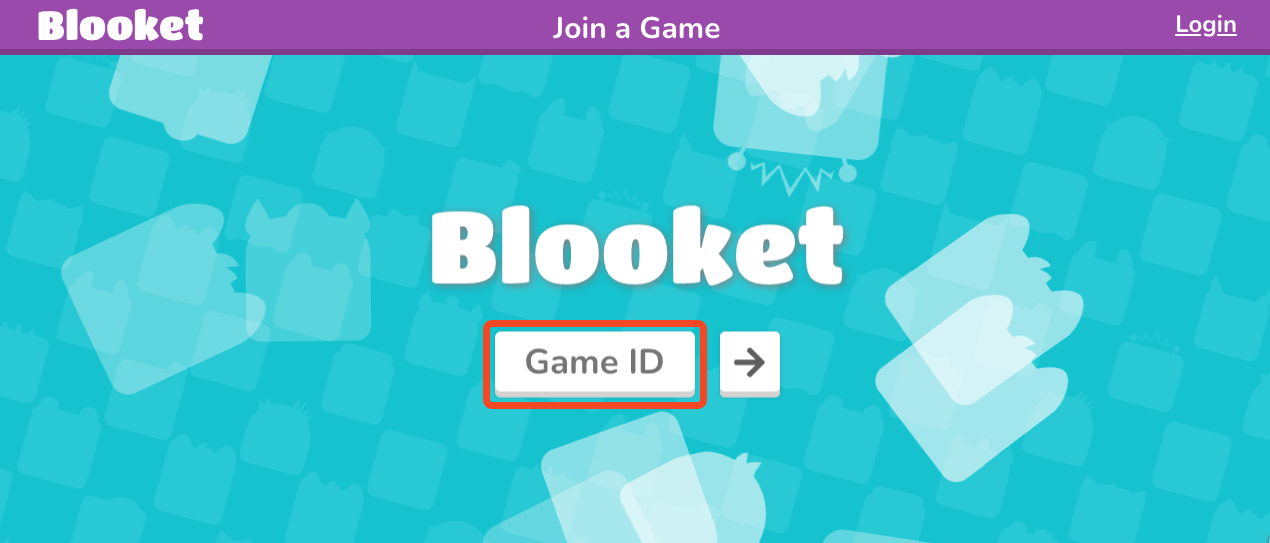
Step 3: Click on “Join a Game”
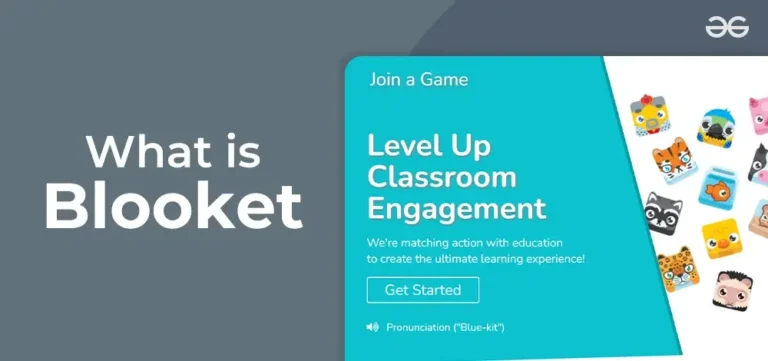
On the Blooket homepage, look for the “Join a Game” button. This is usually located prominently on the page. Click on the button to proceed.
Step 4: Enter the Game Code
A new window will appear, prompting you to enter the game code. Type in the code you received from the game host and click “Enter.” Make sure to double-check the code for any errors before proceeding.
Step 5: Choose Your Blook (Avatar)
Once you’ve entered the game code, you’ll be taken to the game lobby. Here, you can choose your Blook, which is your in-game avatar. Blooks are fun and colorful characters that represent you in the game. Select your favorite Blook to continue.
Step 6: Wait for the Game to Start
After choosing your Blook, you’ll be placed in the game lobby with other players. The game host will start the game once all participants have joined. While you wait, you can chat with other players and prepare for the game to begin.
Step 7: Play the Game
Once the game starts, follow the instructions on the screen and participate in the quiz or activity. Blooket offers a variety of game modes, each with its own unique rules and objectives. For example, in ‘Tower Defense’, you’ll answer questions to defend your tower, while in ‘Jumble’, you’ll unscramble words to win. Pay attention to the game instructions to maximize your chances of winning.
Tips for a Smooth Blooket Experience
To ensure a smooth and enjoyable Blooket experience, here are a few tips to keep in mind:
1. Check Your Internet Connection
Blooket is an online platform, so a stable internet connection is essential. Make sure you have a reliable internet connection before joining a game to avoid any disruptions.
2. Use a Compatible Device
Blooket works best on desktop and laptop computers but is also compatible with tablets and smartphones. For the best experience, use a device with a large screen and a modern web browser.
3. Stay Focused and Engaged
Blooket games are fast-paced and require concentration. Stay focused on the game and avoid distractions to improve your chances of winning. Engage with other players and participate actively in the game to make the most of the experience.
4. Follow the Game Rules
Each Blooket game has its own set of rules and objectives. Make sure to read and understand the game rules before playing. Following the rules will help you avoid penalties and improve your chances of winning.
5. Have fun!
Above all, remember that Blooket is designed to be fun and engaging. Enjoy the game and have fun learning and competing with others.
Troubleshooting Common Issues of Blooket
Despite its user-friendly interface, you might encounter a few issues while joining a Blooket game. Here are some common problems and their solutions:
Problem: Unable to Join the Game
Solution: Double-check the game code for errors and ensure you’ve entered it correctly. If the problem persists, contact the game host for assistance.
Problem: Game Not Loading
Solution: Check your internet connection and make sure you have a stable connection. Try refreshing the page or using a different web browser.
Problem: Audio or Visual Issues
Solution: Ensure your device’s audio and visual settings are correctly configured. Check your device’s volume and display settings and adjust them as needed.
Conclusion
Joining a Blooket game is an easy process that offers an exciting and interactive learning experience. Whether you’re a teacher looking to engage your students or a student eager to learn and compete, Blooket provides a fun and educational platform for all. Following the steps outlined in this guide, you’ll be ready to join a Blooket game and start learning quickly.
FAQs About Joining a Blooket Game
1. What is Blooket?
Blooket is an online game-based learning platform that engages students with interactive quizzes and activities. Teachers can create custom quizzes or use pre-made ones, allowing students to compete in different game modes.
2. Do I need an account to join a Blooket game?
No, you don’t need an account to join a Blooket game. However, creating an account allows you to track progress and access additional features.
3. How do I create a Blooket account?
To create a Blooket account, visit www.blooket.com, click “Sign Up,” choose between a Teacher or Student account, fill in the required details, and verify your email (for teachers).
4. How do I join a Blooket game?
To join a game, go to www.blooket.com, click “Join a Game,” enter the game code provided by the host, select your avatar (Blook), and wait for the game to start.
5. Where can I find the game code?
The host (usually a teacher or game creator) gives the game code. If you haven’t received a code, ask the host to provide it.
6. Can I play Blooket on my phone or tablet?
Yes, Blooket is compatible with smartphones, tablets, laptops, and desktop computers. A modern web browser is recommended for the best experience.
7. What should I do if the game won’t load?
Check your internet connection, refresh the page, or try a different web browser. If issues persist, restart your device or contact the game host.
8. Why am I getting an error when entering the game code?
Double-check the game code for mistakes. If the error continues, the game may have ended, or the host may have provided the wrong code.
9. What happens if I get disconnected from a game?
If you lose connection, try rejoining using the same game code. If the game has already started, you may need to wait for the next round.
10. Do Blooket games have different modes?
Yes, Blooket offers multiple game modes with unique rules and objectives. Make sure to read the instructions for the specific mode you are playing.
11. Can I create my own Blooket games?
Yes, but you need a Teacher account to create and host games. Students can only join existing games unless a teacher allows them to create their own.
12. Is Blooket free to use?
Yes, Blooket has a free version with basic features. However, there are premium plans that offer additional tools and customization options.
13. How can I improve my chances of winning?
Stay focused, understand the game mode’s rules, and answer questions quickly and accurately. A good internet connection also helps prevent lag.
14. What should I do if I experience audio or visual issues?
Ensure your device’s volume and display settings are properly configured. If needed, refresh the page or switch to a different browser.
15. Is Blooket safe for students?
Yes, Blooket is designed for educational purposes and is safe for students. Teachers and parents can monitor gameplay to ensure a positive experience.