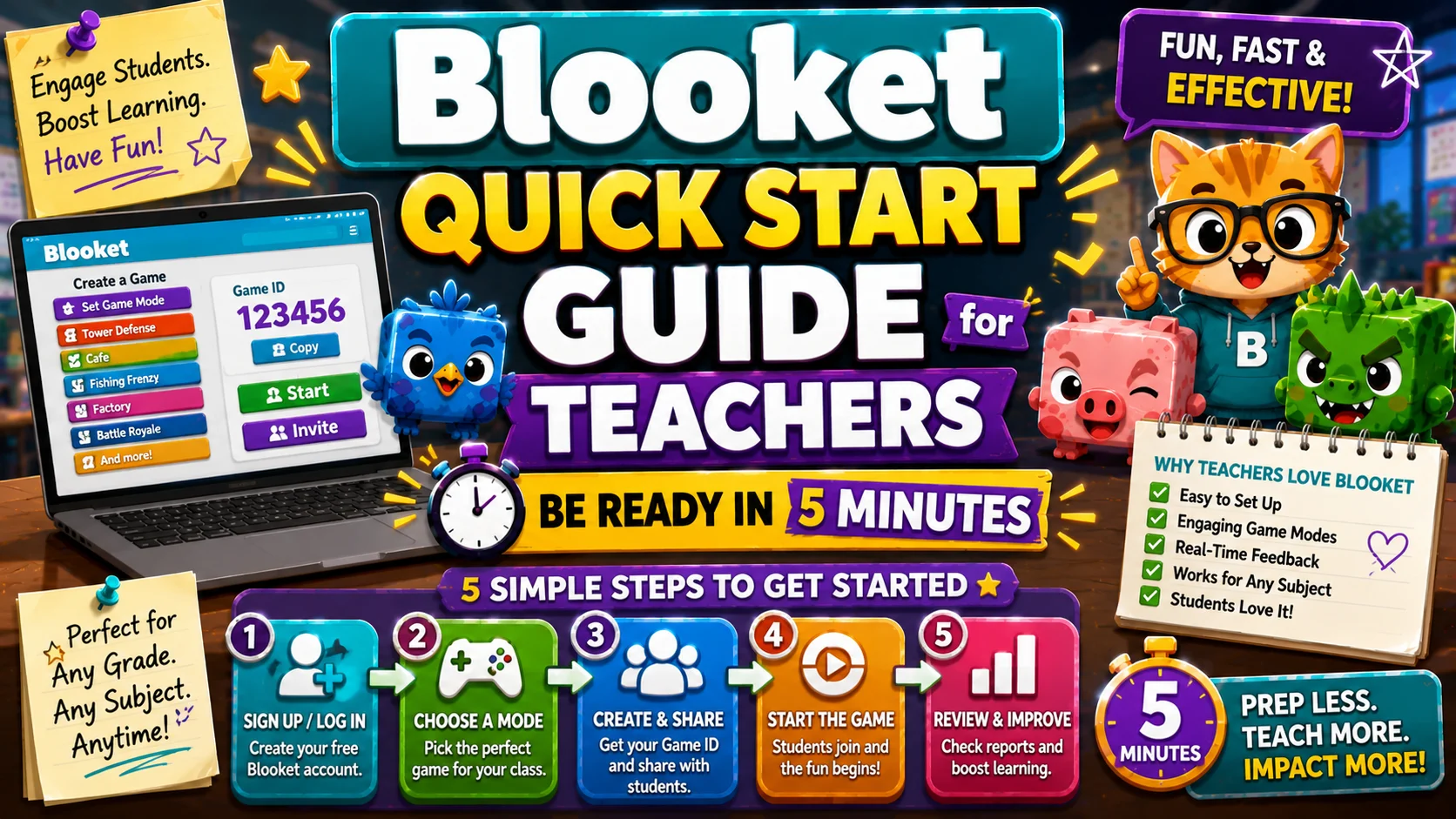
Blooket Quick Start Guide for Teachers: Be Ready in 5 Minutes
Last verified: August 8, 2026
Quick Answer: Create a free teacher account at blooket.com, pick a question set from Discover, click Host, choose a game mode, and share the generated code with your class. Start your first live game: about 5 minutes, no technical experience required.
Blooket Quick Start Guide for Teachers
 If you’ve heard students (or colleagues) talk about Blooket and want to try it in your classroom, you’re in the right place to learn about Blooket for beginners. This Blooket quick start guide for teachers explains everything you need for a smooth Blooket classroom setup — going from zero to your first live Blooket game in about 5 minutes.
What is Blooket?
Blooket is a free, web-based learning platform that turns quiz questions into competitive, game-based experiences. Instead of answering questions on a standard worksheet or a plain quiz app, students answer questions while playing games such as defending towers, collecting gold, running a café, or racing to the finish line.
What makes Blooket different from tools like Kahoot or Quizizz is the depth of game variety. The same question set can be used across 25+ different game modes, each with distinct techniques. Students who might be bored by a standard quiz stay engaged because the game changes every session.
For teachers, the core workflow is simple: find or create a question set, choose a game mode, and share a code. Everything else such as scoring, timers, and results is handled automatically.
What You Need to Get Started
Before your first game, here’s what to have ready:
- A free Blooket teacher account at blooket.com
- A question set (you can borrow one from the library or build your own)
- A device for you to host, and devices for students to join
(Any browser works — Chromebooks, phones, tablets, laptops)
Students do not need accounts to join a live game. They go to the Blooket join page and enter the game code you share with them.
Step 1: Create Your Free Teacher Account
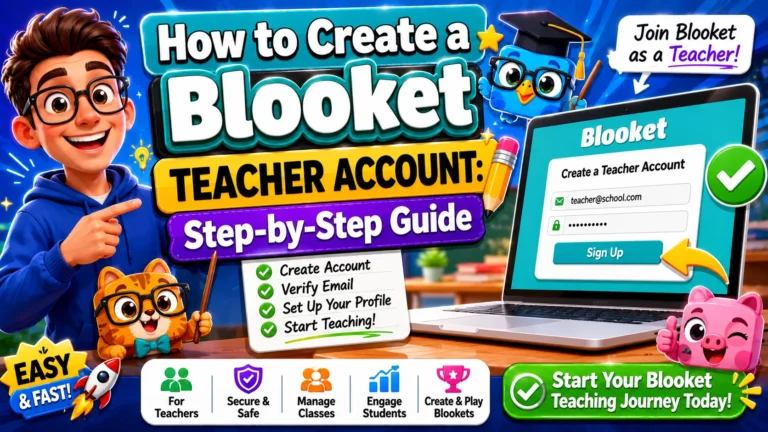
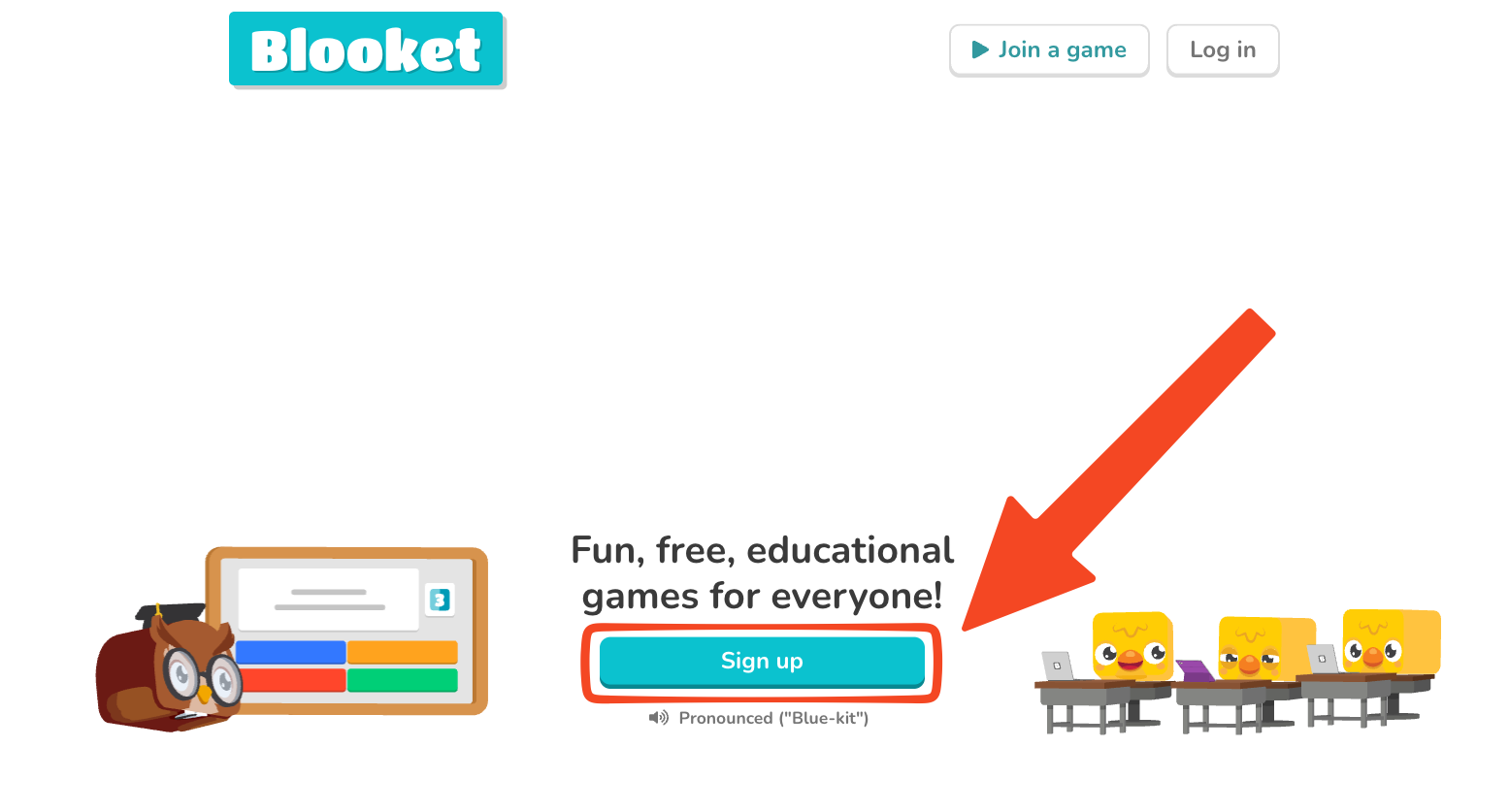
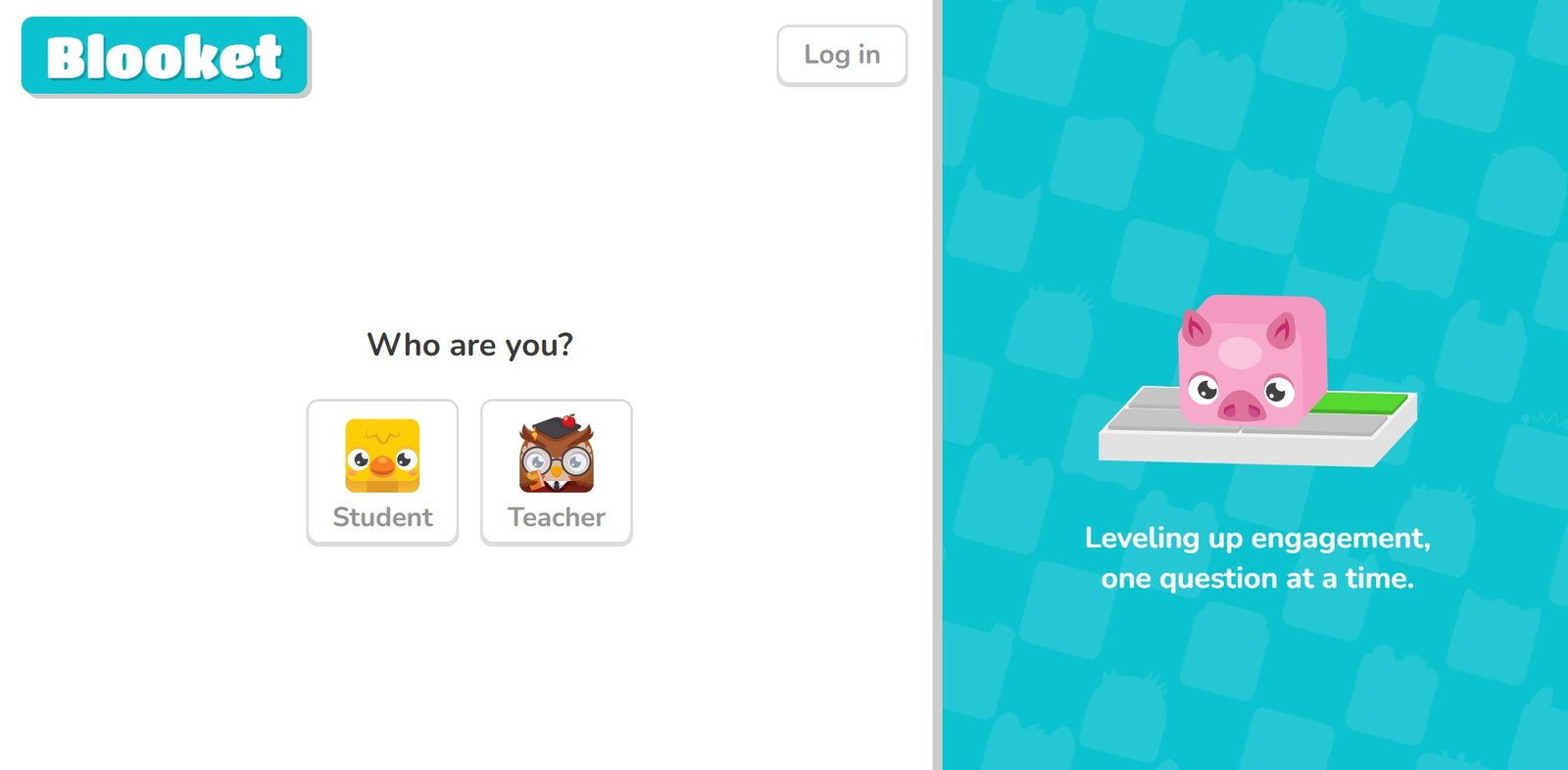 Go to blooket.com and click Sign Up in the upper right. You’ll be asked to choose between a teacher account and a student account — select teacher. You can sign up with your Google account (the fastest option) or with an email address and password.
Once your account is created, log in to Blooket to set up your class, and you’ll land on your teacher dashboard. This is your home base for everything: creating question sets, hosting games, assigning homework, and reviewing student reports.
Complete Sign-up Walkthrough → How to Create a Blooket Teacher Account
Step 2: Find a Question Set
Question sets are the building blocks of every Blooket game. You don’t need to create your own right away. There are over 20 million publicly shared sets in the library created by other educators.
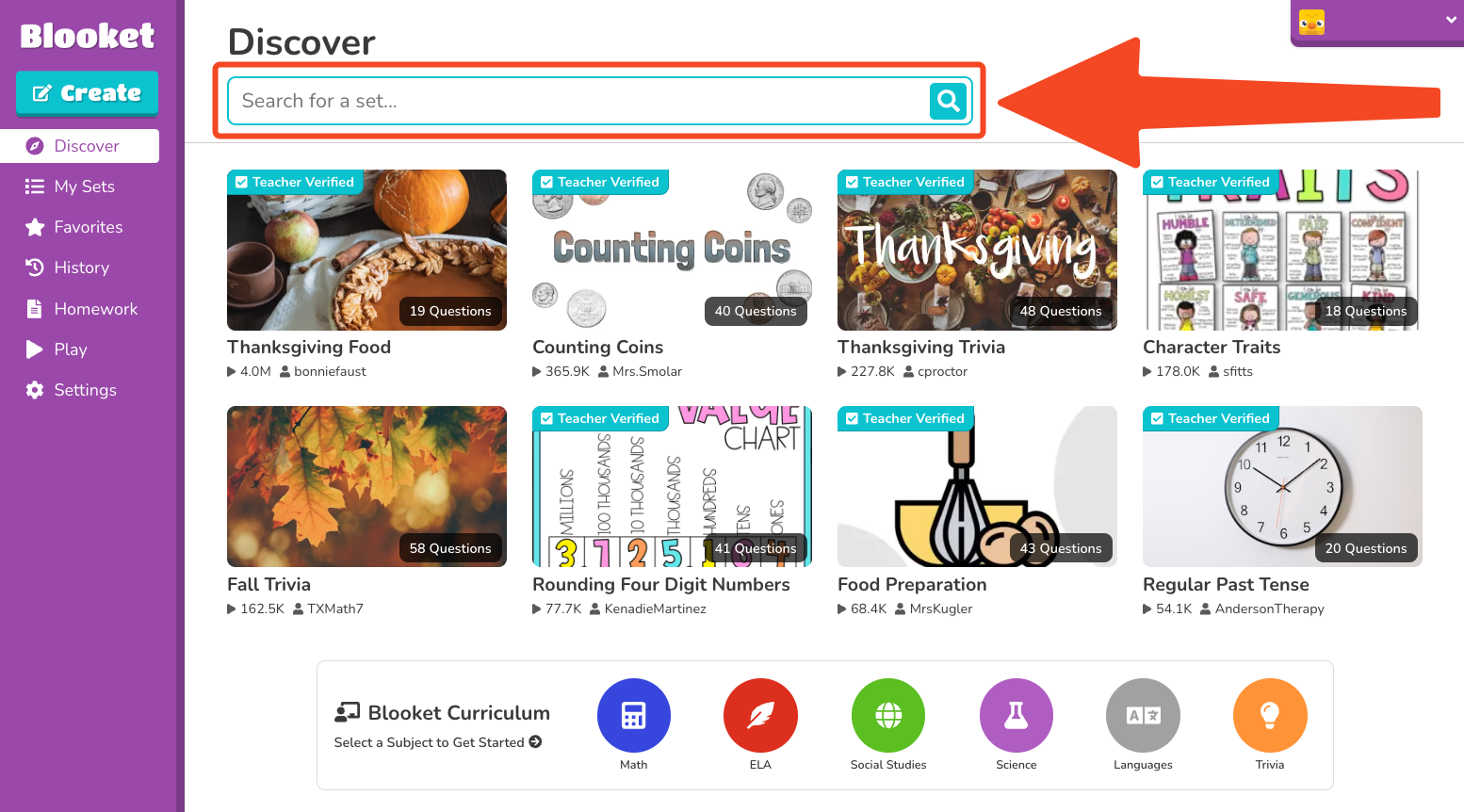 From your Blooket dashboard, click the Discover tab. Use the search bar to look for your subject and grade level. Good search terms include your topic name, grade level, standard code, or skill.
Once you find a set that looks useful, click it to open the preview page. You’ll see all the questions and answer options before committing. If it fits your needs, you’re ready to host.
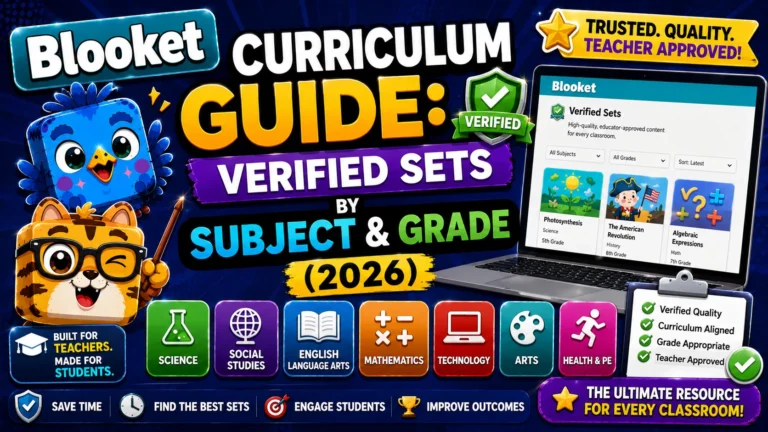
Pro tip: For the most reliable, curriculum-aligned content, explore the Blooket Curriculum section under Discover. These are Blooket-verified sets organized by subject and grade that is a much faster way to find quality content when you’re in a hurry.
Full Walkthrough → Blooket Curriculum Quickstart Guide
Step 3: Host Your First Live Game
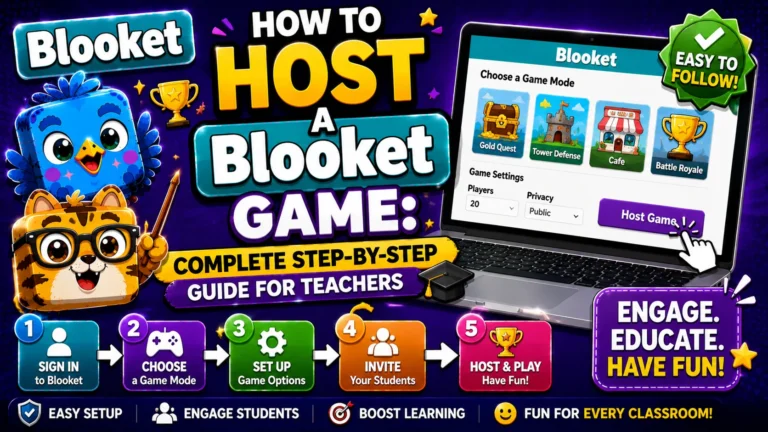
With a question set open, click Host, pick a game mode, adjust a few settings, and share the generated code with your class. The whole flow takes under a minute once you’ve done it once. If this is your first game, start with Classic or Gold Quest. Both are simple to understand and work well with any class size.
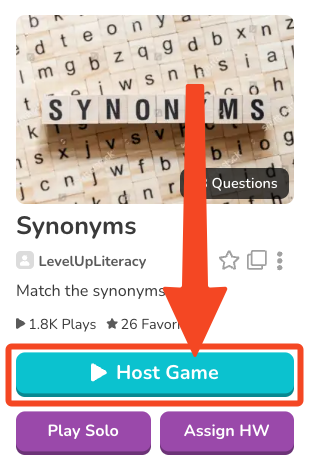 Blooket will display a Game ID (a 7-digit code), a QR code, and a Join Link. Share whichever fits your setup (projector, phone scan, or a link pasted into Google Classroom).
This is only a quick overview. For the complete step-by-step including every game setting explained, how to choose between the 25+ modes, and how to read your session report afterward. See our full guide: How to Host a Blooket Game.
Source: verified from Blooket’s official Quick Start Guide for Teachers
Step 4: Assign Homework (Optional)
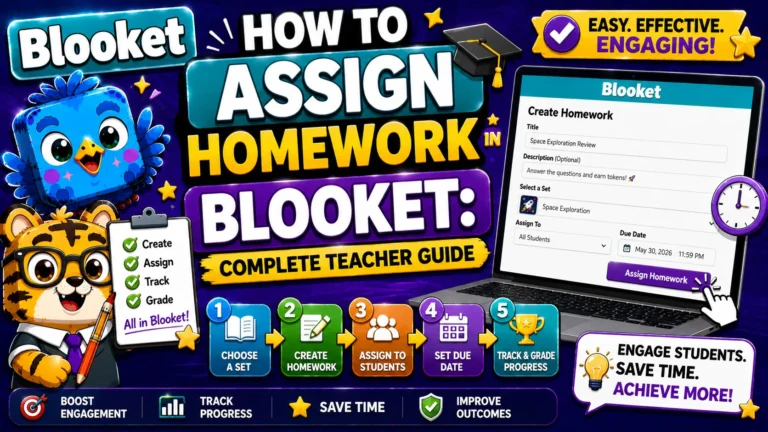
If you want students to practice outside of class without requiring everyone to be online at the same time, use Homework mode. Instead of a live game code, Blooket generates a link and QR code that students can access on their own schedule before a deadline you set.
Students choose their own game mode and play until they reach a Correct Goal. A minimum number of correct answers you specify. Free accounts can assign homework up to 14 days in the future; Blooket Plus extends this to 365 days.
Full Teacher Guide → How to Assign Homework in Blooket
Step 5: Review Student Reports
After any live game or homework assignment, go to History on your dashboard to see full results. A Leaderboard with each student’s accuracy and correct answers, a question-by-question breakdown, and individual student detail views. Reports remain in your history indefinitely.
Quick-Start Checklist for Teachers
Before your first class session, run through this checklist:
- Created a teacher account at blooket.com
- Found a question set in the Discover tab
- Ran a test game on your own device to see how the mode works
- Decided how you’ll share the game code (projector, QR, link)
- Confirmed students’ devices can reach blooket.com
This short Blooket teacher onboarding checklist is a good thing to revisit before every new semester, not just your very first session.
Where to Go Next?
- New to Blooket as a whole? Start with our complete Blooket guide
- Setting up your class in more depth? Visit the For Teachers hub
- Introducing this to students directly? See the For Students hub
- Have a specific question? Check our Frequently Asked Questions
Frequently Asked Questions
Do students need to create accounts?
No. Students can join any live game as a guest — they just enter the code and a nickname. However, if students have accounts and are logged in, they earn tokens and XP that carry over between sessions, which can help with long-term motivation.
What devices does Blooket work on?
Any device with a modern web browser — Chromebooks, laptops, phones, tablets, iPads. No app download is required. Students join at play.blooket.com or through the link you share.
Is Blooket free?
Yes. The free (Starter) tier gives you full access to all game modes, unlimited question sets, live games with up to 60 players, and homework assignments. Blooket Plus adds features like enhanced reports, 300-player games, and audio questions. See our full Free vs. Plus comparison for details.
How long does a typical game take?
Most game modes are designed for 5–10 minutes. The game mode preview screen shows an ideal time estimate for each mode before you select it.
Can I use my own questions?
Yes. From the Create tab, you can build question sets from scratch with multiple choice, typing answers, images, and equations. You can also import from Quizlet or a spreadsheet.
How many game modes does Blooket have?
Over 25, spanning live-only, solo/homework-only, and Blooket Plus-exclusive modes.