How to Change Your Blooket Username: Step-by-Step Guide
Last verified: August 13, 2026
Quick Answer: To change your Blooket username, log in, click your profile icon, select Settings, find the Username field in the Profile section, edit it, and click Save. The change is instant, requires no email verification, and does not affect your question sets, game history, or password.
How to Change Blooket Username?
Your Blooket username is the public name associated with your account. It appears on your profile page, your stats page, and in certain report contexts. Changing your username is one of Blooket’s simplest account tasks. Here’s how to change your Blooket username and what to expect afterward.
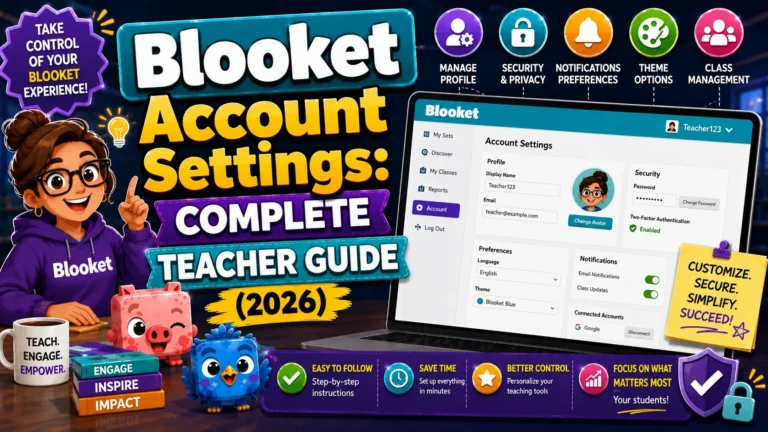
Step-By-Step → Blooket Account Settings
When Do Teachers Need to Change Their Usernames?
- You set something unprofessional during initial setup. First-time sign-ups sometimes result in default usernames (for example, email prefixes or random strings) that look odd in reports shared with parents or administrators.
- Your name has changed. A legal name change, marriage, or other personal update may prompt you to update your Blooket display name to match your professional identity.
- You want cleaner reports. If your username appears in shared reports or on leaderboards displayed to students, a clear, professional username improves readability.
- You’re reusing an account across school years. Some teachers prefer to update their username at the start of each year to reflect their current grade or subject assignment.
How to Change Blooket Username:
(Step-by-Step)
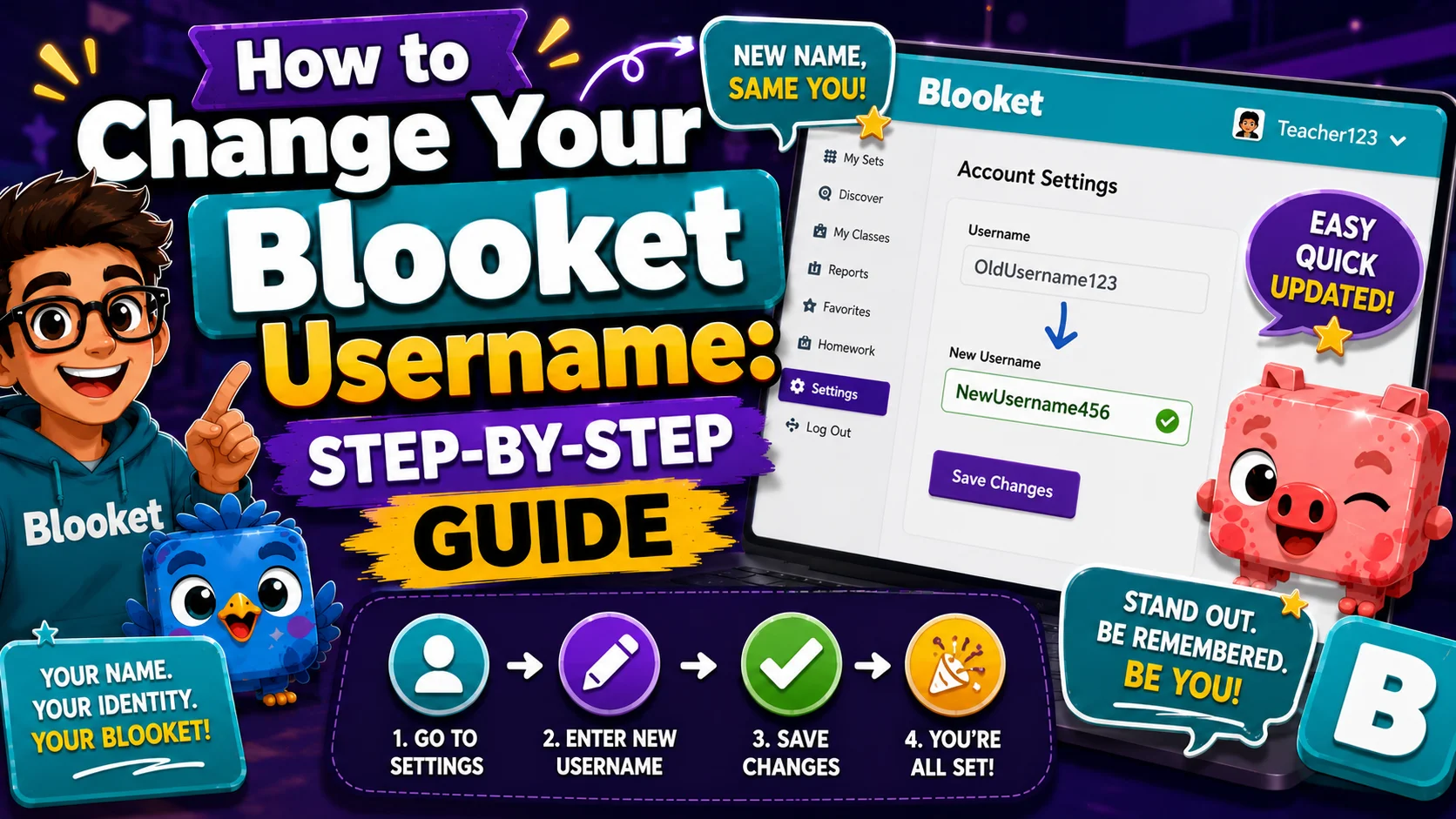
Changing your username takes about one minute.
- Step 1: Log in to your Blooket account at blooket.com
- Step 2: Click your profile icon in the top-right corner of the screen
- Step 3: Select Settings from the dropdown menu
- Step 4: On the Settings page, locate the Profile section (also labeled “Edit Info” or “Account Information” depending on your current interface)
- Step 5: Find the Username field, which shows your current username
- Step 6: Click on the username field or the edit icon next to it
- Step 7: Clear the existing username and type your new one
- Step 8: Click Save (or the equivalent confirmation button)
Your username is updated immediately. No email verification or confirmation code is required for a username change.
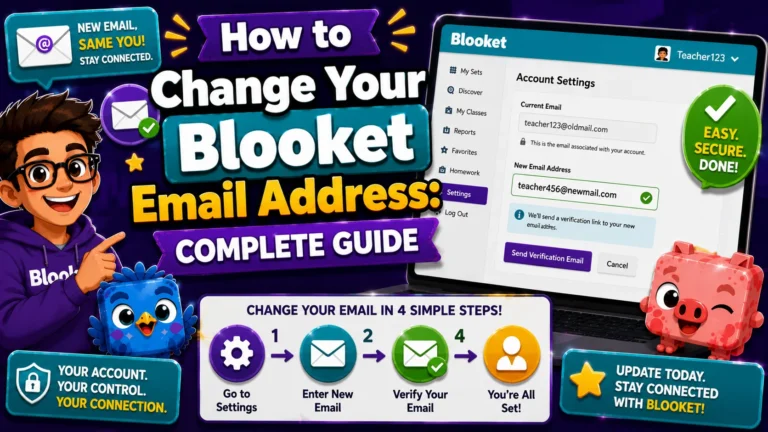
Complete Guide For → How to Change Blooket Email Address
Username Rules and Restrictions:
Blooket usernames have a few requirements to be aware of:
- Unique: Your chosen username must not already be in use by another Blooket account.
- Appropriate: Usernames must comply with Blooket’s community standards, with no offensive, explicit, or misleading names.
- Character limits: Blooket enforces a minimum and maximum character count; the exact limits are enforced in the input field, and you’ll see an error if you exceed them.
If you receive an error saying your chosen username is already taken, try adding a number, initial, or subject abbreviation to make it unique (for example, “MsJohnson5th” instead of “MsJohnson”).
Source: verified from Blooket’s official “How to Change Your Blooket Username” documentation.
What Changes After You Update Your Username?
Changes immediately:
- Your profile page display name
- Your stats page display name
- The name shown on any future game leaderboards
Does NOT change:
- Your email address (that’s a separate process)
- Your password
- Your question sets, game history, or Blooks
- Your Blooket Plus subscription (if active)
- Historical game reports; past reports showing your old username are not actively updated
Practical implication for reports: If you’ve hosted games under your old username and shared those reports with parents or administrators, they will still show the old username. New reports generated after the change will show the new username. This is not a problem for most teachers, but it is worth knowing if you maintain a portfolio of historical reports.
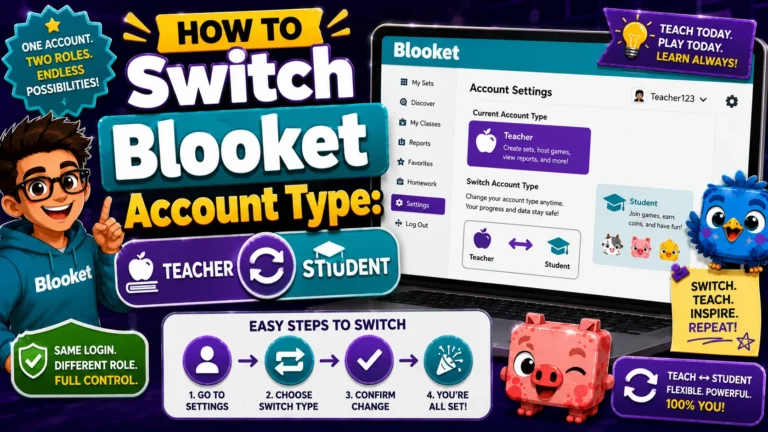
Learn More About → How to Switch Blooket Account Type
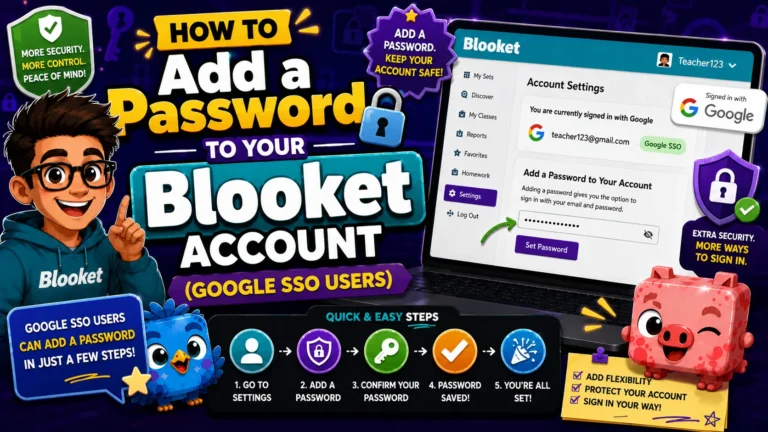
Complete Guide → How to Add a Password to Your Blooket Account
Where to Go Next
- Want to know more about the platform? See our Blooket guide
- Want the full teacher toolkit overview? Visit the For Teachers hub
- Introducing this to students directly? See the For Students hub
Have a different question? Check our Frequently Asked Questions or Blooket Help Center
Frequently Asked Questions
Can I change my username more than once?
Yes. There’s no confirmed limit on how many times you can change your username. However, frequent changes can make it harder for students or colleagues to recognize your account.
Will my question sets still be attributed to me after a username change?
Yes. Question sets are linked to your account ID, not your username, so they remain in your My Sets library and retain proper attribution regardless of username changes.
Can two teachers have the same username?
No. All Blooket usernames are unique across the platform.
Do I need to verify my email to change my username?
No. Username changes take effect immediately, with no email verification or confirmation code required, unlike email address changes.
Will changing my username affect reports I already shared with parents?
No. Reports generated before the change keep showing your old username. Only new reports generated after the change will display your updated username.
What should I do if my preferred username is already taken?
Add a number, your initial, or a subject or grade abbreviation to make it unique, for example, “MsJohnson5th” instead of “MsJohnson.”
Does changing my username affect my Blooket Plus subscription?
No. Your username is separate from your billing and subscription details. Changing it does not affect an active Blooket Plus subscription.