How to Recover and Change Your Blooket Password: Guide for Teachers
Last verified: August 13, 2026
Quick Answer: If you are locked out, use the Forgot Password link on the login page to receive a reset email. If you are already logged in and just want to update your password, go to Settings and use the Change Password option instead. Google SSO accounts recover access through Google, not Blooket.
How to Recover and Change Blooket Password
Being locked out of your Blooket account, especially right before class, is genuinely stressful. This guide explains every scenario: recovering a forgotten password from the login screen, changing your password while already signed in, and handling edge cases where standard recovery doesn’t work.
This guide covers how to recover and change your Blooket password, reset your Blooket account password, and complete Blooket password recovery from start to finish.
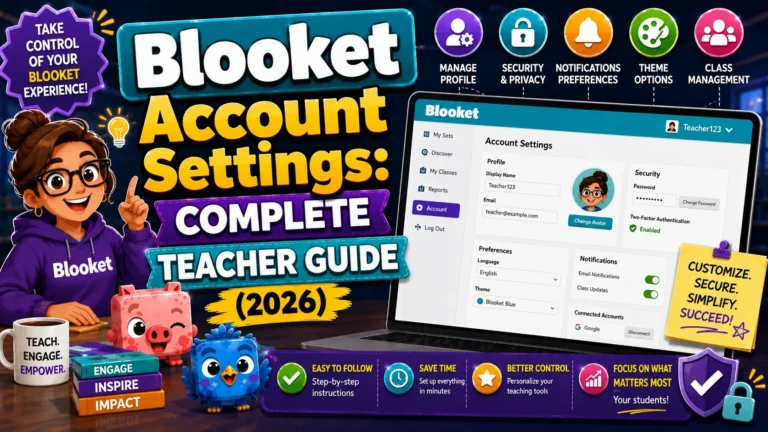
Full Guide About → Blooket Account Settings
Two Scenarios: Which One Applies to You
- Scenario A: You’re locked out and can’t log in: You’ve forgotten your password, or it isn’t working. Use the Forgot Password flow from the login page (Method 1 below).
- Scenario B: You’re already logged in but want to update your password: You want to change to a stronger password or update it after a security concern. Use the Change Password flow from Settings (Method 2 below).
Method 1: Recovering a Forgotten Password
(Signed Out)
This is the standard account recovery method, accessible from the login page without being logged in.
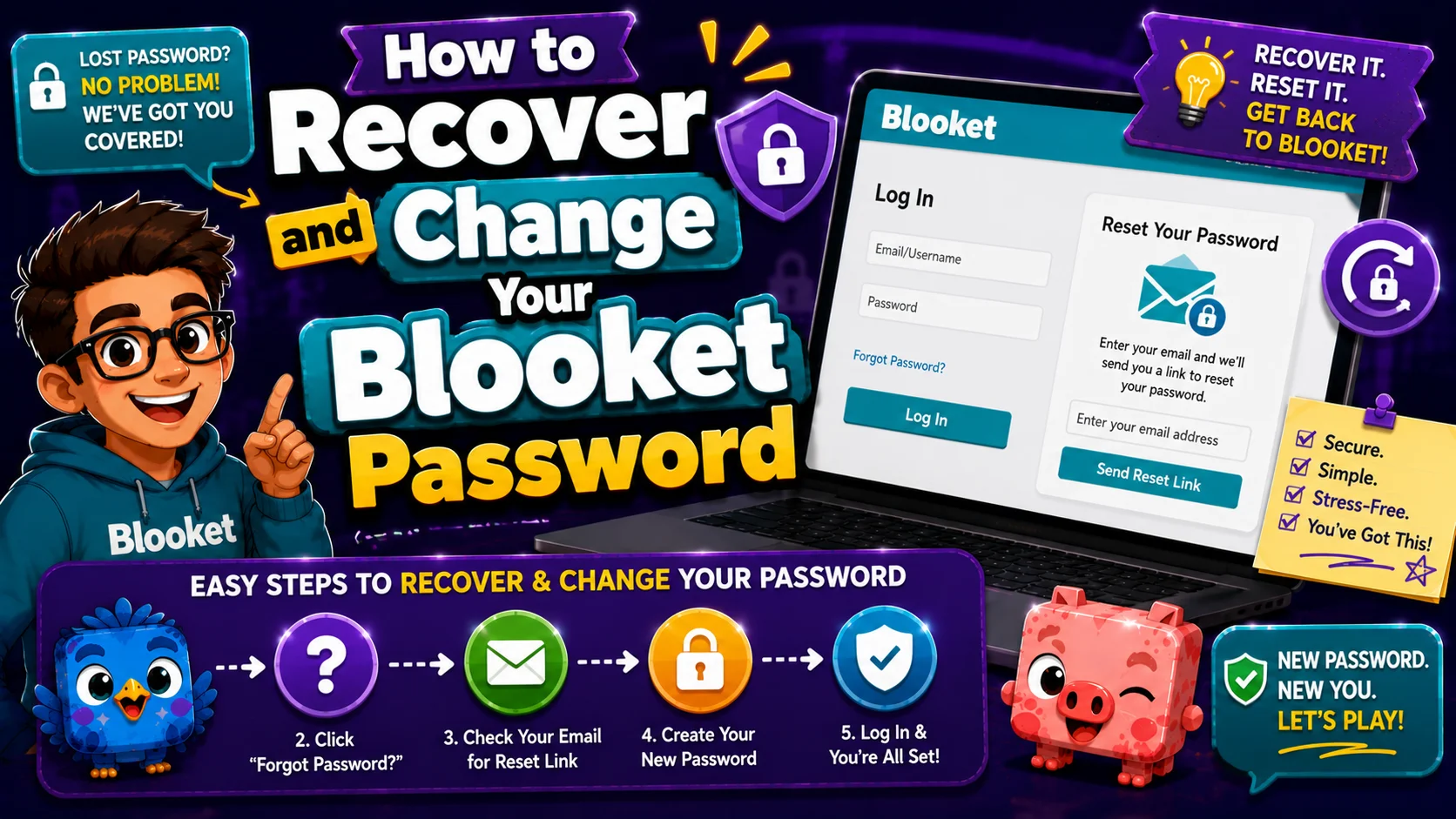
- Step 1: Go to blooket.com and click Log In
- Step 2: On the login page, click “Forgot Password” (appears below the password field)
- Step 3: On the Password Reset page, enter the email address associated with your Blooket account
- Step 4: Click Submit. Blooket sends a password reset link to your email.
- Step 5: Important: Leave the Blooket window open. The reset link contains a session token tied to the browser tab that initiated the request. Opening the reset email in the same browser without closing the Blooket tab is the safest approach.
- Step 6: Check your email inbox for the reset message. The email comes from Blooket; check your spam or junk folder if it doesn’t appear within 2 to 3 minutes.
- Step 7: Click the reset link in the email. You’ll be taken to a page to create a new password.
- Step 8: Enter your new password (and confirm it in the second field). Click Save or Reset Password.
- Step 9: Log in with your email address and your new password. You’re back in.
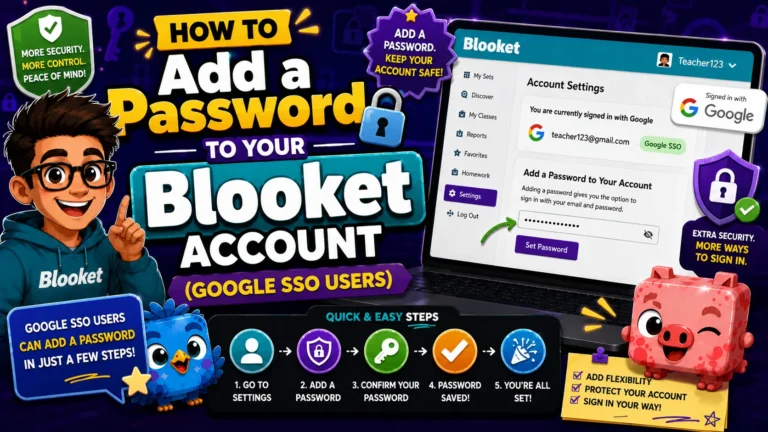
Step-by-Step Guide → How to Add a Password (Google Accounts)
Method 2: Changing Your Password
(While Logged In)
If you’re already signed in and want to update your password proactively:
- Step 1: Click your profile icon in the top-right corner and select Settings
- Step 2: In the Settings page, navigate to the Profile section
- Step 3: Locate the password field or the Change Password option
- Step 4: You’ll typically be asked to enter your current password to confirm your identity, then enter your new password twice (new password and confirm new password)
- Step 5: Click Save to apply the change
Your new password takes effect immediately. The next time you log in, use the new password.
Source: verified from Blooket’s official “How to Recover and Change Your Blooket Password” documentation.
Troubleshooting Recovery Failures
→ Reset Email Not Arriving.
- Check the spam or junk folder. Blooket reset emails frequently land there, especially on school email domains.
- Whitelist @blooket.com. Ask your school IT department to allow emails from Blooket’s domain if you’re on a school-managed email account.
- Confirm the right email. If you have multiple email addresses, try the recovery form with each one to find the registered address.
- Wait 5 minutes. Email delivery can be delayed during peak hours. If it still hasn’t arrived, submit the reset request again.
→ “No Account Found” Error on the Forgot Password Page
- The email you entered isn’t registered to a Blooket account.
- You may have signed up with a different email, a Google account, or a Clever account.
- Try the “Continue with Google” login button. If your Blooket account was created via Google SSO, the Google login is the only valid recovery path.
→ Google SSO Accounts: Password Recovery Works Differently
If you signed up with “Continue with Google,” Blooket doesn’t manage your password; Google does. To reset your Blooket access:
- Go to blooket.com and click Continue with Google.
- If the issue is your Google password, use Google’s own account recovery flow at accounts.google.com.
- Once your Google account access is restored, your Blooket login will work again.
If you want a separate Blooket password as a backup that doesn’t depend on Google, use the Add a Password feature.
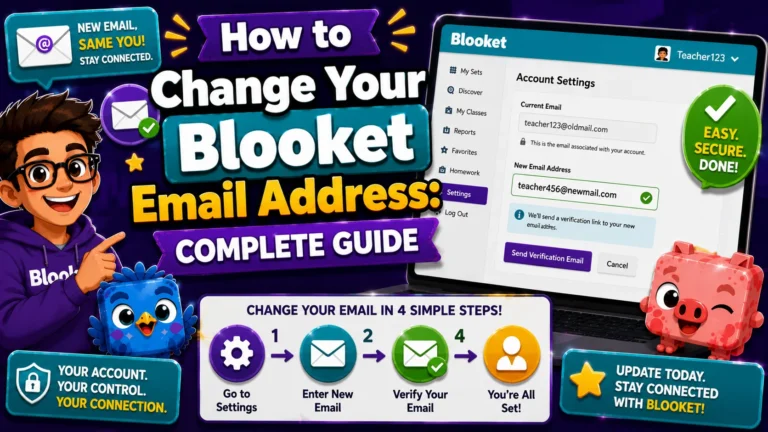
Complete Guide About → How to Change Blooket Account Email
→ Reset Link Expired
Reset links have a validity window, typically 10 to 30 minutes. If you click the link after it expires, you’ll see an error page. Return to the Forgot Password page and submit a new request; a fresh link will be sent.
→ Still Can’t Get Back In After All the Above Steps
Contact Blooket support at contact-us@blooket.com. Provide your username, the email address you believe is registered, and a description of what you’ve already tried. Blooket’s support team can assist with account-level recovery that isn’t possible through the self-service flow.
Password Best Practices for Teachers
→ Use your school password manager. Many districts provide enterprise password managers (1Password, Bitwarden, LastPass). Storing your Blooket credentials there prevents the “I forgot my Blooket password” scenario entirely.
→ Set your Blooket password when you create the account, not later. Teachers who sign up with Google and never set a password are vulnerable to access issues if their Google account or their school’s Google domain changes.
→ Update your password annually. At the start of each school year, update your Blooket password as part of your standard digital housekeeping routine. This is also a good time to verify your registered email is still active.
Where to Go Next
- Want to know more about the platform? See our Blooket guide
- Want the full teacher toolkit overview? Visit the For Teachers hub
- Introducing this to students directly? See the For Students hub
Have a different question? Check our Frequently Asked Questions or Blooket Help Center.
Frequently Asked Questions
What is the difference between recovering and changing my password?
Recovering a password is for when you’re locked out and can’t log in; it starts from the login page with the Forgot Password link. Changing a password is for when you’re already logged in and want to update it proactively, which you do from Settings.
How long is a Blooket password reset link valid?
Typically 10 to 30 minutes. If the link has expired, return to the Forgot Password page and submit a new request to receive a fresh link.
Why am I not receiving the password reset email?
Check your spam or junk folder first. School email accounts often filter automated emails, so ask your IT department to whitelist @blooket.com if the problem continues.
Can I recover my password if I signed up with Google?
Not through Blooket’s password reset flow. Google SSO accounts authenticate through Google, so you need to use Google’s own account recovery process at accounts.google.com instead.
Should I leave the Blooket tab open while checking my email for the reset link?
Yes. The reset link is tied to a session token connected to the browser tab that started the request, so closing that tab before finishing can interrupt the process.
What should I do if I still can’t log in after trying everything?
Contact Blooket support directly at contact-us@blooket.com with your username, the email you believe is registered, and a description of what you’ve already tried.
How often should teachers update their Blooket password?
Updating it annually, at the start of each school year, is a reasonable habit that also gives you a chance to confirm your registered email is still active.