Blooket Access Blocked: How to Request Access on School Networks
Last verified: August 27, 2026
Quick Answer: The “Access Blocked” screen means either a Google Workspace policy or a general network firewall is blocking Blooket, not a problem with your account. Select “Request Access” and notify your Google Workspace Administrator; identify which of the two block types you have before choosing a fix.
Blooket Access Blocked For Schools
(How to Request Access)
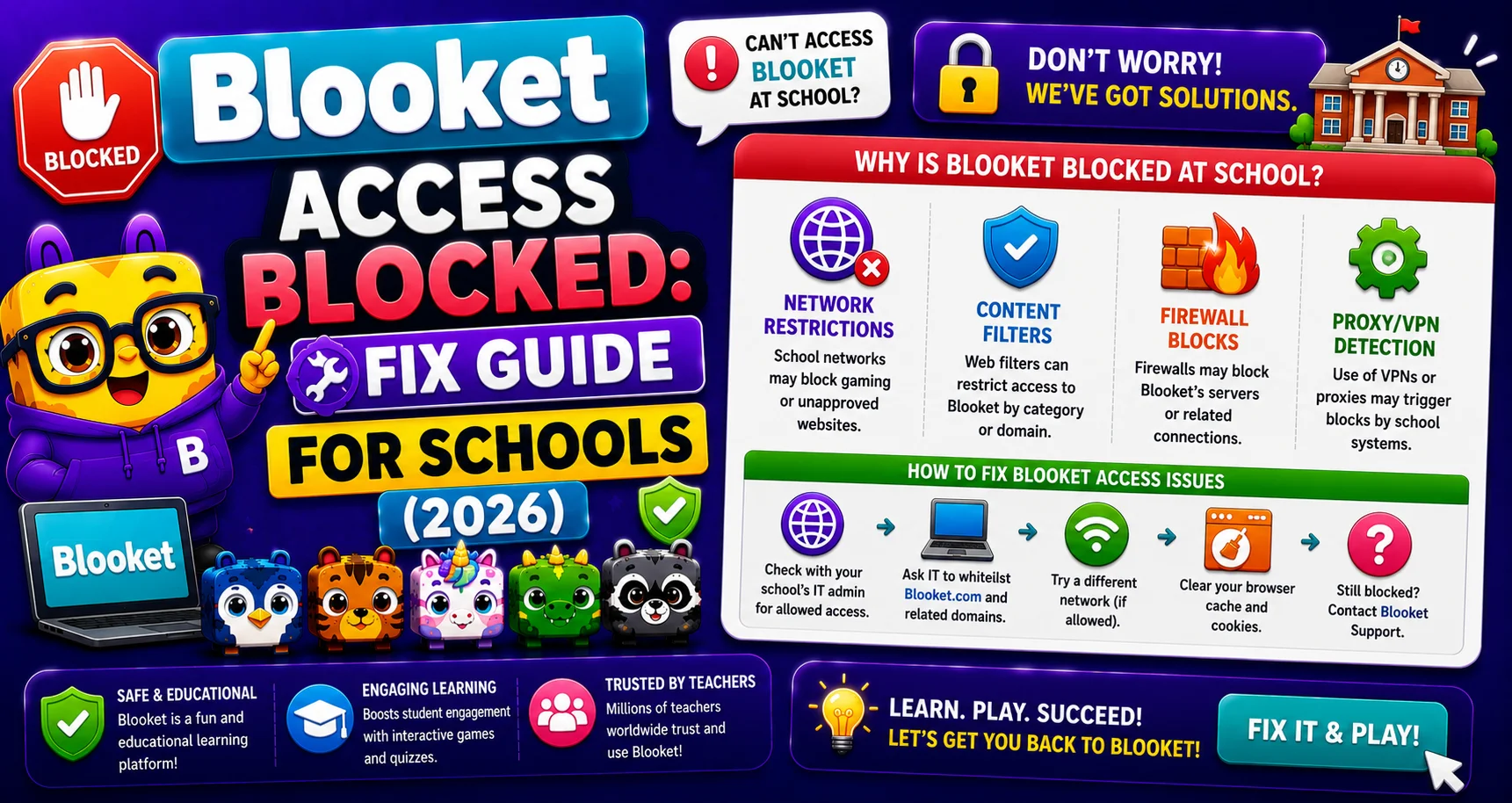
The “Access Blocked” screen appears when a school network’s content filter or Google Workspace policy has restricted access to Blooket. It is a network-level block, not an issue with your Blooket account. Learn more about Blooket Access Blocked for schools in this guide.
Immediate action if class is starting now: Select “Request Access” on the Access Blocked screen and notify your IT administrator verbally while students work on an alternative activity.
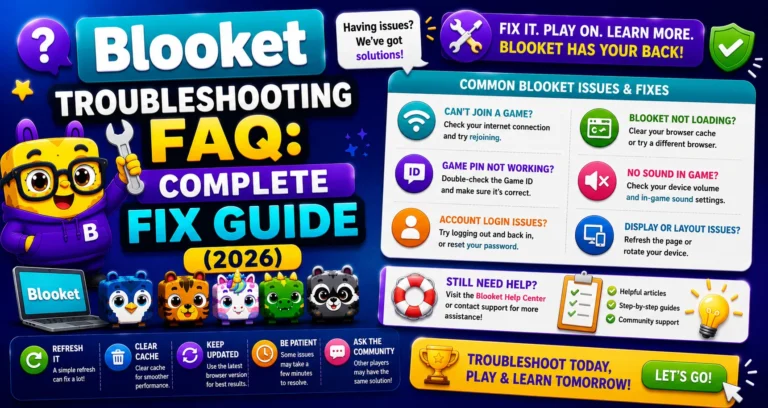
Complete Guide About → Blooket Troubleshooting (FAQs)
The Two Types of School Blocks
- Type 1, Google Workspace for Education Block: Your school’s Google Workspace settings require administrator approval for third-party apps. This specifically affects accounts using school-managed Google sign-in.
- Type 2, General Network/Firewall Block: Your school’s firewall or content filtering system has blocked blooket.com at the network level, affecting all devices on the school Wi-Fi.
Both show similar “Access Blocked” messages. The Google Workspace fix and the network whitelist fix are different; identify which type you have first.
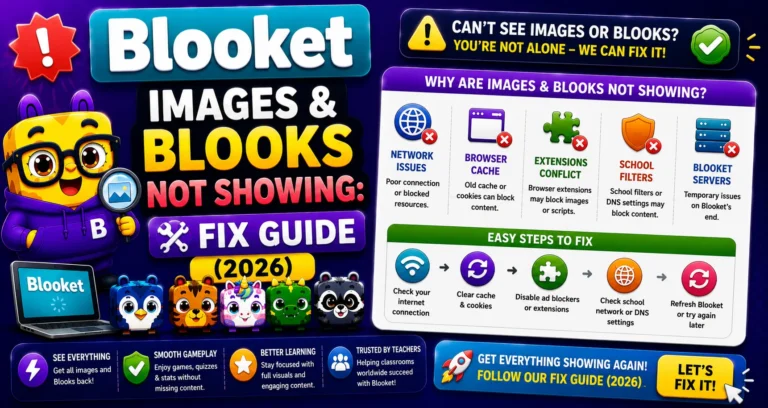
Learn More About → Blooket Images & Blooks Not Showing (Fix Guide)
Fix 1: Google Workspace Block
→ Step 1: If the “Access Blocked” message appears when trying to access Blooket on a school network, select “request access.”
It sends an automated notification to your school’s Google Workspace Administrator flagging that Blooket access has been requested.
→ Step 2: Notify your Google Workspace Administrator directly.
The “request access” button initiates the notification, but follow up in person or by email. Your administrator needs to approve Blooket’s third-party app access through the Google Admin Console.
For IT administrators: Follow the steps outlined in the official support article to configure access for Blooket: Update Third-Party App Access for Blooket in Google Workspace for Education.
The process involves: Google Admin Console → Security → Access and data control → API controls → Manage Third-Party App Access → Find Blooket → Approve.
Source: Verified from Blooket’s official documentation on Access Blocked.
Fix 2: General Network Block
If your school’s firewall has blocked blooket.com entirely (not a Google Workspace issue), ask your IT administrator to whitelist the following domains:
| Domain | Purpose |
| blooket.com | Main platform |
| play.blooket.com | Student game joining |
| firebaseio.com | Real-time game data |
| res.cloudinary.com | Image hosting |
| images.unsplash.com | Image hosting |
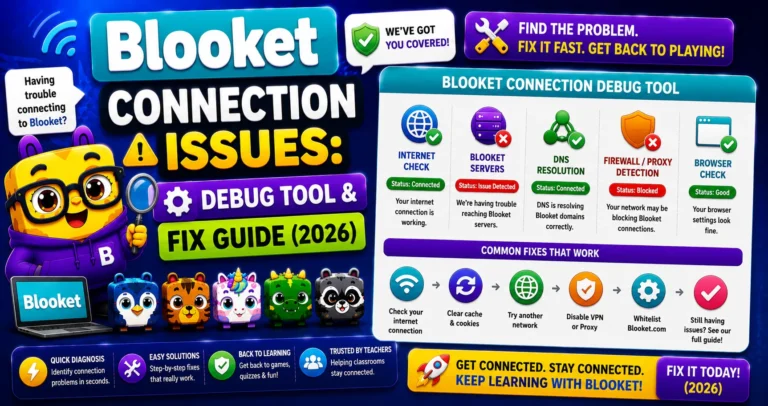
Run the diagnostic tool at debug.blooket.com to see exactly which domains are being blocked; the results page is a ready-made IT request that shows precisely what needs to be whitelisted.
Use the Debug Tool → How to Debug Blooket Connection Issues
Temporary Workaround While Waiting for IT
Students don’t need accounts to join live games. While waiting for the block to be resolved:
- Ask students to join using their personal devices on mobile data (bypasses the school network) if school policy allows.
- Use the Join Link via Google Classroom rather than requiring students to navigate to play.blooket.com.
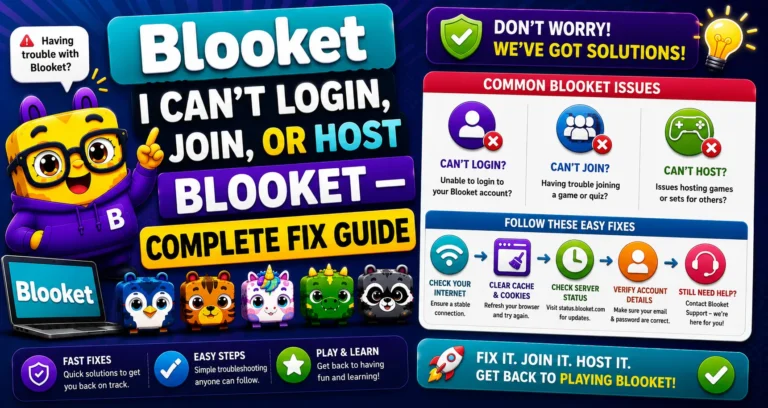
Fix Connection Problems → I Can’t Log In, Join, or Host a Blooket
If the Block Is for a Different Reason
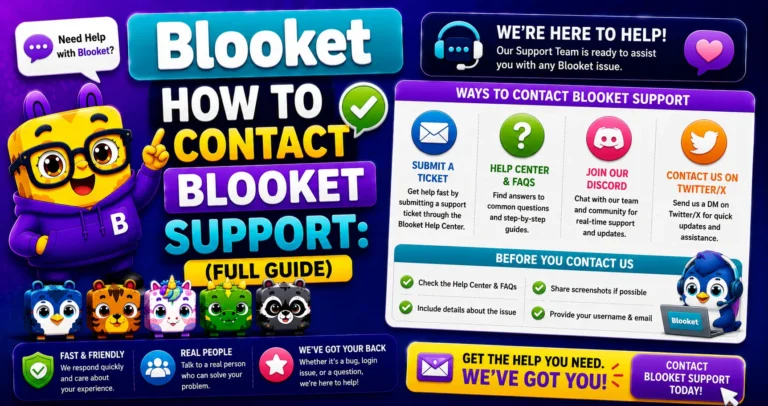
If you are unable to access Blooket for another reason, one that’s not a school network or Google Workspace issue, please email support at contact-us@blooket.com for additional support.
Complete Guide About → How to Contact Blooket Support
Where to Go Next
- Want to know more about the platform? See our full Blooket guide
- Curious about what your teacher sees? Visit the Blooket For Teachers
- Want the full student guides overview? See the Blooket For Students
Have another question? Please check the Frequently Asked Questions or Blooket Help Center.
Frequently Asked Questions
How do I know if my block is Type 1 (Google Workspace) or Type 2 (network firewall)?
If you signed in with a school-managed Google account, it’s likely Type 1. If Blooket is blocked regardless of how you sign in, or for anyone on the school Wi-Fi, it’s more likely Type 2, a general network block.
Can I fix a Google Workspace block myself as a teacher?
No. Only a Google Workspace Administrator can approve third-party app access through the Admin Console. Your role is to select “Request Access” and follow up with your administrator directly.
What should I do if class starts before the block is fixed?
Have students join using personal devices on mobile data if school policy allows, or use a Join Link shared through Google Classroom, while you wait for IT or your administrator to resolve the block.
Does the debug tool identify Google Workspace blocks too, or just network blocks?
debug.blooket.com is primarily designed for network and domain-level checks. For Google Workspace blocks specifically, the official Google Admin Console process is the correct path to resolution.
Will “Request Access” definitely notify the right person?
It sends an automated notification to your school’s Google Workspace Administrator, but following up in person or by email is still recommended, since automated notifications can be missed or delayed.
What if my IT department says none of these domains are blocked?
Run the debug.blooket.com diagnostic tool together with IT. It shows exactly which specific services are failing, which is more precise than checking the general domain list manually.
Who do I contact if my Access Blocked issue isn’t a school network or Google Workspace problem?
Email Blooket support directly at contact-us@blooket.com for additional help with less common causes.