Blooket Troubleshooting FAQs: Fix Every Common Problem
Last verified: August 27, 2026
Quick Answer: Most Blooket problems trace back to one of four causes: a Chrome extension, a blocked domain on your school network (firebaseio.com, res.cloudinary.com, or images.unsplash.com), a Google Workspace access block, or a settings toggle. Find your exact symptom in the table below for the fastest fix.
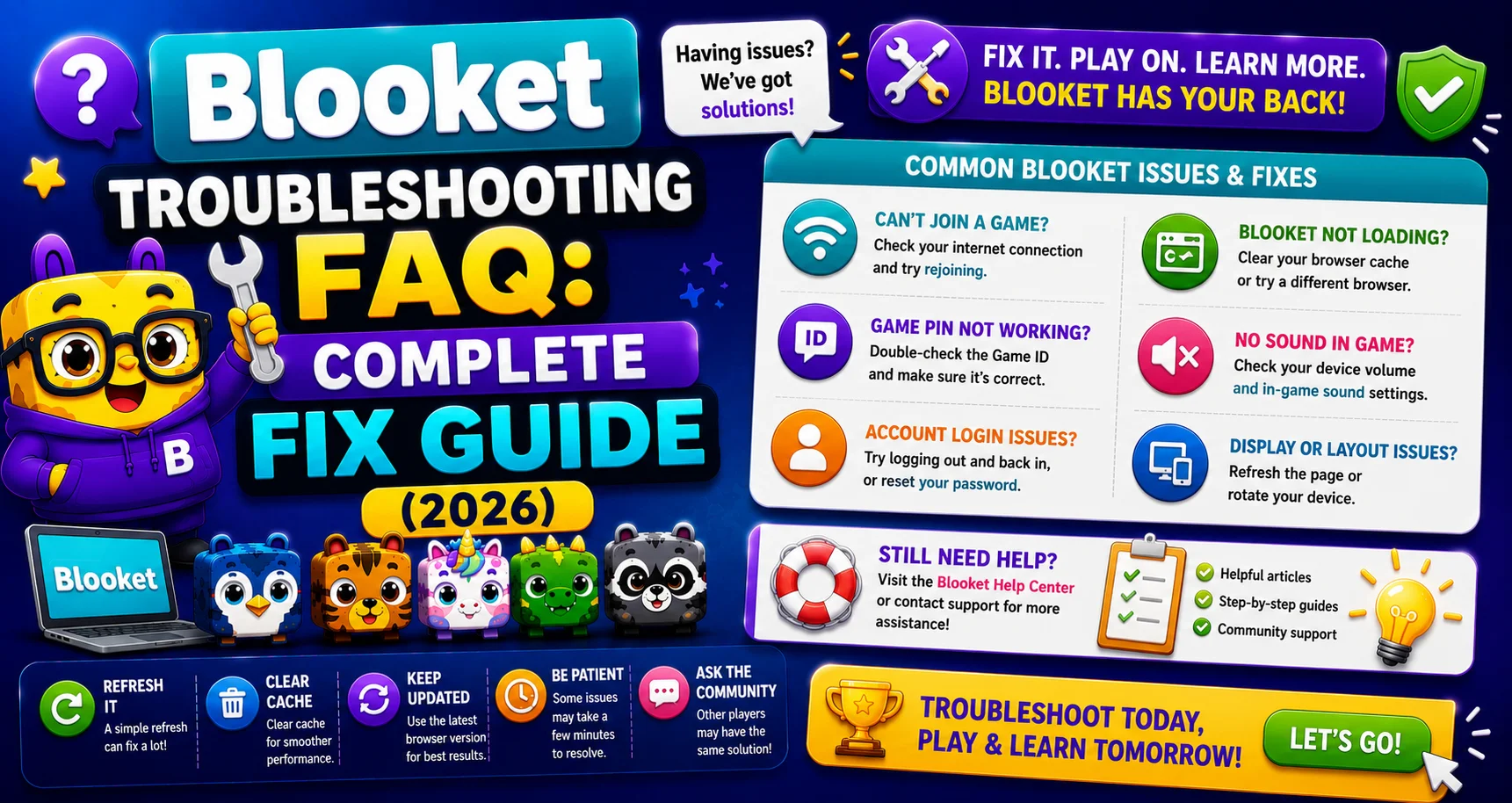
Blooket Troubleshooting FAQs
Something isn’t working in Blooket. This Blooket troubleshooting FAQs guide gets you to the right fix as fast as possible; find your problem in the table below and jump directly to the solution. Also, learn more about how to fix issues when hosting Blooket.
Source: verified from Blooket’s official Troubleshooting FAQ section.
Find Your Problem & Fix
| What’s Happening | Most Likely Cause | Go To |
| “Access Blocked” screen appears | School network or Google Workspace block | Access Blocked Fix |
| Can’t log in to the account | Chrome extension or wrong username case | Can’t Login Fix |
| Students can’t join the game | Chrome extension, firebaseio.com blocked, wrong Game ID | Can’t Join Fix |
| Can’t start hosting a game | Chrome extension or firebaseio.com blocked | Can’t Host Fix |
| Game loads but runs slowly | Extensions, cache, school network | Debug Connection Issues |
| Blook avatars not showing | School network blocking res.cloudinary.com | Images Not Showing Fix |
| Question images blank | School network blocking res.cloudinary.com or images.unsplash.com | Images Not Showing Fix |
| Student account signup prompt appearing | Host Settings, “Allow Student Accounts” toggled on | Hide Account Notification |
| Nothing above applies | Contact support | Get More Help |
Problem 1: “Access Blocked” on School Networks
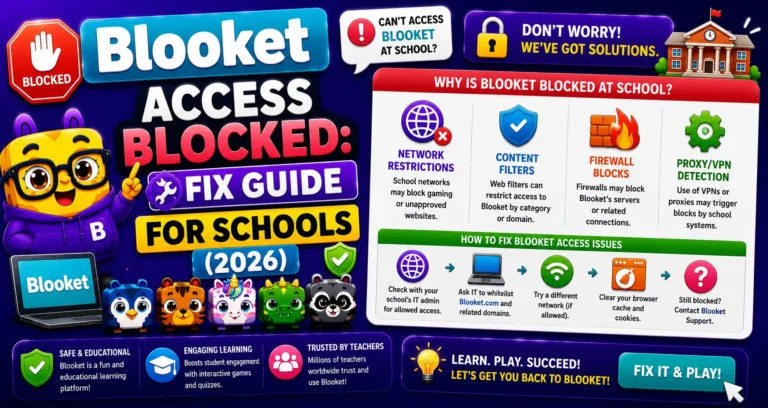
When a school network or Google Workspace administrator policy blocks Blooket, students and teachers see an “Access Blocked” screen.
Quick fix: Select “Request Access” on the screen, then notify your Google Workspace Administrator. They need to approve Blooket access through the Google Admin Console.
Full Guide with IT Admin Steps → Blooket Access Blocked (How to Request Access)
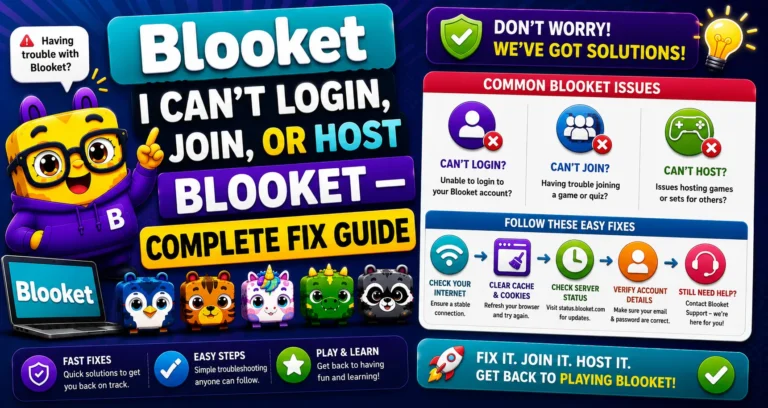
Problem 2: Can’t Log In, Join a Game, or Host a Game
The most common cause is a Chrome extension (like an ad blocker) interfering with Blooket’s site functionality. While Blooket doesn’t run ads, these extensions can still block parts of the site.
- Try first: Open Blooket in Incognito/Private mode (disables all extensions). If it works in Incognito, an extension is the culprit.
- Second cause: firebaseio.com may be blocked on your school network. Blooket uses this domain to host and join games; if it’s blocked, games can’t be hosted or joined. Note: This does NOT affect your ability to log in.
- Third cause: Usernames are case-sensitive. If logging in with a username, use the exact capitalization you used when you registered.
Complete Fix Guide → I Can’t Log In, Join, or Host Blooket
Problem 3: Connection Issues and Slow Performance
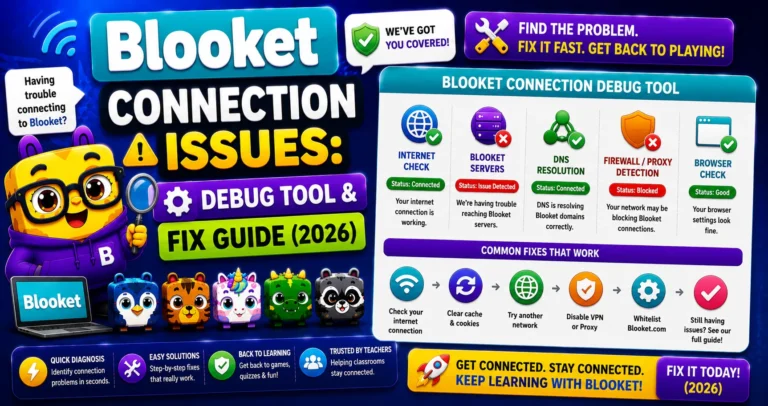
Before trying any fix, use Blooket’s official diagnostic tool: debug.blooket.com. This tool tests all critical Blooket services and shows exactly which ones are failing, giving you (or your IT department) a precise list of what needs to be addressed.
If school networks block Firebase or SSL traffic inspection, this can slow or break game data. The fix is asking IT to whitelist .blooket.com.
Complete Diagnostic Guide → How to Debug Blooket Connection Issues
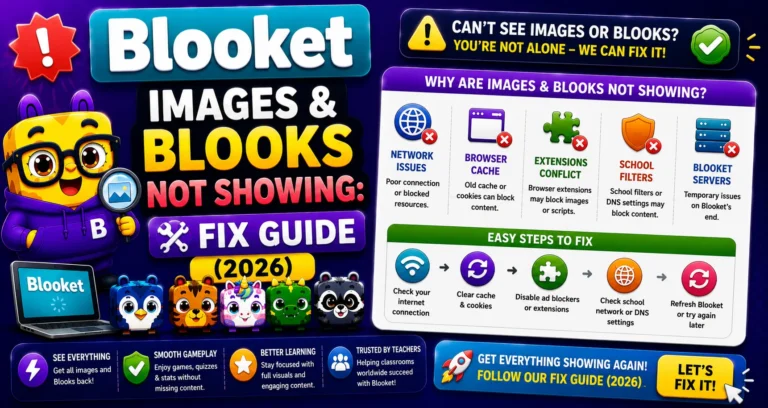
Problem 4: Images and Blooks Not Showing Up
This is almost always a school network issue. The network is blocking the two services that deliver Blooket’s images:
- res.cloudinary.com: primary image hosting.
- images.unsplash.com: secondary image hosting.
Fix: Ask your IT administrator or network manager to unblock both domains.
Guide to Fix with IT Request Template → Blooket Images Not Showing Fix
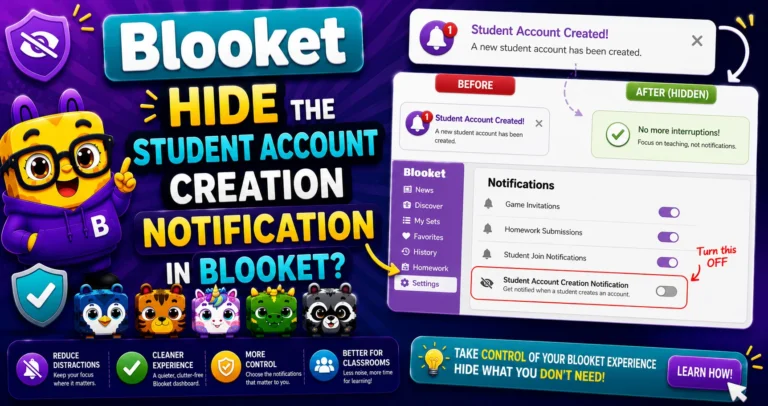
Problem 5: Student Account Creation Notification Appearing
After finishing a game, students see a prompt asking them to create a Blooket account. Some teachers don’t want this shown.
Fix: Before your next game, on the Host Settings page (after selecting a game mode), uncheck the option that says “Allow Student Accounts.”
Full Settings Guide → How to Hide the Student Account Notification
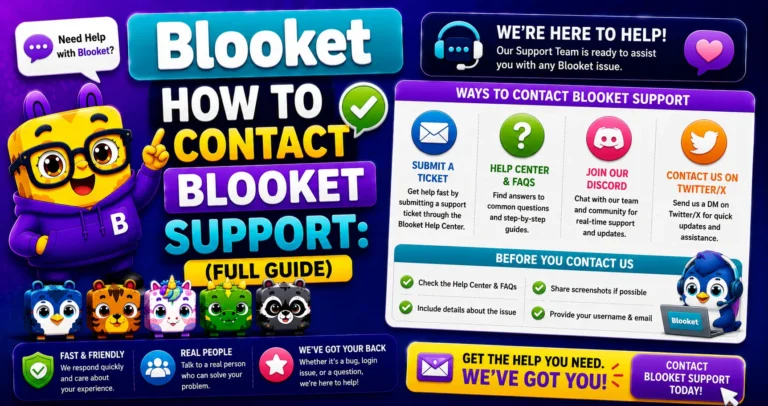
Nothing Fixed It? Contact Blooket Support
The best way to get in touch is to email contact-us@blooket.com. Contact Blooket from the email associated with your Blooket account for the best chance of resolving your issue. You can also view the full help documentation at help.blooket.com.
Full Support Guide → How to Contact Blooket Support
Where to Go Next
- Want to know more about the platform? See our full Blooket overview
- Curious about what your teacher sees? Visit the Blooket For Teachers
- Want the full student guides overview? See the Blooket For Students
Have another question? Please check the Frequently Asked Questions or Blooket Help Center.
Frequently Asked Questions
What’s the single fastest way to rule out a Chrome extension as the cause of a problem?
Open Blooket in Incognito or Private mode. This disables all extensions automatically, so if the problem disappears there, an extension is confirmed as the cause.
Does a firebaseio.com block affect logging in?
No. It specifically affects joining or hosting games, not the login process itself. If you can log in but can’t join or host, this is the most likely cause.
Who should I contact to unblock a domain on a school network?
Your school’s IT administrator or network manager. They can whitelist the specific domains (firebaseio.com, res.cloudinary.com, images.unsplash.com, or .blooket.com) depending on the exact problem.
What does Blooket’s diagnostic tool actually check?
debug.blooket.com tests all of Blooket’s critical services and reports exactly which ones are failing, giving you or your IT department a precise, actionable list instead of guessing.
Can a student accidentally cause the “Access Blocked” screen?
No. This is a network or Google Workspace administrator policy blocking Blooket at the infrastructure level, not something caused by an individual student or teacher account.
Is the missing-images problem something I can fix myself?
Usually not directly. Since it’s caused by network-level domain blocking, you’ll typically need to ask an IT administrator to unblock the specific image-delivery domains.
What information should I include when contacting Blooket support?
Email from the address associated with your Blooket account for the fastest resolution, and describe the specific symptom (what’s happening, when it started, and any error messages).