How to Contact Blooket Support: Get Help for Any Issue
Last verified: September 1, 2026
Quick Answer: Email contact-us@blooket.com from the address associated with your Blooket account. This is the only official support channel; Blooket doesn’t offer live chat, phone support, or social media support. Check the relevant self-service guide first for a faster fix.
How to Contact Blooket Support?
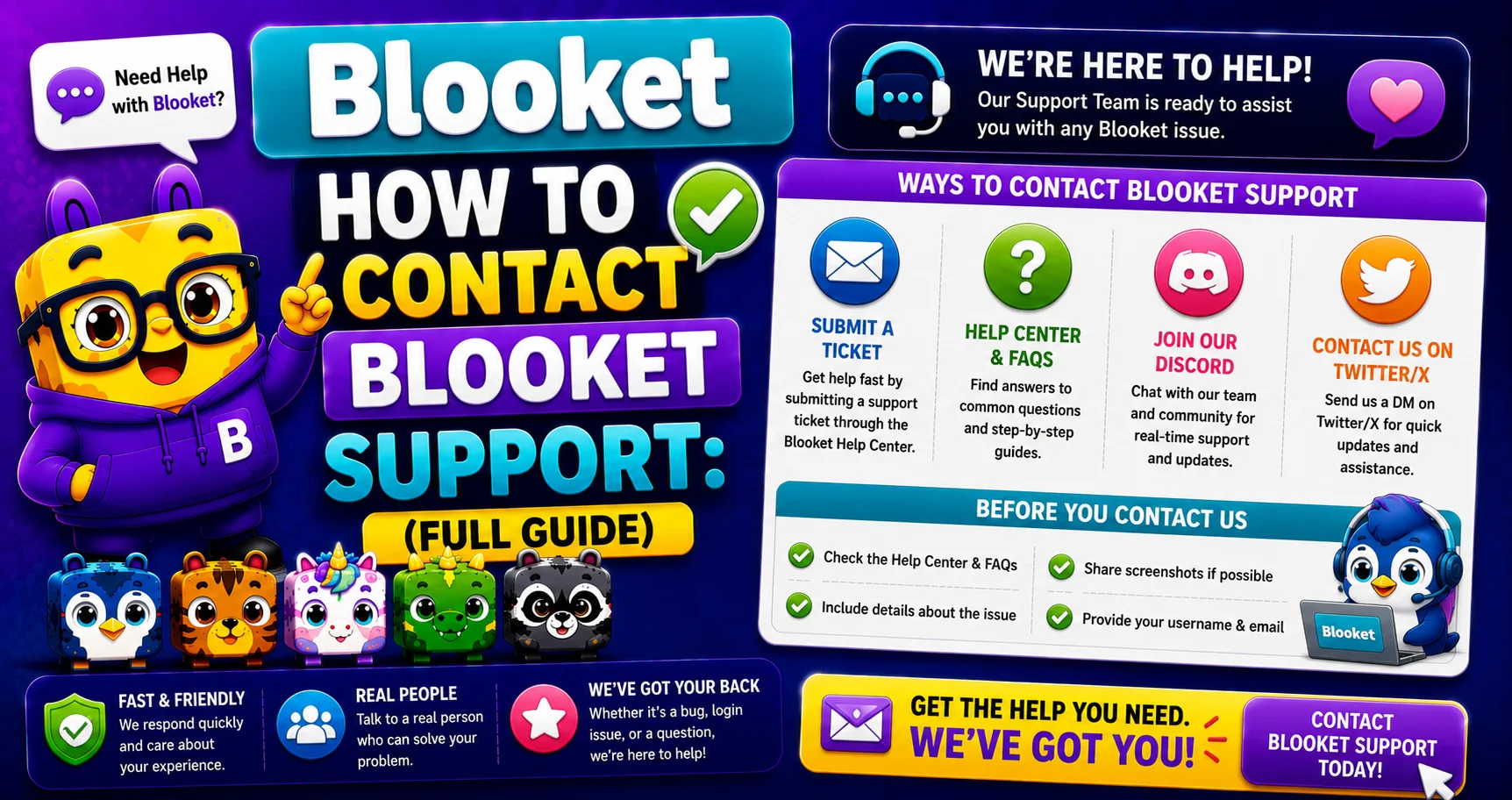
When the troubleshooting guides haven’t resolved your issue, the next step is to contact the Blooket support team directly. The best way to get in touch is to email contact-us@blooket.com. Contact Blooket support from the email associated with your Blooket account for the best chance of resolving your issue.
Full Overview About → Blooket Troubleshooting
Before Contacting Support: Try Self-Service First
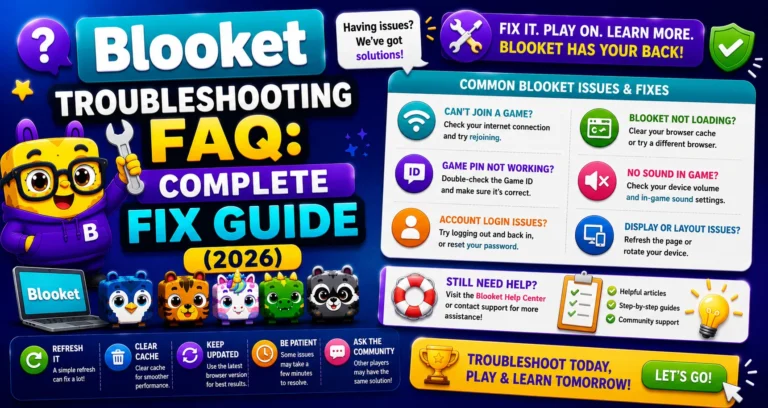
The most common issues are resolved faster through the troubleshooting guides than through waiting for an email response. Before sending a support email, confirm you’ve checked the relevant guide:
| Problem | Self-Service Guide |
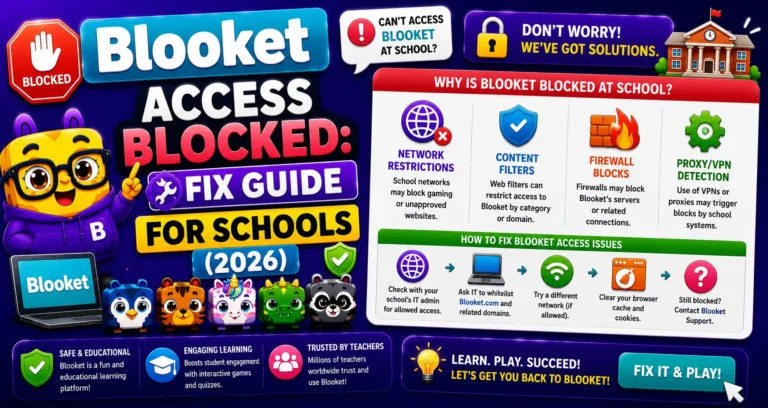
| “Access Blocked” screen | Blooket Access Blocked Fix |
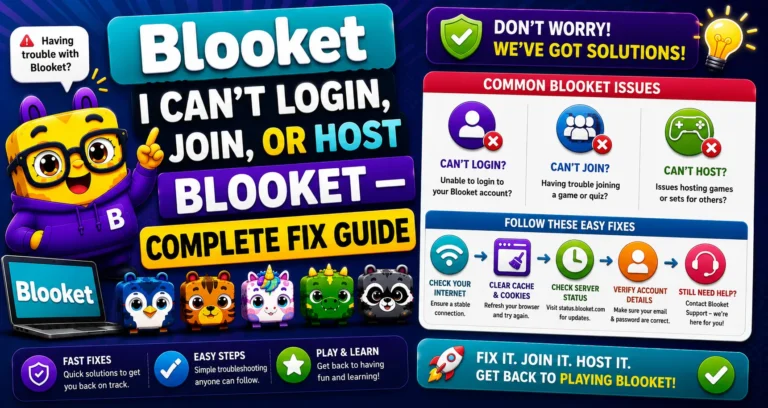
| Can’t log in, join, or host | Can’t Login, Join, or Host Guide |
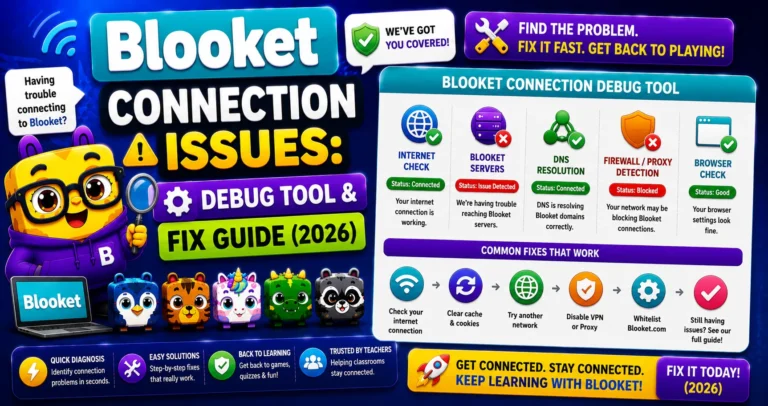
| Slow or broken connection | Debug Connection Issues |
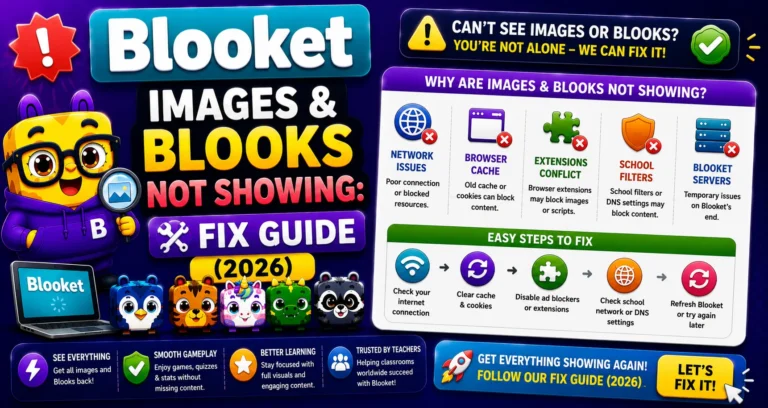
| Images/Blooks not showing | Images Not Showing Fix |
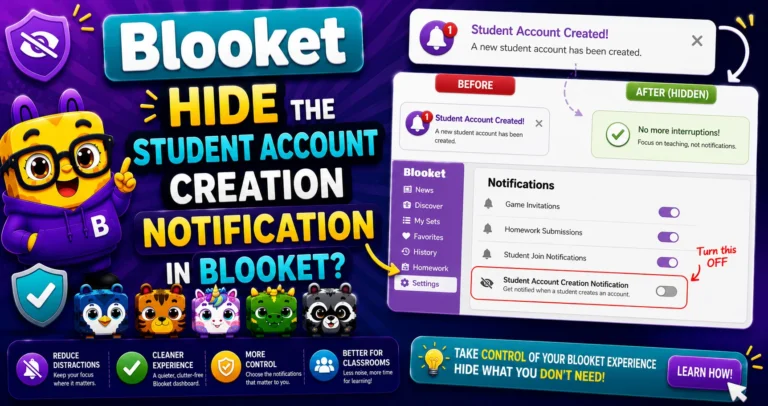
| Student account notification | Hide Account Notification |
If none of those guides resolve your issue, support email is the right next step.
For Teachers → Blooket For Teachers Help
The Official Support Email
contact-us@blooket.com is the only official Blooket support email. Blooket does not offer live chat, a phone line, or social media support. Email is the documented way for all account and technical issues.
For Students → Blooket For Students Help
Critical: Send From Your Registered Account Email
Contact Blooket from the email associated with your Blooket account for the best chance of resolving your issue. It is highlighted directly in Blooket’s official documentation because it’s genuinely important:
- Support can look up your account directly when the email matches your registered address.
- Account-specific issues (password recovery, subscription billing, data requests) require identity verification.
- Emails from unrecognized addresses may require additional verification steps, slowing resolution.
If you’re emailing about a student’s account issue, include the student’s Blooket username and account email in the message.
What to Include in Your Support Email
A complete first email avoids unnecessary back-and-forth and gets your issue resolved faster:
| What to Include | Why It Helps |
| Your Blooket username | Identifies your account instantly |
| Your registered account email | Enables direct account lookup |
| Clear description of the problem | Prevents generic responses |
| When the problem started | Helps identify if an update caused it |
| Browser and device type | Many issues are browser-specific |
| Steps you’ve already tried | Prevents being sent the same advice again |
| Screenshot of any error message | Eliminates ambiguity about the exact error |
| debug.blooket.com results (if connection issue) | Pinpoints technical issues precisely |
Source: Verified from Blooket’s official documentation on getting help.
Additional Resource: The Full Help Center
You can also view our growing list of help articles here at help.blooket.com.
The help center contains detailed guides for every Blooket feature and common issue. Use the search bar with specific terms (“images not loading,” “forgot password,” “assign homework”) to find the most relevant existing article before emailing support.
Read All Guides → Blooket Help Center
Frequently Asked Questions
Does Blooket offer live chat or phone support?
No. Email at contact-us@blooket.com is the only official support channel. Blooket does not offer live chat, a phone line, or social media support.
Why does it matter which email address I send my support request from?
Support can look up your account directly when the email matches your registered address. Emails from unrecognized addresses may require additional verification steps, which slows down resolution.
Should I try the troubleshooting guides before emailing support?
Yes. The most common issues are resolved faster through the self-service guides than through waiting for an email response, so checking the relevant guide first usually saves time.
What should I include if I’m reporting an issue on behalf of a student?
Include the student’s Blooket username and account email in the message, alongside your own information, so support can look up the correct account.
What’s the single most useful thing I can attach for a connection-related issue?
A screenshot of your debug.blooket.com results. It pinpoints exactly which service is failing, which is far more precise than a written description alone.
Can I find answers without emailing support at all?
Often, yes. The Blooket Help Center at help.blooket.com has detailed guides for most features and common issues; searching specific terms there before emailing can resolve many questions instantly.
What kind of issues specifically require sending from my registered account email?
Account-specific issues like password recovery, subscription billing, and data requests require identity verification, so using your registered email is essential for those particular requests.