How to Make a Blooket Question Set Public or Private? Complete Students Guide
Last verified: August 18, 2026
Quick Answer: Every Blooket question set is either Public (discoverable by anyone, shareable via link) or Private (visible only to you). Change it anytime from My Sets, then Edit Info, then the Privacy Setting. Private sets cannot be assigned as homework by a teacher who doesn’t already have the set saved to their own library.
How to Make a Blooket Question Set Public or Private
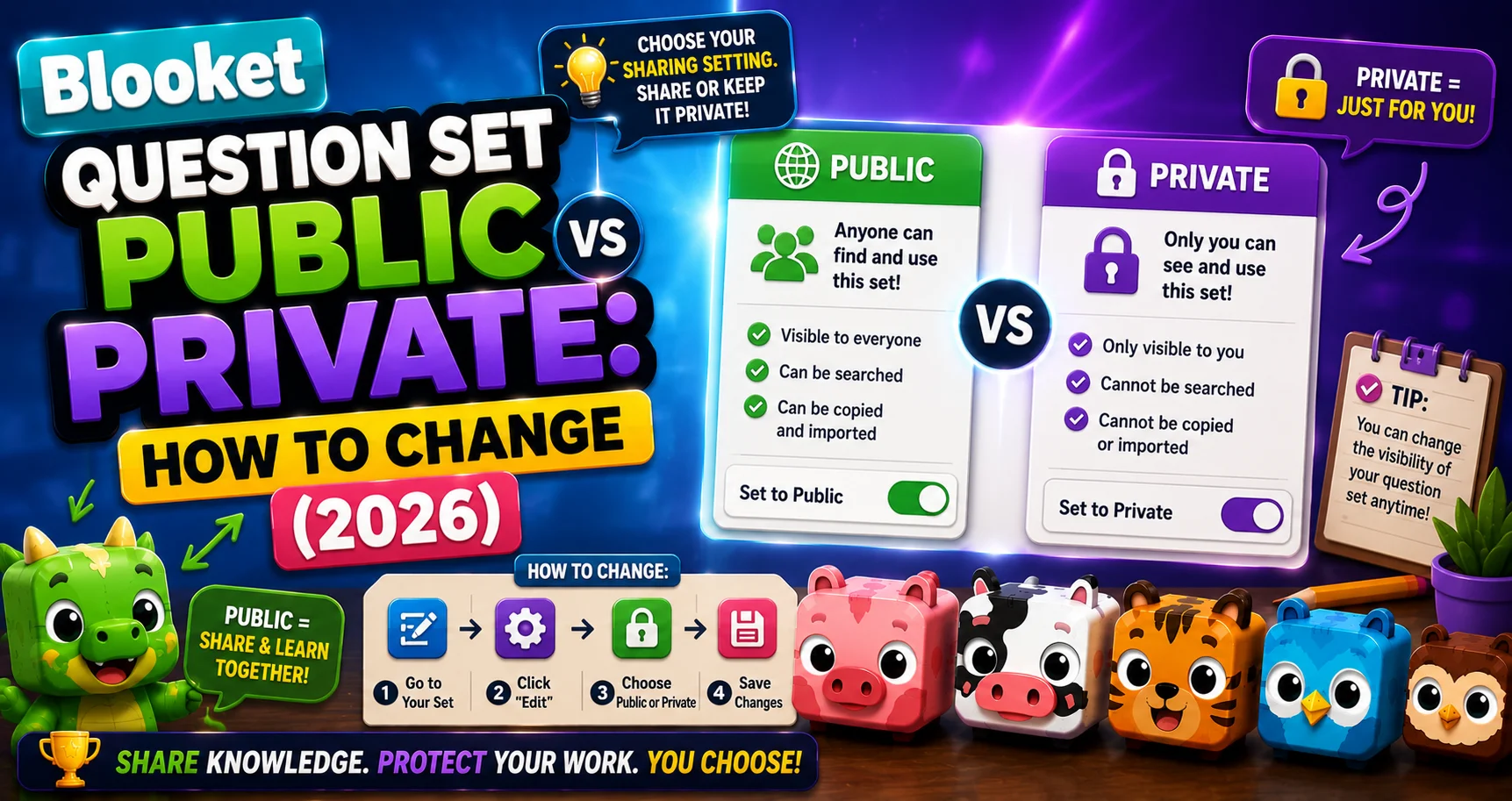
Every question set you create on Blooket has a privacy setting: Public (visible to everyone) or Private (visible only to you). This setting controls whether other users can find your set on the Discover page and whether you can share a direct link to it.
You can change this setting at any time, and it’s not locked after creation. This guide explains step-by-step how to make a Blooket question set public or private, and more about this.
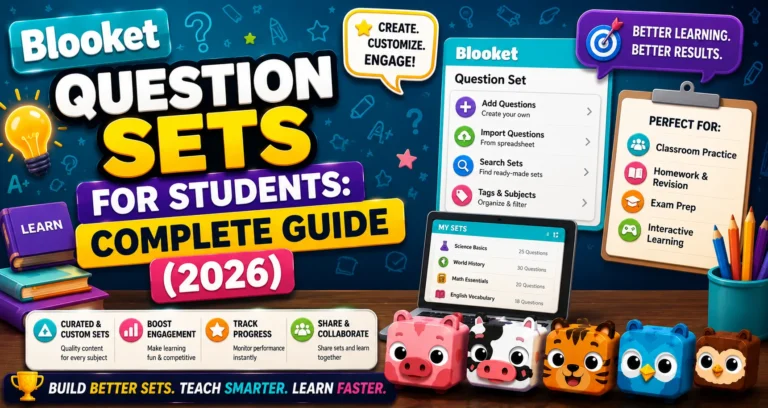
Full Overview About → Blooket Question Sets Guide for Students
Public vs Private: What Each Setting Actually Does
1. Public Sets
Public sets are discoverable by other users on the Discover page. This also lets you share a link to your set, making it easy to share with teachers, parents, and other users.
When your set is Public:
- Other students and teachers can find it by searching Discover.
- You can generate a shareable link (useful for sharing with classmates via Google Classroom, a group chat, or email).
- Other users can play your set in Solo mode.
- Your username is associated with the set in the Discover listing.
2. Private Sets
Private sets are only visible to you, but can still be used to host live games.
When your set is Private:
- The set does not appear in Discover search results.
- You cannot generate a shareable link (the link option is unavailable for Private sets).
- No other users can access the set.
- You can still use it yourself in Solo mode. A teacher cannot assign it to you as homework unless they already have it saved to their own My Sets library.
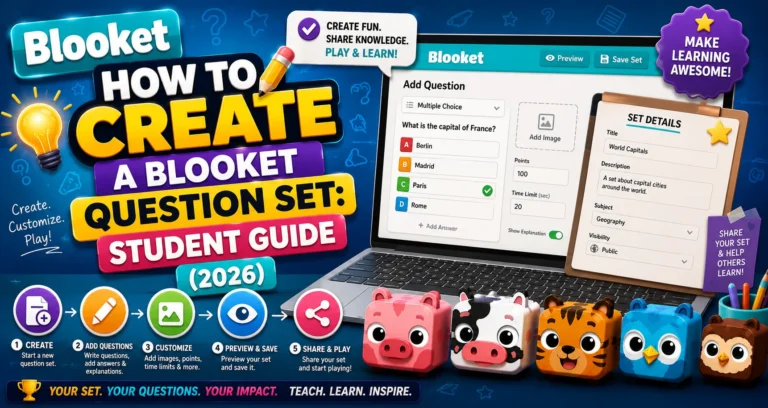
Create a Question Set → How to Create a Blooket Question Set
When to Use Each Setting
| Situation | Recommended Setting |
| Personal study set for your eyes only | Private |
| Set with sensitive content (your teacher’s private quiz) | Private |
| The set you want to share with classmates | Public |
| General topic set that might help other students | Public |
| Set you haven’t finished yet | Private (change to Public when ready) |
Source: verified from Blooket’s official documentation on set privacy.
Step-by-Step: Changing the Privacy Setting
The privacy setting is changed on the My Sets page, not on the set’s preview page.
- Step 1: Navigate to “My Sets” on your dashboard (in the left column navigation).
- Step 2: Find the set you want to update. Select the edit icon for that set (the pencil or gear icon on the set card).
- Step 3: From the edit menu, select “Edit Info.”
- Step 4: Find the Privacy Setting option and change it to Public or Private. Select “Save” when you are done.
Your privacy setting updates immediately.
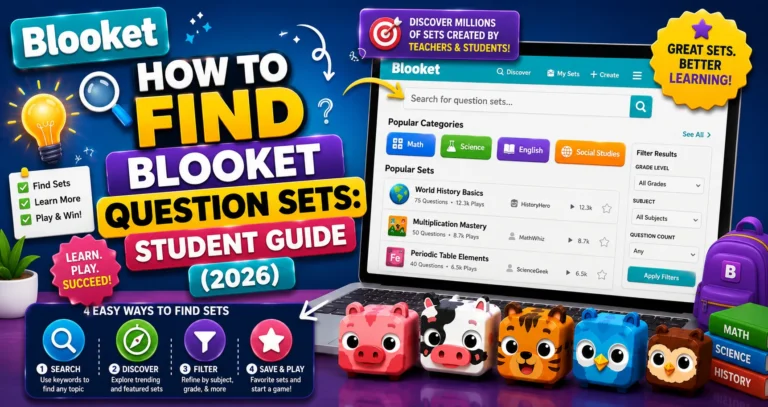
Find Public Sets → How to Find Blooket Question Sets
Can I Share a Private Set with Someone?
Not directly via a shareable link; Private sets don’t generate public links. If you want to share a set with a specific person (like a classmate or teacher) without making it Public to everyone:
- Temporarily set it to Public → copy the link → share it → then switch back to Private. The link works while the set is Public, and the recipient can still access the preview page, but if you switch back to Private, the link stops working for new visitors.
- Make it Public permanently if broad sharing is your goal.
Where to Go Next
- Want to know more about the platform? See our complete Blooket overview
- Curious about what your teacher sees? Visit the Blooket For Teachers
- Want the full student guides overview? See the Blooket For Students
Have another question? Please check the Frequently Asked Questions or Blooket Help Center.
Frequently Asked Questions
Can I change the privacy setting multiple times?
Yes. There’s no limit. You can switch between Public and Private as many times as you want without affecting the questions inside the set.
Does changing to Private remove my set from Discover?
Yes, immediately. As soon as you save the Private setting, the set is no longer discoverable in Discover search results.
Can my teacher still assign my Private set as homework?
No. Teachers can only assign question sets they have access to or have already saved to their own My Sets library. A Private set that a teacher hasn’t saved is not accessible to them for homework assignment.
What’s the difference between Public and Private in terms of who can play my set?
Anyone can play a Public set in Solo mode once they find it on Discover. A Private set can only be played by you, though you can still use it yourself for Solo practice or have a teacher host it live if they already have access.
Does making a set Private delete it or its questions?
No. Changing privacy only affects visibility and sharing. All questions, answers, and settings inside the set remain exactly as they were.
If I share a Public link and then switch back to Private, does the link still work?
The link stops working for new visitors once you switch back to Private. Someone who already opened the preview page while it was Public may retain access to that page, but the link itself is no longer functional for anyone new.
Is there a way to permanently share a set with just one specific person?
Not through a dedicated feature. The practical approach is to briefly make the set Public, share the link with that person, then switch it back to Private, or leave it Public if ongoing sharing is the goal.