Blooket Question Sets for Students: Complete Guide (2026)
Last verified: August 18, 2026
Quick Answer: A Blooket question set is a saved collection of questions that powers every game. Students can find sets from over 20 million public options on Discover, create their own, save Favorites, and control who sees sets they make. Folders for organizing sets require Blooket Plus; everything else is free.
Blooket Question Sets for Students
Question sets are the building blocks of every Blooket game. Every live class game your teacher runs, every homework assignment, every solo session you play on your own, all of it is powered by a question set. Understanding how Blooket question sets work gives you more control over how you study, what you practice, and how you use Blooket outside of class.
This guide explains in detail what question sets are, how to find great ones, how to create your own, and how to manage your growing library.
Are you New to Blooket? → Quick Start Guide for Students
What is a Blooket Question Set?
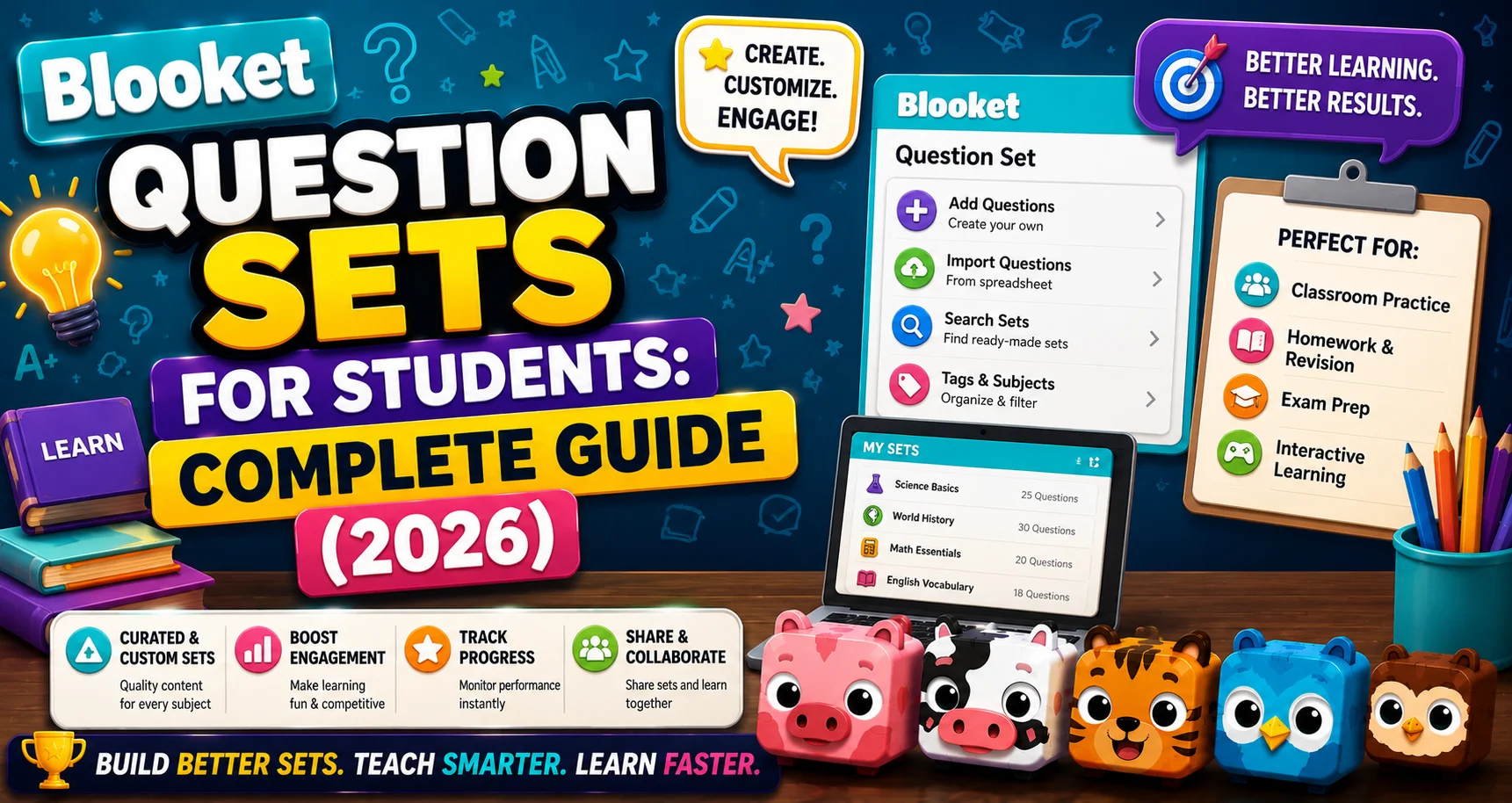
A question set is a saved collection of questions and answer options. Think of it as the subject matter underneath any Blooket game. Your teacher picks a question set, chooses a game mode (Gold Quest, Tower Defense, Zorblitz, etc.), and the questions from that set are what you answer during gameplay.
There are over 20 million question sets in Blooket’s public library, created by teachers, students, and educators worldwide. You can use any public set to play solo, even without a teacher or class.
Source: verified from Blooket’s official documentation on Question Sets
Four Things You Can Do with Question Sets
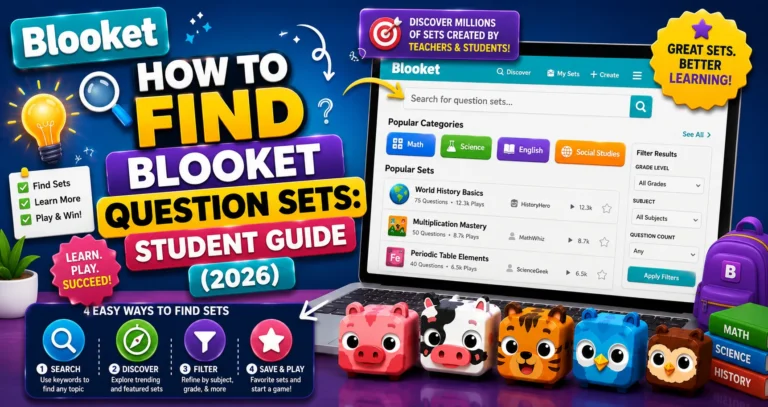
1. Find Question Sets
The Discover page is where you search the public library. Use the search bar to find subjects, grade levels, skills, or topics. You can also browse the Blooket Curriculum section, which contains expert-verified sets organized by subject and grade.
Every set has a preview page where you can see the questions before playing. From there, you can play solo, join a live game, or save it.
Step-by-Step Guide → How to Find Blooket Question Sets
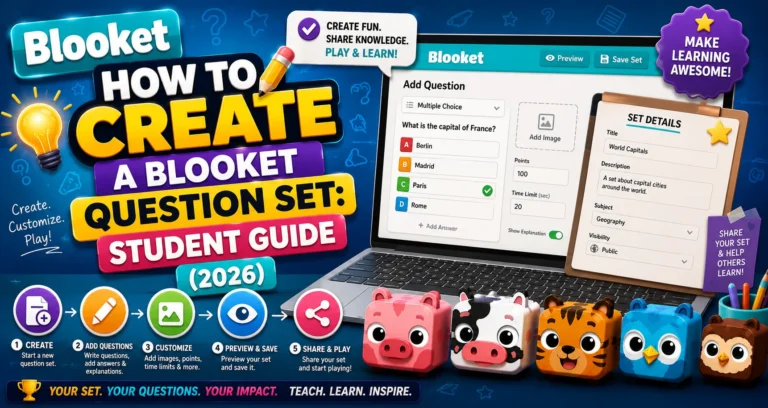
2. Create Your Own Set
Creating your own question set is one of the best study strategies available. Research consistently shows that the act of writing questions, figuring out what’s important enough to ask, deepens understanding more than just reviewing notes.
From your dashboard, click Create, add a title and description, choose Public or Private, then add questions one at a time. Each question can be Multiple Choice or True/False. After saving, you can use it in Solo mode immediately.
Set Creation Guide → How to Create a Blooket Question Set
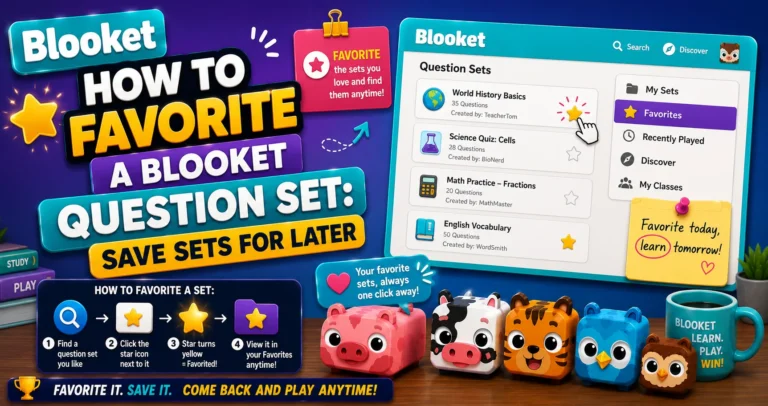
3. Save Your Favorites
When you find a question set that’s perfect for your class content, save it. Click the Favorite option on any set’s preview page. Favorited sets appear in your Favorites tab in the left column of your dashboard.
Favorites are useful before a test. Instead of searching again, your saved sets are ready to use immediately.
Set Favoriting Guide → How to Favorite a Blooket Question Set
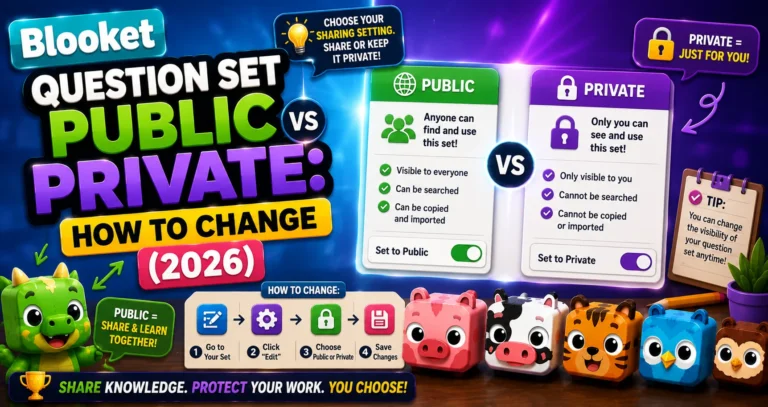
4. Control Who Sees Yours
Every question set you create is either Public (anyone can discover and use it) or Private (only visible to you). You can change this at any time from your My Sets page.
Public sets can be shared via a direct link, useful if you want to share your study set with classmates or post it in a class group chat.
Set Privacy Guide → How to Make a Question Set Public or Private
Managing Your Set Library
As you create and save more sets, staying organized becomes more important. Blooket offers two organizational tools:
- Favorites tab: Quick access to sets you’ve saved from the Discover page; no additional setup required.
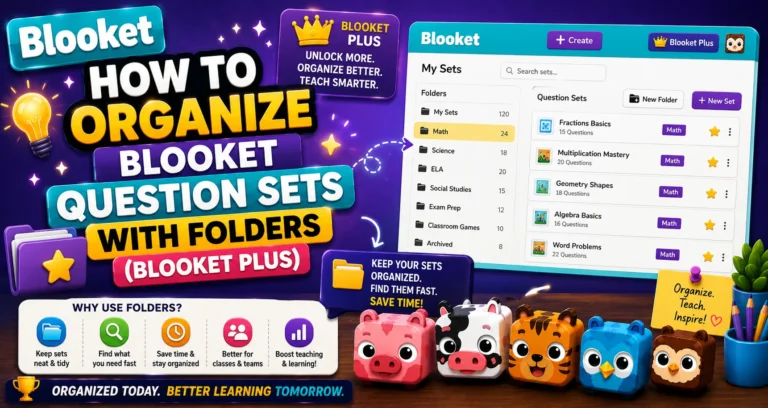
- Folders (Blooket Plus): Create labeled folders in your My Sets page to group sets by subject, unit, class, or any system that works for you. This is a Blooket Plus feature.
Set Management Guide → How to Organize Blooket Question Sets with Folders
Community Standards: Reporting Inappropriate Sets
Because millions of different users create question sets, the quality and appropriateness vary. If you find a public set with wrong information, offensive content, or anything that shouldn’t be in a school context, you have a responsibility to report it.
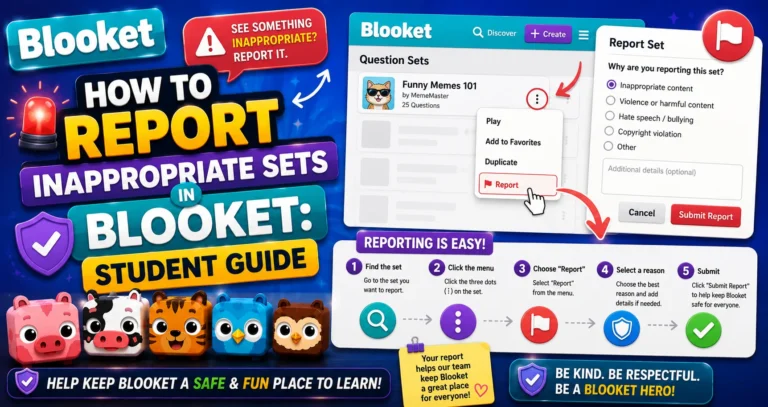
Click the three-dot menu on any set and select Report. Provide specific details about what’s wrong. Blooket reviews reports and removes content that violates community guidelines.
Set Reporting Guide → How to Report Inappropriate Sets in Blooket
Student vs Teacher Question Sets: What’s Different?
Students and teachers can both create question sets on Blooket; the creation process is identical. The difference is in how sets get used:
- Teachers host live games and assign homework using question sets.
- Students primarily use question sets for solo practice and personal study.
Some question-set features (such as merging sets, the Question Bank, and audio questions) are teacher-focused Plus features. As a student, your core tools are creating, finding, favoriting, and organizing. You can also practice question sets before you play.
Teachers Question Sets → Blooket Question Sets For Teachers
Quick Reference: Question Set Actions
| Action | Where to Go | Plus Required? |
| Create a set | Dashboard, then Create | No |
| Find public sets | Dashboard, then Discover | No |
| Browse Curriculum sets | Discover, then Curriculum | No |
| Favorite a set | Set preview, Favorite button | No |
| Change Public/Private | My Sets, Edit icon, Edit Info | No |
| Organize into Folders | My Sets, Add Folder icon | Yes |
| Report a set | Set preview, Three-dot menu, Report | No |
| Play a set solo | Set preview, Play Solo | No |
Where to Go Next
- Want to know more about the platform? See our full Blooket guide
- Curious about what your teacher sees? Visit the Blooket For Teachers
- Want the full student guides overview? See the Blooket For Students
Have another question? Please check the Frequently Asked Questions or Blooket Help Center.
Frequently Asked Questions
How many question sets are on Blooket?
Over 20 million, created by teachers, students, and educators worldwide, all searchable through the Discover page.
Do I need an account to use question sets?
No. You can play any public question set solo without an account, though you’ll need to be logged in to create, favorite, or organize sets, and to earn tokens and XP.
What’s the difference between a set being Public and Private?
Public sets can be discovered by anyone on the Discover page and shared via a direct link. Private sets are visible only to you. You can switch between the two at any time.
Do I need Blooket Plus to create or favorite question sets?
No. Creating, finding, favoriting, and reporting sets are all free. Only Folders, used to organize sets into labeled groups, require Blooket Plus.
What question types can I use when creating a set?
Multiple Choice or True/False. Add questions one at a time after choosing a title, description, and privacy setting for your set.
What should I do if I find an inappropriate question set?
Click the three-dot menu on the set and select Report, then provide specific details about what’s wrong. Blooket reviews reports and removes content that violates community guidelines.
Can students create question sets the same way teachers do?
Yes. The creation process is identical for students and teachers. The difference is in how the sets are used: teachers host live games and assign homework, while students mostly use sets for solo practice and study.