How to Favorite a Blooket Question Set: Complete Guide for Students
Last verified: August 18, 2026
Quick Answer: To favorite a Blooket question set, open its preview page and click the star icon or Favorite button. It turns your Discover library into a personalized, one-click study toolkit without creating a separate copy of the set. View all favorited sets anytime from the Favorites tab.
How to Favorite a Blooket Question Set for Students
Favoriting a Blooket question set saves it to your personal Favorites list so you can find it again instantly without re-searching. It’s a one-click save that turns the Discover library into a personalized study toolkit. Learn how to favorite a Blooket question set, and more in this guide.
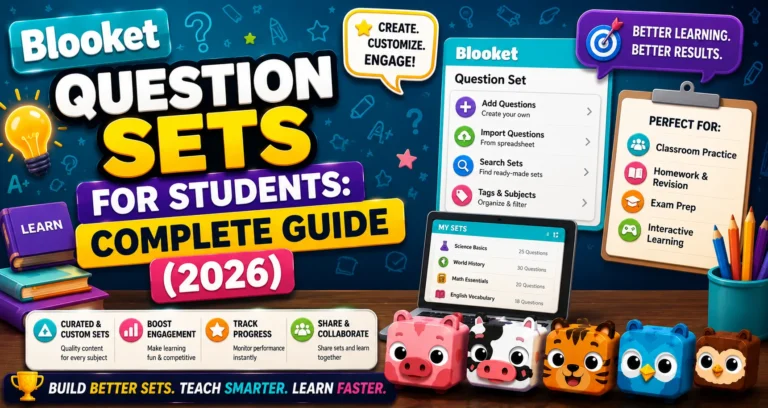
Complete Overview Guide → Blooket Question Sets for Students
Why Favoriting Matters
The Blooket Discover library has 20+ million question sets. Finding a great one for your class can take time. When you find it, especially right before a test, you don’t want to search again next time. Favoriting saves the set to your dedicated Favorites tab so it’s one click away, whenever you need it.
Source: Verified from Blooket’s official documentation on favoriting a question set.
Step-by-Step: Favoriting a Set
→ Step 1: Navigate to the Question Set You Wish to Favorite
Find the set on the Discover page or through the Blooket Curriculum section. Click the set’s title to open its preview page.
→ Step 2: Click the “Favorite” Option
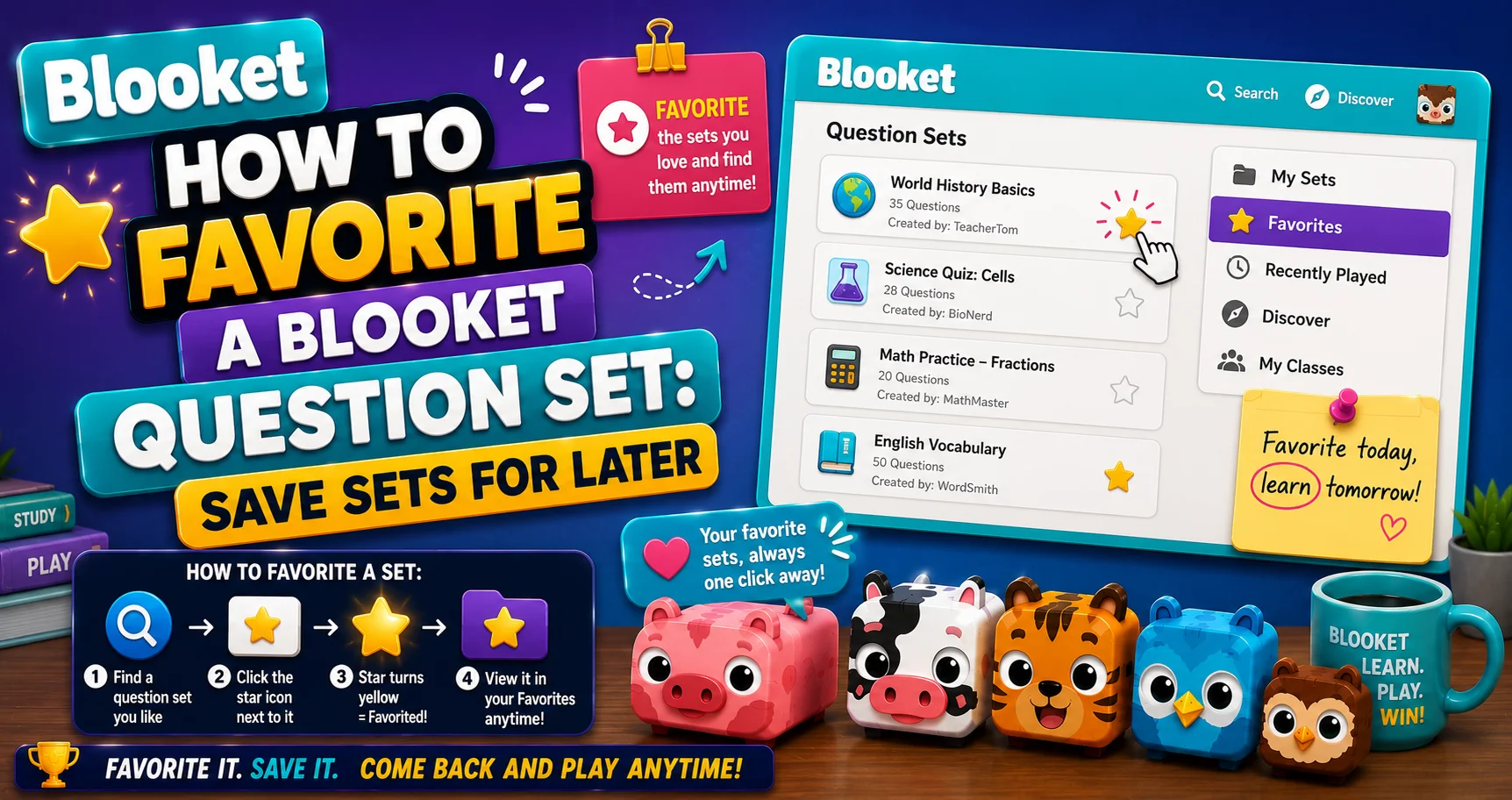
On the set’s preview page, look for the Favorite button or star icon. Click it. The icon fills (becomes solid) to confirm the set has been saved to your Favorites.
That’s it. The set is now in your Favorites list.
→ Step 3: View Your Favorites Anytime
All Favorited sets can be viewed by selecting the “Favorites” tab in the left column.
From your dashboard, look in the left navigation bar. Click Favorites to see every set you’ve saved. You can play any favorite set in Solo mode directly from the Favorites tab without going back to Discover.
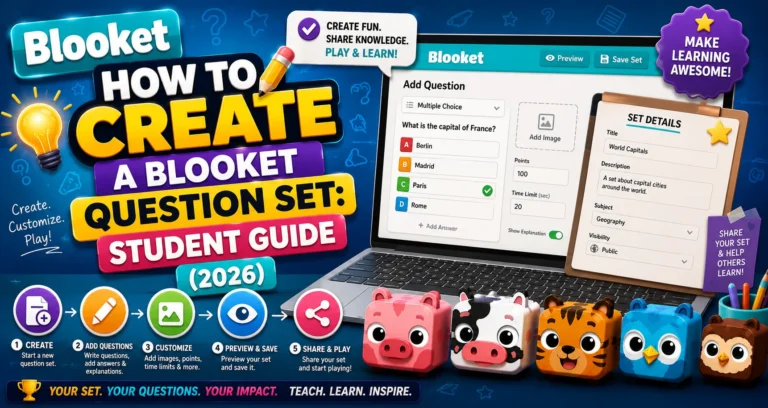
Create Your Own → How to Create a Blooket Question Set
Removing a Favorite Set
To remove a set from your favorites:
- If you’re on the set’s preview page: Select the filled star icon; it unfills to confirm the set has been removed from your Favorites.
- If you’re in the Favorites tab: Select the star icon next to any favorited set to remove it from your list.
Removing a favorite doesn’t delete the question set; it’s still in the public Discover library. It simply removes it from your personal saved list. You can re-favorite it anytime.
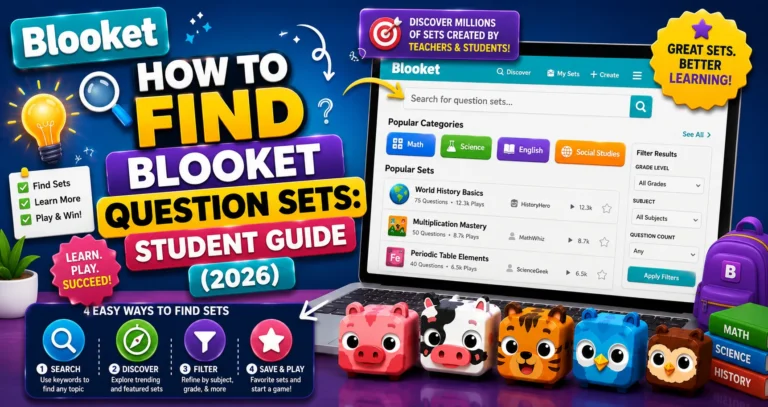
Finding Question Sets → How to Find Blooket Question Sets
What Favoriting Does (and Doesn’t Do)
| Action | Does Favoriting Do This? |
| Saves the set to your Favorites tab | Yes |
| Creates your own editable copy of the set | No |
| Works if the creator deletes the set | No, deleted sets disappear from your Favorites |
| Requires a Blooket account | Yes |
| Has a limit on how many sets you can favorite | No limit documented |
| Notifies the set creator | No |
Smart Ways to Use Favorites
→ Build a subject-specific favorites list. Whenever you’re studying a topic and find a good set, favorite it immediately. By exam week, your Favorites tab will have curated sets for everything you’re reviewing.
→ Favorite before-class games. If your teacher runs Blooket regularly, favoriting the sets they typically use lets you practice the same material before the live session.
→ Replace Favorites periodically. After a unit ends, unfavorite sets that are no longer relevant. Keeping your Favorites list current means it’s always useful and never confusing.
Solo Play Guide → How to Play a Solo Game in Blooket
Where to Go Next
- Want to know more about the platform? See our complete Blooket guide
- Curious about what your teacher sees? Visit the Blooket For Teachers
- Want the full student guides overview? See the Blooket For Students
Have another question? Please check the Frequently Asked Questions or Blooket Help Center.
Frequently Asked Questions
Does favoriting a set create my own copy of it?
No. Favoriting only saves a shortcut to the original set in your Favorites tab. You still play the creator’s original questions; you’re not making an editable copy.
What happens to my favorite if the original creator deletes the set?
It disappears from your Favorites tab. Since favoriting doesn’t create a copy, a deleted original set is no longer accessible anywhere, including your saved list.
Do I need a Blooket account to favorite a question set?
Yes. Favoriting requires you to be logged in, since it saves the set to your personal account. Guests browsing Discover cannot favorite sets.
Is there a limit to how many sets I can favorite?
No documented limit exists. You can favorite as many question sets as you want without running into a cap.
Does the person who made the set get notified when I favorite it?
No. Favoriting is a private action on your end. The set’s creator receives no notification when someone favorites their set.
Can I favorite a set without a teacher assigning it first?
Yes. Any student can browse Discover independently and favorite any public set that looks useful, whether or not a teacher has ever used it in class.
How do I remove a set I no longer need in my Favorites?
Click the filled star icon again, either from the set’s preview page or directly from your Favorites tab, to unfavorite it. This doesn’t delete the set itself, only your saved shortcut to it.