Bloxstrap the Roblox Bootstrapper for Windows
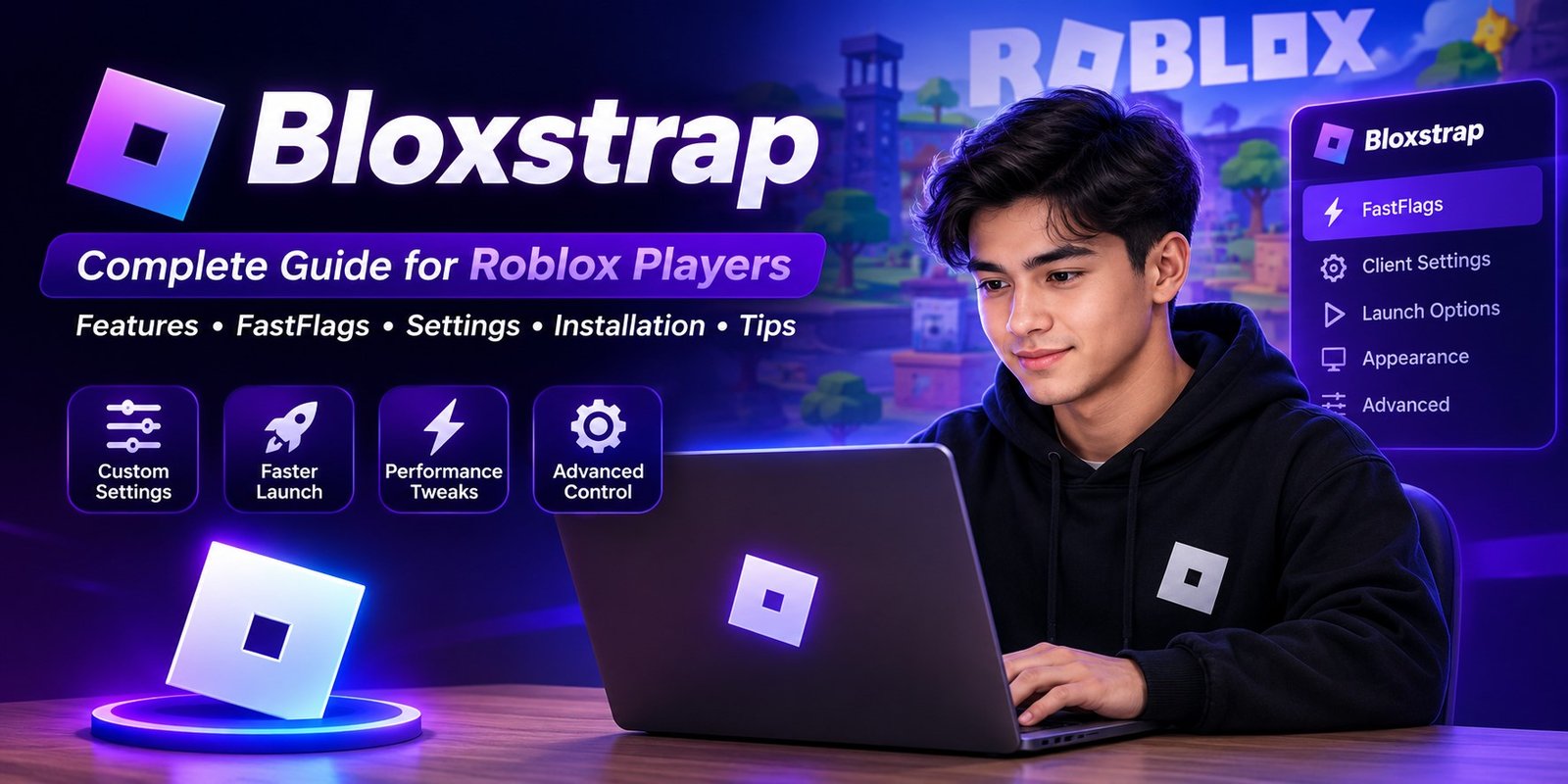
If you play Roblox on Windows and want more control over how the game launches, Bloxstrap is a tool worth knowing about. It was created as an alternative Roblox bootstrapper, adding extra configuration and customization options around the standard Roblox player experience.
For players looking for information about Bloxstrap, its features, installation, FastFlags, settings, and troubleshooting, Bloxstrap resources can provide a useful starting point before making changes to a Roblox setup.
This guide explains what Bloxstrap is, what it can do, how it differs from the normal Roblox launcher, and what users should know before installing or configuring it.
What Is Bloxstrap?
Bloxstrap is a Windows-based alternative bootstrapper for Roblox. In simple terms, a bootstrapper helps start and manage the Roblox client, while Bloxstrap provides additional options that are not normally available through the standard Roblox launcher.
Instead of changing Roblox itself, Bloxstrap has traditionally focused on giving users more control over the launch process and selected client settings.
Depending on the version and current Roblox compatibility, Bloxstrap may provide features such as:
- Custom Roblox client launch options
- FastFlag configuration
- Custom game launch settings
- Roblox activity and appearance customization
- Server and launch-related preferences
- Configuration management
- Additional quality-of-life options
Because Roblox regularly changes its client and platform, individual Bloxstrap features may change or stop working over time. Users should therefore check the current status and compatibility of any feature before relying on it.
Why Do Roblox Players Use Bloxstrap?
The standard Roblox application is designed to keep the experience simple. Most players can install Roblox, click a game, and start playing without changing anything.
However, more experienced users sometimes want additional control.
Bloxstrap became popular among PC Roblox users because it offered configuration options that could make the launcher experience more flexible. It was especially well known among users interested in FastFlags, launch settings, customization, and performance-related configuration.
The main reasons users look for Bloxstrap include:
More Control Over Roblox
Bloxstrap can give advanced users access to settings that are not exposed through the normal Roblox interface.
Customization
Users may be able to customize parts of the Roblox launching experience depending on the version they are using.
FastFlag Configuration
FastFlags are configuration variables used by Roblox internally. Bloxstrap has been associated with tools for managing certain FastFlags, making it a popular topic among users looking for ways to configure Roblox.
Advanced PC Configuration
Players who understand their computer and Roblox settings may prefer having more control over the way the client launches and behaves.
Bloxstrap Features
Bloxstrap’s feature set has changed across different releases, so users should always verify whether a particular function is supported by their current version.
Some of the features historically associated with Bloxstrap include the following.
FastFlags
FastFlags are one of the biggest reasons Roblox users search for Bloxstrap.
A FastFlag is essentially a configuration value that can influence certain parts of Roblox’s behavior. Advanced users have experimented with FastFlags for graphics, rendering, interface behavior, and other client-side settings.
However, not every FastFlag is useful for every computer.
Using random or outdated FastFlags can cause unexpected behavior, visual problems, crashes, or simply have no effect. Roblox can also change or restrict how client configuration works.
For that reason, FastFlags should be used carefully rather than copied blindly from random lists.
Launch Options
Bloxstrap has provided additional options around launching Roblox. This can be useful for users who want a more customized startup process.
Launch-related settings can be particularly useful for people who frequently switch between different configurations or want to control how Roblox starts.
Roblox Customization
Another reason Bloxstrap attracted attention was its customization capabilities.
Depending on the release, users could modify aspects of the Roblox experience that are not normally configurable through Roblox’s standard settings.
This helped make Bloxstrap more appealing to power users who wanted their Roblox installation to feel more personalized.
Configuration Management
Advanced Roblox users can quickly accumulate different settings and configurations. A dedicated bootstrapper can make these settings easier to organize than manually changing files or system options.
Still, users should back up important configuration files before making significant changes.
Is Bloxstrap Safe?
Safety is one of the most important questions to consider before installing any third-party Roblox utility.
Bloxstrap is not the same thing as the official Roblox application. It is a third-party Windows tool, so users should distinguish between the Roblox platform itself and software designed to interact with the Roblox client.
Before installing any Bloxstrap-related software, consider these precautions:
- Download software only from a trustworthy and verifiable source.
- Avoid modified installers from unknown websites.
- Scan downloaded files when appropriate.
- Be cautious with executable files shared through Discord, forums, or random file-hosting websites.
- Keep Windows Defender or another reputable security solution enabled.
- Avoid tools that request unnecessary permissions.
- Never provide your Roblox password to a third-party launcher or utility.
- Check whether the software is currently maintained and compatible with Roblox.
The safest approach is to verify the authenticity of the software and understand exactly what you are installing before running it.
Is Bloxstrap Officially Made by Roblox
No. Bloxstrap is not Roblox’s official launcher.
Roblox is operated by Roblox Corporation, while Bloxstrap was developed as an independent third-party bootstrapper for Windows users.
This distinction is important because users should not assume that every feature, setting, or tool associated with Bloxstrap is supported or endorsed by Roblox.
If you are troubleshooting an account, billing issue, moderation action, or Roblox platform problem, the appropriate place to start is Roblox’s official support system.
Bloxstrap vs. the Standard Roblox Launcher
The biggest difference is customization. The normal Roblox launcher is designed for simplicity. Install Roblox, open a game, and play.
Bloxstrap has historically been aimed more toward users who want additional control over how Roblox launches and how certain client settings are managed.
| Feature | Standard Roblox Launcher | Bloxstrap |
| Basic Roblox launching | Yes | Yes |
| Official Roblox software | Yes | No |
| Third-party customization | Limited | More extensive |
| Advanced configuration | Limited | Designed for advanced users |
| FastFlag management | Not normally exposed | Historically supported |
| User customization | Limited | More options |
| Best for beginners | Yes | Better suited to experienced users |
The exact differences can change as Roblox updates its client and third-party tools evolve.
How to Install Bloxstrap
If you decide to use Bloxstrap, installation should be approached carefully.
Step 1: Verify the Source
Before downloading anything, confirm that you are using a legitimate and trustworthy source.
This is especially important because popular software names are frequently copied by unrelated download websites.
Step 2: Check Compatibility
Make sure the current Bloxstrap release supports your version of Windows and works with the current Roblox client.
Roblox updates can sometimes affect third-party launchers.
Step 3: Download the Installer
Download the appropriate installer from a source you have verified.
Avoid suspicious download buttons, repacked installers, cracked versions, or files that require additional unknown programs.
Step 4: Run the Installer
Open the installer and follow the setup instructions.
If Windows displays a security warning, do not automatically bypass it. Verify the software’s source and digital signature or other authenticity indicators first.
Step 5: Configure Your Preferences
After installation, review the available Bloxstrap settings.
Do not enable every advanced option simply because it is available. Start with the default configuration and change one setting at a time.
Step 6: Launch Roblox
Once configuration is complete, launch Roblox normally and check whether everything works as expected.
If you experience problems, revert the most recent configuration change before trying additional tweaks.
What Are Bloxstrap FastFlags?
Bloxstrap FastFlags are configuration settings associated with Roblox’s internal feature and behavior controls.
They became a major part of the Bloxstrap community because advanced users could experiment with certain client configurations.
FastFlags are often discussed in relation to:
- Graphics rendering
- Textures
- Performance
- Frame rates
- UI behavior
- Rendering engines
- Network-related behavior
- Debugging and testing
However, FastFlags should not be treated as a guaranteed performance booster.
A configuration that improves performance on one PC may have no impact—or cause problems—on another system.
Do Bloxstrap FastFlags Increase FPS?
Not necessarily.
FastFlags cannot magically make a weak computer perform like a high-end gaming PC. FPS depends on many factors, including:
- CPU performance
- GPU performance
- RAM
- Roblox graphics settings
- Display resolution
- Background applications
- Thermal throttling
- Windows configuration
- Roblox’s current client version
Some configurations may reduce unnecessary graphical effects or alter rendering behavior, but results vary considerably.
If your goal is higher FPS, start with Roblox’s normal graphics settings and Windows performance optimization before experimenting with advanced client configuration.
Best Bloxstrap Settings for Performance
There is no single configuration that is guaranteed to be the best for every PC.
A better approach is to optimize based on your hardware.
For Low-End PCs
Players with older hardware can start by:
- Lowering Roblox graphics quality.
- Closing unnecessary background applications.
- Using a sensible display resolution.
- Keeping Windows updated.
- Avoiding unnecessary visual effects.
- Testing one configuration change at a time.
For Mid-Range PCs
A mid-range gaming computer usually has enough power to run Roblox comfortably without aggressive tweaks.
Focus on stable settings rather than trying to maximize every possible FPS improvement.
For High-End PCs
High-end computers generally have less need for aggressive performance modifications.
If Roblox already runs smoothly, changing advanced settings may introduce unnecessary instability without providing a meaningful benefit.
Can Bloxstrap Improve Roblox Performance?
Bloxstrap itself should not be viewed as an automatic FPS booster.
Performance depends primarily on your computer, Roblox’s current client, graphics settings, and the game you are playing.
Some configuration options may change how Roblox behaves, but they do not upgrade your hardware.
For consistent performance, players should prioritize:
- Updated graphics drivers
- Appropriate Roblox graphics settings
- Adequate system resources
- Minimal background applications
- Stable Windows configuration
- Reliable internet connectivity
- Proper cooling and power settings
Advanced Bloxstrap configurations should come after these fundamentals, not before them.
Common Bloxstrap Problems and Fixes
Third-party Roblox tools can sometimes experience compatibility problems after Roblox updates.
Here are some common issues users may encounter.
Bloxstrap Is Not Opening
If Bloxstrap does not launch, restart Windows and try again.
If the problem continues, check whether the installed version is compatible with your current Windows and Roblox environment.
Roblox Does Not Launch
A Roblox update may have changed something that affects third-party launchers.
Try returning to default settings and temporarily removing advanced configurations.
FastFlags Are Not Working
This does not necessarily mean Bloxstrap is broken.
Roblox may have changed, removed, restricted, or ignored the specific FastFlag you are trying to use.
FastFlags can also become outdated as the Roblox client evolves.
Roblox Crashes After Changing Settings
Undo the most recent change first.
If you have applied multiple FastFlags or advanced configurations at once, revert them and test the default configuration.
Changing settings individually makes troubleshooting much easier.
Bloxstrap and Roblox Behave Differently After an Update
This is possible because Roblox is continuously updated.
A third-party launcher may require updates or adjustments to remain compatible with changes made to the Roblox client.
Should You Use Bloxstrap?
That depends on what you want from Roblox.
If you are a casual Roblox player who only wants to launch games, the standard Roblox application is generally the simplest choice.
If you are an experienced Windows Roblox user interested in customization and advanced configuration, Bloxstrap may be more appealing.
Before using it, however, consider the current maintenance status, compatibility with Roblox, and security of the download source.
Bloxstrap for Beginners
New users should avoid changing advanced settings immediately.
A safer learning process is:
Install → Test Roblox → Change one setting → Test again → Keep or revert
This makes it much easier to determine which setting caused a problem.
Beginners should also avoid copying large FastFlag configurations without understanding what each entry does.
More settings do not automatically mean better performance.
Frequently Asked Questions About Bloxstrap
What is Bloxstrap used for?
Bloxstrap is a third-party Windows bootstrapper for Roblox that has been used to provide additional launch, customization, and configuration options beyond the standard Roblox experience.
Is Bloxstrap a Roblox product?
No. Bloxstrap is a third-party project and is not developed by Roblox Corporation.
Is Bloxstrap available for Windows?
Bloxstrap was designed primarily for Windows users. Compatibility can depend on the current release and changes to Roblox.
What are Bloxstrap FastFlags?
Bloxstrap FastFlags refer to configuration variables associated with Roblox client behavior. Advanced users have used them to experiment with rendering, graphics, performance, and other settings.
Can Bloxstrap give more FPS?
Not automatically. Performance depends on hardware, Roblox settings, the game being played, and the current Roblox client. Some configuration changes may help specific systems, but there is no universal FPS boost.
Is Bloxstrap better than Roblox’s launcher?
It depends on the user. The standard Roblox launcher is simpler and official, while Bloxstrap has historically appealed to advanced users who want additional customization and configuration options.
Can Bloxstrap cause Roblox problems?
Incorrect or outdated configurations can cause unexpected behavior. Roblox updates can also affect third-party tools, so users should make changes carefully and revert settings if problems occur.
Should I use random Bloxstrap FastFlags?
No. Random FastFlags can be outdated, unsupported, ineffective, or potentially problematic. Understand what a configuration does before applying it.
Does Bloxstrap modify my Roblox account?
Bloxstrap is primarily associated with the Roblox client and launch process rather than being an account-management service. Users should never give their Roblox password to an unofficial tool.
Final Thoughts
Bloxstrap became well known among Windows Roblox players because it offered more control over the Roblox launch experience than the standard setup. Its association with FastFlags, customization, advanced configuration, and performance discussions made it particularly popular with power users.
However, Roblox is an evolving platform. Client updates can change how third-party tools and configuration options work, meaning that an old guide or FastFlag list may no longer be accurate.
If you choose to use Bloxstrap, prioritize authenticity, compatibility, security, and stability. Start with default settings, make changes gradually, and avoid assuming that every performance tweak will work on every PC.
For users researching Bloxstrap, its latest features, installation information, FastFlags, and configuration options, staying up to date is more valuable than simply applying the largest collection of tweaks.