How to Add a Password to Your Blooket Account: (Google SSO Users)
Last verified: August 13, 2026
Quick Answer: If you signed up for Blooket using Google, add a backup password from Settings, Profile, Add a Password. This creates a second, independent login method that works even if your Google account becomes inaccessible, without removing your existing Google sign-in.
How to Add a Password to Blooket Account
If you created your Blooket account using Google sign-in, your account doesn’t have a Blooket-specific password; it authenticates entirely through Google. That’s fine in most situations, but it creates a vulnerability. If you ever lose access to that Google account, especially a school Google account that gets deactivated, you lose the only login method for your Blooket account.
Adding a Blooket password creates a second, independent login path that doesn’t depend on Google. This guide explains how to add a password to your Blooket account and why it’s worth doing proactively.
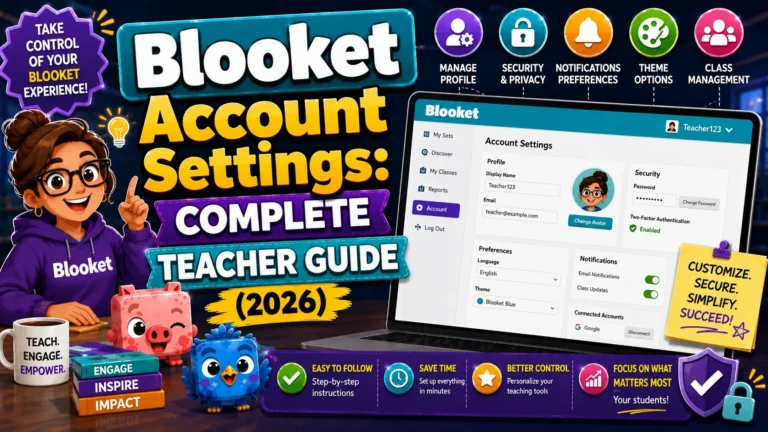
Complete Guide About → Blooket Account Settings
Who This Guide is For?
This guide applies specifically to Blooket accounts created with Google SSO (the “Continue with Google” sign-in option). You’ll know this applies to you if:
- You’ve never set a Blooket-specific password.
- You always log in by clicking “Continue with Google.”
- The Forgot Password flow on the login page says there’s no password for your account.
If you signed up with an email address and created a password during registration, you already have a Blooket password. Use the Change Password guide instead.
Why Add a Password?
→ Your school Google account will eventually be deactivated. Every teacher who uses a school Google Workspace account faces this reality when they change schools, retire, or are laid off. When the school domain deactivates your Google account, the “Continue with Google” option for that account stops working. If it’s your only Blooket login method, you lose access.
→ You want login flexibility. Adding a password lets you log in directly with email and password from any device, without going through the Google authentication flow, which is faster in some situations.
→ Google authentication occasionally has outages. Rare, but it happens. A direct password gives you an alternative during any Google service disruption.
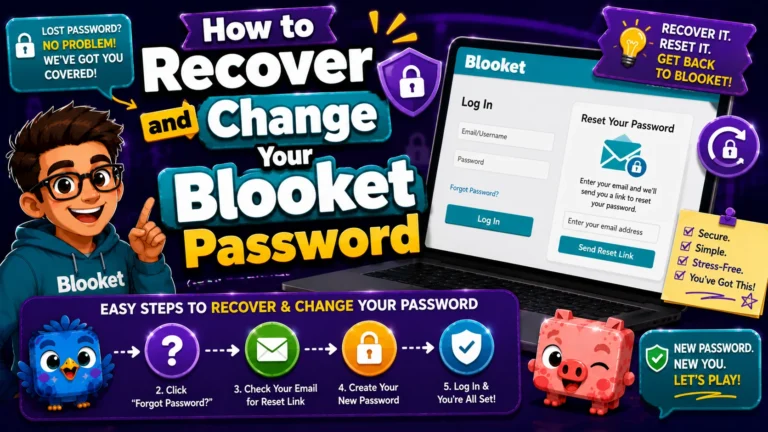
Change an Existing Password → How to Recover and Change Your Blooket Password
Step-by-Step: Adding a Password
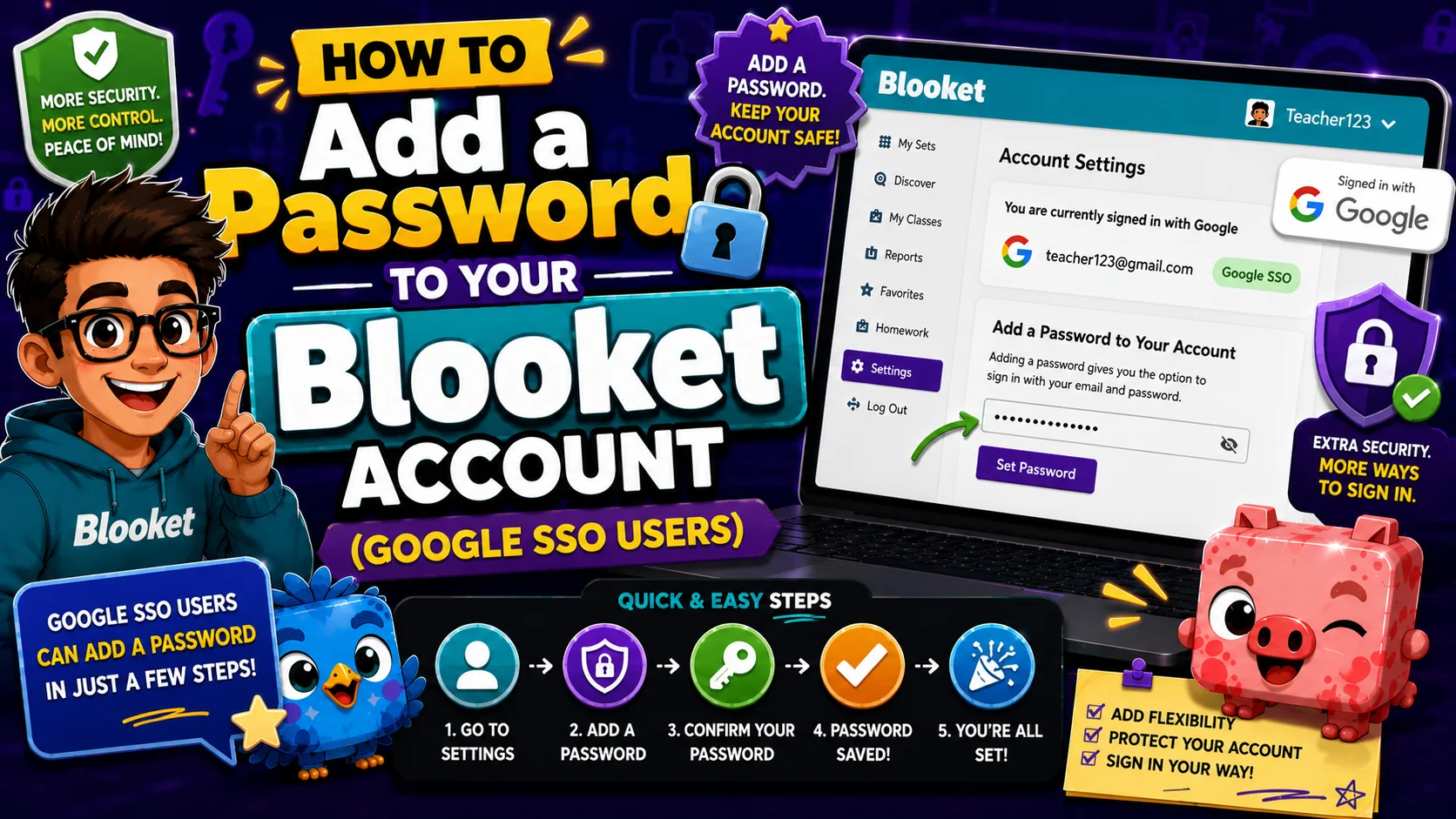
- Step 1: Log in to your Blooket account using your usual Google sign-in
- Step 2: Click your profile icon in the top-right corner and select Settings
- Step 3: On the Settings page, navigate to the Profile section
- Step 4: Look for the Add a Password option. This appears for Google SSO accounts that don’t currently have a Blooket-specific password.
- Step 5: Click Add a Password
- Step 6: Enter a new password in the password field. Enter it again in the confirm password field to verify accuracy.
- Step 7: Click Save (or the equivalent confirmation)
Your Blooket account now has both Google SSO and email/password as valid login methods. You can use either one going forward.
Source: verified from Blooket’s official “How to Add a Blooket Password” documentation.
What Adding a Password Does (and Doesn’t) Change
What changes:
- You can now log in with your email address and the new password, in addition to Google.
- Password recovery via the Forgot Password flow on the login page is now available for your account.
What stays the same:
- Your Google sign-in still works. Adding a password doesn’t remove Google as a login option.
- Your username, question sets, game history, Blooks, and subscription are unaffected.
- Your registered email address doesn’t change (unless you separately update it).
After Adding a Password
→ Test both login methods. Log out completely, then confirm you can log back in both ways: through “Continue with Google” and through email and password. Testing both methods after setup confirms everything is working before an emergency where you need the backup.
→ Store the password securely. Use a password manager or another secure method to store your new Blooket password. A password that’s immediately forgotten doesn’t provide any backup value.
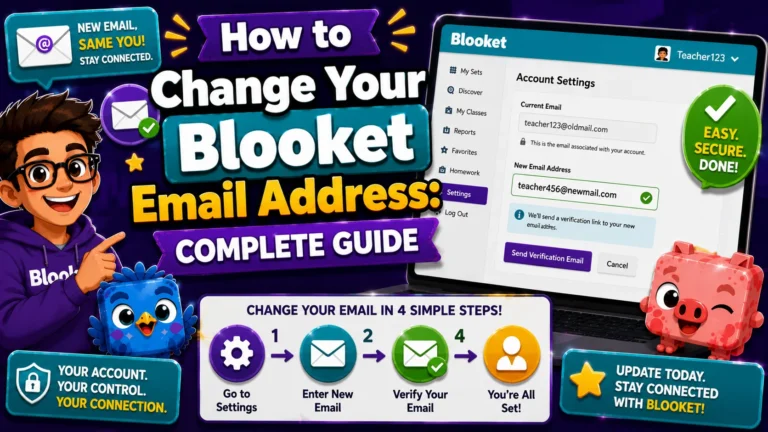
→ Consider also updating your registered email if it’s still a school address. A working password combined with a personal email address is the most resilient account setup.
Update Your Email → How to Change Your Blooket Email Address
Where to Go Next
- Want to know more about the platform? See our Blooket guide
- Want the full teacher toolkit overview? Visit the For Teachers hub
- Introducing this to students directly? See the For Students hub
Have a different question? Check our Frequently Asked Questions or Blooket Help Center.
Frequently Asked Questions
What email address does the password use?
The email and password login uses the email address currently registered to your Blooket account. If your account email is a school address, the password will be tied to that address.
Can I remove the password later if I don’t want it?
The Settings page allows you to manage your login methods to some extent. Contact support at contact-us@blooket.com to modify authentication methods beyond what’s available in Settings.
What if I don’t see the “Add a Password” option?
If the option isn’t visible, your account may already have a password (in which case you’d see a “Change Password” option instead), or there may be a temporary display issue. Try refreshing the Settings page or using a different browser. If it still doesn’t appear, contact support.
Does adding a password remove my Google sign-in?
No. Adding a password creates a second, independent login method alongside your existing Google sign-in. Both continue to work, and you can use whichever one is convenient at the time.
Is it safe to keep using Google sign-in after I add a password?
Yes. There’s no downside to keeping both. The password exists purely as a backup, so you can continue using Google sign-in as your primary method if you prefer.
Should I add a password even if my Google account seems secure?
Yes, especially for school Google accounts. Deactivation happens at the school’s discretion when you change jobs, retire, or are laid off, regardless of how secure your account is, so the backup protects against an administrative event, not a security failure.
What should I do right after adding a password?
Log out completely and test both login methods to confirm they work, then store the new password in a password manager so it’s actually usable when you need it.