How to Change Your Blooket Profile Blook, Banner, and Title?
Last verified: August 15, 2026
Quick Answer: Change your profile Blook, banner, and title from the Stats page, not Settings. Click your current profile Blook, banner, or title to open its picker, then select a new option. Banners and titles come from the Weekly Shop, events, or Blook Score milestones.
How to Change Blooket Profile Blook
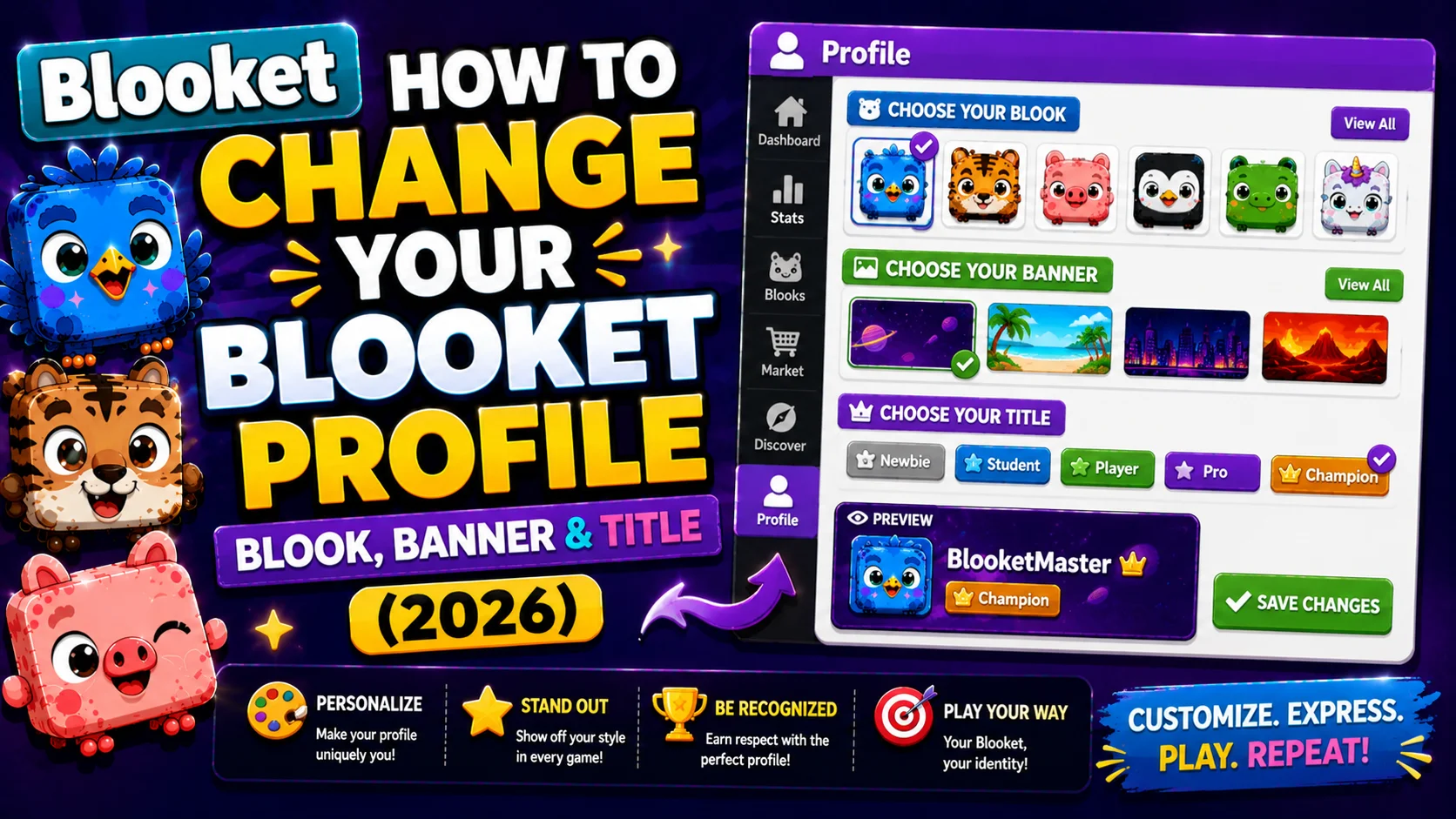
Your Blooket profile Blook (avatar), banner (profile header image), and title (decorative text label) are 3 different customization features that define how your profile looks to other players.
All 3 are managed from the Stats page, not the Settings page. This is the most common source of confusion for new users, which explains why many people look in Settings and can’t find any customization options.
This guide explains exactly how to change your Blooket profile Blook, banner, and title. Follow the links throughout for more detail on any specific topic.
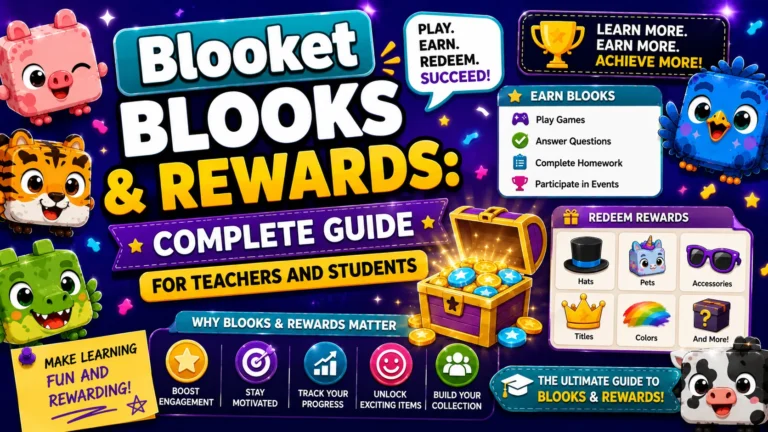
Complete Guide About → Blooket Blooks & Rewards
Stats Page vs. Settings Page: The Critical Distinction
→ Settings page (accessed via the gear icon or profile icon, then Settings): Controls account-level information, including username, email address, password, account type, and subscription. Does not contain any Blook, banner, or title options.
→ Stats page (accessed via the Stats link in your dashboard navigation): Controls all profile customization, including your profile Blook, banner, and title. This is where every visual profile change happens.
Navigate to the Stats page from your Blooket dashboard by clicking Stats in the left navigation sidebar (teachers) or main navigation (students).
3 Features of Blooket Profile
1. Profile Blook (Avatar)
Your Profile Blook is the square character displayed next to your name on every game leaderboard, in the lobby during live sessions, and at the top of your Stats page. It is the most visible part of your Blooket identity across all interactions.
Available choices:
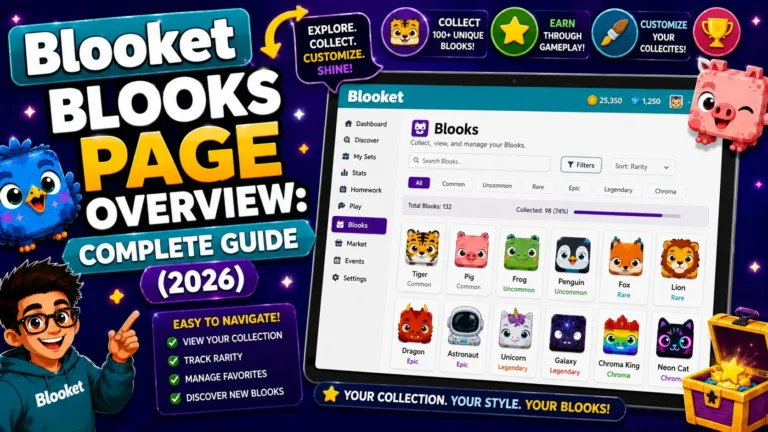
- Any Blook in your collection (pulled from Market packs)
- Any Custom Blook you have created and saved through the Class Pass
Not available:
- Blooks you don’t own (appear locked or greyed out in the picker)
2. Banner
Your banner is the rectangular image displayed at the top of your Stats page. It’s visible to players who view your profile.
Where banners come from:
- Weekly Shop: Rotating banners purchasable with tokens. Changes weekly with no advance notice.
- Seasonal events: Exclusive banners awarded for participation or achievement in official Blooket events.
- Blook Score milestones: Bronze, Silver, Gold, Platinum, and Diamond banner levels unlock automatically as your Blook Score crosses each threshold. There are 5 badge ranks, each with 3 tiers, creating 15 different score-based banner levels.
What doesn’t work: There are no banner codes, no third-party generators, and no shortcuts. Any website or video claiming to offer a “Blooket banner code” is inaccurate or a scam. Banners are earned exclusively through the Weekly Shop, events, and Blook Score progression.
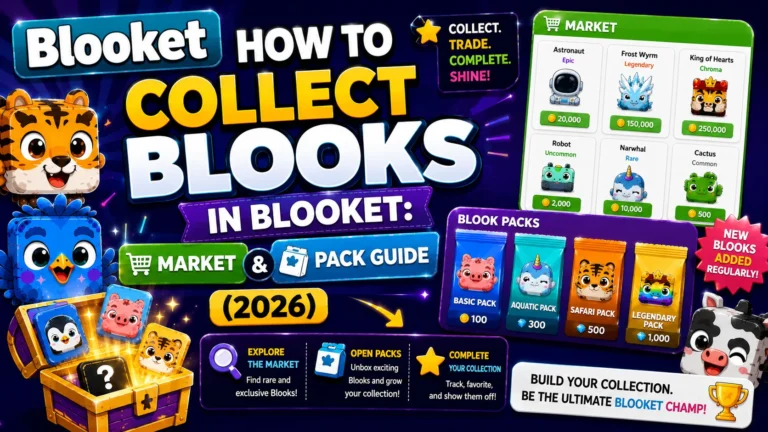
Step-by-Step → How to Collect Blooks (For Banner Sourcing)
3. Title
A title is a short text label displayed below your username on your Stats page. It is purely cosmetic with no gameplay effect; it does not affect token earnings, question difficulty, accuracy, or any in-game variable.
Where titles come from:
- Weekly Shop: Titles rotate alongside banners each week.
- Events: Official Blooket events and competitions occasionally award exclusive titles.
Step-by-Step: Changing Your Profile Blook
- Step 1: Log in to your Blooket account.
- Step 2: Navigate to the Stats page (not Settings).
- Step 3: On the Stats page, click your current profile Blook at the top of the page.
- Step 4: The Blook picker opens, displaying your complete collection, both pack-collected Blooks and saved Custom Blooks.
- Step 5: Click the Blook you want to use as your profile; the preview updates immediately on your Stats page.
Your new profile Blook is active. The change takes effect immediately for your Stats page display.
Complete Guide for → How to Create Custom Blooks
Step-by-Step: Changing Your Banner
- Step 1: Navigate to the Stats page.
- Step 2: Click your current banner (the rectangular image at the top of the page) or look for a banner selection option near it.
- Step 3: A picker opens, showing all banners you currently own.
- Step 4: Click the banner you want to use.
If your banner picker shows only one option, you haven’t acquired additional banners yet. Visit the Weekly Shop in the Market to see currently available banners for token purchase, or check your Blook Score display on the Blooks page to see if you’ve crossed a score-based banner milestone.
Step-by-Step: Changing Your Title
- Step 1: Navigate to the Stats page.
- Step 2: Click your current title display (below your username) or the edit option near it.
- Step 3: A picker opens, showing all titles you own.
- Step 4: Click the title you want to display.
Source: Verified from Blooket’s official “Change my Profile Blook/banner/title” documentation
Display Cache Issue: How to fix
→ Problem: You changed your profile Blook on the Stats page; it shows correctly there, but the old Blook still appears when you join a new game lobby.
→ Why it happens: Your browser has cached the previous Blook image and hasn’t fetched the updated version from Blooket’s server yet.
Steps to fix the Display Cache issue
- Confirm your new Blook shows correctly on the Stats page (the server-side change is already saved).
- Press F5 (Windows/Chromebook) or Cmd+R (Mac) to hard-refresh your browser.
- Join the next game; the updated Blook will display correctly.
This cache issue resolves reliably with a single browser refresh. It is not a platform bug; it is normal browser behavior that requires no support contact.
Where to Go Next
- Want to know more about the platform? See our Blooket guide
- Want the full teacher toolkit overview? Visit the For Teachers hub
- Introducing this to students directly? See the For Students hub
Have a different question? Please check Frequently Asked Questions or our Blooket Help Center.
Frequently Asked Questions
Can I use a Custom Blook as my profile Blook?
Yes. Custom Blooks appear in the picker alongside collected pack Blooks. Any Custom Blook you’ve saved is immediately available as your profile avatar.
Can I upload a custom image as my banner?
No. Blooket does not support uploading custom banner images. All banners must be earned through the Weekly Shop, events, or Blook Score milestones.
Does my chosen profile Blook affect any gameplay statistics?
No. Blooks are purely cosmetic. A Common Chick and a Mystical Rainbow Astronaut perform identically in every game mode. Your chosen Blook affects only how your name appears on leaderboards.
My Stats page suddenly shows a banner I didn’t choose. What happened?
Your Blook Score may have crossed a milestone, triggering an automatic banner-level upgrade. Check your Blook Score on the Blooks page to see if you’ve recently crossed a Bronze, Silver, Gold, Platinum, or Diamond threshold.
Why can’t I find profile customization options in Settings?
Because they aren’t there. Settings only controls account-level details like username, email, and password. All Blook, banner, and title customization lives on the Stats page instead.
My new profile Blook still shows the old one in a game lobby. Is this a bug?
No, it’s a browser caching issue, not a platform bug. A hard refresh (F5 on Windows/Chromebook, Cmd+R on Mac) almost always resolves it immediately.
Are there legitimate ways to get free banner codes online?
No. Any site or video claiming to offer “Blooket banner codes” is inaccurate or a scam. Banners only come through the Weekly Shop, official events, or Blook Score milestones.