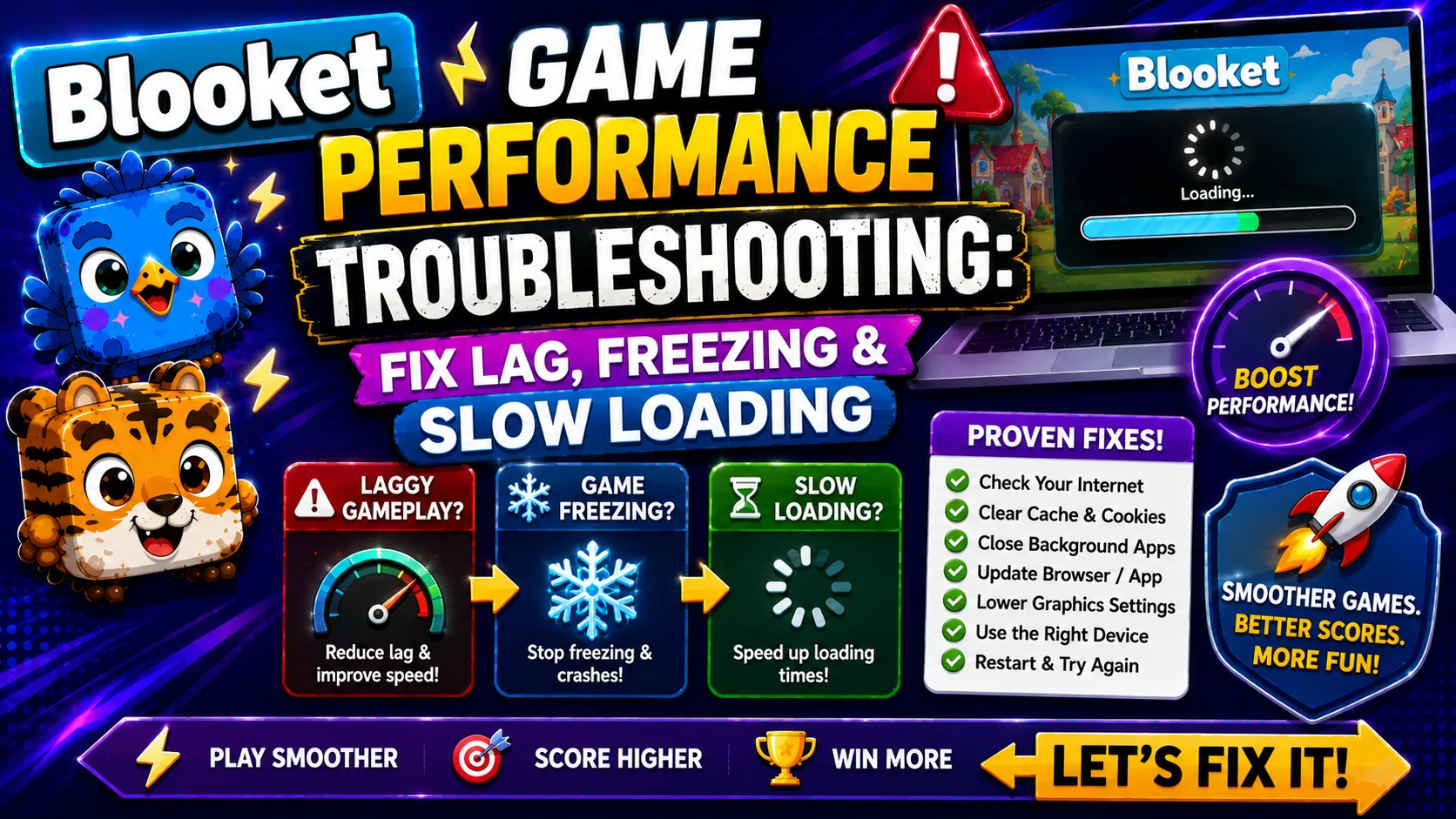
Blooket Not Loading Troubleshooting: Fix Lag, Freezing & Slow Game Performance
Last verified: August 15, 2026
Quick Answer: For Blooket not loading troubleshooting, start with the official debugger at debug.blooket.com, then check status.blooket.com for server-side outages. If both are clear, try Incognito mode to rule out browser extensions, clear your cache, and enable hardware acceleration. Most performance issues resolve within 2 minutes.
Blooket Not Loading Troubleshooting
Performance problems during a Blooket session — lag, slow question loading, frozen screens, games that won’t start — are frustrating in the middle of a class. The good news is that the vast majority of these issues are caused by local factors (browser, cache, extensions, network settings) rather than Blooket’s servers, which means the Blooket not loading issue is fixable without waiting for anyone.
This detailed Blooket not loading troubleshooting guide explains every performance cause in order of most to least likely, starting with fixes that take 30 seconds.
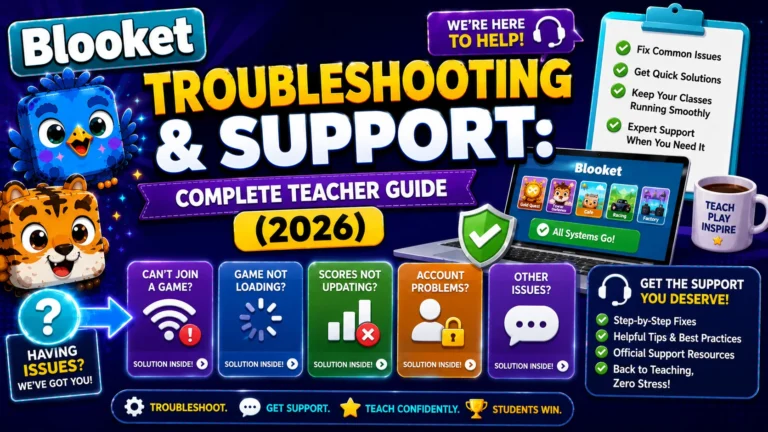
Complete Guide For → Blooket Troubleshooting & Support
Step 1: Run the Official Debugger First
Before trying anything else, run the official debugger at debug.blooket.com. This ensures that all images load and that you do not block any essential services for live games.
Navigate to debug.blooket.com while logged in. The debugger runs a set of automated tests across all critical Blooket services and shows which pass and which fail. If specific tests fail, that tells you (and your IT department) exactly what needs to be fixed, making every next step more targeted.
If debug.blooket.com itself won’t load: Your school network is blocking Blooket entirely. Go directly to the Access Blocked guide.
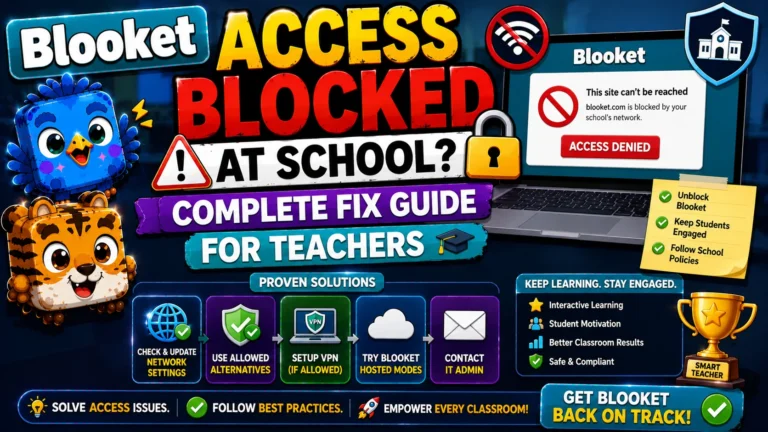
Access Blocked Fix Guide → Blooket Access Blocked at School
Step 2: Check Blooket Server Status
Before troubleshooting your local setup, spend 10 seconds confirming the problem isn’t on Blooket’s end. Go to status.blooket.com, Blooket’s official live status page. This page shows uptime across the platform’s core services, including gameplay, authentication, and the homework tool.
- If the status shows an active incident, the problem is server-side. No local fix will resolve it, so wait for Blooket to restore service. Most outages resolve within 15 to 30 minutes.
- If the status shows everything operational, the problem is local. Continue with the steps below.
Step 3: Open Blooket in Incognito/Private Mode
Browser extensions (ad blockers, grammar checkers, and so on) can run scripts on every page, slowing things down. Opening Blooket in Incognito/Private mode disables all extensions temporarily and tests whether performance improves.
- Chrome: Press Ctrl+Shift+N (Windows/Chromebook) or Cmd+Shift+N (Mac)
- Firefox: Press Ctrl+Shift+P (Windows) or Cmd+Shift+P (Mac)
- Edge: Press Ctrl+Shift+N (Windows) or Cmd+Shift+N (Mac)
Open blooket.com in a private window and test whether the performance issue is present.
- If it works in Incognito, a browser extension is causing the problem. Re-enable extensions one at a time in your regular browser to identify which one is the reason. The most common offenders are ad blockers (uBlock Origin, AdBlock Plus), grammar checkers (Grammarly), and privacy tools.
- If it still doesn’t work in Incognito, extensions are not the cause. Move to Step 4.
Step 4: Clear Browser Cache and Cookies
Sometimes old cached files can interfere with loading and smooth gameplay. Clearing your cache removes outdated or corrupted files.
Chrome:
- Click the three dots (more options) in the upper right, then Settings.
- Privacy and security, then Clear browsing data.
- Select “Cookies and other site data” and “Cached images and files.”
- Click Clear data.
- Reload blooket.com.
Chromebook (for students on managed devices): Clear cache through Chrome settings; the same approach applies. If the school manages the device, some settings may be restricted.
Firefox:
- Click the menu icon, then Settings, then Privacy & Security.
- Scroll to Cookies and Site Data, then Clear Data.
- Reload blooket.com.
Step 5: Enable Hardware Acceleration
Hardware acceleration lets your browser use your device’s graphics processor (GPU) instead of relying only on the CPU, improving performance in resource-intensive games.
Chrome:
- In the address bar, type chrome://settings/system and press Enter.
- Find “Use hardware acceleration when available.”
- Make sure it is toggled ON.
- Restart Chrome and retest.
Edge:
- Click the three dots (more options) in the upper right, then Settings.
- Choose “System and performance” on the left.
- Toggle “Use hardware acceleration when available” to ON.
- Restart Edge to apply the change.
Firefox:
- Click the menu icon, then Settings.
- Search “hardware acceleration.”
- Check “Use recommended performance settings” or manually enable hardware acceleration.
- Restart Firefox.
Step 6: Check for School Network Blocking
If you’re on a school network and performance issues affect all students simultaneously, or if debug.blooket.com shows specific test failures, the school network may be interfering with Blooket’s real-time data services.
If school networks block services like Firebase or SSL traffic inspection, ask IT to whitelist .blooket.com so game data isn’t slowed or blocked.
What to ask your IT administrator to whitelist:
- blooket.com
- play.blooket.com
- firebaseio.com (Blooket’s real-time game backend)
- res.cloudinary.com (image hosting)
- images.unsplash.com (image hosting)
Provide the debug.blooket.com results page to IT; it shows exactly which services are failing and makes the whitelist request specific and actionable rather than vague.
Step 7: Try a Different Browser or Device
If all previous steps haven’t resolved the issue, test Blooket on a different browser or device:
- If Chrome is struggling, try Edge, Firefox, or Safari.
- If a Chromebook is performing poorly, test on a phone or laptop.
- If one student’s device has issues but others work fine, the problem is device-specific rather than a network-wide issue.
Chromebook-specific note: Chromebooks on managed school accounts may encounter additional restrictions due to Google Workspace policies. If Blooket needs to be approved within Google Workspace, that’s a separate process from just whitelisting URLs at the network level.
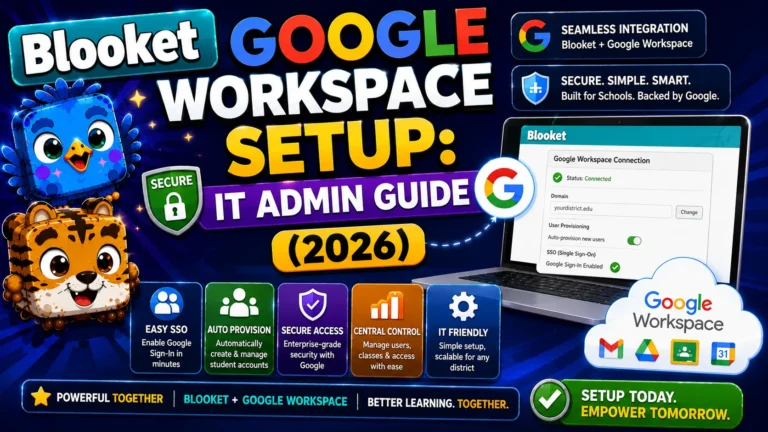
Configuration Guide → How to Set Up Blooket in Google Workspace for Education
Step 8: When is it Actually Blooket’s Servers?
Server-side issues are less common than local issues but do occur. Signs that the problem is server-side rather than local:
- Multiple devices on different network connections all experience the same problem simultaneously.
- The problem started suddenly with no changes to your setup.
- blooket.com shows an active incident.
- Other teachers or students in different locations report the same issue.
Known high-traffic windows: Weekday mornings (particularly 8:00 to 9:30 AM local time) and back-to-school periods (late August, early September) generate the highest Blooket traffic. A few slowdowns during these windows are normal and typically self-resolve within minutes.
If you still need help, contact support at contact-us@blooket.com for direct assistance.
Quick Diagnosis: Performance Problem Solver
| Problem | Most Likely Cause | First Fix |
| Blank screen on load | Extension or cache | Incognito mode, then clear cache |
| Game loads but runs slowly | Extension or hardware acceleration | Incognito mode, then enable hardware acceleration |
| All students lag simultaneously | School network / Firebase blocked | Ask IT to whitelist .blooket.com |
| One student’s device lags | Device-specific issue | Try a different browser on the same device |
| Images are missing during the slow session | Image domain blocked | Unblock res.cloudinary.com |
| The problem only occurs during peak hours | Server load | Check status.blooket.com; plan backup activity |
Source: verified from Blooket’s official Troubleshooting Game Performance documentation
Where to Go Next
- Want to know more about the platform? See our Blooket overview
- Want the full teacher toolkit overview? Visit the For Teachers hub
- Introducing this to students directly? See the For Students hub
Have a different question? Please check Frequently Asked Questions or our Blooket Help Center.
Frequently Asked Questions
What is the fastest first step for Blooket not loading troubleshooting?
Run the official debugger at debug.blooket.com. It tests every critical service in seconds and tells you exactly what’s failing, rather than guessing at individual fixes one by one.
How do I know if Blooket lag is caused by a browser extension?
Open Blooket in Incognito or Private mode, which disables all extensions temporarily. If performance improves immediately, an extension, most commonly an ad blocker or grammar checker, is the cause.
Does clearing my cache fix Blooket loading issues?
Often, yes, especially if the problem developed gradually rather than starting suddenly. Old cached files can interfere with smooth gameplay, and clearing cookies and cached images resolves many loading problems.
What does hardware acceleration do for Blooket performance?
It lets your browser use your device’s graphics processor instead of relying only on the CPU, which noticeably improves performance in resource-intensive game modes.
Why do all students on the same network lag at the same time?
This usually points to a school network issue, most often Firebase or SSL traffic inspection blocking Blooket’s real-time data services. Ask IT to whitelist .blooket.com and the specific domains listed in Step 6.
How can I tell if a performance issue is on Blooket’s servers rather than my setup?
Check status.blooket.com for an active incident. If multiple devices on different networks show the same problem simultaneously and it started with no local changes, it’s very likely server-side.
When is Blooket traffic highest, and does that affect performance?
Weekday mornings, especially 8:00 to 9:30 AM local time, and back-to-school periods in late August and early September see the highest traffic. Minor slowdowns during these windows are normal and usually self-resolve within minutes.