Blooket Access Blocked at School: Complete Fix Guide for Teachers
Last verified: August 15, 2026
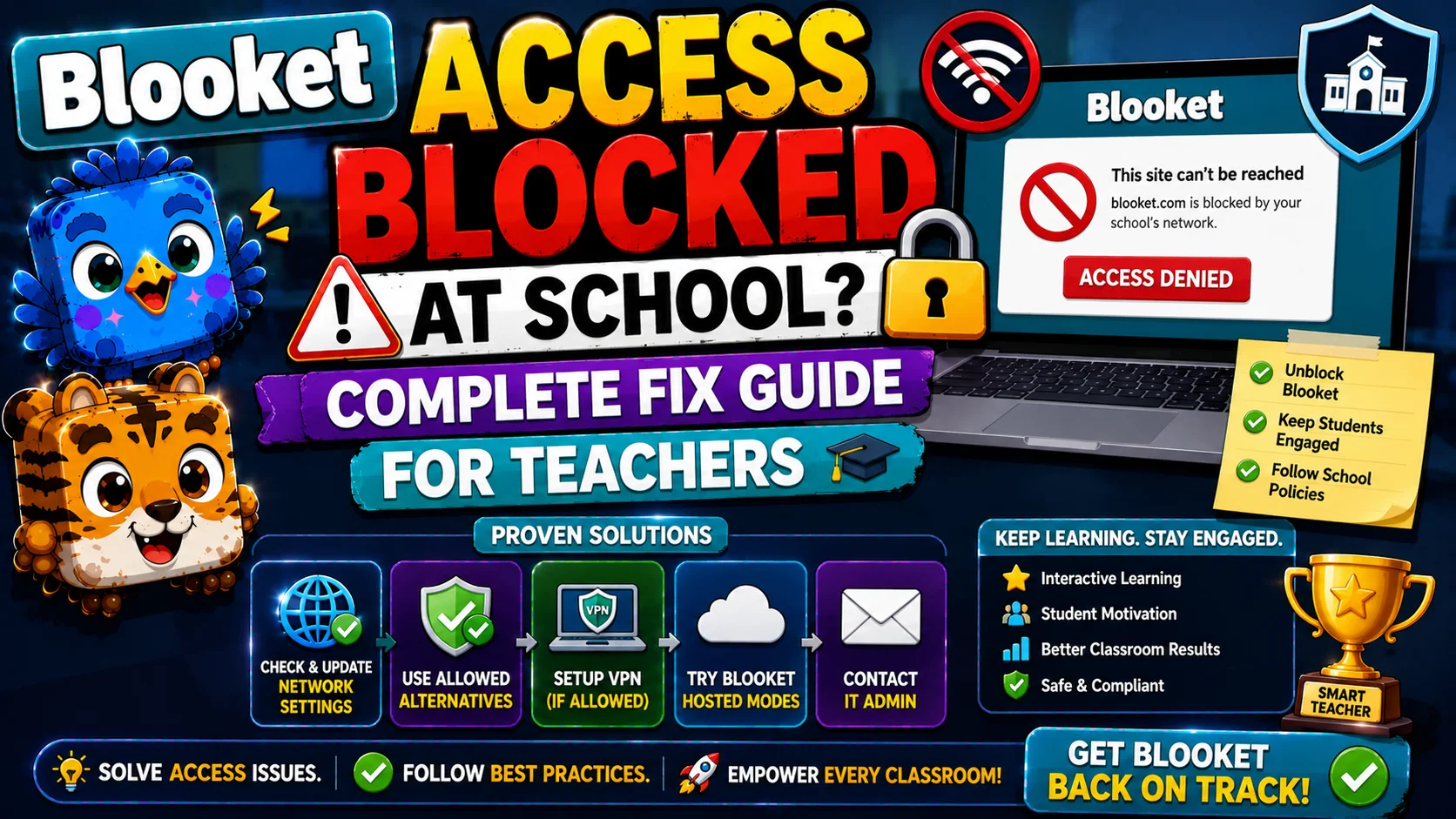
Quick Answer: Blooket access blocked at school has two distinct causes: a general network firewall block affecting everyone, or a Google Workspace for Education restriction affecting only students signed into school Google accounts. Click “Request Access” on the block screen, notify your Google Workspace Administrator, and have students join as guests to continue the session in the meantime.
Blooket Access Blocked: (Fix Guide)
The “Access Blocked” message on Blooket is one of the most disruptive problems teachers encounter. It appears at the worst possible moment, right when a session is about to start.
This detailed guide explains exactly what “Blooket Access Blocked” means, which type of block you’re dealing with, what you and your students can do immediately, and what needs to happen on the IT side to resolve it permanently.
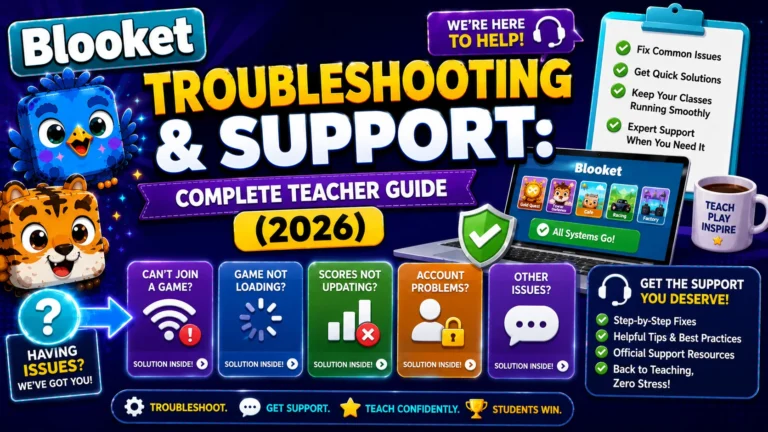
Complete Guide for → Blooket Troubleshooting & Support
Understanding the Two Types of School Blocks
Not all “Access Blocked” messages have the same cause. Before taking any action, identify which type of block you’re experiencing, since the fixes are completely different.
- Type 1: General Network Block. Your school’s firewall or content filtering system has blocked access to blooket.com. This type of block affects everyone on the school network: teachers, students, and any device connected to the school Wi-Fi. Even if students can reach blooket.com from home, they can’t access it at school.
- Type 2: Google Workspace Block. Your school’s Google Workspace for Education settings require an administrator to approve third-party apps before students with school-managed Google accounts can sign in. This specifically affects sign-in using school Google accounts; students may be able to reach blooket.com but cannot authenticate.
Both types display blocking messages, but they require completely different solution paths.
Immediate Action:
What Students and Teachers Can Do Right Now
If you’re looking at the “Access Blocked” screen during a live session, take these steps immediately:
→ Step 1: Select “Request Access.” If this message is displayed when trying to access Blooket on a school network, select “Request Access.” This button is visible on the Access Blocked screen. Clicking it sends an automated notification to your school’s Google Workspace Administrator flagging that Blooket access has been requested.
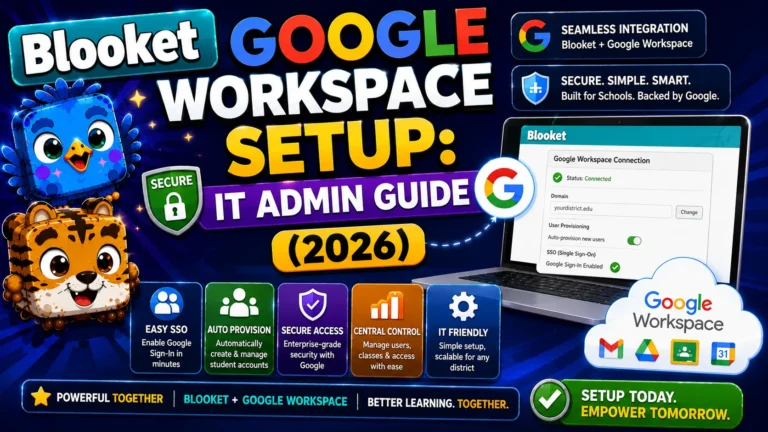
→ Step 2: Notify your Google Workspace Administrator. The “Request Access” button initiates the notification, but follow up directly. Contact your school’s IT department or tech coordinator, whoever manages Google Workspace, and let them know Blooket needs to be approved. For the Google Workspace configuration steps, see the dedicated IT guide.
IT Configuration Guide → How to Set Up Blooket in Google Workspace for Education
→ Step 3: Temporary workaround for live games. Student accounts are not required to join live Blooket games. Students will still be able to join games hosted by teachers as long as they are not signed into their school-administered accounts. Share your Game ID, QR code, or Join Link and have students join as guests; they enter a nickname without signing in. This allows the session to proceed while the IT issue is resolved separately.
Limitation of the workaround: Guest students don’t earn tokens, XP, or Blooks. Their game history isn’t saved. The workaround is appropriate for continuing the class, not as a permanent solution.
Source: verified from Blooket’s official “Blooket Access Blocked” documentation
What Should Teachers Tell IT?
(Whitelist Request Template)
When contacting your IT department about a general network block, being specific speeds up processing. Here is a clear, copyable whitelist request:
Subject: Whitelist Request, Blooket Educational Platform
We use Blooket (blooket.com) as an educational game-based review platform in our classroom. The platform is currently blocked on the school network. Please whitelist the following domains to enable access:
- blooket.com
- play.blooket.com
- firebaseio.com (real-time game backend)
- res.cloudinary.com (image hosting)
- images.unsplash.com (image hosting)
I can provide debug.blooket.com results that show which services are failing on our network. Please let me know if you need any additional information.
Attaching a screenshot of the debug.blooket.com results page to this email makes the request immediately actionable for IT without requiring them to investigate further.
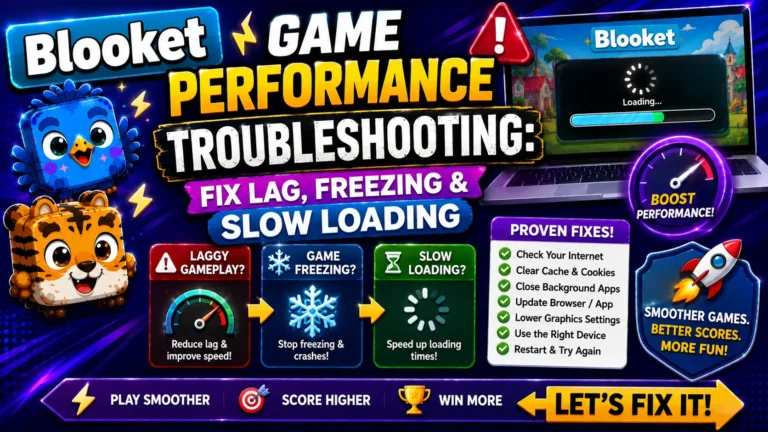
Complete Guide About → Blooket Game Performance Troubleshooting
If You Are Unable to Access Blooket for Another Reason
If the access block is not related to Google Workspace and your IT department has confirmed the domains are not blocked on the network side, email Blooket support directly at contact-us@blooket.com for additional support. Include:
- Your Blooket username and account email
- Your school name and district
- The specific error message or screen you’re seeing (screenshot if possible)
- What you’ve already tried
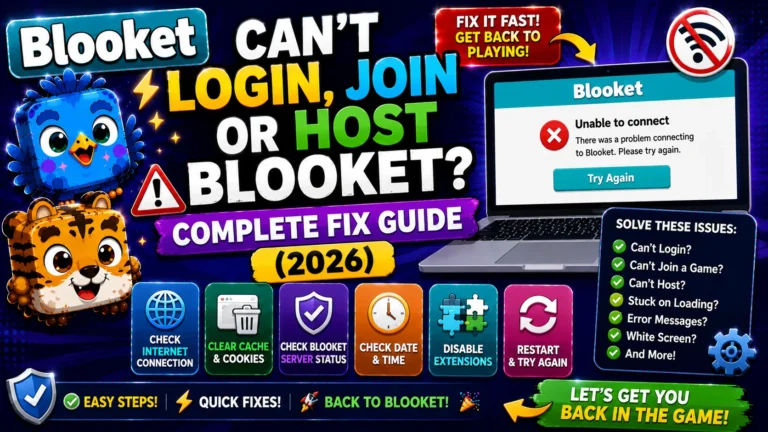
Learn More About → Can’t Log In, Join, or Host Blooket
Where to Go Next
- Want to know more about the platform? See our Blooket guide
- Want the full teacher toolkit overview? Visit the For Teachers hub
- Introducing this to students directly? See the For Students hub
Have a different question? Please check Frequently Asked Questions or our Blooket Help Center.
Frequently Asked Questions
What are the two different causes of Blooket access being blocked at school?
A general network firewall block, which affects everyone on the school network, or a Google Workspace for Education restriction, which only affects students signing in with school Google accounts. The fixes for each are completely different.
What should I do first when I see the Access Blocked screen?
Click “Request Access” on the block screen, which sends an automated notification to your Google Workspace Administrator, then follow up directly with your IT department or tech coordinator to confirm they’ve seen the request.
Can students still join a session while access is blocked?
Yes, as a temporary workaround. Students can join as guests using the Game ID, QR code, or Join Link without signing into their school Google account, though they won’t earn tokens, XP, or Blooks during a guest session.
What domains does IT need to whitelist for a general network block?
blooket.com, play.blooket.com, firebaseio.com, res.cloudinary.com, and images.unsplash.com. Providing the debug.blooket.com results page alongside this list makes the request specific and actionable.
Does the guest-join workaround save student progress?
No. Guest students don’t earn tokens, XP, or Blooks, and their game history isn’t saved. It’s meant to keep a class session moving, not as a long-term solution.
Who is responsible for fixing a Google Workspace block?
Your school’s Google Workspace Administrator, since only they can approve third-party app access for students using school-managed Google accounts.
What should I include when emailing Blooket support about an access block?
Your Blooket username and account email, your school name and district, the specific error message or screen (with a screenshot if possible), and what you’ve already tried to resolve it.