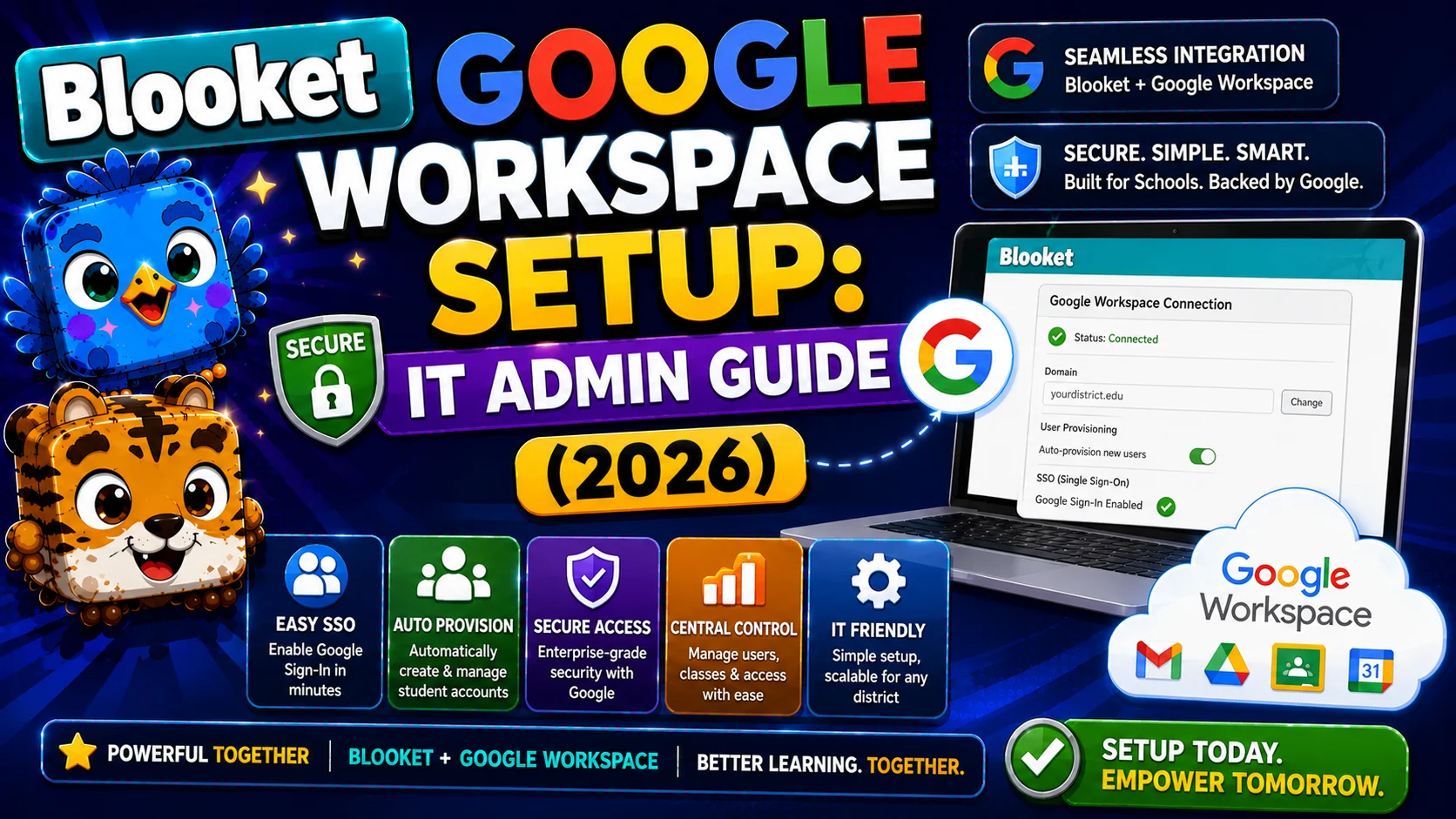
How to Set Up Blooket in Google Workspace for Education: IT Admin Guide
Last verified: August 15, 2026
Quick Answer: To set up Blooket in Google Workspace, an administrator logs into admin.google.com, navigates to Security, then Access and data control, then API controls, finds Blooket under Manage third-party app access, and sets its status to Trusted or Approved. The change takes effect within a few minutes.
How to Set Up Blooket in Google Workspace?
Google Workspace for Education administrators must review and approve third-party app access before students with school-managed Google accounts can use those apps. Blooket requires this approval to function with school Google accounts.
This guide explains exactly why approval is required, who can complete it, and the step-by-step Blooket Google Workspace setup in the Admin Console.
Complete Guide for → Blooket Troubleshooting And Support
Why This Approval Is Required?
Google is updating its third-party app management systems, enabling administrators to more easily manage which apps have access to the data in their school-administered accounts. All Google Workspace for Education administrators must review those permissions to ensure uninterrupted use of those services.
Important clarification: Blooket has not changed any of its policies. It collects only the minimum amount of data required to sign up for or log in to a Blooket account (an email address). Google is requiring this manual review for all third-party apps that use this service, so you will still need to review and approve Blooket, along with other apps, to continue using them.
This is a Google policy change, not a Blooket change. The review requirement applies to all third-party apps that use Google authentication in Workspace environments.
Who Must Complete This Process?
→ Required: Google Workspace for Education Administrators will need to log into their Google Admin Console, review, and confirm access settings for Blooket. This can only be done by Administrators, typically IT, HR, or tech leaders. Classroom teachers cannot complete this process, since it requires admin-level access to the Google Admin Console.
→ Impact if not completed: Students designated as “under 18” with school-administered Google accounts will be unable to sign in to Blooket using their Google accounts until this approval is completed.
Note: Student accounts are not required to join live Blooket games, so students can still join games hosted by teachers as long as they are not signed in to their school-administered accounts. However, this workaround prevents students from earning tokens, XP, and Blooks; completing the approval is strongly recommended for full functionality.
Approving Blooket in Google Admin Console
(Complete Steps)
- Step 1: Navigate to your Google Admin Console at admin.google.com. Log in with your administrator credentials.
- Step 2: From the Admin dashboard, select Security in the left navigation.
- Step 3: Under Security, navigate to Access and data control, then API controls.
- Step 4: On the App access control tile, select “Manage third-party app access.”
- Step 5: Search for Blooket in the app list. Blooket’s entry shows the app name, the data it accesses (only email address), and its current access status.
- Step 6: Click on Blooket to open its permission settings.
- Step 7: Review Blooket’s data access request (email address only) and change the access status to Trusted or Approved; the specific label depends on your Google Workspace version.
- Step 8: Save your changes.
Once approved, teachers and students can sign in to Blooket using their school-managed Google accounts. The change typically takes effect within a few minutes.
Organizational Unit Considerations
Google Workspace administrators can configure app access at the organizational unit (OU) level, meaning you can approve Blooket for teachers only, students only, or specific grade bands rather than the entire domain.
Recommended approach for most schools: Approve Blooket for both teacher OUs and student OUs. Students need Google sign-in to earn tokens/XP, save game history, and use Custom Blooks. Restricting student access to Google sign-in limits the motivational rewards that drive engagement.
If your district has specific policies regarding student data and third-party app authentication, consult them before approving student OU access.
Complete Step-by-Step → Blooket Access Blocked Guide
Verifying the Approval Worked
After completing the Admin Console steps, have a teacher or student attempt to sign in to Blooket using “Continue with Google” with their school-administered Google account. A successful sign-in confirms that the approval is active.
If sign-in still fails after the approval steps:
- Verify the correct OU was updated (student vs. teacher vs. all users).
- Allow 5 to 10 minutes for Google’s systems to propagate the change.
- Have the user clear their browser cache and retry.
- Run debug.blooket.com to check for any remaining blocked services.
If the issue persists after all of the above, contact Blooket support at: contact-us@blooket.com.
Full Guide About → Blooket Not Loading Troubleshooting
Additional Domains to Whitelist at the Network Level
Google Workspace configuration resolves Google authentication blocks, but if there is also a network-level firewall block, both need to be addressed. Ensure these domains are whitelisted at your network/firewall level:
| Domain | Purpose |
| blooket.com | Main platform |
| play.blooket.com | Student game joining |
| firebaseio.com | Real-time game data |
| res.cloudinary.com | Image hosting (Blooks and question images) |
| images.unsplash.com | Additional image hosting |
Sharing the debug.blooket.com results page with your IT network team shows exactly which domains are currently blocked.
Source: verified from Blooket’s official “Google Workspace for Education” documentation
Where to Go Next
- Want to know more about the platform? See our Blooket overview
- Want the full teacher toolkit overview? Visit the For Teachers hub
- Introducing this to students directly? See the For Students hub
Have a different question? Please check Frequently Asked Questions or our Blooket Help Center.
Frequently Asked Questions
Why does Blooket suddenly need approval in Google Workspace?
This is a Google policy change, not a Blooket change. Google now requires administrators to manually review and approve all third-party apps using Google authentication in Workspace environments, and Blooket falls under this same requirement.
Can a classroom teacher complete this approval themselves?
No. Only a Google Workspace Administrator with admin-level access to the Google Admin Console can complete this process. Classroom teachers do not have the required permissions.
What happens to students if this approval isn’t completed?
Students designated as “under 18” with school-managed Google accounts cannot sign in to Blooket with those accounts. They can still join live games as guests, but they won’t earn tokens, XP, or Blooks.
Should Blooket be approved for students, teachers, or both?
Both, for most schools. Students need Google sign-in to earn tokens and XP, save game history, and use Custom Blooks, so restricting access to teachers only limits the platform’s motivational features for students.
How long does it take for the approval to take effect?
Typically a few minutes, though Google’s systems may take 5 to 10 minutes to fully propagate the change across all affected accounts.
What should I do if sign-in still fails after approving Blooket?
Verify the correct organizational unit was updated, allow 5 to 10 minutes for propagation, have the user clear their browser cache and retry, and run debug.blooket.com to check for any remaining blocked services.
Does approving Blooket in Google Workspace also unblock it on the school network?
Not necessarily. Google Workspace approval and network-level firewall whitelisting are separate issues. If both problems exist, both need to be addressed independently.