How to Organize Blooket Question Sets with Folders? (Blooket Plus Feature)
Last verified: August 18, 2026
Quick Answer: Blooket Folders let Plus subscribers group question sets by subject, unit, or class from the My Sets page. Create a folder, then move sets into it from each set’s settings menu. Deleting a folder never deletes the sets inside it; they simply return to your main My Sets view.
Complete Overview About → Blooket Question Sets Guide for Students
How to Organize Blooket Question Set Folders?
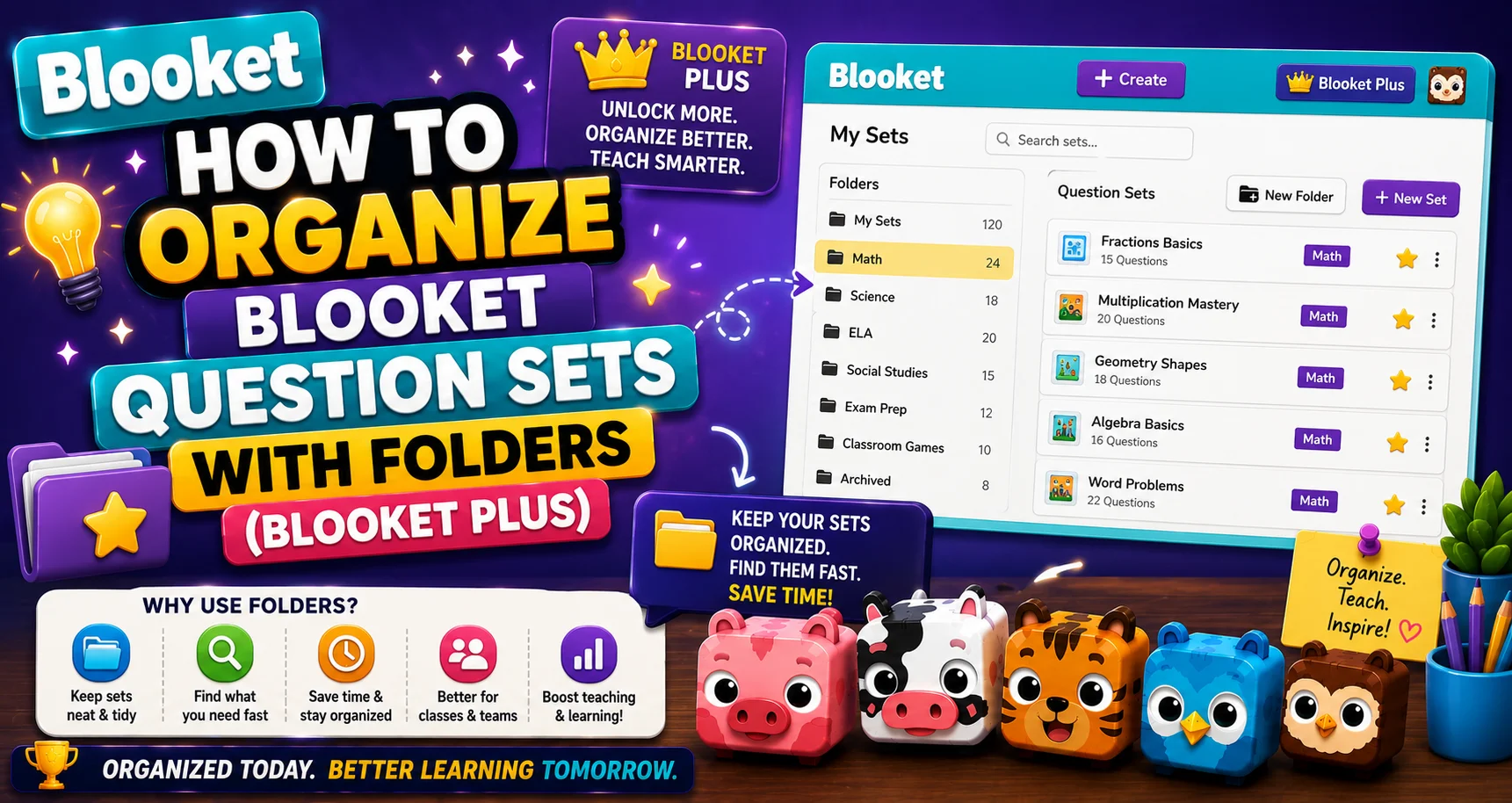
As you create and save more question sets over time, My Sets can become a long, unorganized list. Folders let you group sets by subject, class period, unit, or any structure that helps you find what you need quickly. Learn how to manage Blooket question set folders and more in this guide.
⭐ Blooket Plus Feature: Folders are available exclusively to Blooket Plus subscribers. If you have Blooket Plus access (through your own subscription or through your teacher’s Plus session), you can use folders to organize your My Sets library.
Learn More in Detail → Blooket Plus Features For Students
Part 1: Creating a Folder
→ Step 1: Navigate to “My Sets”
Log in to blooket.com. In your left navigation sidebar, click “My Sets” to open your personal question set library.
→ Step 2: Select the “Add Folder” Icon
In the top right corner of the My Sets page, look for the “Add Folder” icon. Click it to open the folder creation dialog.
→ Step 3: Name and Customize Your Folder
A dialog box opens. Add a folder name and pick a color for your new folder. Select “Create” to generate the folder.
Naming tips for students:
- By class: “AP Bio,” “Pre-Calc,” “US History.”
- By unit: “Unit 3, Cells,” “Chapter 7, Genetics.”
- By exam: “Final Exam Prep,” “Midterm Review.”
- By source: “My Own Sets,” “Teacher Sets,” “Found on Discover.”
→ Step 4: View Your New Folder
Your new folder will be displayed at the top of your “My Sets” page. It starts empty; add sets to it in the next section.
Create Sets to Organize → How to Create a Blooket Question Set
Part 2: Adding Question Sets to a Folder
Once your folder exists, move sets into it:
→ Step 1: Find the Set to Move
In My Sets, locate the question set you want to move into a folder.
→ Step 2: Open the Set’s Settings
Select the settings icon on the set you wish to move. A small menu opens. Then, select the “Move” option.
→ Step 3: Choose the Destination Folder
A folder picker appears, showing all your folders. Select the desired folder, then select “Move.”
→ Step 4: Confirm the Move
You can view the sets inside the folder by clicking on the folder name in your My Sets page. The set should now appear inside.
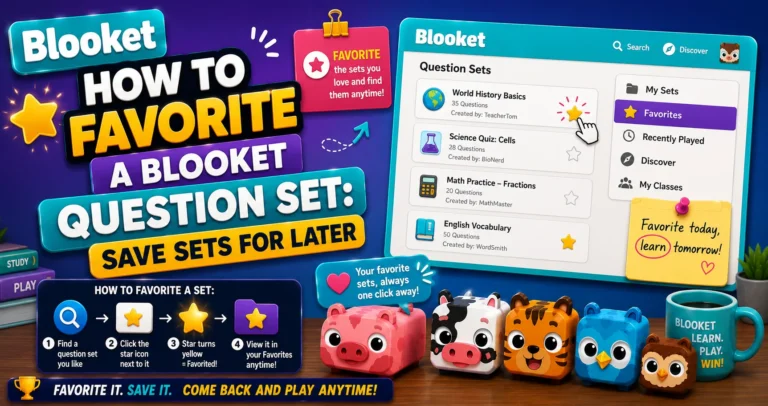
Step-by-Step Guide → How to Favorite a Blooket Question Set
Part 3: Removing a Set from a Folder
If you want to move a set out of a folder (but not delete the set), you can remove it by opening the folder and then selecting the “Remove from folder” option.
→ Steps:
- Click on the folder to open it and view its contents.
- Find the set you want to remove.
- Click the settings or options icon on that set.
- Select “Remove from folder.”
The set returns to the main My Sets area and is no longer inside the folder.
Complete Guide For → How to Find Question Sets in Blooket
Part 4: Editing or Deleting a Folder
→ Editing a Folder Name or Color
You can edit a folder by hovering over it, selecting the three dots, then selecting “Edit.” An edit dialog opens; update the folder name or color and save.
→ Deleting a Folder
You can delete a folder by hovering over it, selecting the three dots, then selecting “Delete.”
Important: When deleting a folder, all sets contained within the folder will not be deleted. Question Sets from deleted folders will appear in the main area of your “My Sets” page.
Deleting a folder is safe for your sets; it just removes the organizational container. All your sets remain intact in the main My Sets view after folder deletion.
Source: verified from Blooket’s official documentation on organizing question sets with folders.
Folder Strategy for Students
→ Keep folder count manageable. Five to eight folders are usually optimal. More than ten, and you spend as much time navigating folders as you would scrolling through a flat list.
→ Use a seasonal cleanup. At the end of each semester, delete folders that no longer apply (last semester’s unit folders) and create new ones for the upcoming term.
→ One set, one folder. In Blooket, a question set lives in one folder at a time. If you want a set to be accessible from multiple contexts, consider using Favorites for the secondary reference.
Where to Go Next
- Want to know more about the platform? See our full Blooket overview
- Curious about what your teacher sees? Visit the Blooket For Teachers
- Want the full student guides overview? See the Blooket For Students
Have another question? Please check the Frequently Asked Questions or Blooket Help Center.
Frequently Asked Questions
Do I need Blooket Plus to use folders?
Yes. Folders are exclusively available to Blooket Plus subscribers, either through your own subscription or access through your teacher’s Plus session.
Does deleting a folder delete the question sets inside it?
No. Deleting a folder only removes the organizational container. All sets that were inside return to the main My Sets area and remain fully intact.
Can a question set be in more than one folder at a time?
No. In Blooket, each set lives in exactly one folder at a time. If you need a set accessible from multiple contexts, use Favorites as a secondary reference instead.
How many folders should I create?
Five to eight is usually optimal for most students. Beyond ten folders, you often spend as much time navigating between folders as you would scrolling a flat, unorganized list.
Can I change a folder’s name or color after creating it?
Yes. Hover over the folder, select the three dots, then select Edit to update its name or color at any time.
What’s the difference between removing a set from a folder and deleting it?
Removing a set from a folder only takes it out of that folder; the set itself still exists in your main My Sets area. Deleting a set is a separate, permanent action that removes the set entirely.
Should I reorganize my folders each semester?
It’s a good habit. Deleting outdated unit folders and creating fresh ones for the new term keeps your My Sets library relevant and easy to navigate.