How to Debug Blooket Connection Issues: Complete Diagnostic & Fix Guide
Last verified: September 1, 2026
Quick Answer: Start at debug.blooket.com to identify the exact failing service, then work through fixes in order: Incognito mode test, clear cache, enable hardware acceleration, try a different browser, and finally an IT network fix if the problem is school-wide.
How to Debug Blooket Connection Issues?
Blooket connection issues, slow loading, games failing to start, questions not appearing, or complete inability to reach the platform almost always have an identifiable cause. This detailed guide explains every fix in the right order: the ones you can do yourself in 60 seconds first, and the ones that need IT involvement last.
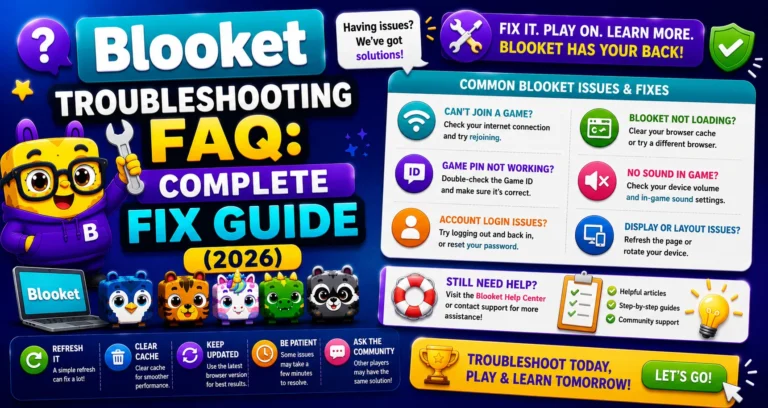
Full Overview → Blooket Troubleshooting FAQs
Start: Run the Official Debug Tool First
Before anything else, navigate to debug.blooket.com.
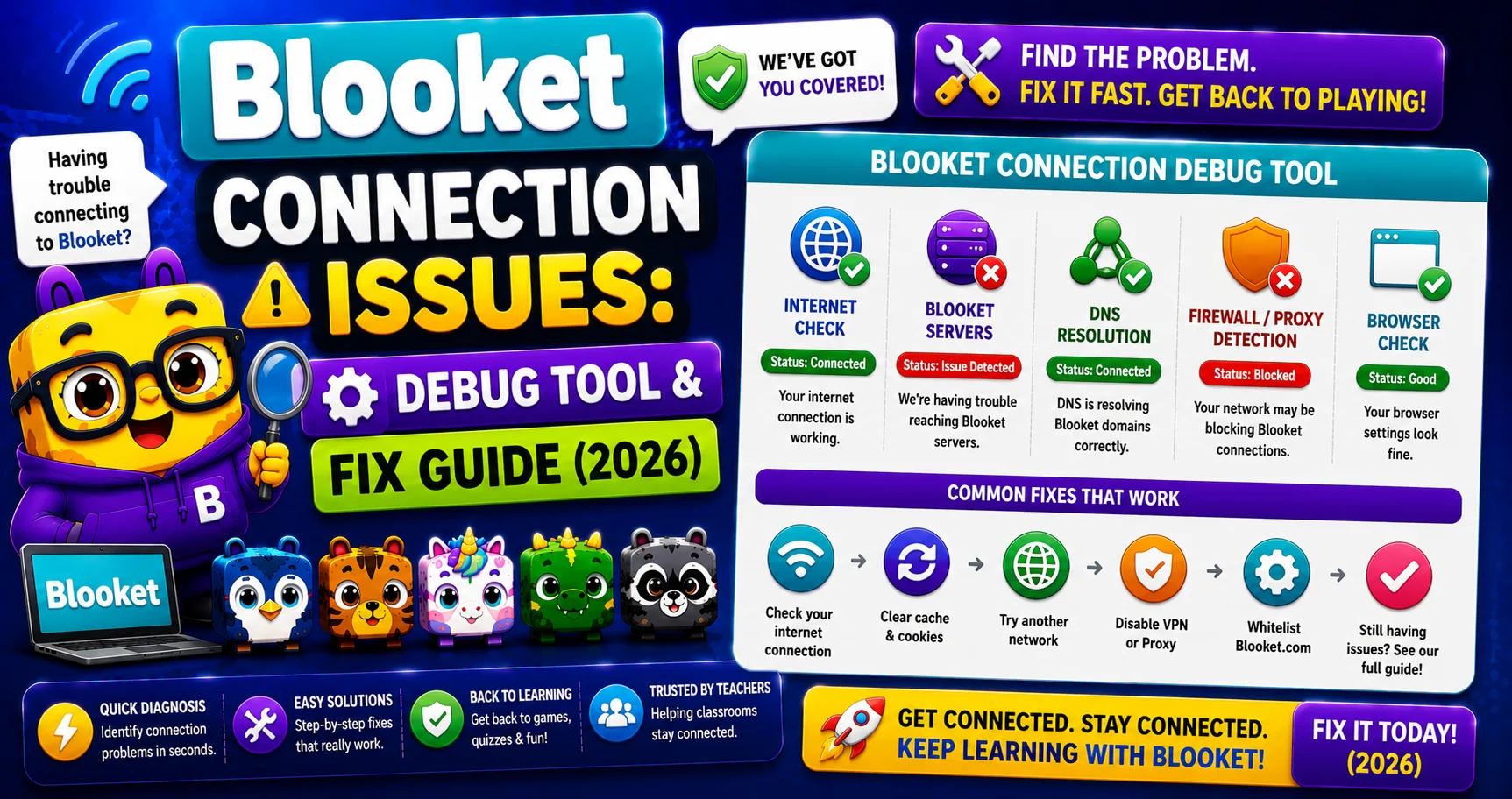
This is Blooket’s official connection diagnostic tool. It tests all critical Blooket services: game data, image hosting, authentication, and shows exactly which ones are passing and which are failing. Running the debugger before trying manual fixes tells you precisely what the problem is and what needs to be addressed.
What to do with the results:
- All tests pass: The issue is likely local (browser, extension, or device-specific).
- Specific tests fail: Share the results page with your IT department; it shows exactly which domains need to be whitelisted.
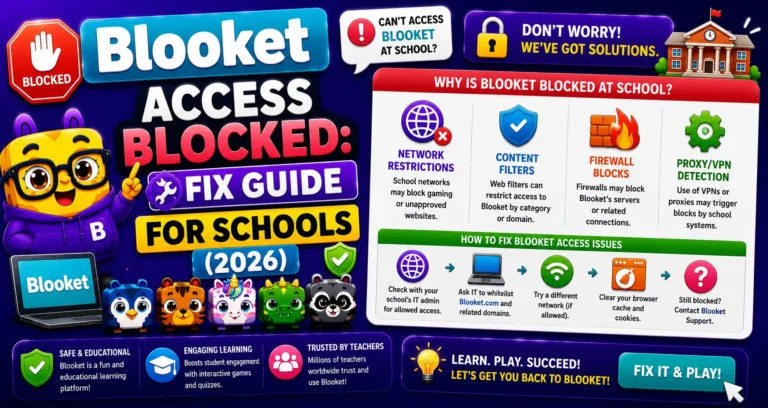
Specific Network Block → Blooket Access Blocked Fix
Step 1: Test in Incognito/Private Mode (30 seconds)
Chrome extensions, including ad blockers, privacy tools, and grammar checkers, can silently interfere with Blooket.
- Open Incognito mode (Ctrl+Shift+N on Windows/Chromebook, Cmd+Shift+N on Mac).
- Navigate to blooket.com in the Incognito window.
- Test the action that was failing.
If Blooket works in Incognito but not your regular browser, a browser extension is causing the problem. Re-enable extensions one at a time (chrome://extensions) until the issue reappears; that extension is the culprit.
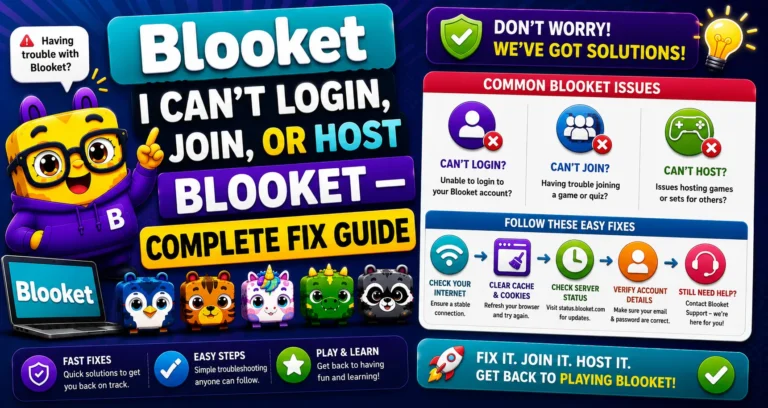
Login/join/host Issues → Can’t Login, Join, or Host Blooket
Step 2: Clear Browser Cache and Cookies (2 minutes)
Outdated cached files can cause loading failures and display problems.
Chrome:
- Settings → Privacy and security → Clear browsing data.
- Select “Cookies and other site data” and “Cached images and files.”
- Click Clear data.
- Reload blooket.com.
Chromebook (managed school device): Same path, though some settings may be restricted on managed devices.
Step 3: Enable Hardware Acceleration (2 minutes)
Hardware acceleration lets your browser use your device’s graphics processor for rendering, which can resolve performance and loading issues in resource-intensive game modes.
Chrome:
- In the address bar, type chrome://settings/system and press Enter.
- Find “Use hardware acceleration when available.”
- Toggle it ON if it’s currently off.
- Click “Relaunch” to restart Chrome with the setting applied.
Step 4: Try a Different Browser
If the problem persists after clearing cache and checking extensions, test Blooket in a different browser:
- If you’re on Chrome, try Edge, Firefox, or Safari.
- If you’re on a Chromebook, try using a mobile phone on the same network (or on mobile data) to determine if it’s device-specific or network-wide.
Step 5: IT Network Fix
(If the Problem is School-Wide)
If multiple devices on the same school network experience the same issue simultaneously, the problem is network-level, not browser- or device-specific.
Domains to Ask IT to Whitelist:
| Domain | Function |
| blooket.com | Main platform |
| play.blooket.com | Student game joining |
| firebaseio.com | Real-time game data (hosting + joining) |
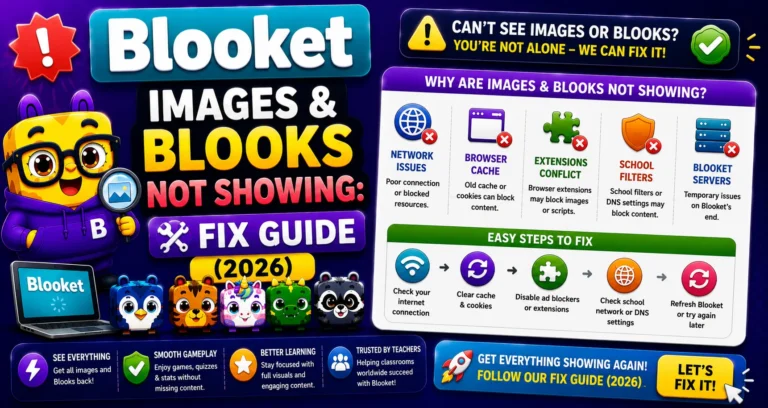
| res.cloudinary.com | Blook and question image delivery |
| images.unsplash.com | Secondary image delivery |
Provide the debug.blooket.com results to IT; this shows exactly which of these domains are failing on your network and makes the whitelist request specific and immediately actionable.
If school networks block services like Firebase or SSL traffic inspection, ask IT to whitelist .blooket.com so game data isn’t slowed or blocked.
Source: verified from Blooket’s official documentation on debugging connection issues.
Still Not Resolved?
Contact Blooket support: contact-us@blooket.com
Useful information to include:
- Browser type and version.
- Device type (Chromebook, laptop, phone).
- Whether the issue affects one device or all devices on the network.
- Screenshot of debug.blooket.com results.
Contact Support → How to Contact Blooket Support
Where to Go Next
- Want to know more about the platform? See our full Blooket overview
- Curious about what your teacher sees? Visit the Blooket For Teachers
- Want the full student guides overview? See the Blooket For Students
Have another question? Please check the Frequently Asked Questions or Blooket Help Center.
Frequently Asked Questions
Why should I run the debug tool before trying anything else?
Because it tells you precisely which service is failing, so you can skip fixes that wouldn’t help and go straight to the one that matches your actual problem, saving time for you and your IT department.
What does it mean if all the debug tool’s tests pass but I still have a problem?
It usually means the issue is local, tied to your specific browser, device, or an extension, rather than a network-wide block, since all of Blooket’s core services are confirmed reachable.
How do I know if a problem is device-specific or affects the whole school network?
Check whether other devices on the same network have the identical issue at the same time. If only your device is affected, it’s likely local; if it’s happening everywhere at once, it’s more likely a network-level block.
Does clearing cache delete my Blooket login or saved progress?
No. Clearing browser cache and cookies only affects locally stored temporary files; it doesn’t touch your account, Blooks, tokens, or any data saved on Blooket’s servers.
Will enabling hardware acceleration help with every connection issue?
Not every issue, but it specifically helps with performance and loading problems in resource-intensive game modes by letting your browser use your device’s graphics processor more effectively.
What’s the benefit of testing in a different browser?
It helps isolate whether the problem is specific to your current browser (like a stuck setting or persistent extension conflict) versus a deeper device or network-level issue that would show up everywhere.
What should I screenshot before contacting support?
The debug.blooket.com results page. This gives Blooket support a precise, ready-made diagnostic instead of a vague description, which speeds up resolution significantly.