How to Join a Blooket Game: Step-by-Step Guide for Students
Last verified: August 16, 2026
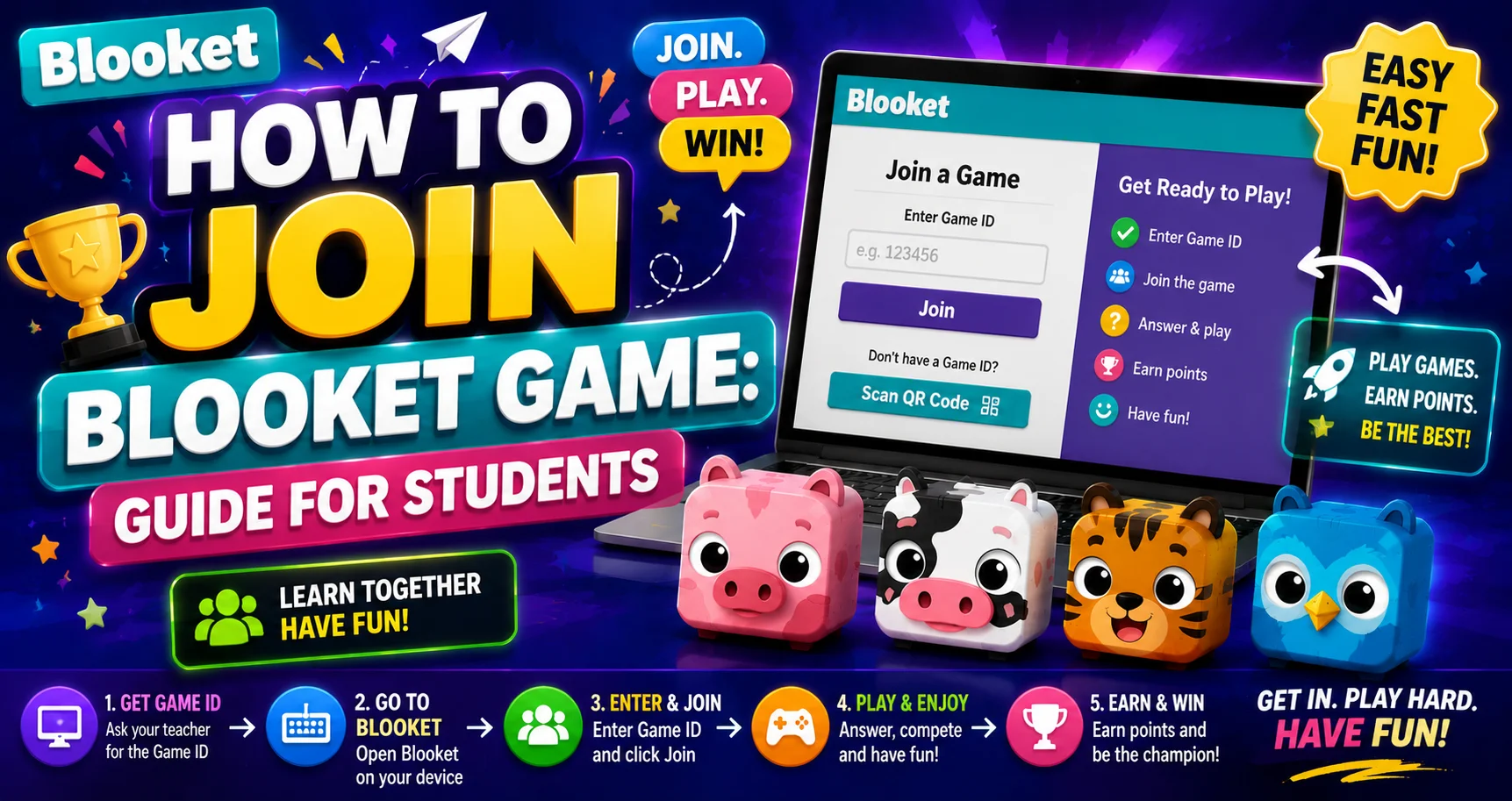
Quick Answer: To join a Blooket game, go to play.blooket.com, enter the 7-digit Game ID your teacher shows on screen, type a nickname, pick a Blook, and wait in the lobby. You can also scan a QR code or click a Join Link instead of typing a code.
How to Join a Blooket Game?
Your teacher just started a Blooket game, and this guide explains how to join a Blooket game and everything else you need to know. Here’s how to start playing Blooket with your class.
Learn More About → Blooket Quick Start Guide for Students
Method 1: Enter the Game Code (Most Common)

- Open a browser on your device and go to play.blooket.com.
- Look for the 7-digit Game ID your teacher is showing on the projector or screen.
- Type the code into the entry field; double-check every digit.
- Click Enter (or press Enter on your keyboard).
- Type your nickname; make it your real name so your teacher can find you in the report.
- Pick your Blook from the collection you own (or from the free Common Blooks).
- Wait in the lobby; your teacher will click Start when everyone is ready.
Common mistake: Students go to blooket.com instead of play.blooket.com and land on the main page. If that happens, look for the “Join a Game” button on the homepage and click to enter the Blooket code your teacher shared.
Step-by-Step → How to Sign Up for Blooket
Method 2: Scan the QR Code

If your teacher displays a QR code:
- Open your device’s camera app.
- Point it at the QR code on the screen.
- Tap the notification that appears to open the join page.
- Follow the same nickname → Blook → and lobby steps as above.
Method 3: Click a Join Link

For virtual classes, your teacher can paste a Join Link in Google Classroom, via email, or in a class chat. Just click the link; it takes you directly to the join screen. Enter your nickname and pick your Blook to join your first Blooket game.
Source: verified from Blooket’s official “How to Join a Blooket Game” documentation
Can You Join Without an Account?
Yes. You do not need a Blooket account to join a live game. Join as a guest, enter any nickname, and play. The only difference: without an account, you won’t earn tokens or Blooks for the session, and your stats won’t be saved. If you want to earn Blooks and keep track of your progress over time, create a free account before joining.
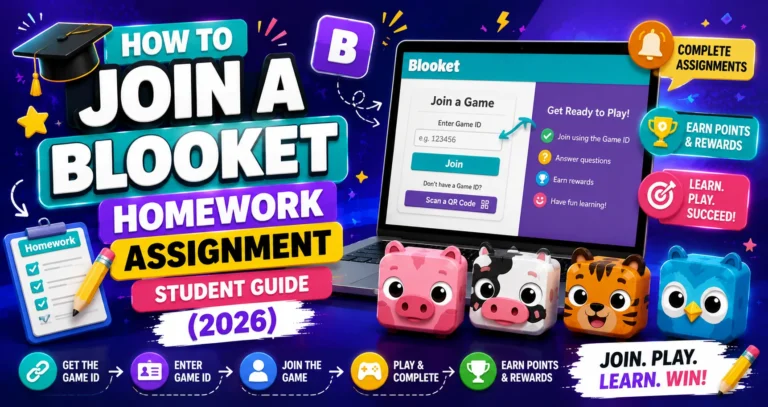
For Joining Homework → How to Join a Homework Assignment
Where to Go Next
- Want to know more about the platform? See our full Blooket overview
- Curious about what your teacher sees? Visit the Blooket For Teachers
- Want the full student guides overview? See the Blooket For Students
Have another question? Please check the Frequently Asked Questions or Blooket Help Center.
Frequently Asked Questions
What’s the fastest way to join a Blooket game?
Go directly to play.blooket.com and type the 7-digit Game ID your teacher shows on screen. This skips the main blooket.com homepage entirely.
What happens if I accidentally go to blooket.com instead of play.blooket.com?
You’ll land on the main homepage instead of the join screen. Look for the “Join a Game” button there and click it to enter your teacher’s code the normal way.
Can I join with a QR code instead of typing a code?
Yes. Open your device’s camera app, point it at the QR code your teacher displays, and tap the notification that appears to go straight to the join page.
Do I need to type my real name as my nickname?
It’s strongly recommended, though not technically required. Using your real name lets your teacher identify your results in their report; a random nickname makes that much harder for them.
What Blook can I use if I don’t have an account?
You can still pick from the free Common Blooks available to every player, even as a guest. You just won’t keep that choice saved between sessions.
Do I need an account to join a live game?
No. You can join as a guest with any nickname. The tradeoff is that you won’t earn tokens or Blooks for that session, and your stats won’t be saved anywhere.
Can I join a game through a link my teacher shares in Google Classroom?
Yes. If your teacher pastes a Join Link instead of showing a code, clicking it takes you directly to the join screen, where you enter a nickname and pick a Blook as usual.