How to Switch Your Blooket Account Type: Teacher to Student and Back
Blooket accounts are either Teacher accounts or Student accounts — the account type determines everything about the dashboard you see and the features available to you. If you created the wrong type, or if your needs have changed, switching is a two-step process.
How to Switch Blooket Account Type?
This guide explains the exact steps for how to switch Blooket account, the changes that occur after switching, and the scenarios where switching makes sense.
All About → Blooket Account Settings Guide
What Account Type Controls?
Your Blooket account type determines which dashboard experience you see when you log in:
| Feature | Teacher Account | Student Account |
| Create question sets | Yes | Yes |
| Host live games | Yes | Limited |
| Assign homework | Yes | No |
| View student reports | Yes | No |
| Blooket Plus upgrade | Yes | No |
| Access Blooks / Market | Yes | Yes |
| Earn tokens / XP | Yes | Yes |
| Join games as a student | Yes (can join as a guest) | Yes |
The account type is a dashboard-level setting — it changes which features are front-and-center, not the underlying account data.
When to Switch Account Types?
Student → Teacher (most common):
- You created a student account during initial sign-up without carefully reading the options.
- You’re a student who is now a teacher and want to unlock hosting and reporting features.
- You’re a parent or homeschool teacher who created a student account and now need teacher tools.
Teacher → Student:
- You’re a teacher who wants to experience Blooket exactly as your students do — useful for understanding the student-side game experience.
- You created a teacher account when you only needed student features (for example, if you’re a student-teacher whose role has shifted).
Complete Guide → How to Create a Blooket Teacher Account
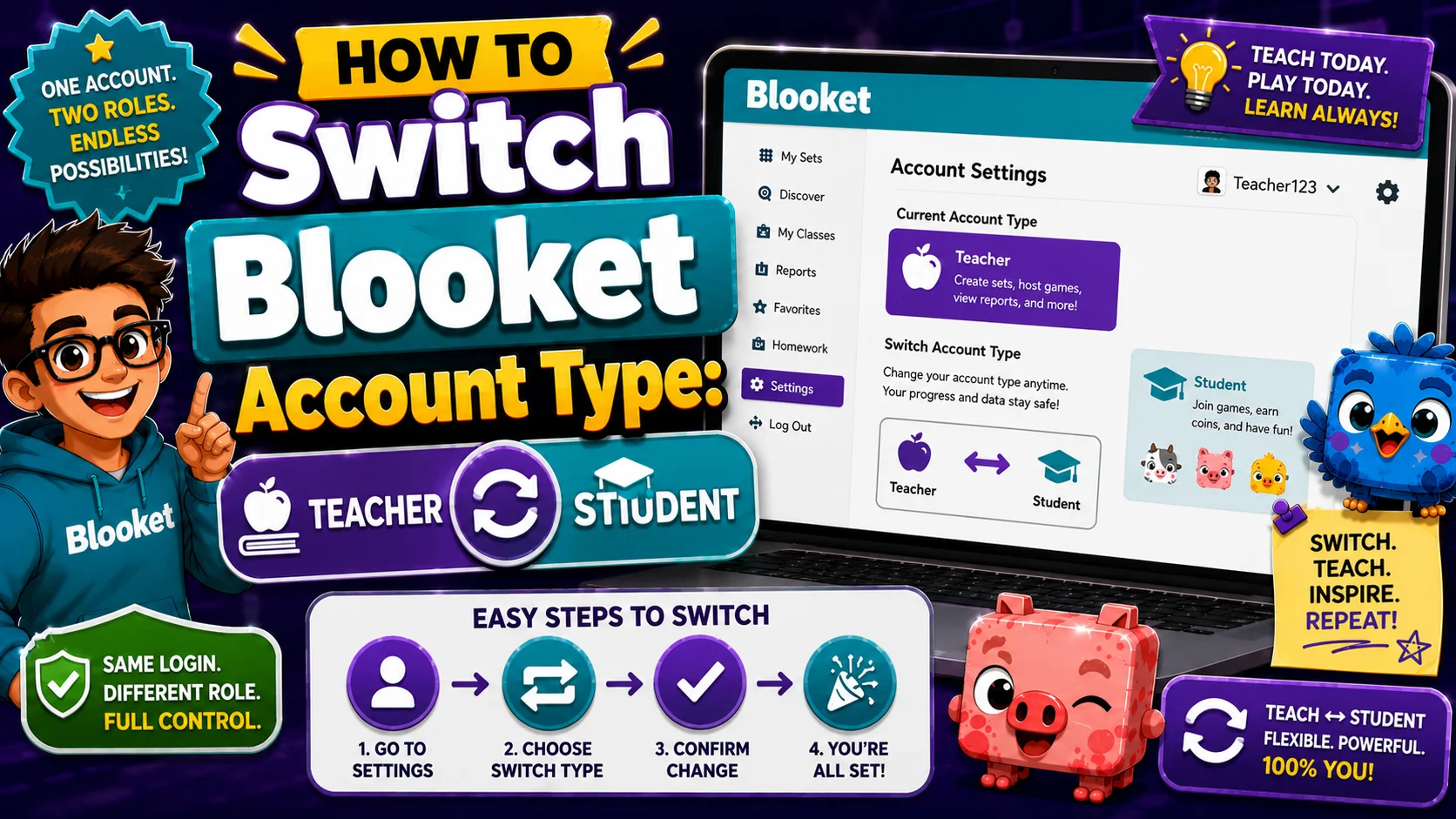
How to Switch from Teacher to Student?
- Step 1: Log in to your Blooket teacher account
- Step 2: Click your profile icon in the top-right corner and select Settings (or navigate to the Settings tab in your dashboard sidebar)
- Step 3: On the Settings page, look for the Account Type section or the specific “Switch to Student Account” option
- Step 4: Click “Switch to Student Account”
- Step 5: Confirm the switch if prompted
Your dashboard immediately updates to the student interface. Teacher-specific features (Assign HW, Reports, Hosting with full settings) are no longer prominent in your navigation.
How to Switch from Student to Teacher?
- Step 1: Log in to your Blooket student account
- Step 2: Click your profile icon and select Settings
- Step 3: On the Settings page, locate the “Switch to Teacher Account“ option
- Step 4: Click “Switch to Teacher Account”
- Step 5: Confirm if prompted
Your dashboard immediately updates to the teacher interface, granting full access to hosting, homework assignments, and reporting features.
Learn More About → Blooket Dashboard Explained
What Happens to Your Data When You Switch?
Nothing is lost when you switch account types. The switch is a dashboard-level change:
- Your question sets remain in My Sets
- Your Blooks, tokens, and XP are preserved
- Your game history and reports are preserved
- Your username, email, and password are unchanged
What changes immediately:
- The navigation options visible in your dashboard sidebar
- Which features are accessible without workarounds
- The overall look and flow of the Blooket interface
FAQs
Can I switch back after switching?
Yes. The account type switch is fully reversible in both directions. You can switch between Teacher and Student as many times as needed from the Settings page.
Do I lose my Plus subscription if I switch from Teacher to Student?
Blooket Plus is a teacher-tier feature. If you switch to a Student account, your Plus subscription benefits become inaccessible while in Student mode. The subscription itself is not cancelled — switching back to Teacher restores access. If you want to cancel Plus entirely, do so from the Settings page before switching.
I’m a teacher, but I want to join a student game as a student — do I need to switch?
No. Teacher accounts can join live games by navigating to play.blooket.com and entering a Game ID, just as students do. You don’t need to switch account type to join as a player.
Why don’t I see the switch option in my Settings?
If the option isn’t visible, try refreshing the page or clearing your browser cache. If it’s still not there, contact support at contact-us@blooket.com — there may be an account-level flag preventing the switch.