How to Change the Credit Card for Blooket Plus: Step-by-Step Guide
Last verified: August 25, 2026
Quick Answer: To update your Blooket Plus credit card, go to Settings, select Edit Subscription under Plan, then click the pencil icon on the Stripe portal to enter your new card details. The whole process takes 3 steps through Stripe’s secure billing portal.
How to Update Credit Card for Blooket Plus
If your Blooket Plus credit card has expired or been replaced, or you want to switch to a different payment method, updating it takes three steps in Blooket’s Stripe billing portal. Learn step-by-step in detail how to update your credit card for a Blooket Plus account.
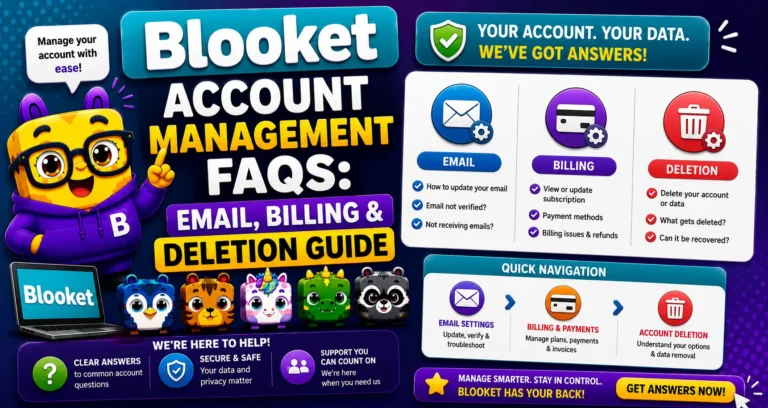
Account Management Overview → Blooket Account Management for Students & Teachers
Why Update Your Credit Card
→ Expired Card: The most common reason. If your card’s expiration date has passed and your Plus subscription tries to renew, the payment fails. Updating before renewal prevents service interruption.
→ New Card issued: Banks frequently reissue cards with new numbers to replace security features or upgrade accounts. Update your Blooket billing to match the new card.
→ Switching Payment Methods: You want to use a different credit card, debit card, or payment account for the subscription.
How Blooket Handles Your Payment Information
Blooket uses Stripe as its payment processor. When you enter credit card details for Blooket Plus, your card information is stored and managed by Stripe, not by Blooket directly. This means:
- Blooket never sees or stores your raw card number.
- All billing changes happen through Stripe’s secure portal.
- The same portal manages both individual and group plan billing.
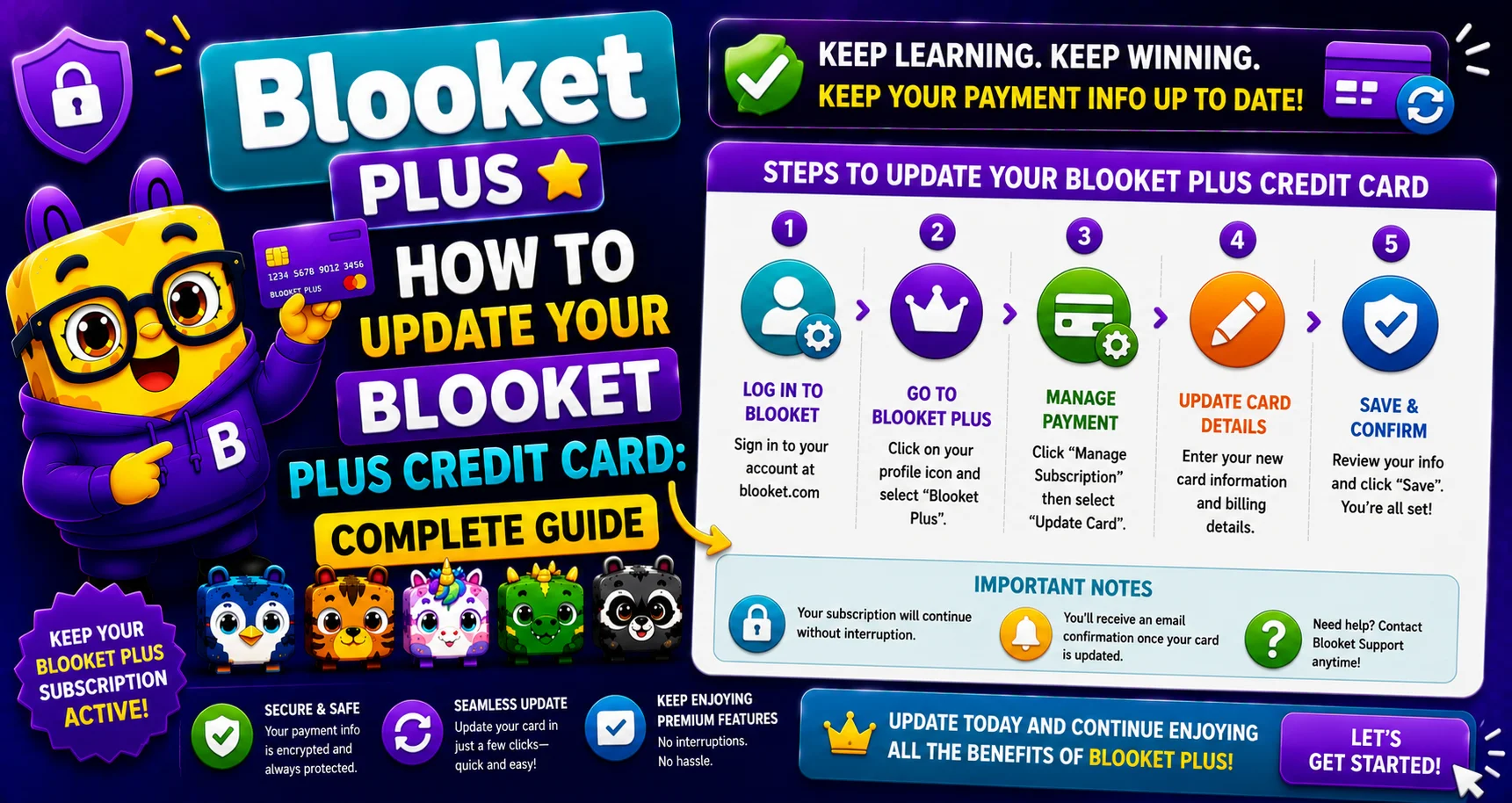
Steps to Change Your Credit Card in 3 Steps
→ Step 1: Navigate to the Settings tab.
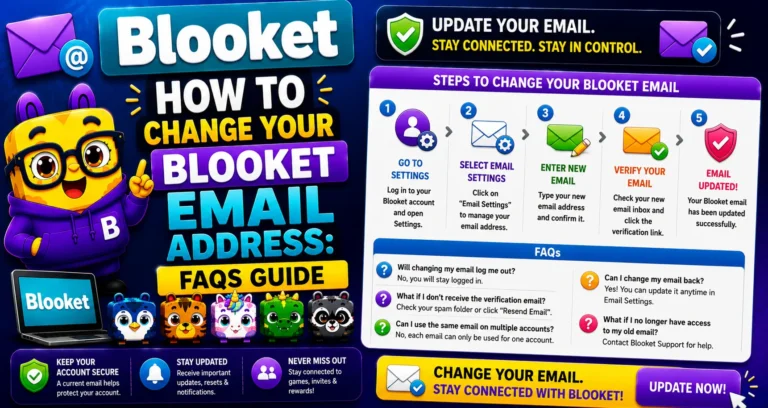
Helping Step: Log in at blooket.com. Click your profile icon → Settings, or go directly to dashboard.blooket.com/settings.
→ Step 2: Under “Plan,” select “Edit Subscription.”
Note: On the Settings page, find the Plan section to view your current subscription status. Click “Edit Subscription”; this opens the Stripe customer portal in a new tab or overlay.
→ Step 3: On the Stripe menu, select the pencil (edit) icon to update the credit card.
Note: In the Stripe portal, find your current payment method, which is displayed with a pencil/edit icon next to it. Click the pencil icon to open the card update form. Enter your new card details and save.
Your updated card is now the billing method for all future Blooket Plus renewals.
Source: Verified against Blooket’s official documentation on changing your credit card.
After Updating Your Card
→ Confirm the update: Return to your Blooket Settings → Plan section. The card details shown should reflect your updated payment method.
→ Check the next renewal date: The Plan section displays your current billing period end date. Your updated card will be charged on that date.
→ If a payment recently failed: Stripe may automatically attempt to charge your updated card for the failed payment. Check your Settings → Plan section for any outstanding payment notifications.
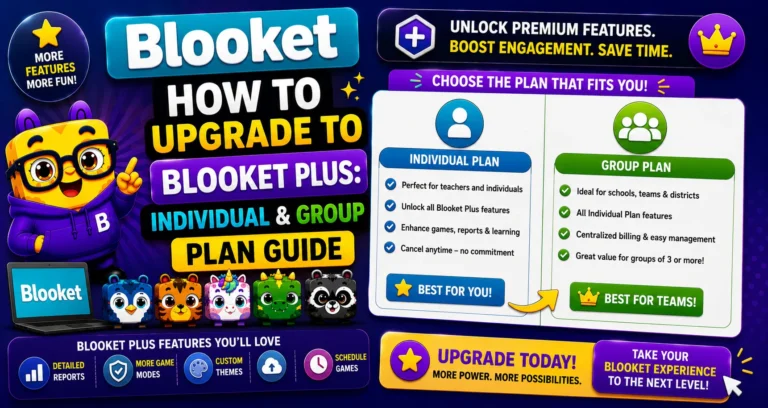
Upgrade to Plus → How to Upgrade to Blooket Plus
Troubleshooting
→ Can’t find “Edit Subscription” in the Plan section: The Plan section only shows Plus management options for active Plus subscribers. If you’re on a free Starter account, this option won’t appear; upgrade first.
→ Stripe portal not loading: Try a different browser or temporarily disable ad blockers. Stripe’s portal can conflict with certain browser extensions.
→ Still having billing issues? Contact Blooket support at contact-us@blooket.com. Include your Blooket username and account email.
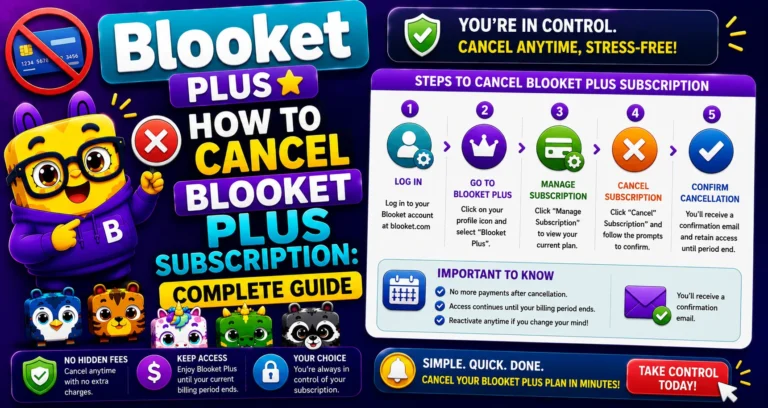
Cancel Your Subscription → How to Cancel Blooket Plus Subscription
Where to Go Next
- Want to know more about the platform? See our full Blooket overview
- Curious about what your teacher sees? Visit the Blooket For Teachers
- Want the full student guides overview? See the Blooket For Students
Have another question? Please check the Frequently Asked Questions or Blooket Help Center.
Frequently Asked Questions
Does Blooket store my new credit card number?
No. All card details are entered and stored through Stripe’s secure portal, not Blooket’s own systems. Blooket never sees or stores your raw card number.
Do I need Blooket Plus already to update my card?
Yes. The Edit Subscription option only appears for active Plus subscribers. If you’re on a free Starter account, you’ll need to upgrade before this option becomes available.
What happens if my payment recently failed?
Stripe may automatically attempt to charge your newly updated card for the failed payment. Check your Settings, then the Plan section for any outstanding payment notifications after updating.
When will my new card actually get charged?
On your next renewal date, shown in the Plan section of Settings. Updating the card doesn’t trigger an immediate charge; it simply replaces the payment method used going forward.
What should I do if the Stripe portal won’t load?
Try a different browser or temporarily disable ad blockers, since browser extensions can sometimes conflict with Stripe’s portal.
Can I use the same process to update billing for a Group Plan?
Yes. The same Stripe portal manages both individual and group plan billing, so the update process is the same regardless of plan type.
Who do I contact if I still have billing issues after updating my card?
Email Blooket support at contact-us@blooket.com, including your Blooket username and account email for faster assistance.