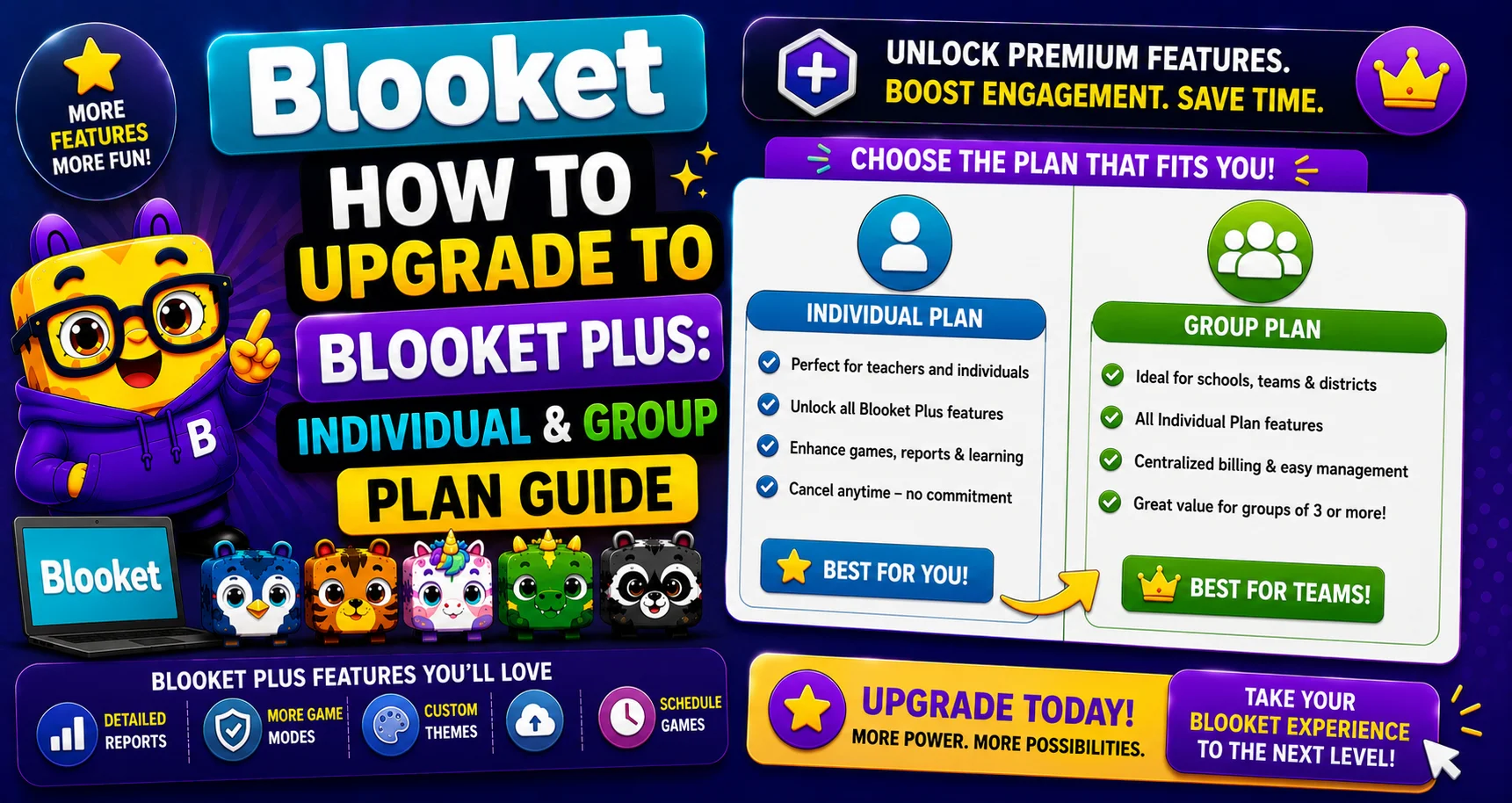
How to Upgrade to Blooket Plus: Individual & Group Plan Guide
Last verified: August 25, 2026
Quick Answer: To upgrade to Blooket Plus, select Upgrade to Plus, choose Plus Annual or Plus Flex, checkout through Stripe, and confirm. Schools can instead choose the Group Plan, which accepts either a credit card or a Purchase Order for multiple teacher seats.
How to Upgrade to Blooket Plus
Upgrading to Blooket Plus unlocks exclusive game modes, enhanced reports, audio questions, larger live games, and more. This guide explains how to upgrade to Blooket Plus and covers both upgrade methods: the individual subscription (annual or monthly) and the Group Plan (for schools purchasing Plus for multiple teachers).
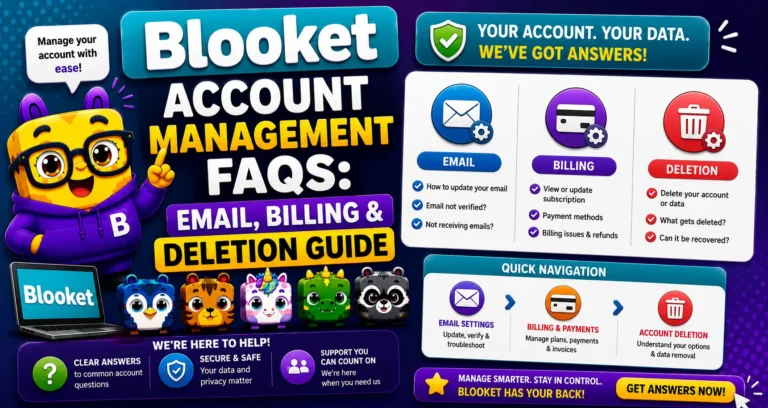
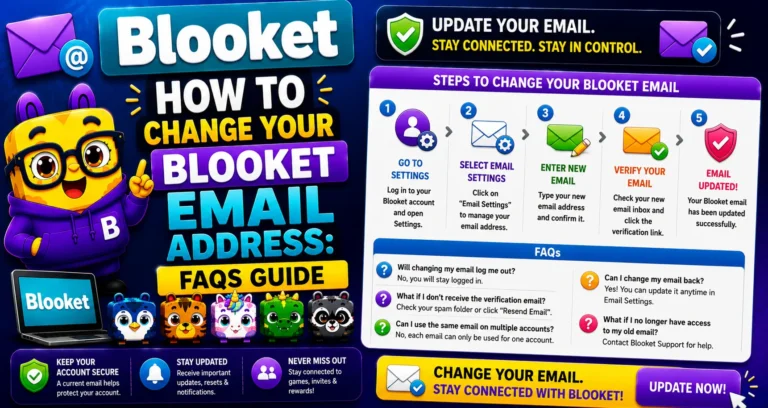
Complete Overview About → Blooket Account Management
Blooket Pricing Overview
Verify current pricing at dashboard.blooket.com/upgrade before purchasing. These figures reflect published rates as of 2026 and may change. Always confirm on the dashboard before completing a purchase.
| Plan | Cost | Billed | Best For |
| Plus (Annual) | $4.99/month = $59.88/year | Once per year | Regular users who want the best value |
| Plus Flex | Higher monthly rate | Monthly | Short-term use or trying before committing |
| Group Plan | Starting around $550/year | Annually | Schools with multiple teachers |
Purchase Orders: Accepted for Group Plans only. Individual Plus and Plus Flex subscriptions require a credit card. There is no PO option for individual subscriptions.
Learn More About → Blooket Plus Features for Teachers
Path A: Individual Upgrade (Plus Annual or Plus Flex)
→ Step 1: Select “Upgrade to Plus” from the side column or Settings page.
From your Blooket dashboard, look for the Plus upgrade prompt in the left navigation, or go to the Settings → Plan section and click the upgrade option.
→ Step 2: Select “Buy Now” from the Plus column.
The upgrade page shows both Plus (Annual) and Plus Flex options side by side. Review the pricing and select “Buy Now” under the plan you want.
Note: If the button reads “Already Owned” instead of “Buy Now,” your current subscription has not yet expired. Check Settings, then Plan for your End Date.
→ Step 3: Select “Checkout Now.”
A checkout summary appears showing your selected plan, billing amount, and first charge date.
→ Step 4: Enter your payment details or confirm saved information, then select “Subscribe.”
The Stripe checkout page appears. Enter your credit card number, expiration date, and CVC. If Stripe has saved payment information from a previous purchase, you can confirm it or enter new details.
→ Step 5: On the Stripe Checkout page, select “Subscribe” to complete the process.
Plus features activate immediately on your account after successful payment. A receipt is sent to your registered Blooket email address.
Step-by-Step Guide → How to Upgrade to Blooket Plus (Individual Plan)
Path B: Group Plan (Credit Card or Purchase Order)
The Group Plan allows a school to purchase Plus access for multiple teachers in a single purchase, with a single billing account. The Group Plan Admin manages all member access.
→ Step 1: Navigate to the Group Plan option on the upgrade page.
→ Step 2: Select the number of teacher seats and proceed to the payment page.
→ Step 3: On the group payment page, download your quote by selecting the download button.
→ Step 4: Choose a payment method.
- Paying with Purchase Order: After selecting “Pay With Purchase Order,” enter your Purchase Order Number and upload the PO document. After the PO has been uploaded, select “Subscribe Now.”
- Paying with Credit Card: After selecting “Pay With Credit Card,” enter your card information and click “Subscribe.”
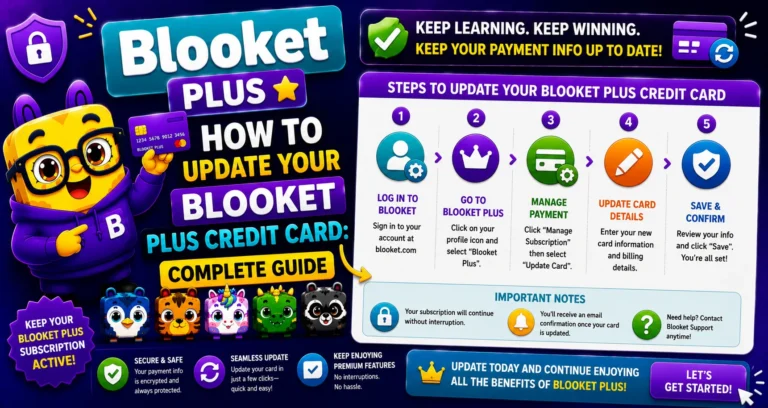
Update Credit Card → How to Change Your Credit Card
Annual vs Plus Flex: Which Should You Choose?
| Scenario | Recommended Plan |
| You’ll use Blooket throughout the school year | Plus Annual (saves significantly vs monthly) |
| You want to try Plus for 1 to 2 months first | Plus Flex (cancel before the third month) |
| You need Plus for a specific unit or event only | Plus Flex (cancel when the unit ends) |
| Your school is buying for multiple teachers | Group Plan (lower per-teacher cost) |
| You need to pay via Purchase Order | Group Plan (the only plan that accepts POs) |
Source: verified from Blooket’s official documentation on upgrading to Plus.
After Upgrading
- Plus features activate immediately.
- You receive a receipt email at your registered Blooket email address.
- Check Settings, then Plan to confirm your subscription is active and to see your billing cycle end date.
- If you purchased a Group Plan, proceed to invite teachers via the Group Plan tab invite link.
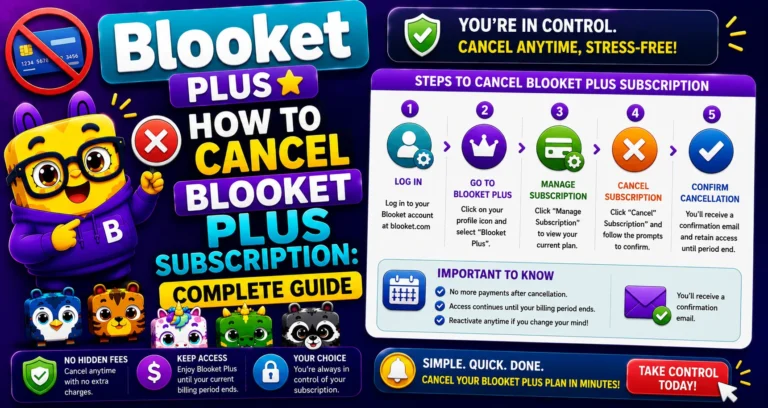
Cancel Blooket Subscription → How to Cancel a Blooket Plus Subscription
Where to Go Next
- Want to know more about the platform? See our full Blooket overview
- Curious about what your teacher sees? Visit the Blooket For Teachers
- Want the full student guides overview? See the Blooket For Students
Have another question? Please check the Frequently Asked Questions or Blooket Help Center.
Frequently Asked Questions
Do Plus features activate immediately after I subscribe?
Yes. Plus features become active on your account right after successful payment, with no waiting period.
What if the upgrade page shows “Already Owned” instead of “Buy Now”?
It means your current subscription hasn’t expired yet. Check Settings, then Plan to see your End Date before attempting to upgrade again.
Can an individual teacher pay by Purchase Order?
No. Purchase Orders are only accepted for the Group Plan. Individual Plus and Plus Flex subscriptions require a credit card.
How does a school pay for multiple teachers at once?
Through the Group Plan, which lets a Group Plan Admin purchase seats for multiple teachers under one billing account, paid by either credit card or Purchase Order.
Should I choose Plus Annual or Plus Flex?
Choose Annual if you’ll use Blooket throughout the school year, since it saves significantly compared to monthly billing. Choose Flex if you want to try Plus for a month or two, or only need it for a specific unit.
What happens after I complete a Group Plan purchase?
You can invite teachers to the plan through the Group Plan tab’s invite link, giving them access under the same billing account.
Where can I confirm my exact upgrade pricing before purchasing?
Always check dashboard.blooket.com/upgrade directly, since published prices can change and the dashboard reflects current, accurate rates.