How to Merge Blooket Question Sets: (Plus Feature)
Last verified: August 9, 2026
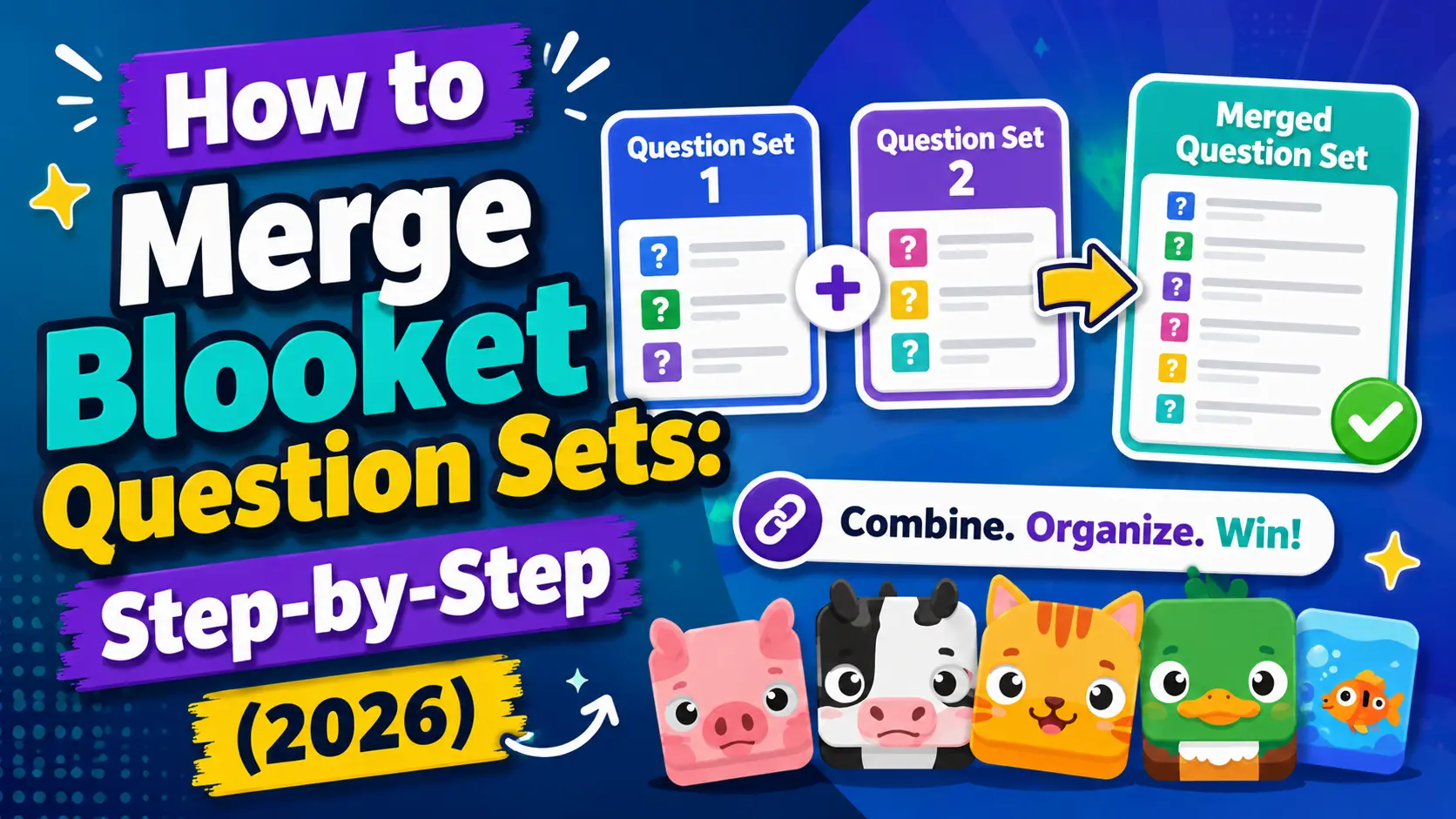
Quick Answer: From My Sets, click the settings icon on the set you want to merge questions into, select Merge, choose the source set whose questions you want to copy over, and confirm. Merging is a Blooket Plus feature that copies all questions from one set into another without deleting the original.
How to Merge Blooket Question Sets
Merging in Blooket lets you combine two question sets into one. It pulls all the questions from a second set into a first set. This is a Blooket Plus feature, and it is most useful for building comprehensive review sets from multiple smaller topic sets.
Complete Guide About → Blooket Question Sets for Teachers
When to Use Merge?
Merging works well in these situations:
- Building comprehensive review sets before major assessments. You have built separate sets for Unit 1 and Unit 2. Merge them to create a complete semester review.
- Combining AI-generated sets. You used Khanmigo to generate sets on related subtopics. Merge them into one complete set.
- Adding public set questions to your own set. Copy a public set, then merge it into your own set to combine community content with your proprietary questions.
- Eliminating redundant sets. You have multiple partial sets on the same topic that individually do not have enough questions. Merge them into one usable set.
See our complete Free vs. Plus comparison for what else Blooket Plus unlocks.
What Merging Does (and Doesn’t Do)
Merging copies the questions from Set B into Set A. It does not delete Set B. After merging, you have:
- Set A, which now contains its original questions plus all questions from Set B.
- Set B, unchanged, still exists in your library separately.
If you want to clean up your library after merging, you can manually delete the source set (Set B) later.
Step 1: Start from My Sets
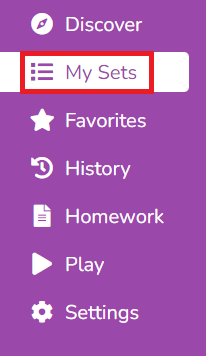
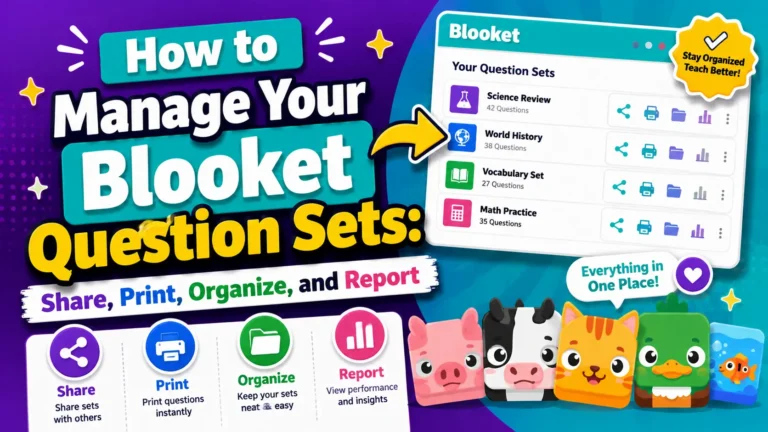
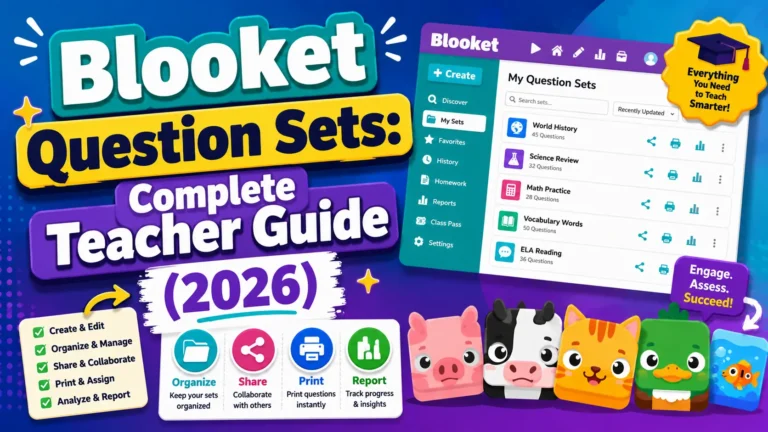
- Go to My Sets on your Blooket dashboard.
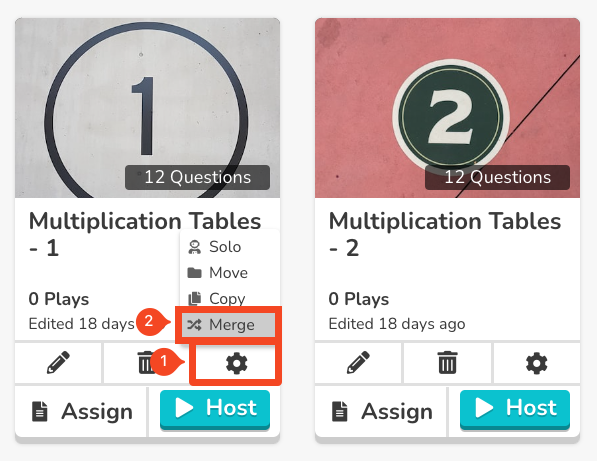
- Locate the first set, the one you want to merge questions into (Set A).
- Click the settings icon (gear or cog) on that set card.
- Select Merge from the menu.
Step 2: Choose the Source Set
A selector will open showing your other sets. Browse or search to find the second set, the one whose questions you want to copy into Set A. Select it and confirm.
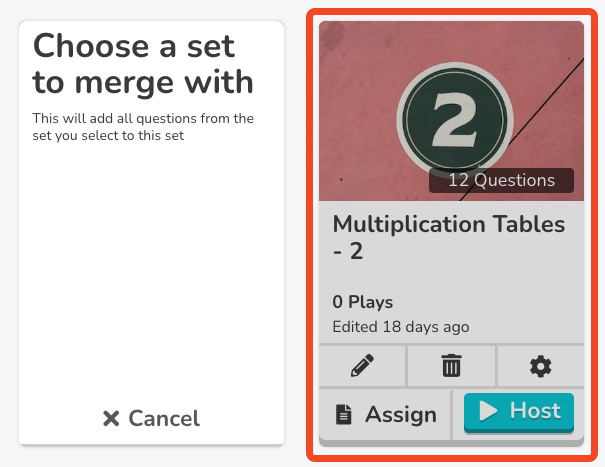
Select it and confirm.
Source: verified from Blooket’s official Plus Features documentation, which confirms Merging as a Blooket Plus feature.
Step 3: Review the Result
After merging, Set A now contains all of its original questions plus every question from Set B. Open Set A in the editor to review:
- Total question count (your new combined total)
- Any duplicate questions that appear from both sets, which you can delete manually
- Whether the combined question order makes sense for your purposes
How to Merge a Copied Public Set into Your Own?
This is a popular workflow for expanding your own sets with community content:
- Copy a public set from Discover (Blooket Plus feature). This creates an editable copy in My Sets.
- From My Sets, select your own original set and use Merge to pull in the copied set’s questions.
- Review the merged set and remove questions that do not fit your specific needs.
- Delete the now-redundant copy of the public set if you no longer need it separately.
How to Copy Guide → How to Copy a Public Blooket Question Set
Merge vs. Question Bank
Both Merge and the Question Bank let you add questions from one set to another, but they work differently:
| Feature | Merge | Question Bank |
| Adds all questions at once | Yes | No, select individually |
| Lets you pick specific questions | No | Yes |
| Best for | Combining entire sets | Adding select questions |
| Plus required | Yes | Yes |
Use Merge when you want everything from Set B in Set A. Use the Question Bank when you want to pick specific questions from your library.
Question Bank Guide → How to Use the Blooket Question Bank
Where to Go Next
- Want to learn more about the platform? See this Blooket guide
- Want the full teacher toolkit overview? Visit the For Teachers hub
- Building sets for students to use directly? See the For Students hub
Have a different question? Check our Frequently Asked Questions or full Blooket Help Center
Frequently Asked Questions
Does merging delete the source set?
No. Merging copies the questions from the source set into the target set. The source set stays exactly as it was and remains in your library separately.
Do I need Blooket Plus to merge question sets?
Yes. Merging is a Blooket Plus feature, along with copying public sets, the Question Bank, and Folders.
What happens if the two sets have duplicate questions?
Duplicates are not automatically removed. After merging, open the combined set in the editor and manually delete any duplicate questions you find.
Can I merge more than two sets?
Yes, by merging one set at a time. Merge Set B into Set A, then merge Set C into the same Set A, and so on, until all the sets you want are combined.
What is the difference between Merge and the Question Bank?
Merge adds every question from one set into another in a single action. The Question Bank lets you pick individual questions from any set to add, without pulling in the whole set. Both require Blooket Plus.
Can I merge a public set I do not own?
Not directly. You need to copy the public set first (which creates your own editable version), then merge that copy into your own set.
Does merging change the question order?
The merged questions are added to the target set, but you should review the combined set afterward and reorder questions manually if the sequence does not make sense for your session.