Blooket Account Settings: Complete Guide for Teachers
Last verified: August 13, 2026
Quick Answer: Blooket account settings are organized into five sections: Profile/Account Information (username, email, password, account type), Danger Zone (account deletion), Support, Plus Upgrade, and Privacy. Access them anytime via your profile icon or the dashboard sidebar.
Complete Blooket Account Settings Guide
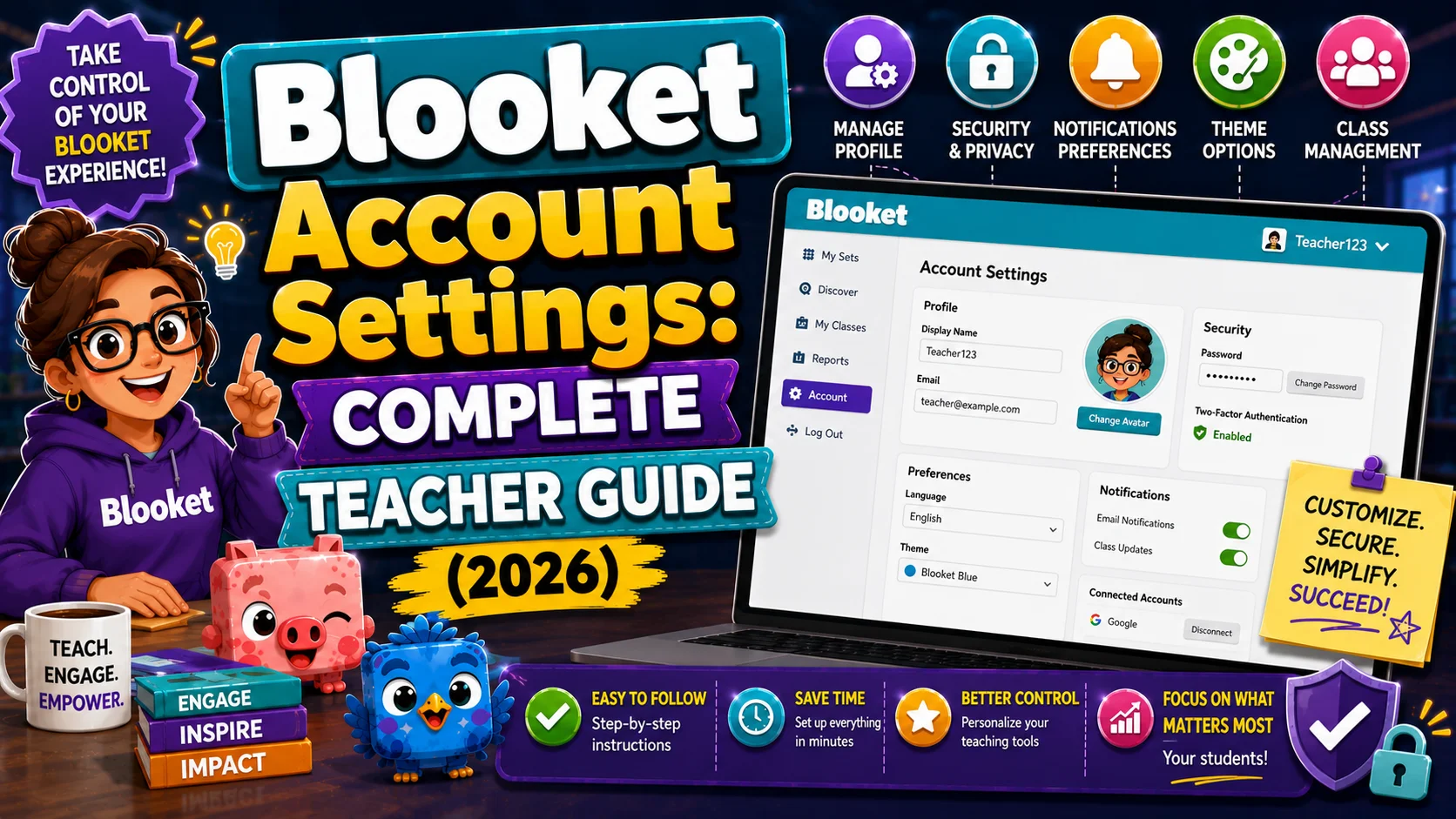
Your Blooket account settings are where you manage the foundational details of your teacher profile, such as your username, email address, password, account type, and data.
Most teachers only visit Settings when something needs to change, which means knowing where everything is before you need it saves significant time during a busy school day. You can also update your profile from the Blooket dashboard.
This guide explains the complete Blooket account settings for teachers: what each section does, what tasks you can complete there, and when each setting matters most. For step-by-step instructions on any particular task, follow the guide links throughout to the dedicated articles.
Complete Teacher Starting Guide → Blooket Quick Start Guide for Teachers
Accessing Your Blooket Account Settings
From any page on Blooket, access your account settings to update your Blooket login details:
- Click your profile icon in the top-right corner of the screen, then select Settings from the dropdown menu.
- If you’re on the dashboard, look for the Settings option in the left navigation sidebar.
Both ways take you to the same account settings page.
Account Settings Page (Features)
The Blooket Account Settings page is organized into five sections. Here’s what each one does:
1. Profile / Account Information
This is where you manage your core account identity:
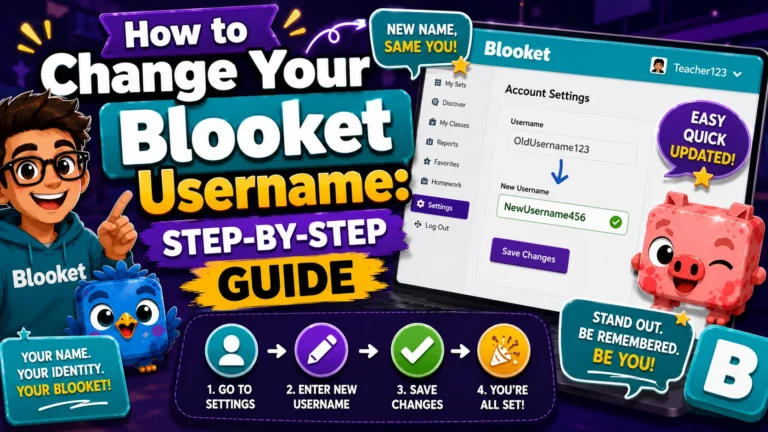
- Username: The public-facing name associated with your account. Appears on your profile page and stats page. Can be changed at any time.
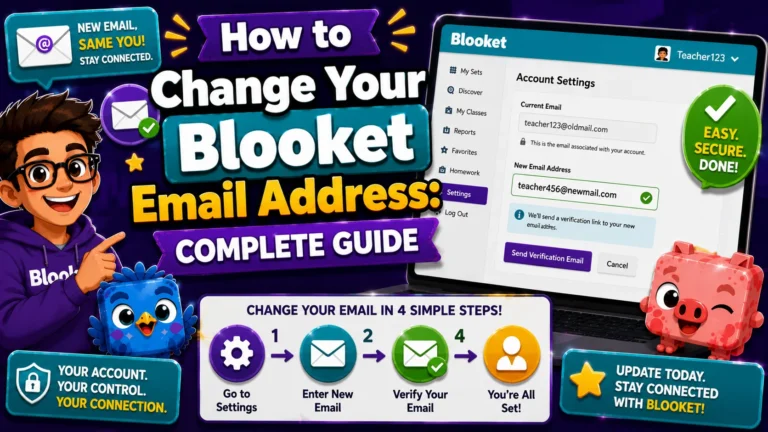
- Email Address: The email linked to your account. Used for password resets, billing receipts (Plus subscribers), and account recovery. Can be changed via self-service for email/password accounts, or via support for Google SSO accounts.
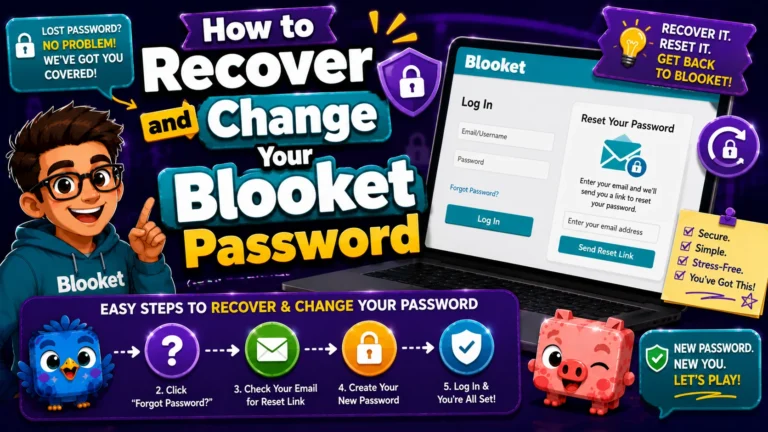
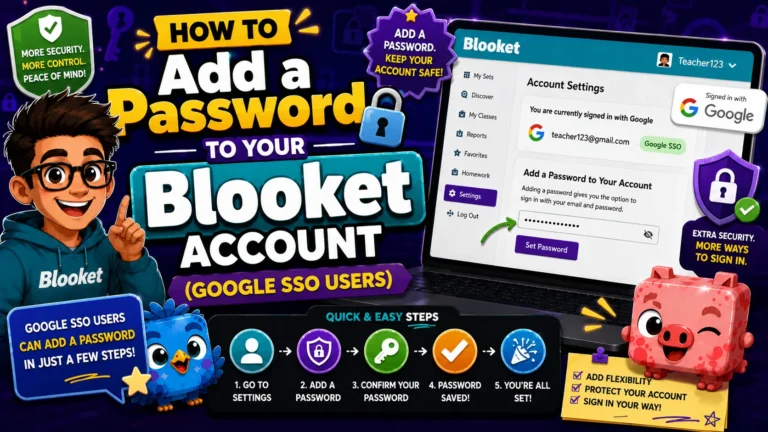
- Password: Change your current password, or add a password to a Google-connected account that doesn’t have one yet.
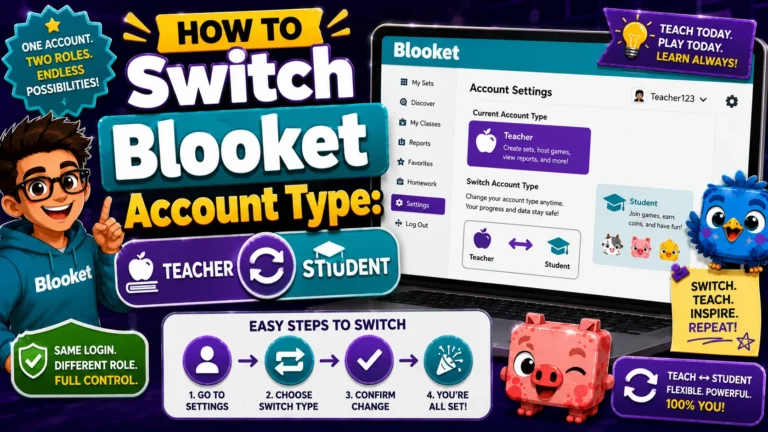
- Account Type: Switch between Teacher and Student account types. Changing account type changes which dashboard features are available to you.
Full Guide → How to Change Your Blooket Username
Complete Guide → How to Recover and Change Your Blooket Password
Full Guide → How to Change Your Blooket Email Address
Step-by-Step → How to Switch Your Blooket Account Type
2. Danger Zone / Account Deletion
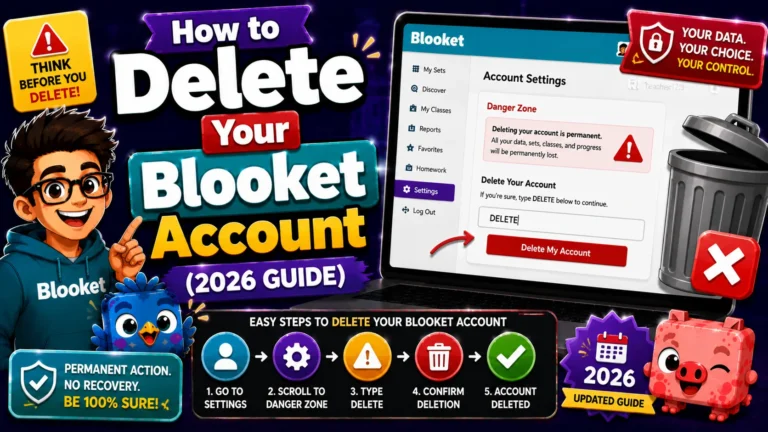
The permanent account deletion option lives here. Deleting your account removes all account data, including question sets, game history, Blooks, tokens, and subscription information, in accordance with Blooket’s Terms of Use and Privacy Policy. This action cannot be undone.
Step-by-Step Guide → How to Delete Your Blooket Account
3. Support
From Settings, you can access:
- Blooket’s help center (the official documentation hub)
- Blooket’s support contact: contact-us@blooket.com
- Frequently asked questions search
4. Plus Upgrade
The Settings page includes links to upgrade to Blooket Plus (Individual plan) or view Group Plan pricing for multiple teachers. If you’re already a Plus subscriber, subscription management options appear here.
Full Features Guide → Blooket Plus Features for Teachers
5. Privacy
Links to Blooket’s Privacy Policy and Terms of Service. Worth reviewing once, particularly for teachers in districts with strict data privacy requirements.
Source: verified from Blooket’s official Account Settings documentation.
When do Teachers Typically Need Settings?
Understanding which settings task applies to your circumstances:
| Situation | Settings To Do |
| Students keep calling you by the wrong name in-platform | Change Username |
| You’re leaving your school district, and your school email will be deactivated. | Change Email; do this before you lose access |
| You forgot your password and can’t log in | Recover Password (from the login page) |
| You’re logged in but want to update your password | Change Password (from Settings) |
| You signed up with Google and want a password backup | Add a Password |
| You set up a student account by mistake | Switch Account Type to Teacher |
| A colleague accidentally set up a teacher account but only needs student features. | Switch Account Type to Student |
| You’re leaving Blooket entirely and want your data removed | Delete Account |
Google SSO vs. Email/Password Accounts (Important)
How you originally signed up for Blooket affects which self-service settings options are available to you.
If you signed up with a Google account (Google SSO):
- You log in using the “Continue with Google” button.
- Your Blooket account is linked to your Google account rather than an email and password.
- Some self-service options, especially email changes and password resets through Blooket, may not be available; you manage authentication through your Google account instead.
- To add a Blooket-specific password as a backup, use the Add a Password option in Settings.
Google SSO Users Guide → How to Add a Password to Your Blooket Account
If you signed up with an email and a password:
- You log in with an email address and a password you created.
- All self-service Settings options are fully available.
- Password resets and email changes are handled directly within Blooket.
When a Settings option appears grayed out or unavailable, it typically means your account type (Google SSO vs. email) does not support that particular self-service flow. In those cases, contact Blooket support at contact-us@blooket.com for further assistance.
A Note on School Email Addresses
Many teachers create their Blooket accounts using their school-issued email addresses. This works fine while you’re at that school, but it creates a significant problem when you change schools or leave the district: your school email is deactivated, and you may lose access to account recovery for your Blooket account.
Proactive Recommendation: If you created your Blooket account with a school email address, change it to a personal email (Gmail, Outlook, and so on) before leaving your current school. This preserves your account access, question set library, game history, and any Plus subscription you have paid for.
Settings Quick-Reference
| Task | Where to Go | Time Required | Reversible? |
| Change Username | Settings → Profile | 1 minute | Yes |
| Change Email | Settings → Profile → Edit Info → Change Email | 3 to 5 minutes | Yes |
| Change Password | Settings → Profile | 2 minutes | Yes |
| Recover Password | Login page → Forgot Password | 3 to 5 minutes | N/A |
| Add Password (Google accounts) | Settings → Profile → Add Password | 2 minutes | Yes |
| Switch to Teacher | Settings → Switch Account Type | 1 minute | Yes |
| Switch to Student | Settings → Switch Account Type | 1 minute | Yes |
| Delete Account | Settings → Delete Account | 5 minutes | No, permanent |
What Settings Cannot Do?
A few things that are not available through the Settings page, to prevent confusion:
- Cannot transfer question sets to another account. Sets are connected to the account that created them. If you need to share sets with a colleague, use the public sharing link or the Plus Copy feature.
- Cannot merge two accounts. If you accidentally created two accounts, you cannot combine them. Choose one to keep and, if needed, manually recreate content from the other.
- Cannot change your Blooket account region. Blooket does not have user-modifiable region settings.
- Cannot recover a deleted account. Account deletion is permanent. There is no recovery after confirmation.
Where to Go Next
- Want to know more about the platform? See our Blooket overview
- Want the full teacher toolkit overview? Visit the For Teachers hub
- Introducing this to students directly? See the For Students hub
Have a different question? Check our Frequently Asked Questions or Blooket Help Center
Frequently Asked Questions
Where do I find Blooket account settings?
Click your profile icon in the top-right corner and select Settings, or find the Settings option in your dashboard’s left navigation sidebar. Both paths lead to the same page.
Can I change my account type more than once?
Yes. Switching between Teacher and Student account types is fully reversible, and you can switch back and forth as many times as you need from the Settings page.
Why can’t I change my email or reset my password directly in Blooket?
If you signed up using Google SSO, your account authenticates through Google rather than a Blooket-specific email and password, so some self-service options are limited. Adding a Blooket-specific password from Settings gives you a backup login method.
What happens to my data if I switch account types?
Nothing is lost. Switching between Teacher and Student is a dashboard-level change; your question sets, Blooks, tokens, game history, and login credentials all remain exactly as they were.
Can I transfer my question sets to a colleague’s account?
Not directly. Settings do not support transferring sets between accounts. Use a public sharing link, or the Plus Copy feature, so your colleague can copy the set into their own account.
Is account deletion the only way to “reset” my Blooket data?
No. If you want a clean slate without losing the account itself, you can manually delete individual question sets from My Sets and clear your game history from the History tab, without deleting your account.
Should I use my school email for my Blooket account?
It works while you are employed there, but it creates a risk: if your school email is deactivated when you leave, you could lose account recovery access. Switching to a personal email before you leave is the safer choice.