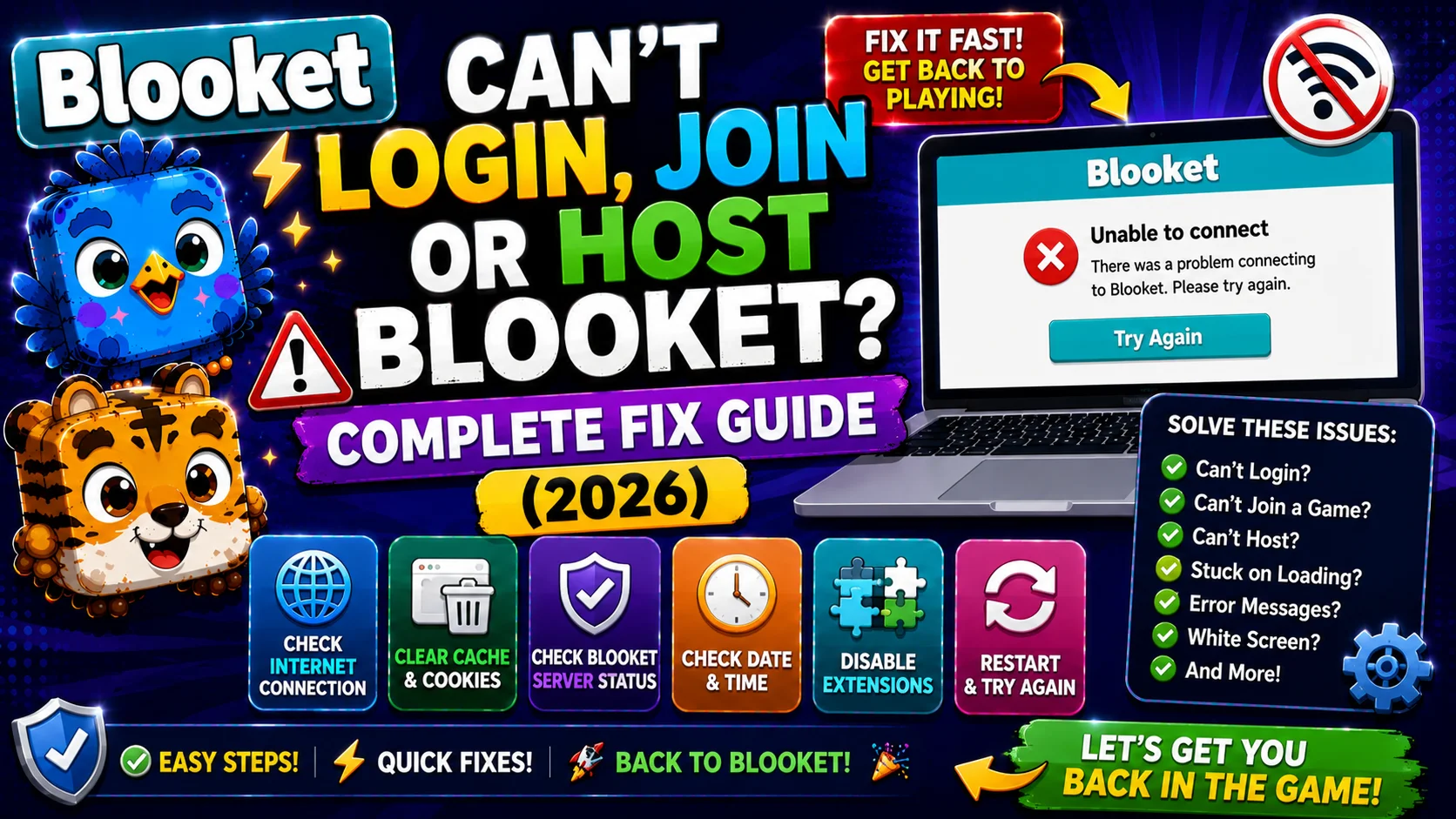
Can’t Login, Join, or Host Blooket? How to Fix Complete Guide
Last verified: August 15, 2026
Quick Answer: For Blooket can’t login issues, run debug.blooket.com first, then check for Chrome extension interference (test in Incognito mode), case-sensitive username errors, or a blocked firebaseio.com backend. Join failures are usually incorrect Game IDs, ended sessions, or the wrong URL. Hosting failures often trace to the same Firebase block or an incorrect account type.
Blooket Can’t Login, Join, or Host:
(Complete Fix Guide)
Login failures, join errors, and hosting problems are among the most urgent Blooket issues. They block classroom use entirely. To fix Blooket login errors, follow all the steps below. This guide separates each problem type, identifies the most common causes for each, and provides step-by-step Blooket can’t log in fixes in the right order.
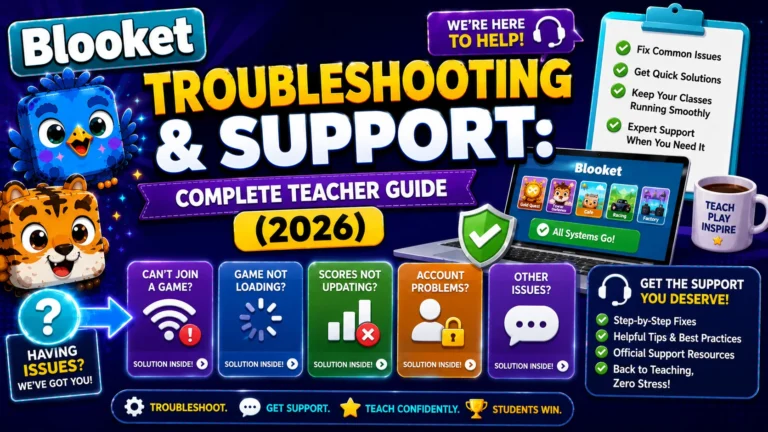
Complete Guide About → Blooket Troubleshooting & Support
Start Here → Run the Debugger
Before trying anything else, run the official debugger at debug.blooket.com. This will ensure that all images load and that you do not block any essential services for the live games. The debugger identifies which Blooket services are accessible from your device, a two-minute diagnostic that prevents guessing at the cause.
Problem 1: Blooket Can’t Log in
Symptom: The login page loads, but your credentials aren’t accepted, the page freezes, or you receive an unexpected error.
Cause A: Chrome Extension Interference
The main cause is that a Chrome extension, such as an ad blocker or another service, is blocking part of the site’s functionality. While Blooket doesn’t run ads, these extensions can still interfere with some parts of the site.
Fix: Open Blooket in Incognito/Private mode (Ctrl+Shift+N in Chrome). Incognito disables all extensions. If login works in Incognito, a specific extension is causing the problem. Re-enable extensions one at a time in your regular browser to identify which one is causing the issue.
Cause B: Case-Sensitive Username Error
Usernames are case-sensitive, so when logging in, please ensure you use the exact name you registered with.
Fix: Check the exact capitalization of your username. “MrsJohnson” and “mrsjohnson” are treated as different usernames. If you’re unsure, try the “Forgot Password” flow using your registered email, since this bypasses the username requirement.
Complete Guide About → How to Change Blooket Username
Cause C: Google Account Issues
If you signed up with “Continue with Google” and are now receiving an error, your Google account’s access to Blooket may have been cancelled or not yet approved in Google Workspace.
Fix: Check whether the issue is a Google Workspace configuration problem.
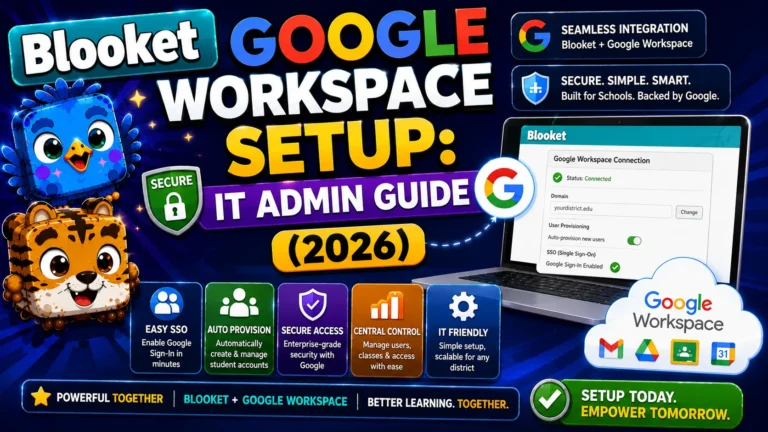
Google Workspace Fix → How to Set Up Blooket in Google Workspace for Education
Problem 2: Students Can’t Join a Game
Symptom: Students enter the Game ID on play.blooket.com, but get “Game Not Found,” or the join button doesn’t respond.
Cause A: Incorrect Game ID Entry
A transposed digit or misread character in the 7-digit Game ID is the most common cause of join failures.
Fix: Read the Game ID aloud digit by digit while students type. Write it on the whiteboard as a backup. For virtual classes, share the Join Link directly via Google Classroom or chat to eliminate the need for code entry.
Cause B: Game Session Has Ended
Blooket Game IDs expire the moment a session ends. A code from yesterday’s game or a game that has already concluded will return “Game Not Found.”
Fix: Confirm the game is currently active on your host screen; students’ names should be appearing in the lobby. If you ended the game accidentally, launch a new session, since a new Game ID is generated each time.
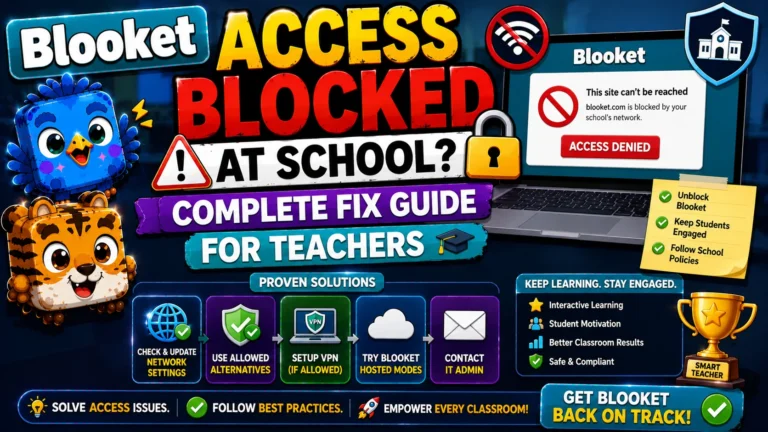
Step-by-Step Guide for → Blooket Access Blocked Fix
Cause C: Firebase Blocked on School Network
If you still can’t join or host a game, you may need to make sure firebaseio.com is unblocked on your device. Blooket uses this site for part of its backend, so if a firewall blocks it, you may not be able to use parts of the site. However, this will not affect your ability to log in.
Fix: Ask IT to whitelist firebaseio.com. It is a separate domain from blooket.com, so a school network can allow blooket.com but still block Firebase, resulting in login working but gameplay failing.
Cause D: Wrong URL
Students going to blooket.com instead of play.blooket.com will land on the main dashboard rather than the join screen.
Fix: Write play.blooket.com explicitly on the board. Share the Join Link from your host screen, since this takes students directly to the join page without any URL typing.
Step-by-Step → Blooket Not Loading Guide
Problem 3: Can’t Host a Game
Symptom: The Host button doesn’t respond, the mode selection screen doesn’t load, or the game lobby never generates a code.
Cause A: Extension or Cache Issue
Same as login problems, extensions and cached data can prevent the hosting flow from completing.
Fix sequence:
- Open Blooket in Incognito mode and try hosting.
- If that works, clear your browser cache in your regular browser and retry.
- If Incognito doesn’t help, try a different browser entirely.
Cause B: Firebase or Network Block
The same Firebase block that prevents students from joining can prevent teachers from hosting, since the hosting flow relies on the same real-time backend.
Fix: Ask IT to whitelist firebaseio.com. Provide the debug.blooket.com results page to make the request specific.
Cause C: Account Type Issue
Only Teacher accounts can host live games with all settings enabled. If you’re logged into a Student account, the hosting options are limited or unavailable.
Fix: Check your account type in Settings. If you’re on a Student account, switch to a Teacher account.
Account Type Switching → How to Switch Your Blooket Account Type
After Trying Everything
If login, join, or hosting problems persist after the steps above:
- Run debug.blooket.com and save a screenshot of the results.
- Note your browser version, device type, and school network name.
- Contact Blooket support at contact-us@blooket.com. Contact from the email associated with your Blooket account for the best chance of resolving your issue.
Source: verified from Blooket’s official “Can’t Login/Join a Game/host” documentation
Where to Go Next
- Want to know more about the platform? See our Blooket overview
- Want the full teacher toolkit overview? Visit the For Teachers hub
- Introducing this to students directly? See the For Students hub
Have a different question? Please check Frequently Asked Questions or our Blooket Help Center.
Frequently Asked Questions
What should I try first if I can’t log in, join, or host Blooket?
Run the official debugger at debug.blooket.com. It identifies which specific services are accessible from your device in about two minutes, preventing you from guessing at the wrong fix.
Why does Blooket sometimes work in Incognito mode but not my regular browser?
A browser extension, most often an ad blocker, is interfering with part of the site. Incognito mode disables all extensions temporarily, so if login or hosting works there, re-enable extensions one at a time to find the culprit.
Why does “Game Not Found” appear even though I have the right code?
The most common causes are a transposed digit in the Game ID or a code from a session that has already ended, since Game IDs expire the moment a game is closed.
Can students join a game if firebaseio.com is blocked but blooket.com is not?
No. These are separate domains. A school network can allow blooket.com while still blocking Firebase, which lets login work but breaks gameplay and hosting.
Why can’t I host a game even though I can log in fine?
Check your account type first. Only Teacher accounts can host live games with all settings enabled; Student accounts have limited or unavailable hosting options.
Do login problems and hosting problems ever share the same cause?
Yes, frequently. Browser extensions and a blocked firebaseio.com backend commonly affect both login and hosting, since both rely on the same real-time services.
What information should I gather before contacting Blooket support?
A screenshot of your debug.blooket.com results, your browser version, your device type, and your school network name. Get in touch from the email associated with your Blooket account for the fastest resolution.