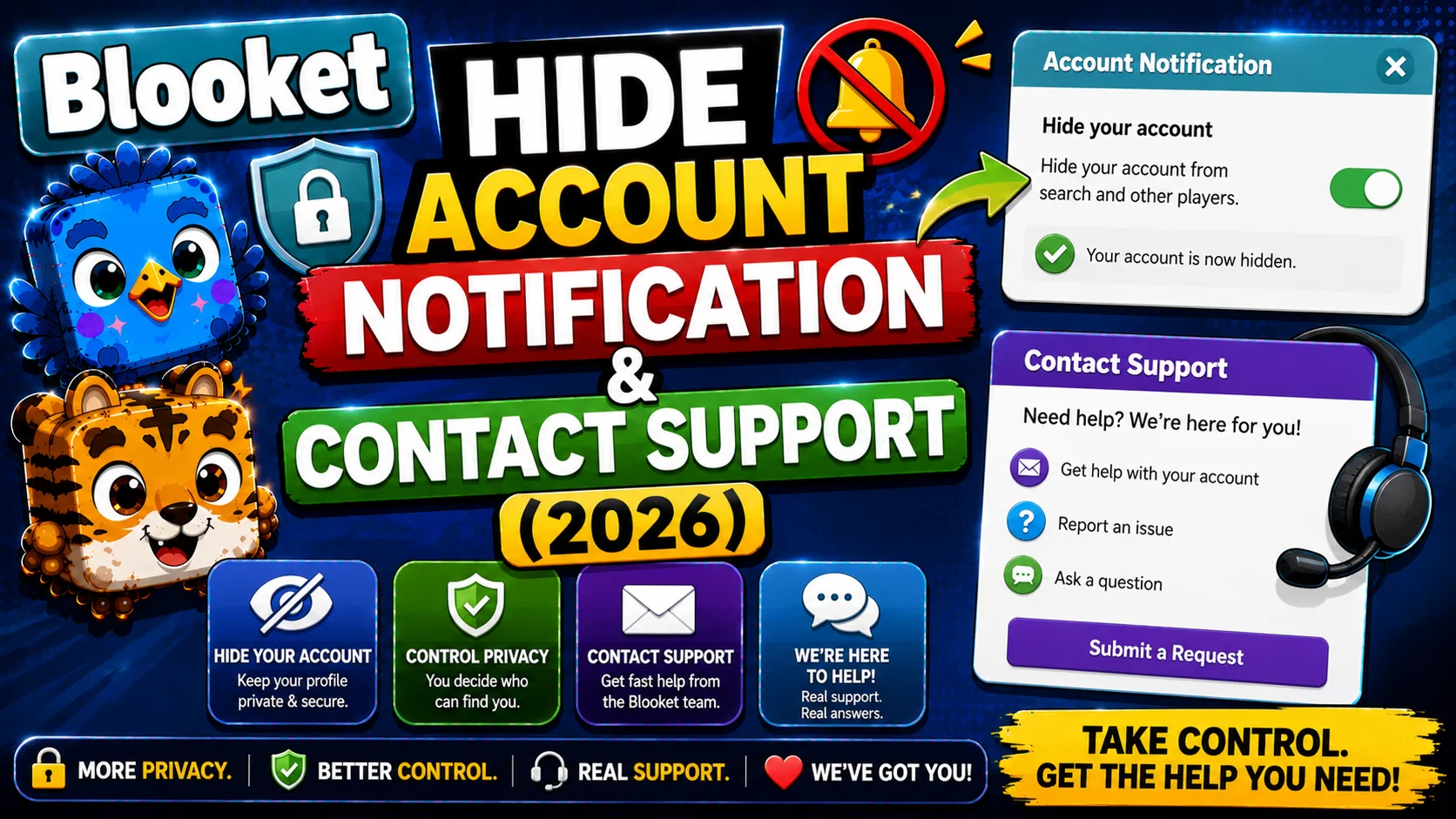
How to Hide Blooket Student Account Notification & Contact Support Guide
Last verified: August 16, 2026
Quick Answer: To hide the Blooket student account notification, uncheck “Allow Student Accounts” on the Host Settings screen before launching a game. This hides the post-game signup prompt without preventing students from playing as guests. For unresolved issues, email contact-us@blooket.com from your registered account email.
How to Hide Student Account Notifications
This guide explains Blooket hide account notifications and two frequently searched teacher tasks: how to prevent the student account signup prompt from appearing after games, and how to contact Blooket support effectively when you need direct assistance.
Complete Guide About → Blooket Troubleshooting & Support
What is the Notification?
After finishing a game, students are asked to create accounts if they don’t already have them, to track their stats and unlock new Blooks. Creating an account is totally optional, but some teachers don’t want their students to see this.
The post-game prompt appears on the student’s screen after the results are shown. It encourages students without Blooket accounts to sign up so they can track tokens, XP, and their Blook collection between sessions.
Why do some teachers want to hide it?
- Students with parent or district data-sharing concerns
- Younger students who shouldn’t be creating accounts independently
- Streamlined session endings without off-task account creation activity
- Classroom management preference, keeping students focused on the debrief rather than a signup form
How to Hide the Account Notification?
To hide the account notification before you host a game, go to the Host Settings page (after you select a game mode), uncheck the “Allow Student Accounts” option, and the notification won’t appear.
Steps to Hide Account Notification:
- Step 1: From your teacher dashboard, click Host on any question set.
- Step 2: Select your game mode.
- Step 3: You’ll reach the Game Settings screen (also called Host Settings). Look for the option labeled “Allow Student Accounts”; it appears as a checkbox or toggle.
- Step 4: Uncheck or disable “Allow Student Accounts.”
- Step 5: Click Host Now to launch the game.
After the game ends, the student account sign-up notification will not appear.
Step-by-Step Guide → How to Host a Blooket Game
What “Allow Student Accounts” Control?
Understanding exactly what this setting does and doesn’t do prevents confusion:
When “Allow Student Accounts” is enabled (default):
- Students without accounts see a post-game prompt to create one.
- Students who join while logged in to Blooket accounts earn tokens and XP from the session.
- Student account data (tokens, XP, game history) is stored if they sign in.
When “Allow Student Accounts” is disabled:
- The post-game signup prompt is hidden.
- The student account creation option is also removed from the join screen (the “Hide Account Creation” toggle in Game Settings also achieves part of this, and the two work together).
- Students already logged in to Blooket accounts before joining still receive their tokens and XP. The setting controls the prompt display, not account functionality for signed-in users.
Important: Disabling “Allow Student Accounts” does not prevent students from playing. All students can still join and participate normally as guests.
How to fix → Blooket Access Blocked Guide for Teachers
Saving This Preference for Future Sessions
The “Allow Student Accounts” setting does not persist as a permanent preference; you’ll need to uncheck it each time you host if you want it disabled consistently. Some teachers include “uncheck Allow Student Accounts” as a standard step in their pre-game hosting routine.
Contacting Blooket Support
When you’ve worked through the troubleshooting guides and the issue continues, or when you have a question that no help article addresses, contact Blooket directly.
The Official Support Channel
The best way to get in touch is to email contact-us@blooket.com. Get in touch from the email associated with your Blooket account for the best chance of resolving your issue.
Why using your registered email matters: Blooket’s support team can look up your account directly when the email matches. If you contact them from a different email address, they may need to verify ownership first, which can add time to the resolution.
Source: verified from Blooket’s official Hide Notification documentation
What to Include in Your Support Email?
Including the right information in your first email significantly reduces back-and-forth and speeds up resolution:
| What to Include | Why it Matters |
| Your Blooket username | Identifies your account instantly |
| Your registered account email | Enables direct account lookup |
| Description of the problem | Specifics prevent generic responses |
| When the problem started | Helps identify if a platform update caused it |
| Browser and device type | Many issues are browser-specific |
| Screenshot of any error message | Eliminates ambiguity about the exact error |
| debug.blooket.com results | Pinpoints connection or image issues precisely |
| Steps you’ve already tried | Prevents being sent the same advice again |
Complete Fixing Guide → Blooket Images & Blooks Not Showing
Response Time Expectations
Blooket support responds to email inquiries during business hours. Response times vary based on volume; the back-to-school period (August to September) and the period following major platform updates typically have longer queues.
For issues that are actively blocking a class session in progress, the fastest resolution is usually the self-service troubleshooting steps rather than waiting for support. Use support for issues that persist after troubleshooting or for account-specific billing and subscription questions.
Additional Support Resource
You can also visit the Blooket Help Center at help.blooket.com to search existing articles. Use the search bar with specific terms (for example, “images not showing” or “Google Workspace”) rather than broad terms (such as “help” or “problem”) to find the most relevant existing documentation.
Step-by-Step Configuration → How to Set Up Blooket in Google Workspace
Where to Go Next
- Want to know more about the platform? See our Blooket guide
- Want the full teacher toolkit overview? Visit the For Teachers hub
- Introducing this to students directly? See the For Students hub
Have a different question? Please check Frequently Asked Questions or our Blooket Help Center.
Frequently Asked Questions
Does hiding the account notification stop students from playing?
No. Disabling “Allow Student Accounts” only hides the post-game signup prompt. All students can still join and participate normally as guests.
Do students who are already logged in still earn tokens and XP if I disable this setting?
Yes. The setting only controls whether the signup prompt displays to students without accounts. Students who were already signed in to their own Blooket accounts before joining keep earning tokens and XP normally.
Does the “Allow Student Accounts” setting stay off once I disable it?
No. It does not persist as a permanent preference. Please uncheck it every time you host if you want it disabled for that specific session.
Why should I email support from my registered account email?
Because Blooket’s support team can look up your account directly when the email matches, which speeds up resolution. Emailing from a different address may require an extra ownership-verification step first.
When should I contact Blooket support instead of using the troubleshooting guides?
After you’ve worked through the relevant troubleshooting article and the issue persists, or for account-specific billing and subscription questions. For an issue actively blocking a live session, self-service troubleshooting is usually faster than waiting for a support reply.
What information speeds up a Blooket support response the most?
Your username, registered email, a clear description of the problem and when it started, your browser and device, a screenshot of any error, and your debug.blooket.com results if the issue involves connection or images.
How do I search the Blooket Help Center effectively?
Use specific terms like “images not showing” or “Google Workspace” rather than broad terms like “help” or “problem,” since specific searches surface the most relevant existing documentation faster.