How to Enable Automatic Audio (Text to Speech) in Blooket?
Last verified: August 18, 2026
Quick Answer: To enable Blooket Text-to-Speech, click the speaker icon in the top-left corner during any question, or open the gear icon and toggle on Read Aloud in the Accessibility section. It works in Solo, Homework, and Live games, but resets each session, so you’ll need to re-enable it every time you play.
How to Enable Audio in Blooket?
Blooket has a built-in Text-to-Speech feature that automatically reads the question aloud during gameplay. It helps students who process information better through listening, have reading difficulties, or are learning in a language class where hearing the pronunciation matters. This detailed guide explains how to enable audio in Blooket Text-to-Speech with settings for students.
Students Getting Started → Blooket Quick Start Guide
What is Automatic Audio?
When Automatic Audio is active, your device’s text-to-speech engine reads each question and its answer choices aloud, in sequential order, as they appear on screen. The text being read is underlined on the question display, so you can visually follow along.
Who Benefits from Automatic Audio?
This feature was built with accessibility as its core purpose and helps many different students:
- Students with dyslexia or reading difficulties: Hearing text read aloud removes the pressure of decoding words quickly during a timed game.
- English Language Learners (ELL): Audio support connects written text to spoken language, making questions easier to understand.
- Students with visual impairments: Audio narration makes question content accessible when the screen is hard to read.
- Auditory learners: Some students retain information better when they hear it rather than read it.
- Younger students still developing reading fluency: Can focus on the content rather than on reading strategies.
What Does Blooket Text-to-Speech Do
When enabled, Blooket reads each question aloud automatically as it appears on screen. You hear the question spoken while also seeing it written, a dual input that supports learning for many students. It works in both live games (hosted by your teacher) and in solo play or homework sessions.
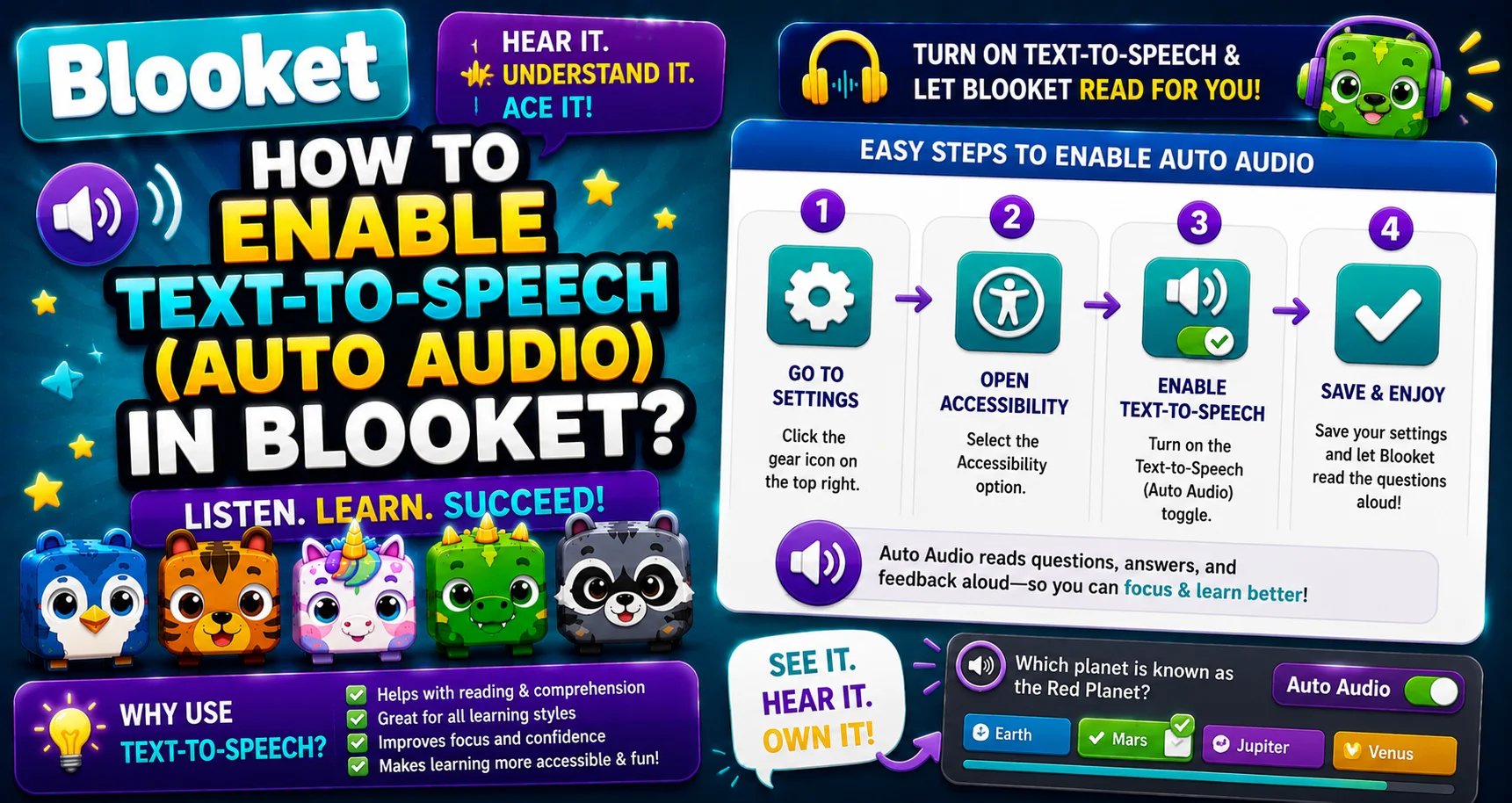
How to Enable Blooket Text-to-Speech?
Blooket Text-to-Speech is a per-session setting, not a permanent account toggle. You turn it on inside a game each time you play, using one of two methods below.
Method 1: Speaker Icon (Quickest Way)
- Start any game in Solo, Homework, or Live mode.
- When a question appears, look for the speaker icon in the top-left corner of the question screen.
- Click or tap the speaker icon.
- Questions and answers will begin reading aloud immediately and continue for the rest of the game.
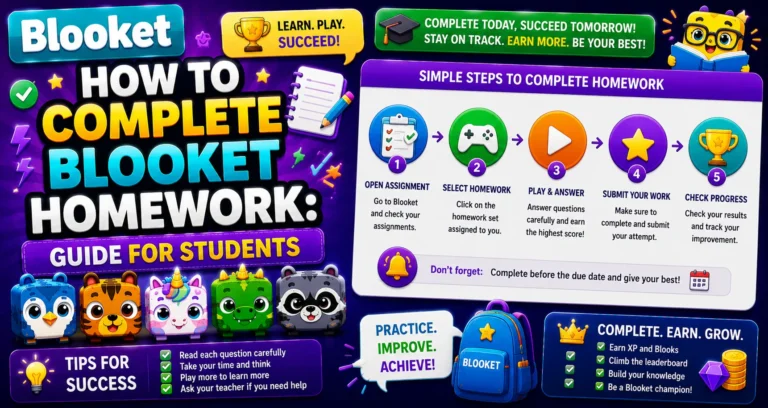
Step-by-Step Guide → How to Complete Blooket Homework
Method 2: Settings Menu (Full Accessibility Controls)
- During any game, click the gear icon in the top-right corner of the screen.
- The Settings menu opens; look for the Accessibility section.
- Toggle on Read Aloud (or Automatic Audio, depending on game version).
- Close the settings menu. TTS is now active for the rest of the session.
💡 Can’t find the icon? → The speaker icon and gear icon both appear during the question phase of any game. If you’re on the game’s loading screen or a non-question screen, wait until your first question appears to access them.
Note: For audio questions your teacher has recorded or uploaded (available with Blooket Plus), audio plays automatically for that question regardless of this setting. The Text to Speech setting applies to the written question text.
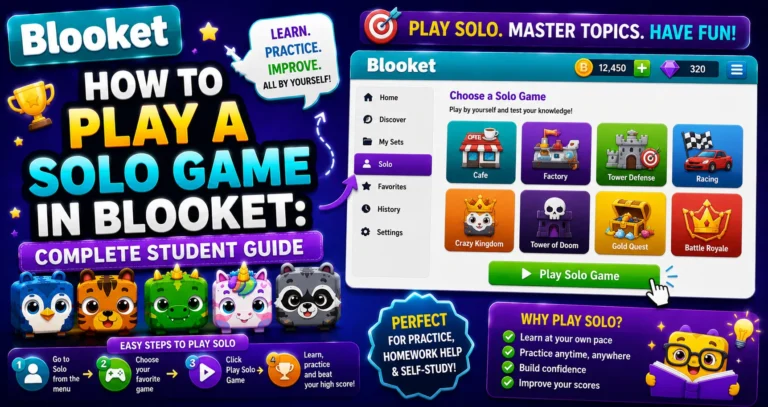
Solo Play Guide → How to Play a Solo Game in Blooket
Why Use Blooket Text-to-Speech?
- Language learning: Hear the pronunciation of vocabulary words as you study them.
- Reading support: Process questions through listening rather than just reading.
- Multitasking: Hear questions while managing game mechanics in complex modes like Tower Defense.
Important Notes
⚠ Device volume must be on. Make sure your device is not muted, and the volume is turned up before enabling Automatic Audio.
→ Works in all game modes: Solo games, Homework, and Live games all support Automatic Audio.
→ The setting resets between games: Re-enable it at the start of each new game session.
→ For homework sessions: Use the same speaker or gear icon during your homework game.
→ Image-only questions: If a question contains only an image with no text, TTS may not read anything for that question.
→ Reading speed: Blooket uses your device’s default TTS voice and speed; there is no in-app speed control.
Source: verified from Blooket’s official “How to Enable Automatic Audio” documentation.
Where to Go Next
- Want to know more about the platform? See our full Blooket overview
- Curious about what your teacher sees? Visit the Blooket For Teachers
- Want the full student guides overview? See the Blooket For Students
Have another question? Please check the Frequently Asked Questions or Blooket Help Center.
Frequently Asked Questions
Does Automatic Audio work on mobile devices?
Yes. The speaker icon and settings gear appear on both mobile and desktop browsers. Make sure your device’s volume is turned up before enabling TTS; it won’t work if your phone is on silent or muted.
Can I change the reading speed?
Currently, Blooket does not offer an in-app speed adjustment for Automatic Audio. The reading speed is controlled by your device’s default text-to-speech settings, which you can adjust in your phone or computer’s accessibility settings.
What languages does Automatic Audio support?
Automatic Audio reads the text of whatever language the question is written in. The quality of the reading depends on the TTS voice available on your device for that language. Most devices handle English well; other language support varies by device.
Does TTS work for image-based questions?
If a question is made up entirely of an image with no text, the TTS engine has nothing to read, so it may be silent for that question. Text-based questions and text answer choices are fully supported.
Can my teacher enable this for the whole class during a Live game?
Currently, Automatic Audio is a student-controlled setting. Each student can independently enable or disable it using the speaker icon or gear icon during any game, including Live games hosted by a teacher.
Do I need to turn on Text to Speech every time I play?
Yes. It’s a per-session setting rather than a permanent account preference, so you’ll need to enable it again at the start of each new game, whether Solo, Homework, or Live.
Is Text to Speech different from teacher-recorded audio questions?
Yes. Teacher-recorded or uploaded audio questions (a Blooket Plus feature) play automatically regardless of your Text-to-Speech setting. Automatic Audio specifically reads the written question text aloud using your device’s TTS engine.