How to Add a Blooket Password: Guide for Google Sign-in
Last verified: August 20, 2026
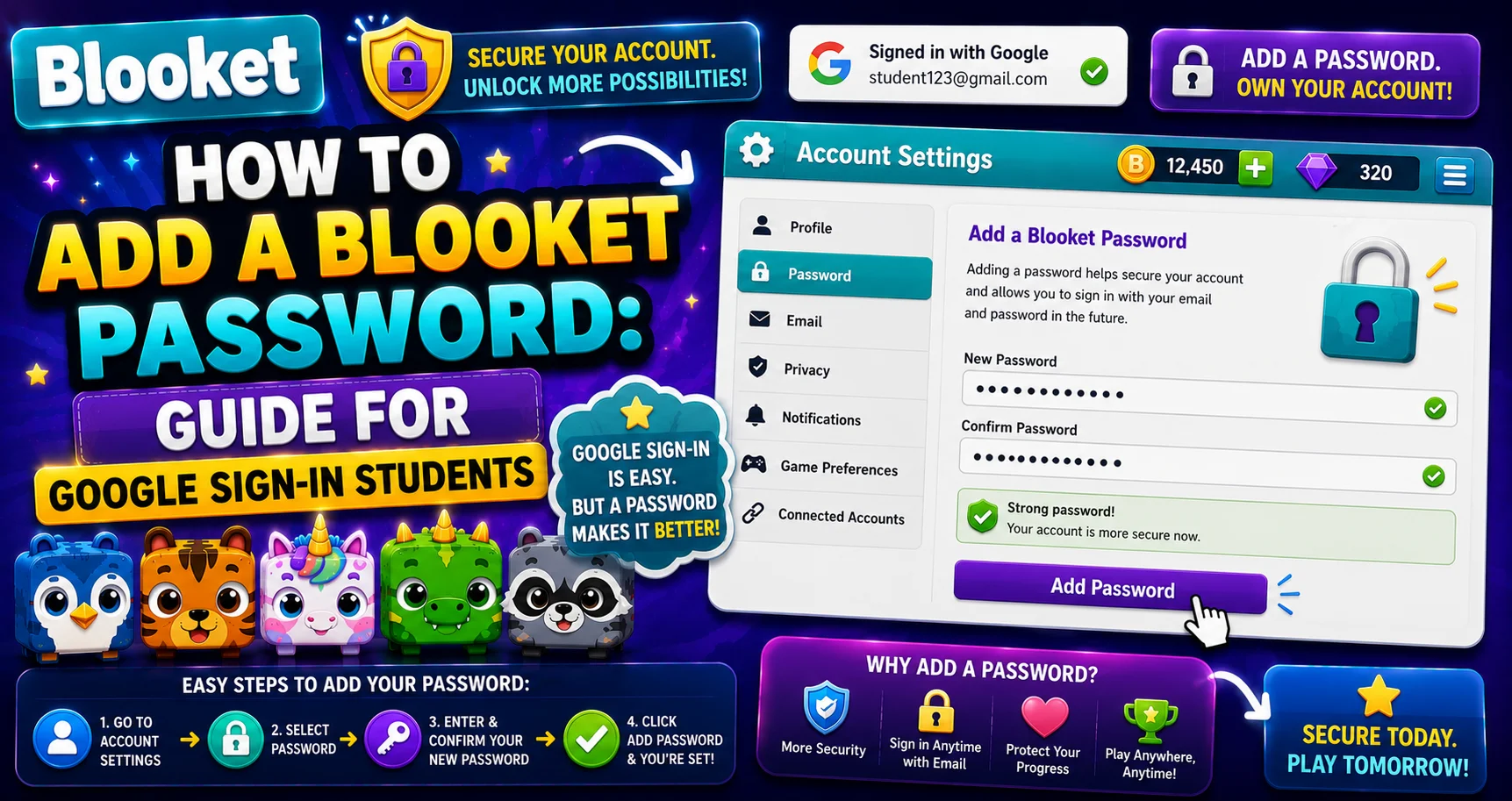
Quick Answer: To add a Blooket password if you signed up with Google, go to Settings, select Request Password Reset under Edit Info, enter your email on the Forgot Password page, then enter the reset code and your new password. Your Google sign-in keeps working too.
How to Add a Blooket Password for Google
If you created your Blooket account by clicking “Continue with Google,” you don’t have a Blooket-specific password yet; your account authenticates entirely through Google.
Adding a password creates an independent login method that works even if your Google account changes, is deactivated, or becomes inaccessible. This detailed guide explains how to add a Blooket password for Google sign-in and more about this.
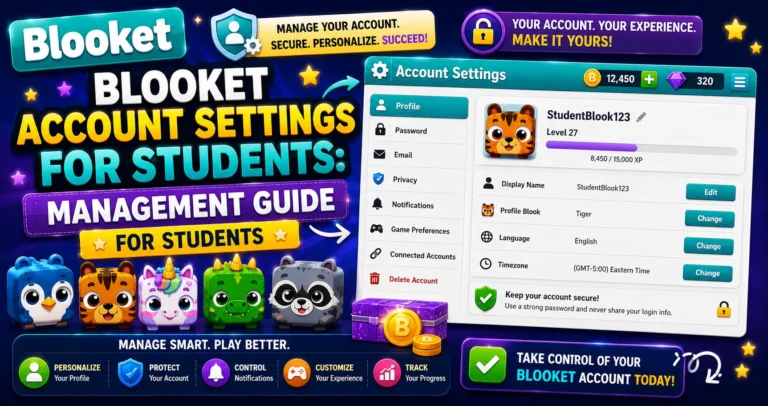
Complete Overview → Blooket Account Settings Guide for Students
Why Add a Password?
→ Your school Google account will eventually be deactivated. When you graduate or leave your school, the school’s Google Workspace account gets deactivated. If “Continue with Google” with that school account is your only Blooket login method, you lose access to your entire account, including your Blook collection.
→ You want login flexibility. A Blooket-specific password lets you log in with email and password from any device without going through the Google authentication flow.
→ Google service disruptions. Rare, but they happen. A password backup means you’re not dependent on a third-party service for your Blooket access.
Steps to Add a Blooket Password
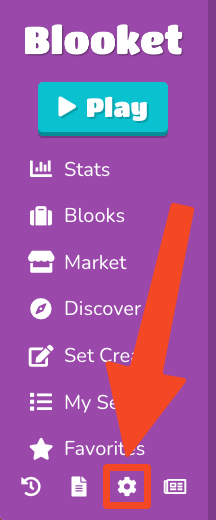
→ Step 1: Navigate to the “Settings” tab.
Click your profile icon, then Settings, or go to dashboard.blooket.com/settings.
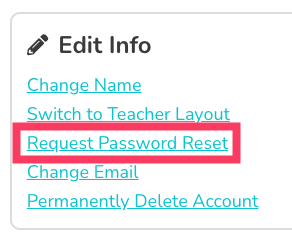
→ Step 2: Under Edit Info, select “Request Password Reset.”
In the Settings page, find the Edit Info section and click “Request Password Reset.”
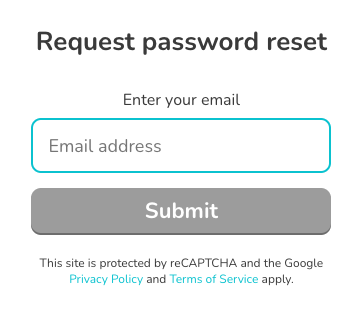
→ Step 3: Enter your email address on the Forgot Password Page (id.blooket.com/forgot).
You’ll be redirected to the Forgot Password page. Even though you do not have a password yet, you will still need to follow these steps. Enter the email address associated with your Blooket account and submit.
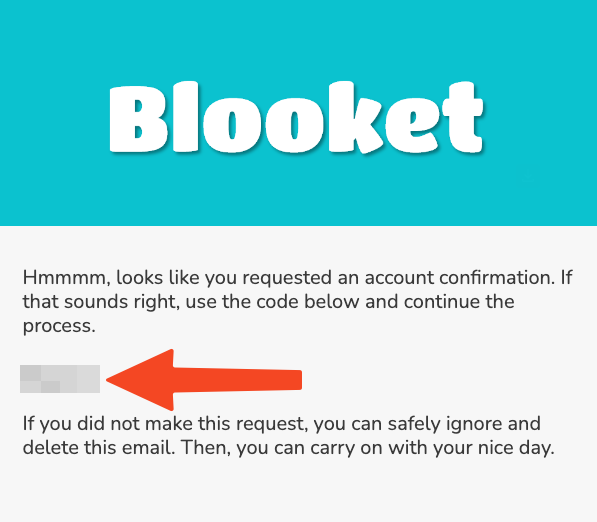
→ Step 4: Leave the window open and check your email. Copy the reset code (a string of numbers).
Blooket sends a numeric reset code to your registered email. Check your inbox; if you don’t see it in 2 to 3 minutes, check spam or junk.
⚠️ Critical: Leave the Blooket window open while checking your email. The reset code is linked to the active browser session. Closing the tab or navigating away requires restarting the process.
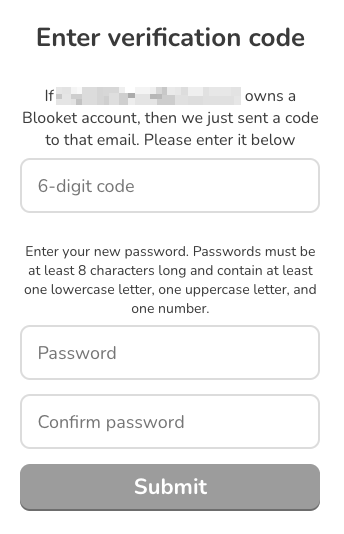
→ Step 5: Return to the open Blooket window and enter your code and new password in the appropriate fields.
Enter the reset code in the code field and create your new password. Click to confirm.
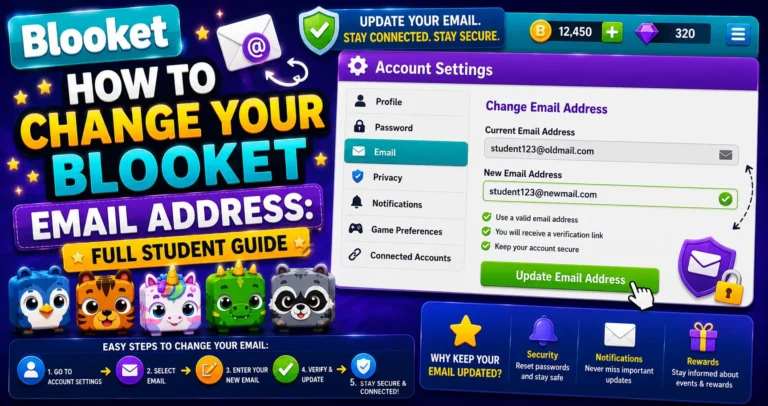
Update your Email first → How to Change Your Blooket Email Address
Password Strength Requirements
Your new password must meet these requirements to be accepted:
- 8 or more characters in total length.
- At least one capital letter (A through Z).
- At least one lowercase letter (a through z).
- At least one number (0 through 9).
- At least one special character (such as !, @, #, $, %, etc.).
Example of a strong password format: BlueMoon#47!
Avoid using your name, school name, or common words; these are guessable even if they meet length requirements.
Source: Verified from Blooket’s official documentation on adding a password.
After Adding Your Password
Once your password is set:
- You can now log in using email and password OR Continue with Google; both methods work.
- If you ever forget this password, use the standard Forgot Password flow on the login page.
- Your existing Google sign-in continues to work; adding a password doesn’t remove it.
If you are still unable to add a password, please get in touch with Blooket support at contact-us@blooket.com.
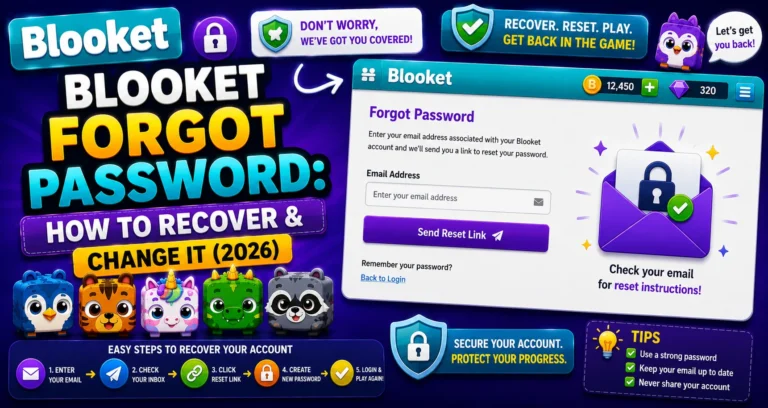
Step-by-Step Guide → How to Recover & Change Blooket Password
Where to Go Next
- Want to know more about the platform? See our complete Blooket guide
- Curious about what your teacher sees? Visit the Blooket For Teachers
- Want the full student guides overview? See the Blooket For Students
Have another question? Please check the Frequently Asked Questions or Blooket Help Center.
Frequently Asked Questions
Will adding a password remove my Google sign-in option?
No. Both login methods work simultaneously after you add a password. You can use email and password OR Continue with Google, whichever is more convenient at the time.
Why does the process use the Forgot Password flow even though I don’t have a password yet?
Because the underlying system treats “no password set” the same way it treats “forgot my password,” using the same reset-code mechanism to securely set your first password.
What happens if I close the browser tab while waiting for the reset code?
You’ll need to restart the entire process. The reset code is tied to that specific active browser session, so closing the tab breaks the connection.
What makes a password meet Blooket’s strength requirements?
At least 8 characters, with one capital letter, one lowercase letter, one number, and one special character. A password like “BlueMoon#47!” meets all five requirements.
Why shouldn’t I use my name or school name in my password?
These are easily guessable, even if they technically meet the length requirement, since they’re often publicly known or easy to find.
What should I do if I never receive the reset code email?
Check your spam or junk folder first. If it still hasn’t arrived after a few minutes, you may need to restart the process from Settings.
Who do I contact if I still can’t add a password after following all the steps?
Email Blooket support directly at contact-us@blooket.com for further assistance.