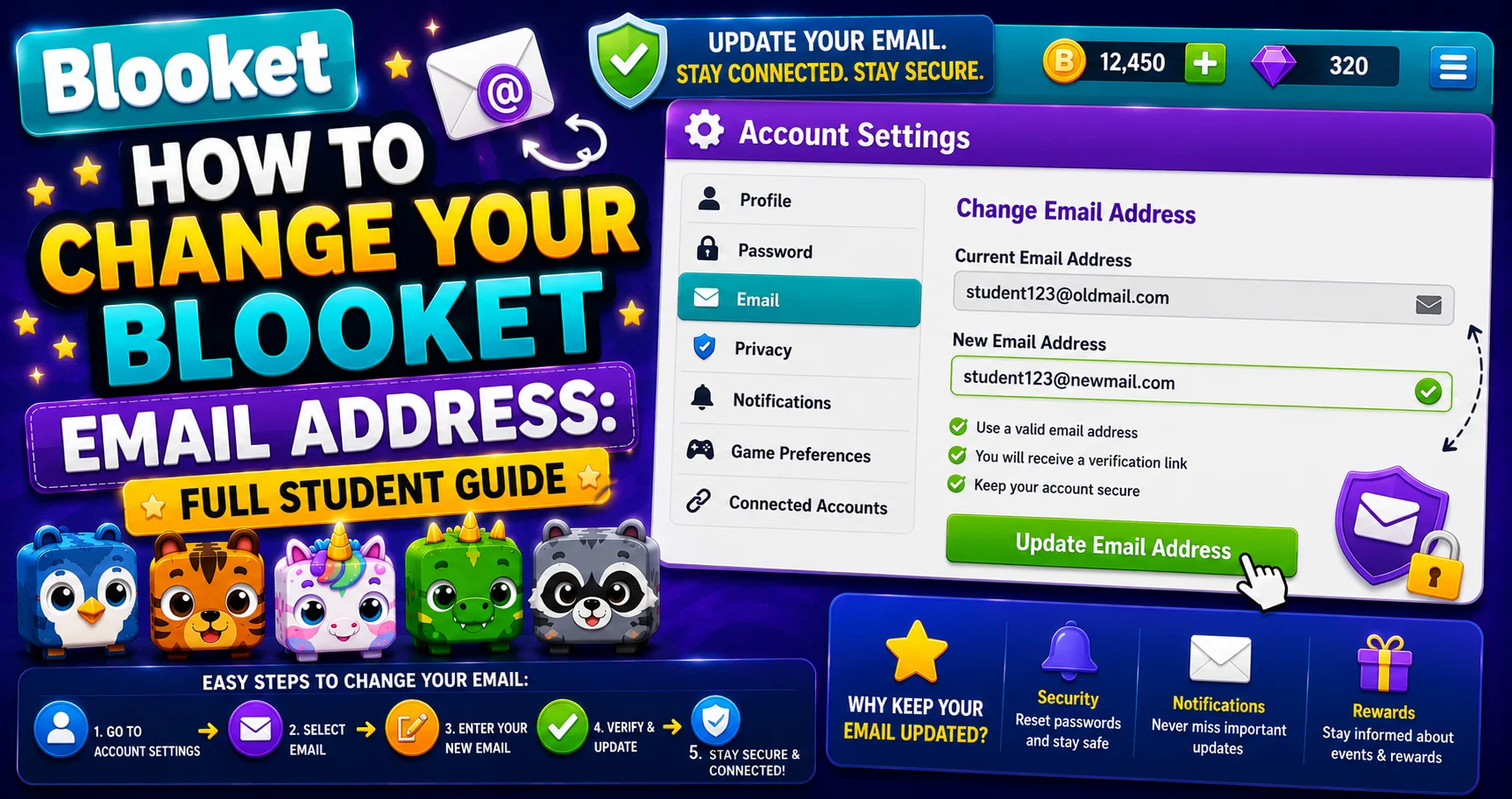
How to Change Your Blooket Email Address: Complete Guide for Students
Last verified: August 20, 2026
Quick Answer: To change your Blooket email, go to Settings, select Change Email, confirm access, verify a code sent to your current email, then verify a second code sent to your new email. The process requires access to both inboxes and takes about 5 minutes.
How to Change Blooket Email Address
Your registered email address is the most important piece of information on your Blooket account. It’s how you receive password reset codes, how Blooket support identifies your account, and the backup recovery method if you ever lose access.
Getting it right and keeping it current protects your Blooks collection and account history. This detailed guide explains all the steps for how to change your Blooket email address and more.
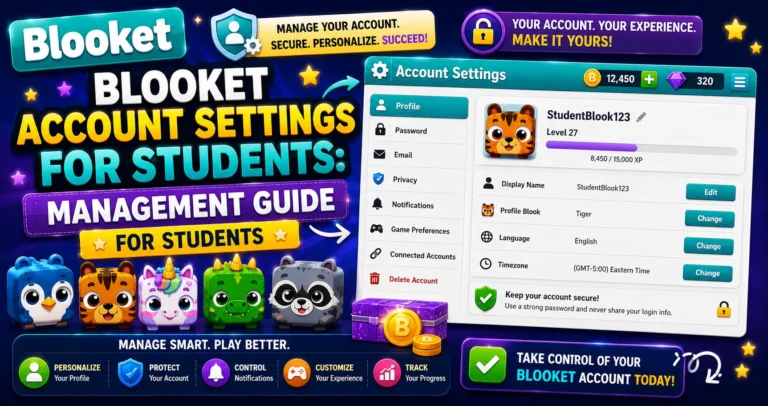
Complete Overview About → Blooket Account Settings for Students
The School Email Problem: Read This First
Many students sign up for Blooket using their school-issued email address. This works perfectly while enrolled, but school email accounts are typically deactivated when students graduate or transfer schools. If your Blooket account is tied to a deactivated school email:
- Password reset codes have nowhere to go.
- Support requests from that email won’t reach you.
- Recovery of the account may become impossible.
Action: If your current Blooket email is a school address, change it to a personal email you’ll keep permanently (Gmail, Outlook, Yahoo, etc.) before you graduate or leave your current school.
Google SSO vs Email/Password Accounts
→ If you signed up with “Continue with Google,” your account authenticates through your Google account. The email change process described below is designed for email/password accounts.
If you signed up with Google, some steps may behave differently, or the option may not be visible. Contact Blooket support at contact-us@blooket.com for assistance with changes to Google-linked account email addresses.
→ If you signed up with an email address and password, follow the full 8-step process below. It applies directly to your account.
How to Change Blooket Email Address:
(Step-by-Step Guide)
This process requires access to your current and new email; both will need to be verified with confirmation codes.
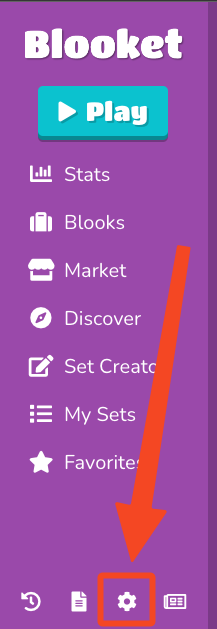
→ Step 1: Navigate to Settings (dashboard.blooket.com/settings).
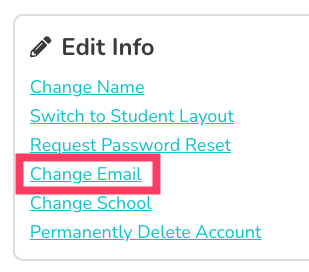
→ Step 2: Select the “Change Email” option in the “Profile” Edit Info section.
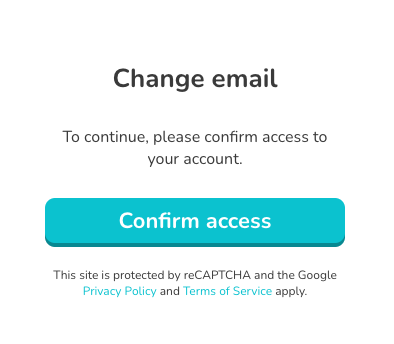
→ Step 3: Click “Confirm access” to verify email ownership.
This step confirms you’re the legitimate account owner before allowing any changes.
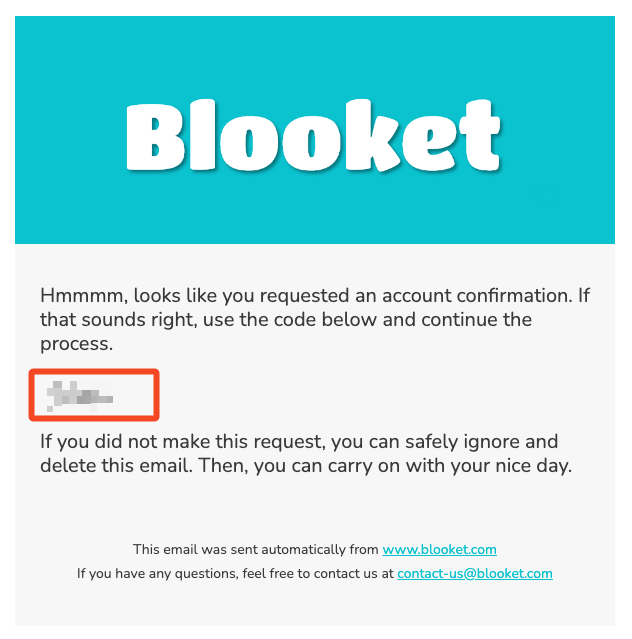
→ Step 4: A verification email will be sent to your current email address with a confirmation code.
Check your inbox immediately. If you don’t see it within 2 to 3 minutes, check your spam or junk folder.
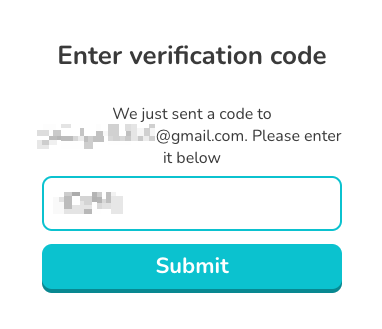
→ Step 5: Enter the confirmation code into the box on the page and click “Submit.”
⚠️ Critical: Leave the Blooket window open while you check your email. Do not close the tab or navigate away; the verification session is tied to this open window. If you close it, you’ll need to restart the process.
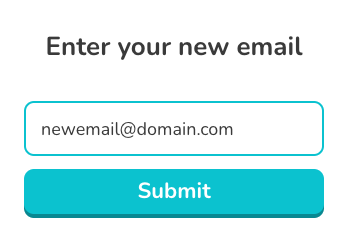
→ Step 6: Once confirmed, enter your new email address and click “Submit” to receive an additional verification code for your new email.
This second submission sends a verification code to your new email address to confirm you own it.
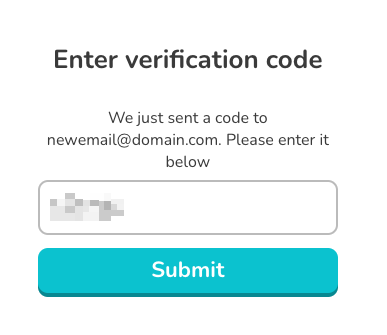
→ Step 7: Retrieve the new verification code from your new email and enter it into the box before clicking “Submit.”
Check the inbox of your new email address. Again, leave the Blooket window open while you do this.
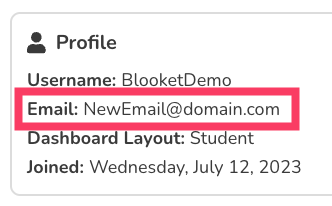
→ Step 8: That’s it! Your new email address will be reflected in the “Profile” section of your Settings page.
Confirm the change worked by checking the Profile section of Settings; your new email should now appear there.
Password Management Guide → How to Add a Blooket Password (Google Sign-in)
Troubleshooting For Issues
Verification code not arriving:
- Check the spam/junk folder in both your old and new email accounts.
- If using a school email, your school’s spam filter may be blocking automated emails; try adding Blooket to your safe-senders list or use a personal email.
- Codes have a limited validity window; if expired, restart the process.
Change Email option not visible:
Your account may be a Google SSO account; contact support at contact-us@blooket.com.
“Email already in use” error:
The new email address is already linked to another Blooket account; use a different email address. Please get in touch with support at contact-us@blooket.com if you need additional help.
Source: verified from Blooket’s official documentation on changing your email address.
Where to Go Next
- Want to know more about the platform? See our full Blooket guide
- Curious about what your teacher sees? Visit the Blooket For Teachers
- Want the full student guides overview? See the Blooket For Students
Have another question? Please check the Frequently Asked Questions or Blooket Help Center.
Frequently Asked Questions
Why does changing my email require two verification codes?
One code confirms you still control your current email, and the second confirms you actually own the new email address. This two-step verification protects your account from unauthorized email changes.
What happens if I close the Blooket tab during the verification process?
You’ll need to restart the entire process. The verification session is tied to that specific open browser window, so closing it breaks the connection between your codes and your account.
Can I change my email if I signed up with Google?
The standard 8-step process is designed for email/password accounts. If you signed up with Google, contact Blooket support at contact-us@blooket.com, since some steps may behave differently or may not be visible.
Why should I avoid using my school email for Blooket?
School email accounts are typically deactivated after graduation or transfer, which can permanently cut off your password reset codes and support access, potentially locking you out of your account entirely.
What should I do if I never receive the verification code?
Check the spam or junk folder in both inboxes first. If you’re using a school email, its spam filter may be blocking Blooket’s automated emails; adding Blooket to your safe-senders list or switching to a personal email can help.
What does the “Email already in use” error mean?
It means the new email address you entered is already linked to a different Blooket account. You’ll need to use a different email, or contact support if you believe this is an error.
How long do verification codes stay valid?
They have a limited validity window. If your code expires before you enter it, you’ll need to restart the email-change process to receive a fresh one.